







Getting Started with Your POS
Welcome to Bottle POS! This article covers some things you'll need to configure in the Admin before

 June 10, 2026
Follow the steps below to install the latest version of the Bottle POS desktop app.
Please read through the following checklist for things you need before starting the update:
⚠️ Important: Do not close the application during installation or restart your computer mid-update. Wait for each step to fully complete before moving on.
When you open the Bottle POS app, you may see a prompt indicating that an update is available or required. Follow these steps to install it:
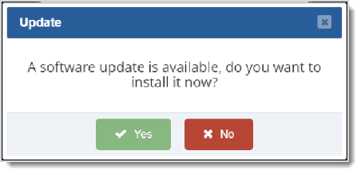
✅ Success: If the login screen appears immediately after opening the app, the update was successful! You can skip to the Printer Setup section if needed or simply log in and continue as normal.
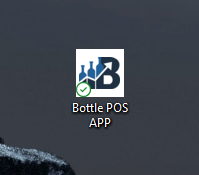
The new desktop icon for the software will look like the one pictured below. It is safe to delete the old icon, as you should not be using it moving forward.
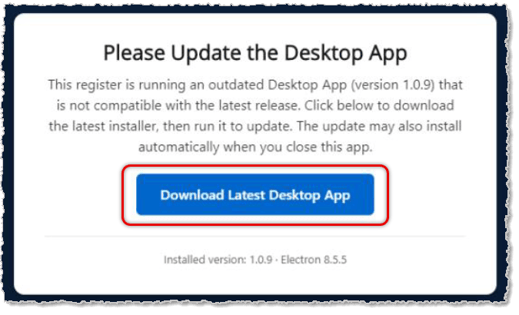
A prompt will appear on your login screen indicating that your current version is outdated. Click the blue Download Latest Desktop App button to begin.
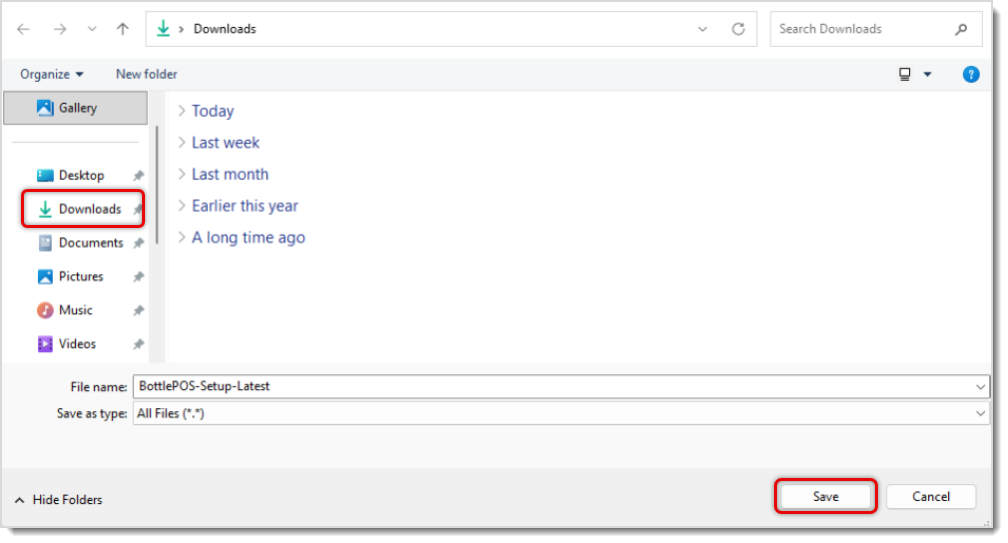
A file download window will open. Save the file to your Downloads folder.
Once the file has finished downloading, locate it in your Downloads folder and double-click it to begin installation.
⚠️ Important: You may see a blue “Windows Protected Your PC” warning. This is expected for new app releases. Follow the steps below to proceed safely.
If the Windows security prompt appears:
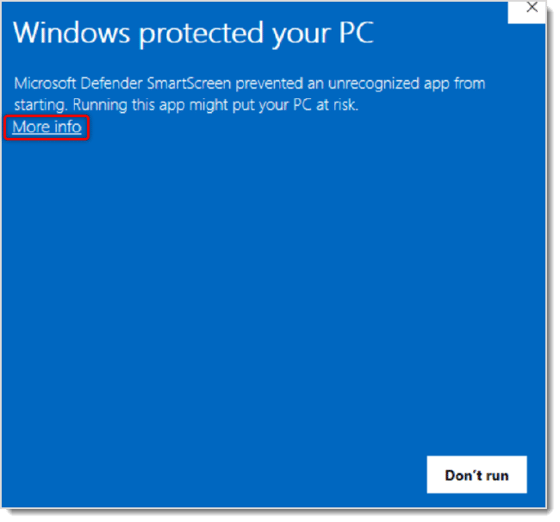
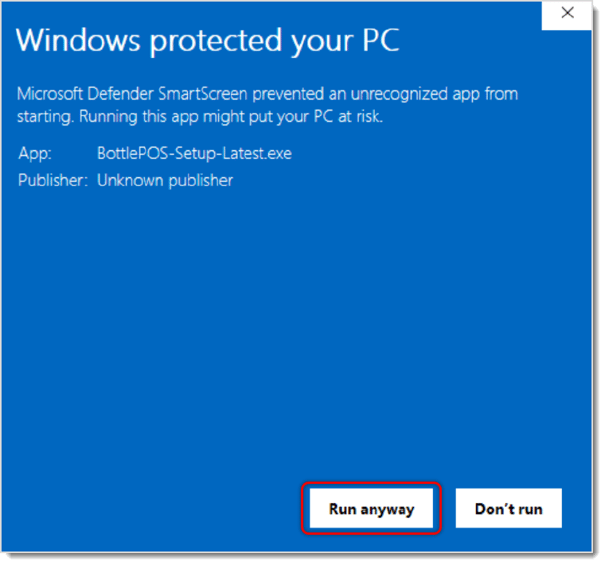
The installer will run after you’ve selected the Run Anyway option. Once it finishes, the Bottle POS application will open. You can expect to see multiple loading/initialization screens as this installation process is executed.
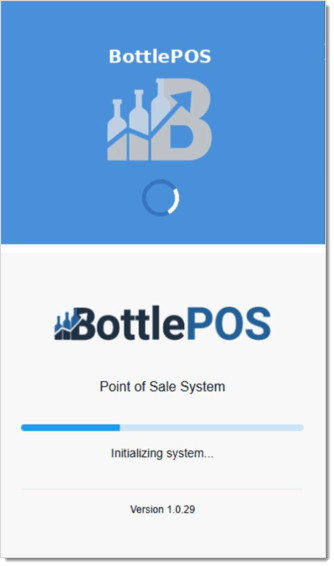
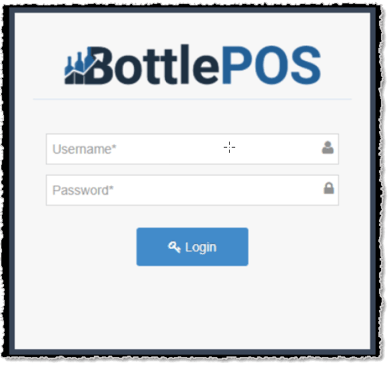
✅ Success: If the login screen appears immediately after opening the app, the update was successful! You can skip to the Printer Setup section if needed, or simply log in and continue as normal.
The new desktop icon for the software will look like the one pictured below. It is safe to delete the old icon, as you should not be using it moving forward.
If you see a Welcome to Bottle POS screen instead of the login screen after installation, your store URL needs to be re-entered. This is a one-time setup step.
Step 1 — Open Store Settings
On the Welcome to Bottle POS screen, click the Configure Store Settings button. A POS Settings window will open.
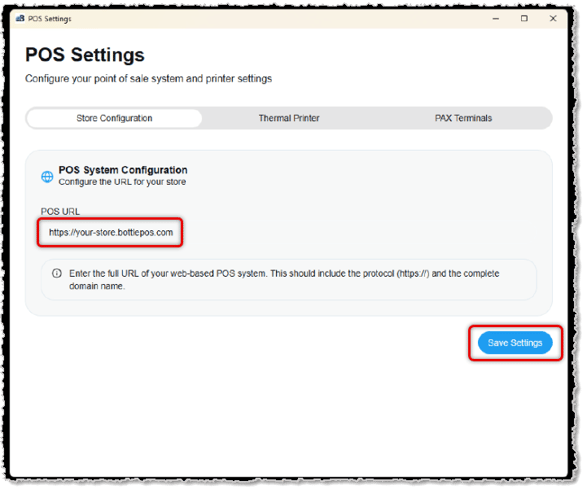
Step 2 — Enter Your Store URL
⚠️ Important: Do not include /admin at the end of the URL. Only enter the base store address.
Step 3 — Save and Close
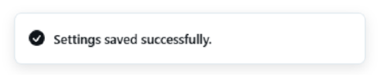
Click the Save Settings button, pictured above. A Settings Saved Successfully notification will appear in the bottom-right corner of your screen.
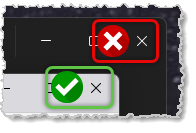
Close the POS Settings window by clicking the X in the upper-right corner of the settings window — not the X behind it.
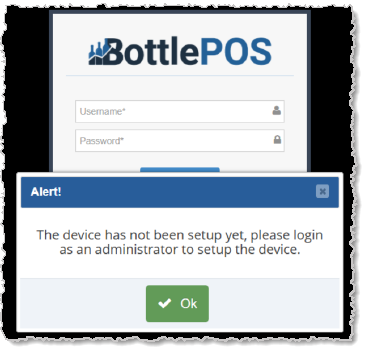
ℹ️ Note: After saving, the login screen will appear. You may also see an “Alert!” dialog — simply click OK to dismiss it.
When logging in for the first time after the update, you may be prompted to register this device. This links your register to the correct location in your system.
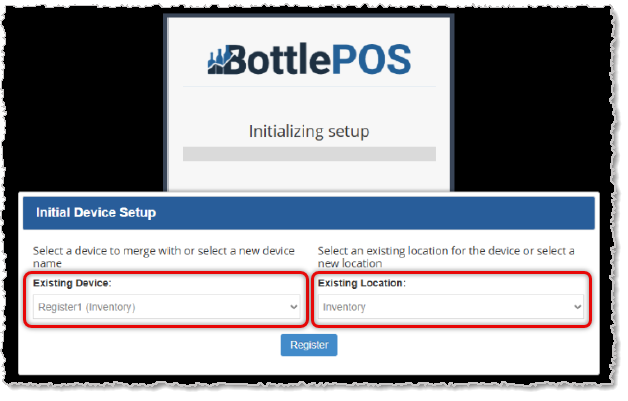
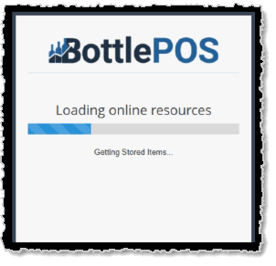
✅ Success: Once loading completes, you will be redirected to your register screen. Your system is ready to use!
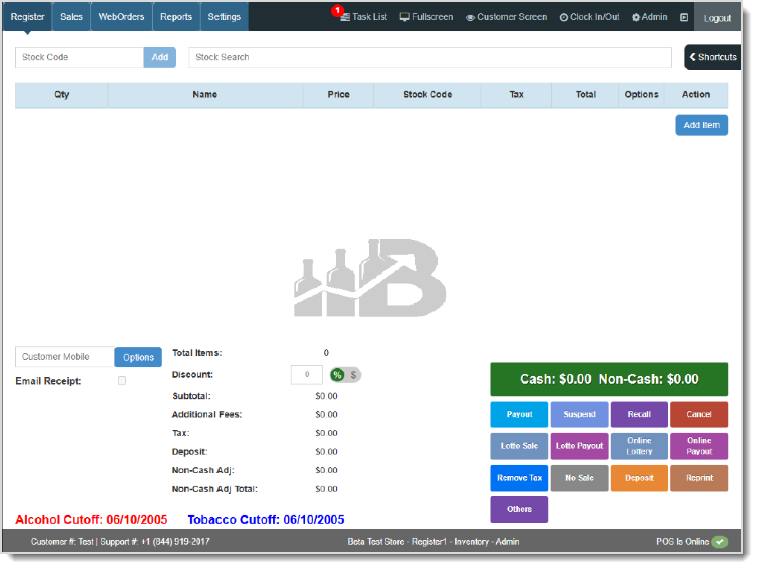
If your receipt printer stops working after the update, you’ll need to reconfigure it. This is a quick one-time step.
Step 1 — Open Printer Settings
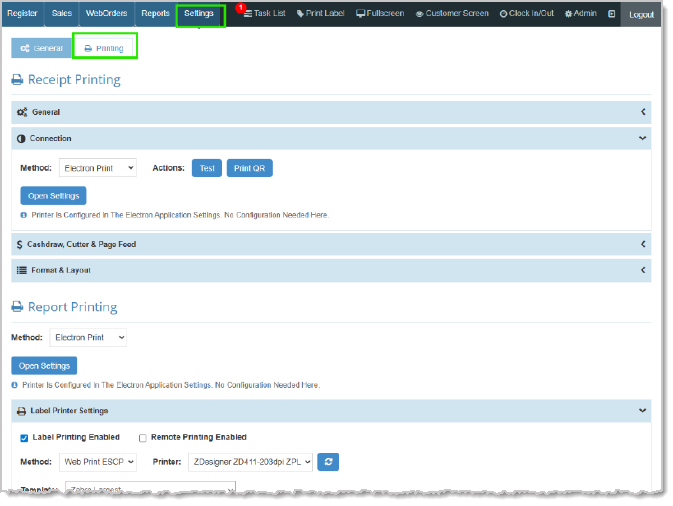
Step 2 — Update the Print Method
Step 3 — Configure the Thermal Printer
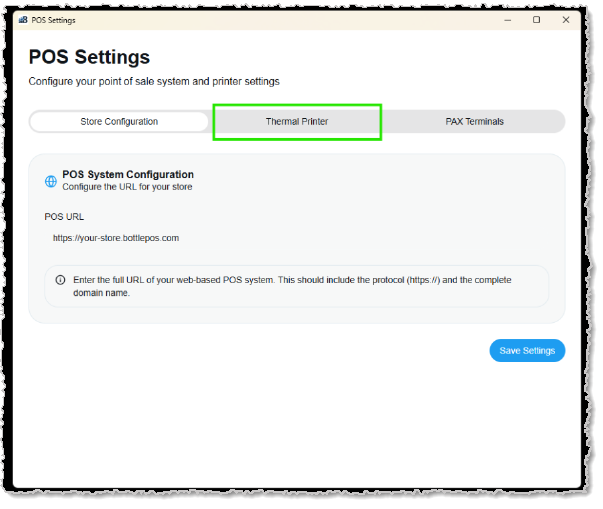
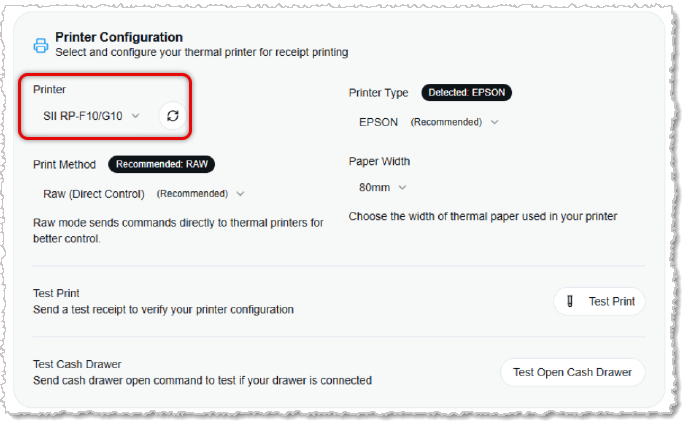
Step 4 — Save and Return
✅ Success: Your receipt printer is now configured. You can use the Test Print button to verify it’s working correctly.
Q: I have a question, but I can't find my answer here, how do I get more assistance?
A: You can ask any question at the number below. Contact our 24/7 support team at: (877) 381-4087
Is this page helpful?
×Help us improve our articles