






Managing Timesheet Entries
It's common for employees to forget to clock in or out and when that happens you need an easy option

 October 01, 2024
Welcome to Bottle POS! This article covers some things you'll need to configure in the Admin before you start working with the POS Register itself. Take a look!
You can get to this part of the system by logging into your Admin app.
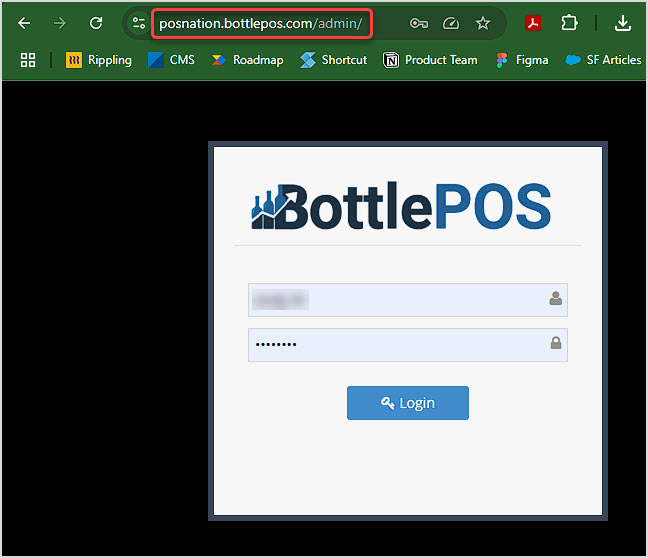
In your web browser (we recommend Microsoft Edge or Google Chrome) go to https://yourbusinessname.bottlepos.com/admin
Here are some examples of what that looks like:
If you do not have your website link yet, please contact your Customer Success Manager for assistance. Call 877-727-3548 and use option 2 for Customer Success. If you haven't yet received your Username and Password, make sure you get that information.
Once the login prompt loads, enter your Username and Password and click the Login button.
Now that you're logged in, the first order of business is to verify your business details. These business details are important because the information provided in this panel will appear within multiple areas of the software.
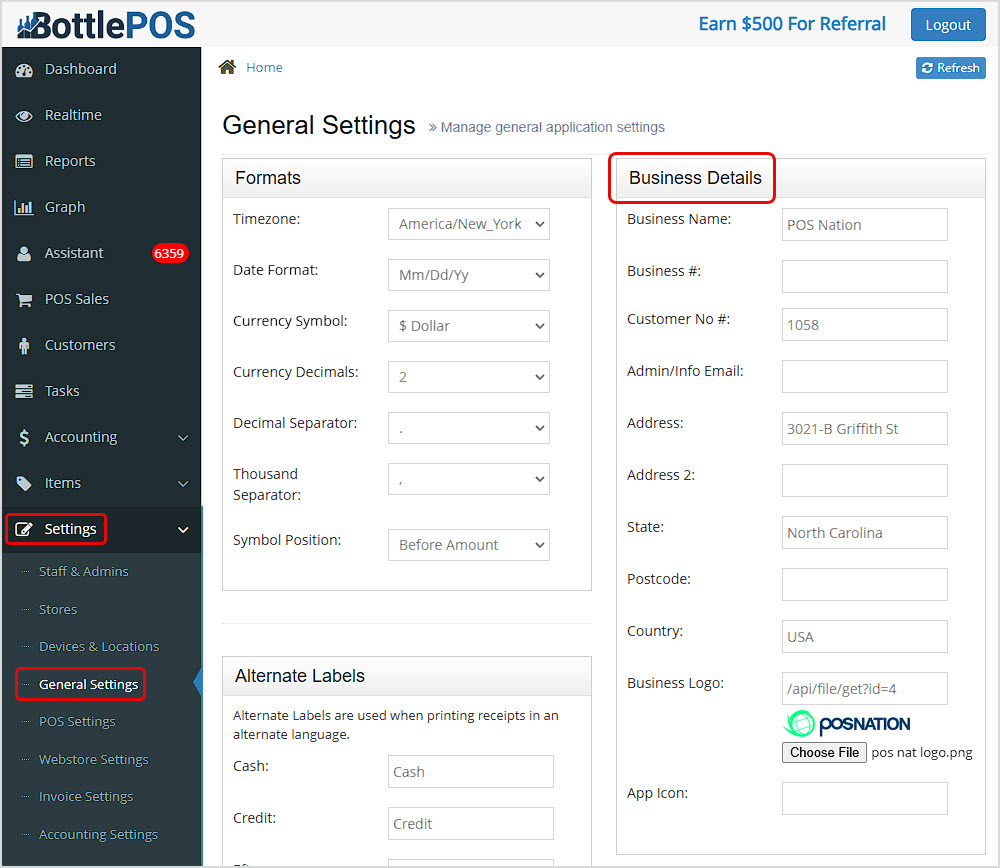
Click Settings on the left and in the menu that opens, click General Settings. Locate the Business Details panel on the right and update anything necessary in the following areas:
For more information on the other settings listed in the General Settings area, please review the following article: General Settings
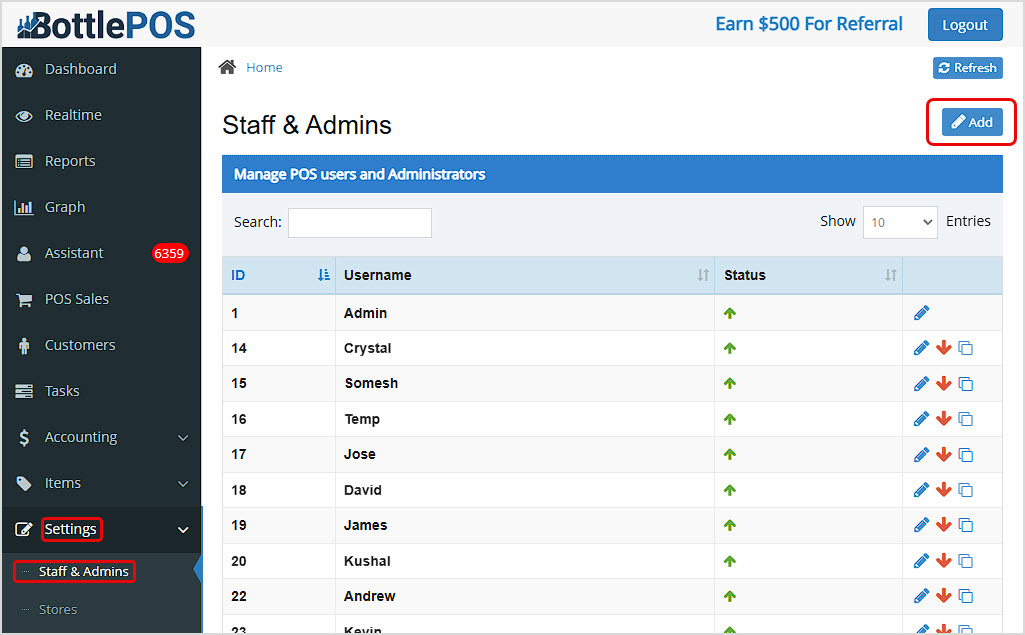
Your next step is to add new user accounts for your staff so that they can access the software with personalized permissions. All the information you need can be found in the following article: How to Add Employees
You can use the Add button on the Settings > Staff & Admins page to create new User accounts.
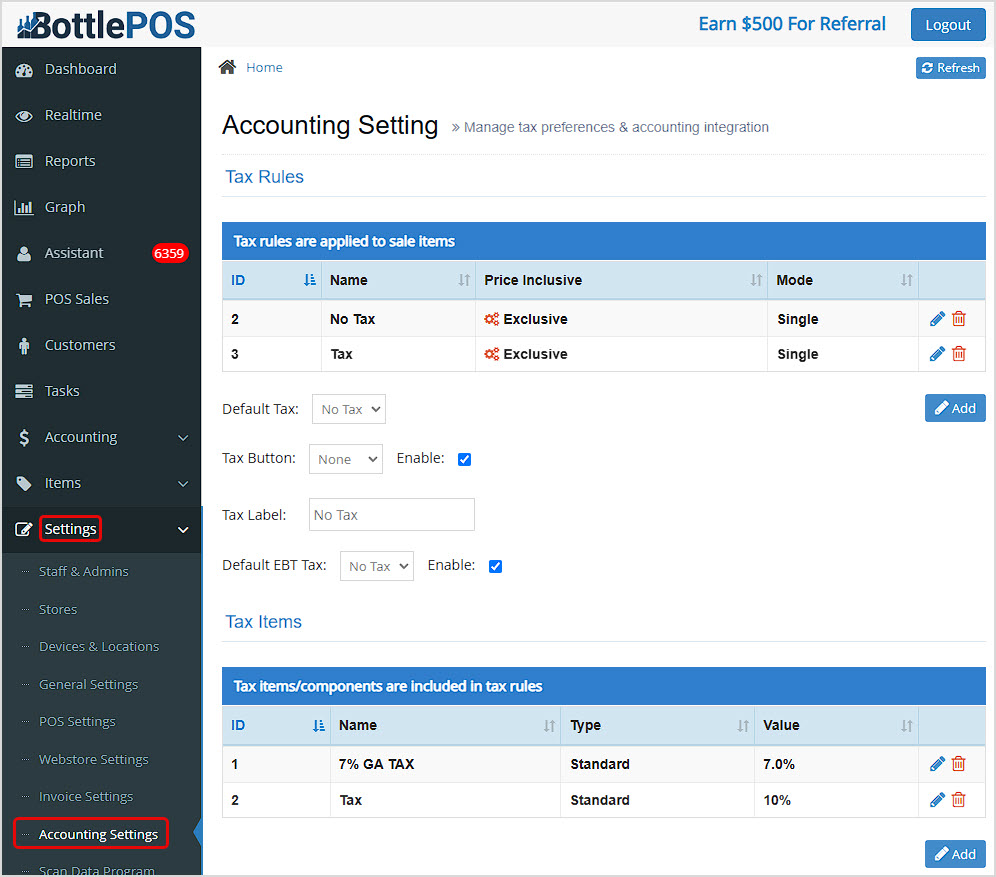
Next take a look at the sales tax information for your business. If you don't know the sales tax rate for your location, we highly recommend consulting your accountant. Review the following article for information on how to adjust your sales tax rate: How to Set Up Sales Tax
You can work with your taxes under Settings > Accounting Settings.
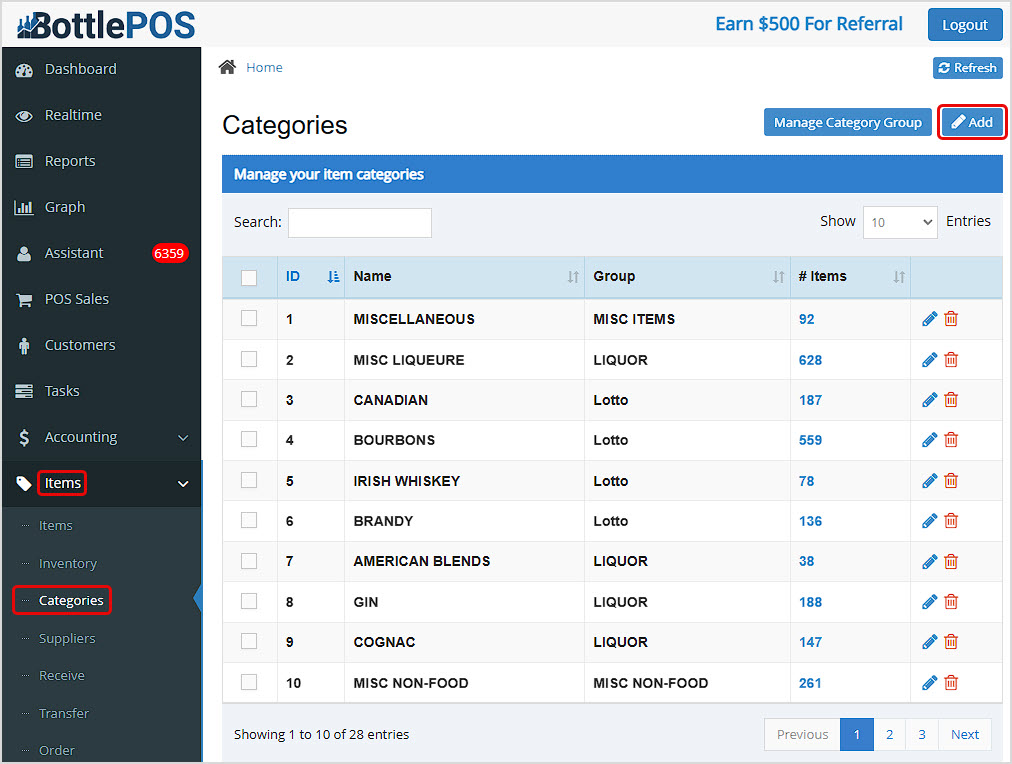
After completing your tax rate setup, the next step is to add Categories for your items. Categories are groups for organizing your items for reporting and reference purposes. Review the following article for information on adding new Categories: How to Manage Categories
You can use the Add button on the Items > Categories page to create your Categories.
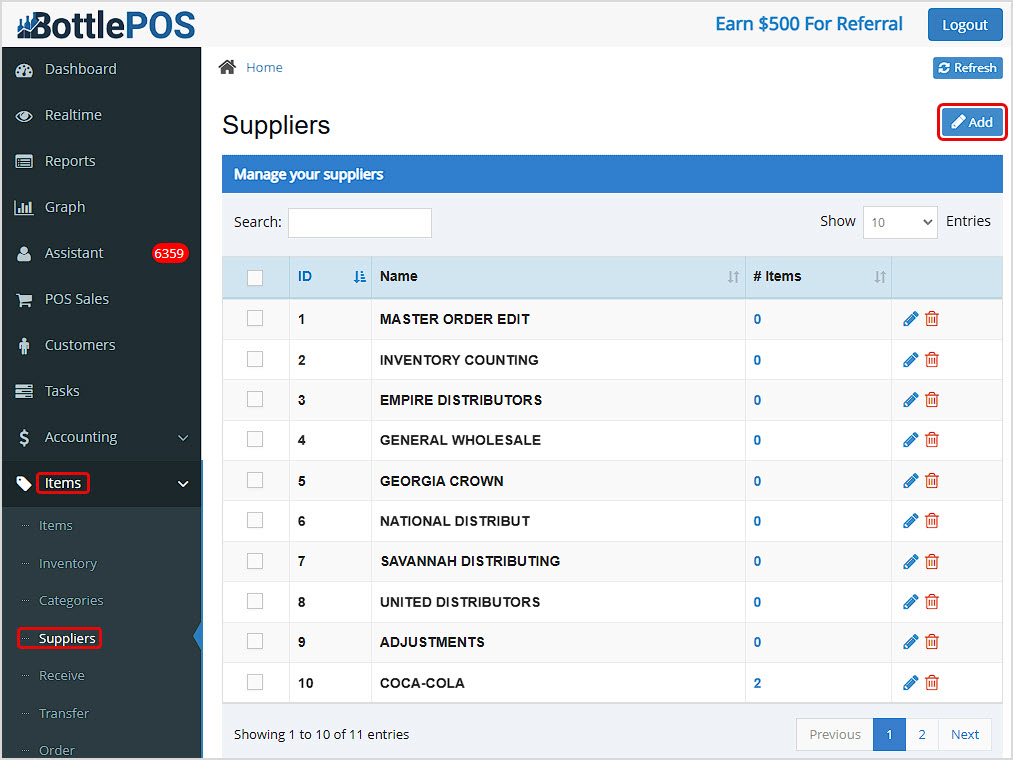
Also known as Vendors, Suppliers are the companies from whom you order your stock. We highly recommend adding your Suppliers so you can use your POS to track important inventory management facets of your business. When creating a new inventory item, it is highly recommended that you specify a Supplier. Review the following article for all the information you need to add a new supplier: How to Manage Suppliers
You can add your Suppliers using the Add button on the Items > Suppliers page.
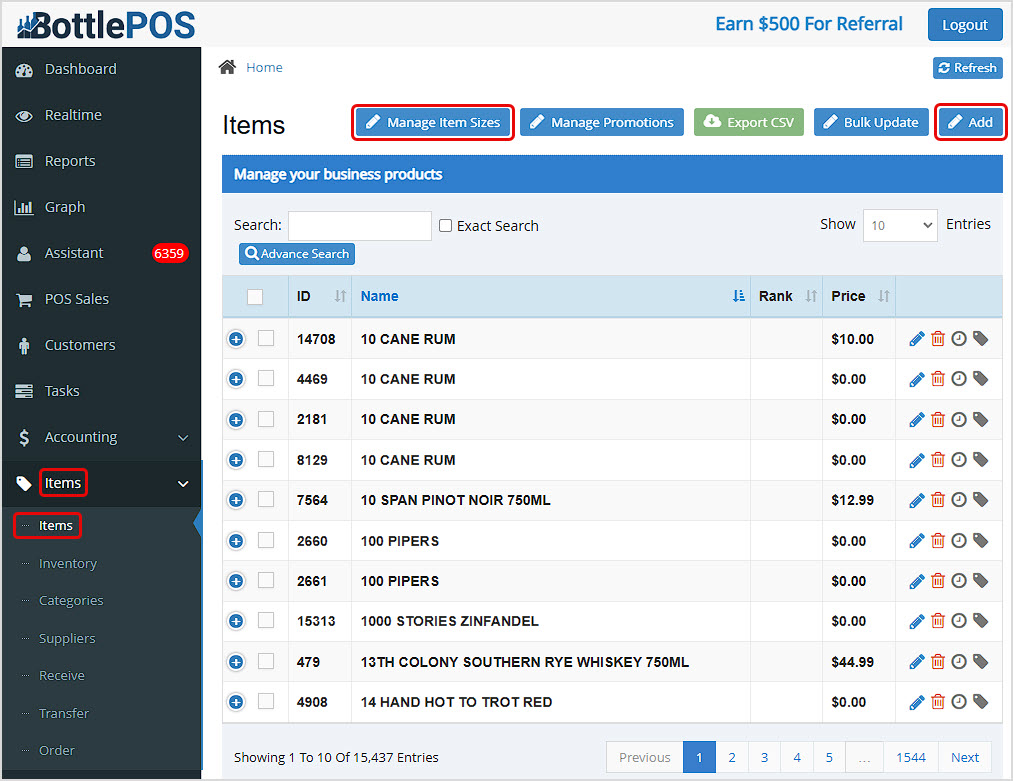
At this point, you're now ready to add Items to the database. Review the following article for all the information you need to add a new item to your inventory: How to Add an Inventory Item
It is recommended to add your item sizes before you create items. Click the Manage Item Sizes button to enter them. You can add Items to the system on the Items page at the top of the Items menu using the Add button.
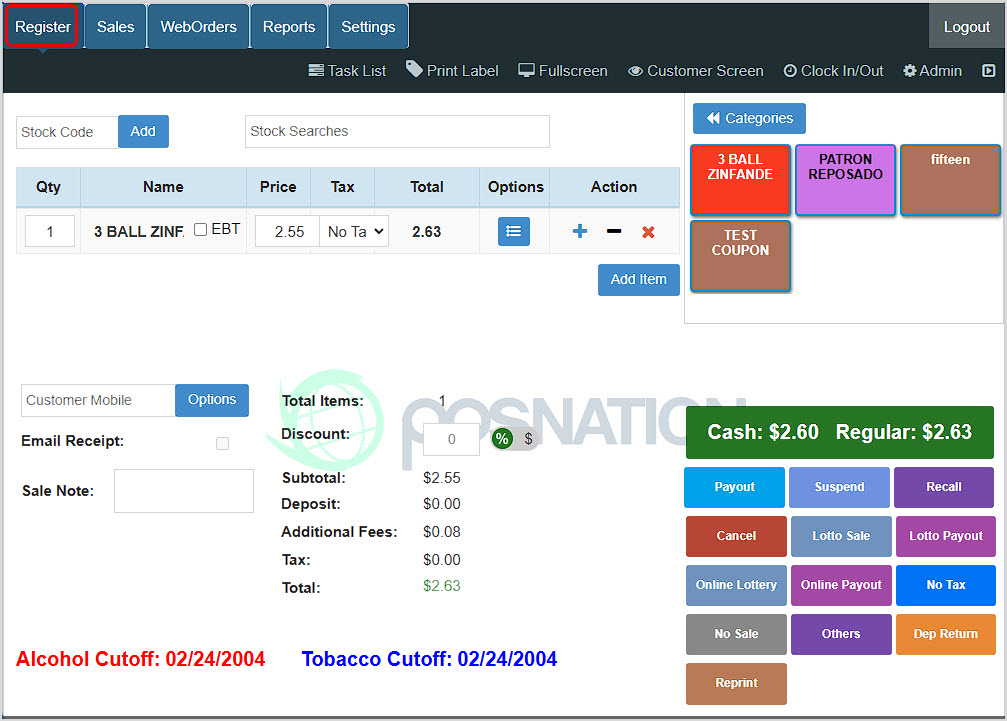
Finally, it's time to make some money! With your inventory items created, you can start using the Point of Sale (POS) to ring up items and complete transactions. Review the following article for all the information you need on running transactions with the Bottle POS Register: Ringing Up Sales With the POS
You can get to this area by logging into your Register app. It will open into the Register area automatically.
Q: Do I need to add suppliers to my Bottle POS?
A: Though it is not required, we highly recommend adding Suppliers to your Bottle POS. You can associate your supplier with each inventory Item which will ultimately assist you with reporting and ordering.
Q: How many items can I add to my system?
A: We offer unlimited space for the storage of items with our Bottle POS.
Q: How do I backup my data?
A: Your Bottle POS is a cloud-based software. You never need to worry about backing up your data.
Q: I have a question, but I can't find my answer here, how do I get more assistance?
A: You can ask any question at the number below. Contact our 24/7 support team at: (877) 381-4087
Is this page helpful?
×Help us improve our articles