






Reprinting Transaction Receipts
Reprinting a Transaction Receipt You can reprint transaction receipts from the Bottle POS and Admin.

 September 15, 2026
Bottle POS now lets you associate specific barcodes (stockcodes) with specific Quantity levels on an item. When a cashier scans a barcode that has a quantity association, the correct quantity is applied automatically — no manual selection needed. This is especially useful for case-break items sold in multiple sizes, each carrying their own unique barcode. Take a look at how to set it up and use it!
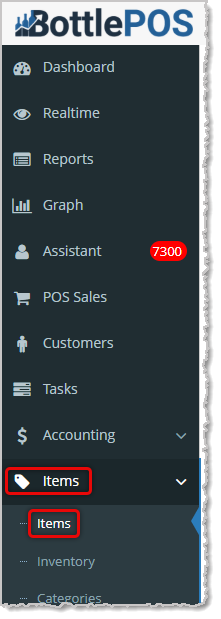
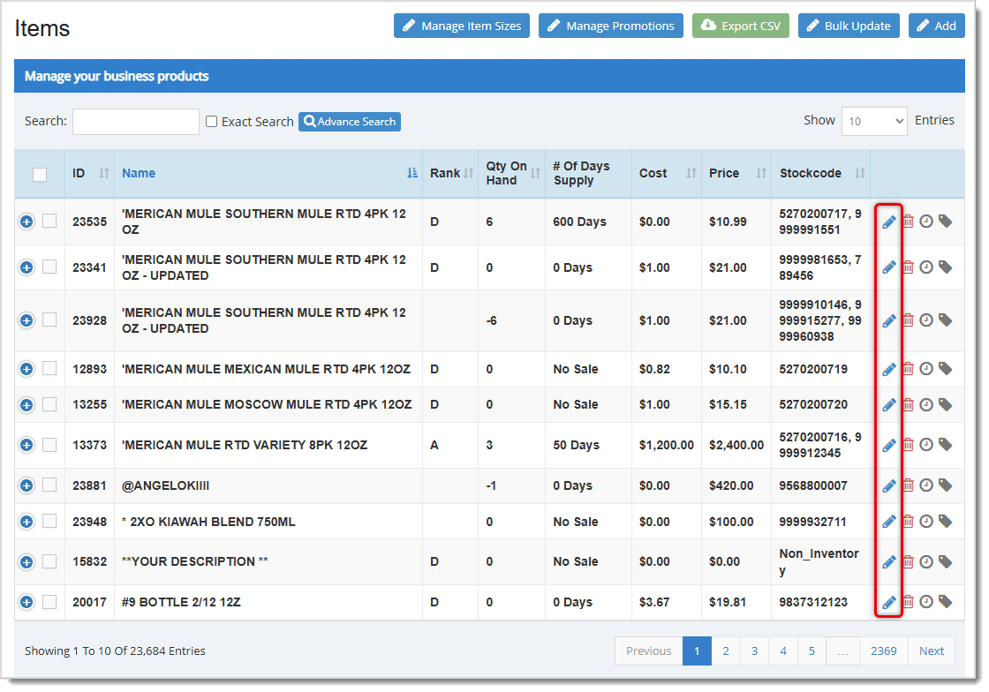
Here is how to configure the feature for an item:
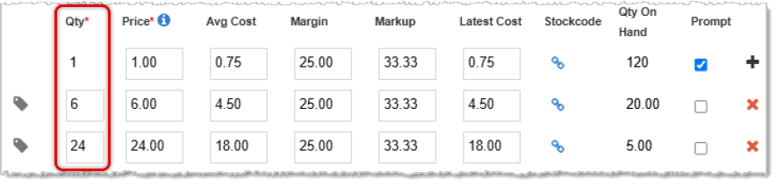
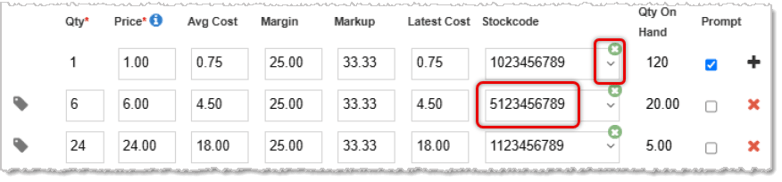
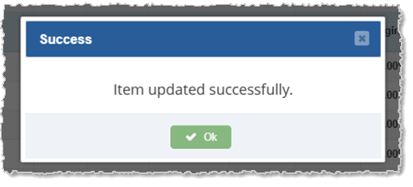
Once stockcode-quantity associations are saved for an item, the Register handles barcode scans as follows:

If the Stockcode has a Quantity Association - The correct Quantity is applied automatically when you scan the barcode. No prompt appears for the cashier — the item is added to the sale instantly with the right Quantity and Price tier.
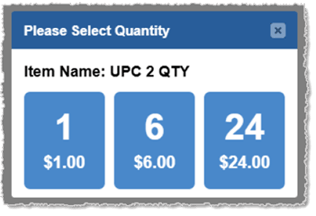
Keep the following in mind when configuring stockcode-quantity associations:
1. One Stockcode Per Quantity Row - Each quantity row supports a single Stockcode (1:1 mapping). Assigning multiple barcodes to one Quantity tier is not available at this time.
2. The stockcode Field Is Optional - You do not need to assign a Stockcode to every row. Blank rows remain valid — the system falls back to the standard quantity-selection prompt for any row without a mapping.
3. No Duplicate Stockcodes Within an Item - If you assign the same Stockcode to two different Quantity rows on the same item, the duplicate entry will be cleared automatically and a warning will appear.
4. Non-Existent Stockcodes - If you type or scan in a stockcode that does not yet exist in your system, a prompt will appear asking if you want to add it as a new Stockcode or if you wish to cancel.
Q: Do I have to configure this for every item?
A: No. This feature is entirely optional. Items without stockcode-quantity associations will continue to work exactly as they do today. You can roll it out gradually — starting with the items that will benefit most, such as products you sell in multiple case sizes.
Q: What happens if I scan a barcode I haven't configured yet?
A: If the scanned stockcode has no quantity association on file, the register will show the standard quantity-selection prompt — the same behavior as before this feature was introduced.
Q: Can I assign the same barcode to more than one quantity level on an item?
A: No. Within a single item, each stockcode can only be mapped to one quantity row. If you try to use the same stockcode on two different rows of the same item, the duplicate will be cleared automatically and you will see a warning.
Q: Will setting this up affect my existing items or data?
A: No. All existing items with no stockcode-quantity associations configured will behave identically to how they work today. This feature adds new functionality without changing any existing behavior.
Q: I have a question, but I can't find my answer here, how do I get more assistance?
A: You can ask any question at the number below. Contact our 24/7 support team at: (877) 381-4087
Is this page helpful?
×Help us improve our articles