Downloading Transactions

October 01, 2024
The Bottle POS Admin allows you to download all of your transactions or just the ones you want as needed. Take a look at what you can do!
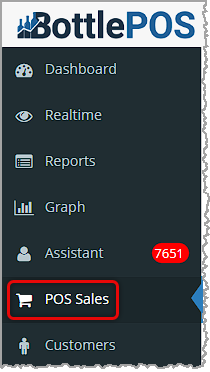
Downloading Transactions in the Admin
Downloading Transactions One at a Time
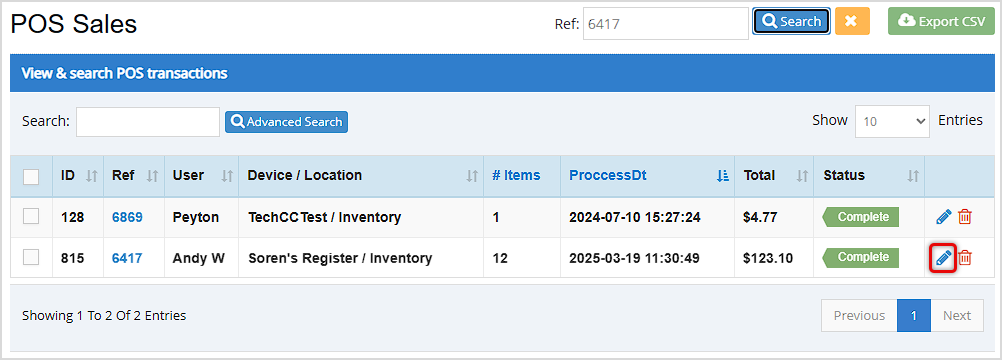
- Search for the transaction you want using either Ref Search at the top (you can use the last few digits in the Ref ID), the Search just above the data table (you can search by any number, name, date, or amount), or you can use the Advanced Search using any information you might have about the transaction.
- Click the Pencil icon for the transaction on the far right, as shown below. The Transaction Details window will open.
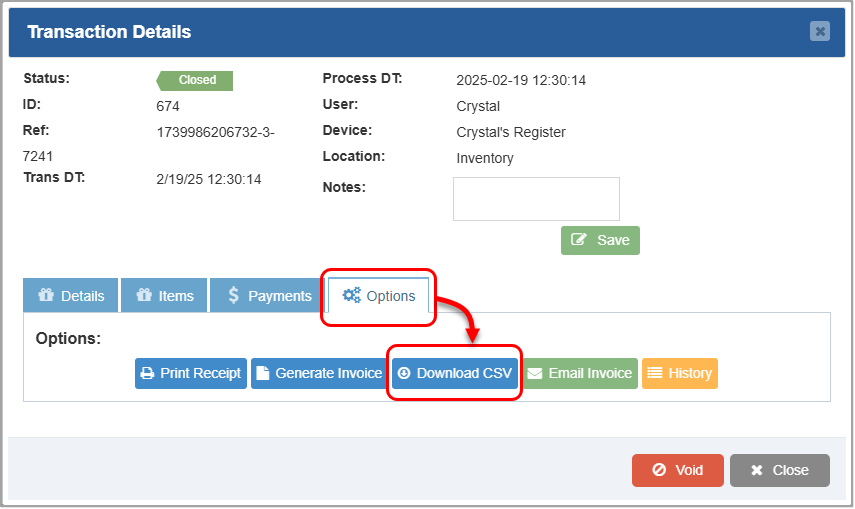
- Click the Options tab.
- Click the Download CSV button. The file will download to your computer.
Download Multiple Transactions at Once
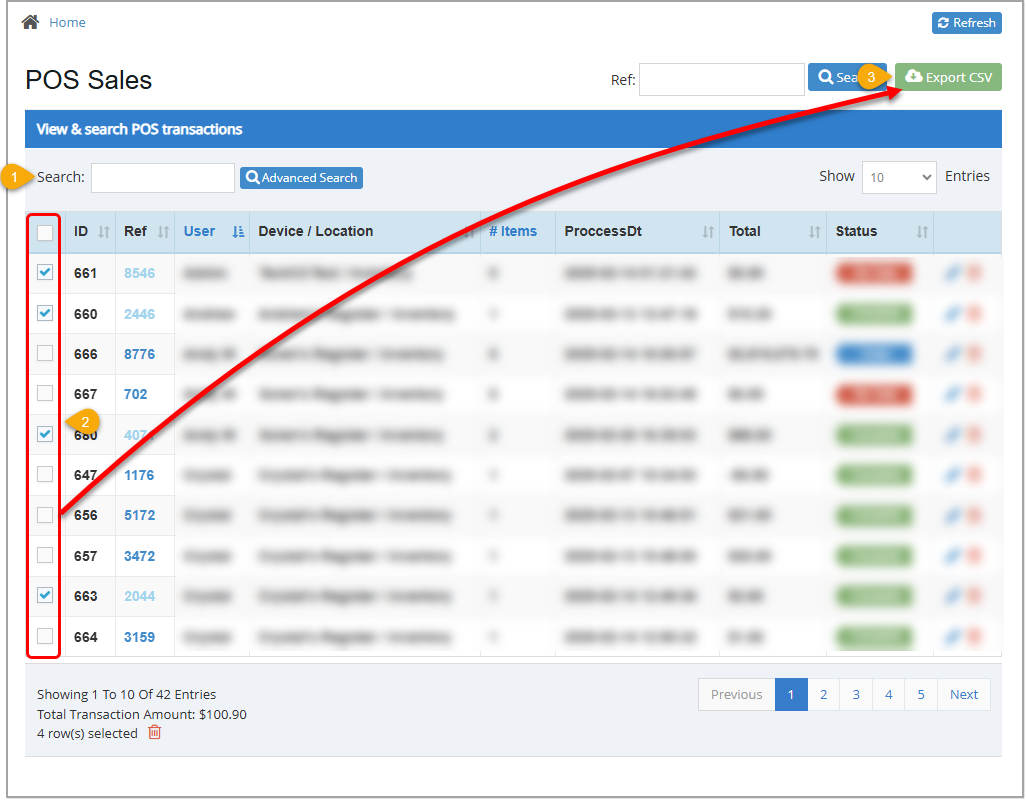
- Search for the transactions you wish to download using the options described above.
- Select the checkboxes of each transaction you want in the left-most table column. If you want to download all of the transactions currently loaded, you can click the checkbox at the top of the Checkboxes column to Select All.
- Click the Export CSV button in the upper-right of the window. The CSV spreadsheet file will download to your computer.
Related Topics
How to Find Transactions
Working With Transaction Details in the Admin
Frequently Asked Questions
Q: Do I need to back up my data periodically?
A: The Bottle POS is a cloud-based software that stores your data securely across multiple, redundant servers. If one has a problem, your data is still safe on the others. Using the Desktop App will serve as a local backup of your data that will be there for you if the system goes offline or if there's a problem with your internet. But you can always download your data as needed from the Back Office Admin from all areas that have an Export CSV function.
Q: I have a question, but I can't find my answer here, how do I get more assistance?
A: You can ask any question at the number below. Contact our 24/7 support team at: (877) 381-4087
Your Admin Dashboard is your hub for keeping your finger on the pulse of your business. Take a look
Your Admin Realtime page gives you a live view of your sales as they come in and has some useful uti
The Reports in the Bottle POS Admin can show you details about all of your data, however you need to








Is this page helpful?
×Help us improve our articles