



How to Create and Manage Customers in the Admin
The Bottle POS Admin has powerful tools for working with your customers. Take a look at how easy it

 December 05, 2025
The Bottle POS SMS guides you in the creation and sending of text messages to select groups of your customers. Take a look at how easy it is!
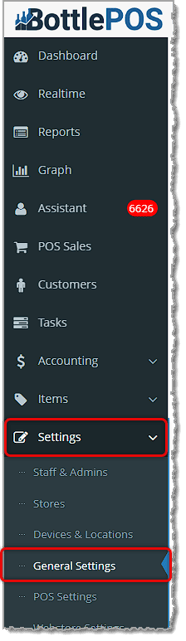
To get started, you'll need to enable the feature in your settings. After logging into your Admin, go to Settings in the main menu on the left and click on General Settings.
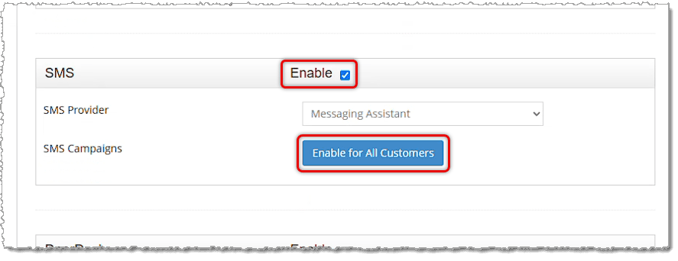
Scroll down to the SMS settings area. If it is not already on, check the box to Enable Bottle SMS. Then for the Messaging Assistant SMS Provider, click the button to Enable for All Customers. They will still need to opt in, as described below, but this will make the service active for them.
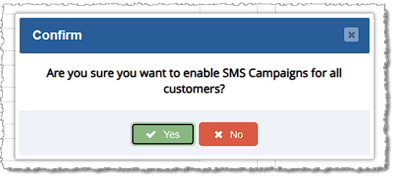
A confirmation window will pop up asking if you are sure you want to activate the feature. Click Yes if you are sure.
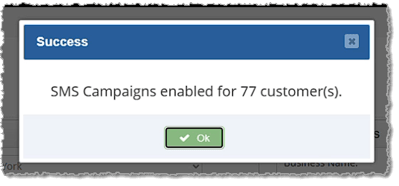
The system will enable the feature and will then pop up a window showing how many customers are now active, as pictured below.
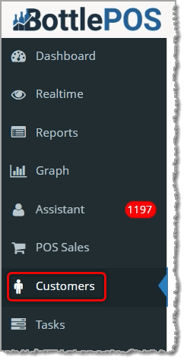
You can get to this part of the system by logging into your Admin app and clicking Customers on the left.
Please Note: Because the Bottle SMS is bulk-sending text messages for you, there is a charge for this service based on how many customers you are sending to. The first 500 'segments' of messages each month are free for you. Please see the section below on Messaging Costs for full details.
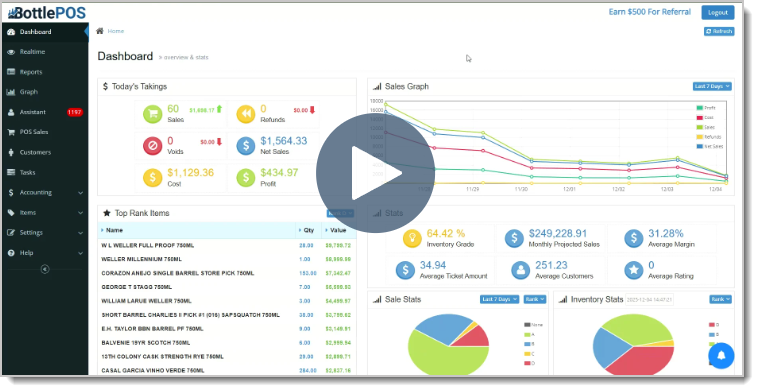
Click here for a brief video demo of how to work with the Bottle SMS.
Please use the links below to jump to a specific part of this article:
Creating and Sending an SMS Campaign
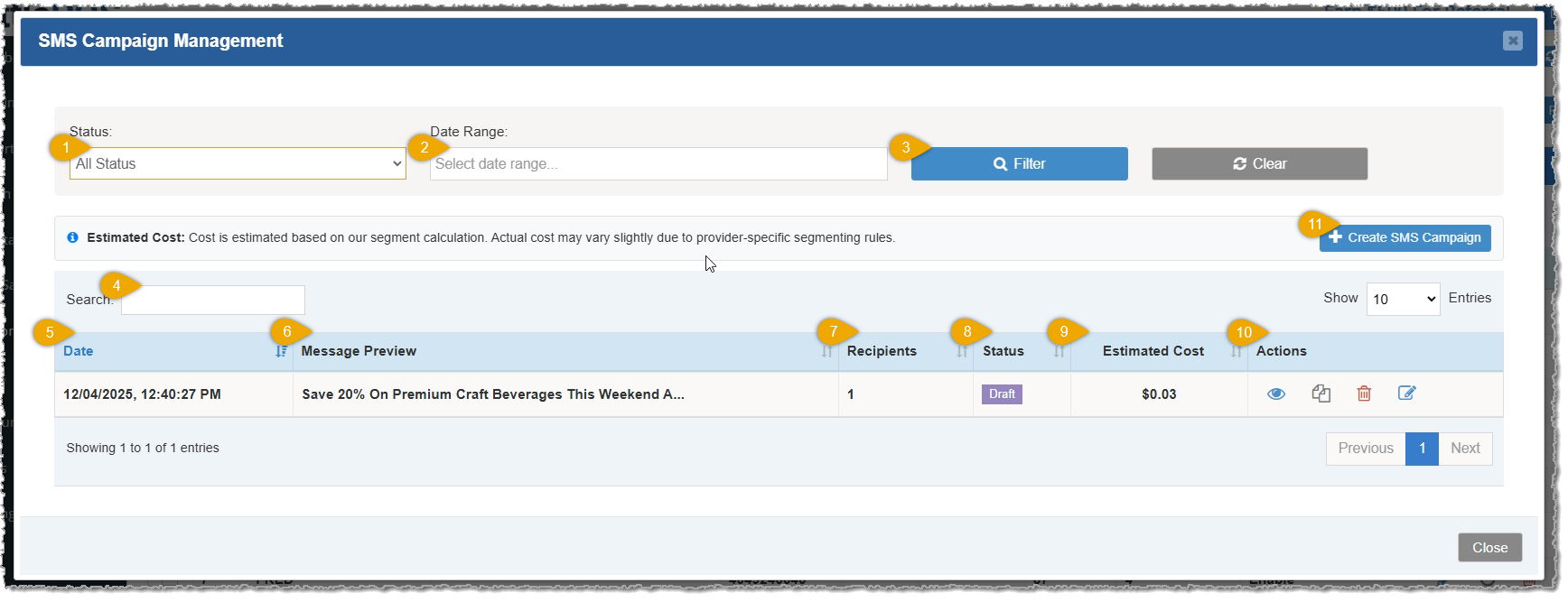
The SMS Campaign Management Window
For messaging to groups of customers, you are only able to send bulk messages between 12pm and 8pm for your time zone. This restriction is in place to respect 'Quiet Hours' for messaging so recipients don't get too many messages during those hours. If you create a Bottle SMS campaign text message using the instructions below outside of those hours, in the 'Send' step, instead you'll need to save the campaign as a Draft and you won't have the option to send it.
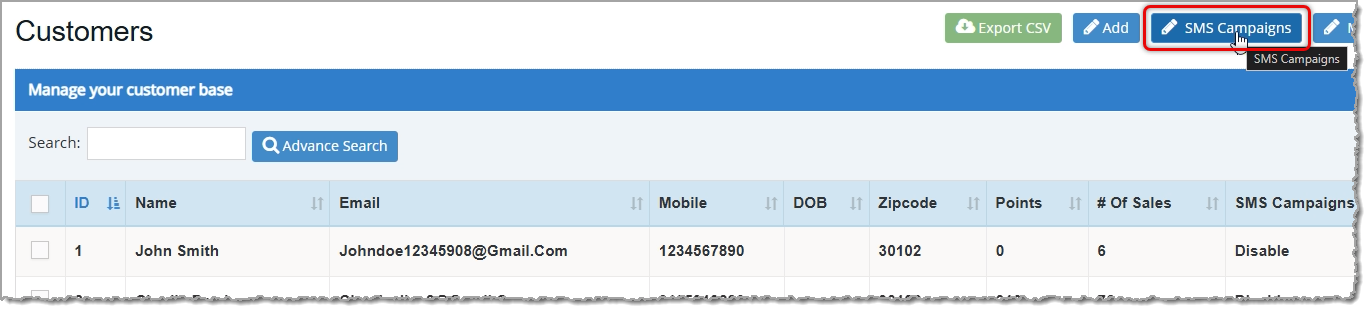
To begin working with Bottle SMS, in the Admin click the SMS Campaigns button in the upper right of the Customers page. Here are the steps to create and send your Bottle SMS bulk message:
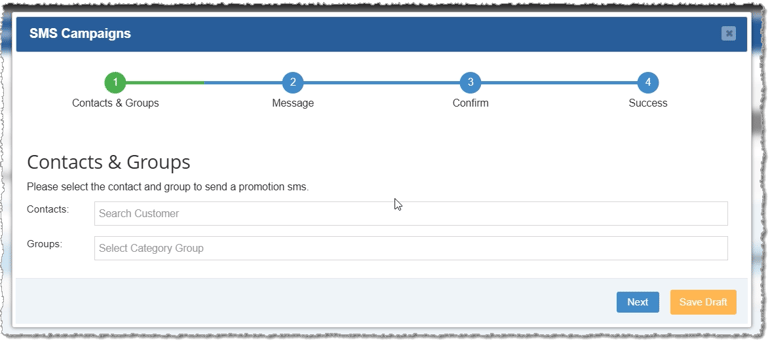
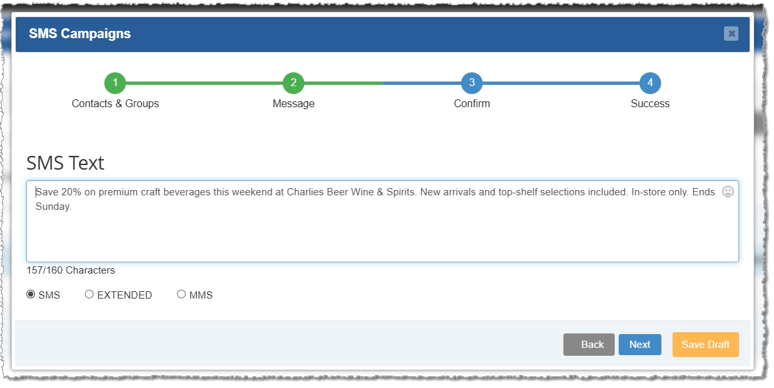
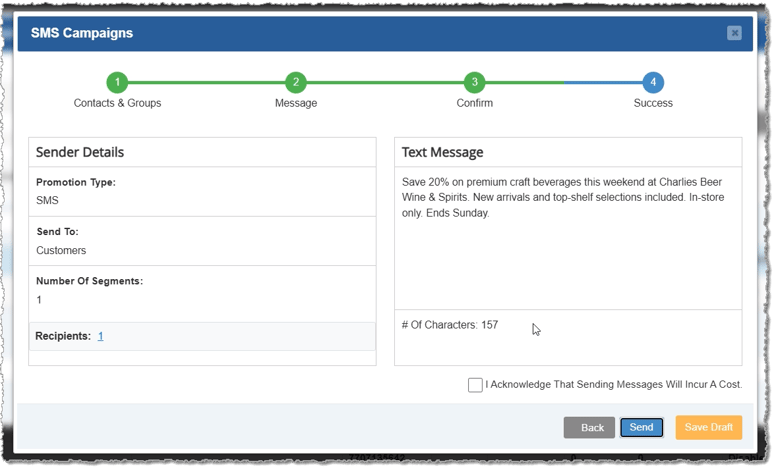
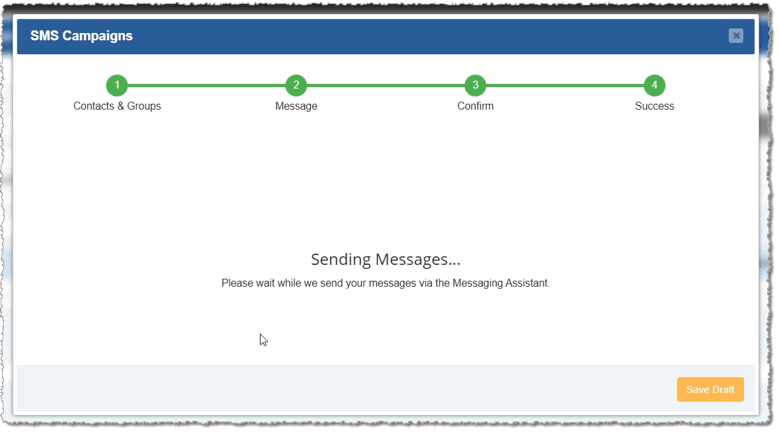
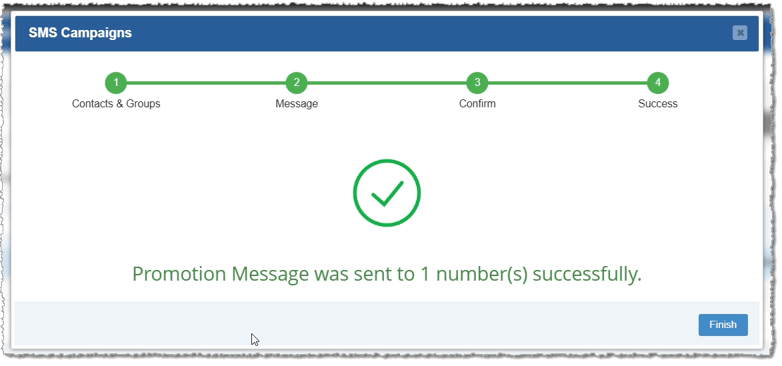
Customers must opt in from the POS after entering their phone number on a transaction before they are eligible to receive messages. Those who are opted in can be added to SMS Campaign Drafts, but if not opted in it will not be an option to do so. If there are customers who are currently not opted in or who have opted out, you can offer them the prompt again to enroll using the steps below, if you want them to have a chance to be included, but they won't be able to enroll until they do their next system transaction and then confirm via text message.
When you send the customer their first SMS Campaign message, they will receive a text to opt-in and they can confirm their subscription at that time.
When you send a customer a text message for the first time the system will require their enrollment (Opt-In). Enrolling a new customer will require three message 'segments' in addition to the original message itself (charges per segment are listed in the section below): an initial message asking the customer to enroll, a reply message from the customer agreeing to the enrollment, and a third message sent back to the customer to confirm enrollment.
If the customer opts out, you can open the Admin and go to Customers > Customers, search for the customer and click the Pencil Icon to Edit them, and you can click the Reset Prompt button if you want them to be offered the POS opt-in prompt in their next transaction. Click the Update button to save the change.
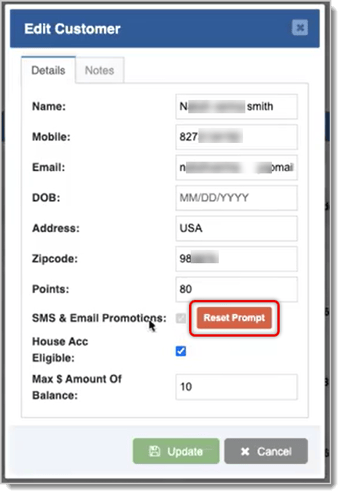
Please note that if a customer has agreed to the opt-in request from a transaction but has not yet opted in from the text message the system sends to them they will go through the initial opt-in process where they receive the age-verification prompt.
Messages will cost $0.025 (2.5 cents) per message segment. Messages that 160 characters, including spaces, will generally be one segment. Special symbols such as emoji may affect character counts toward segments.
The Bottle POS system will give you your first 500 segments free each month! After that, further segment costs will be added to your monthly billing calculation for the calendar month.
Here is how to use the functionality in the SMS Campaign Management window:
Important Legal Note
According to TCPA guidelines, it is up to you as the retailer to collect consent to send SMS messages to your customers. Below is a template for you to use in doing that.
By signing below, you agree to receive promotional, transactional, and customer service related text messages at the phone number you have provided. Please note:
Customer Agreement
🔲 I consent to receiving marketing text messages. Message frequency my vary and standard data rates may apply.
🔲 I consent to receiving account notification and order update text messages. Message frequency may vary and standard data rates may apply.
Signature:
Date:
Click here to download a printable PDF version of this form.
How to Create and Manage Customers
Q: If I sent a campaign before I was ready, is there a way I can stop it from going out?
A: No, once you have clicked the Send button, the system will send the message to all recipients, and charges will be posted to your account for your next billing cycle for the cost of the service.
Q: I have a question, but I can't find my answer here, how do I get more assistance?
A: You can ask any question at the number below. Contact our 24/7 support team at: (877) 381-4087
Is this page helpful?
×Help us improve our articles