







Managing Timesheet Entries
It's common for employees to forget to clock in or out and when that happens you need an easy option

 October 01, 2024
The Bottle POS Admin has powerful tools for working with your customers. Take a look at how easy it is!
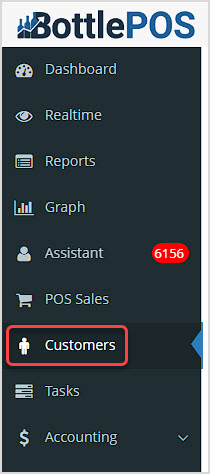
You can get to this part of the system by logging into your Admin app and clicking Customers on the left.
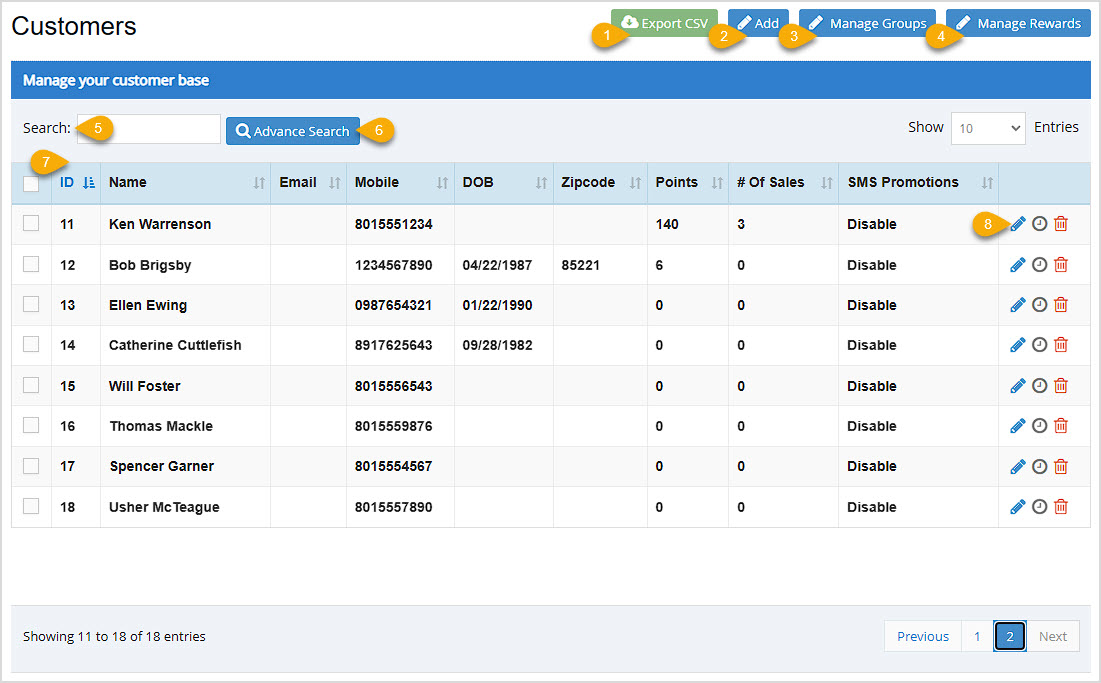
Your Customers page has several tools for working with your customers in ways that empower your business.
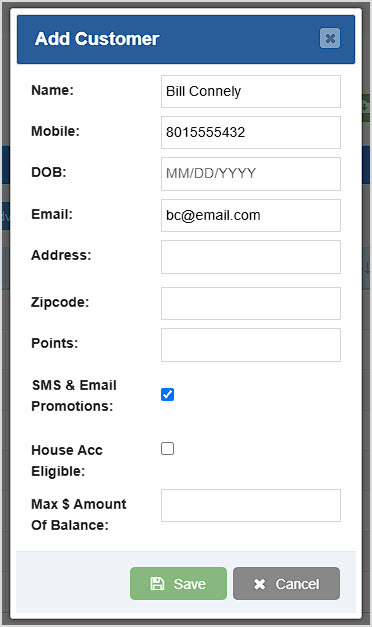

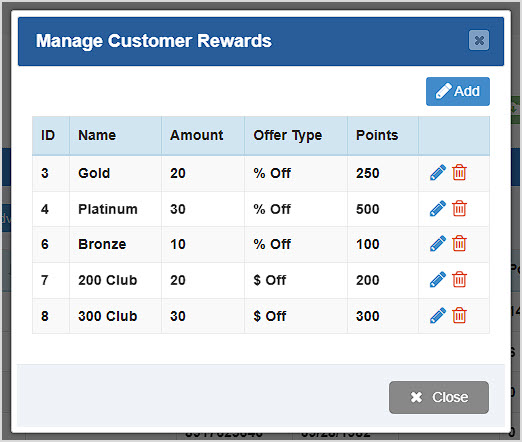
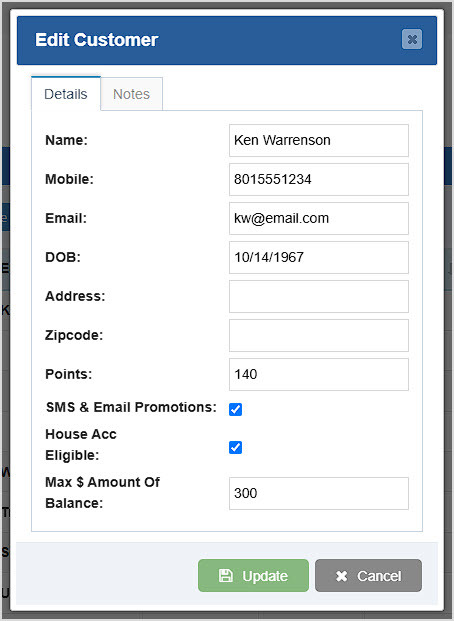
The Bottle POS provides rich detail and useful tools for working with your customers. When you view a customer's history by clicking the Clock Icon, you have access to the following features:
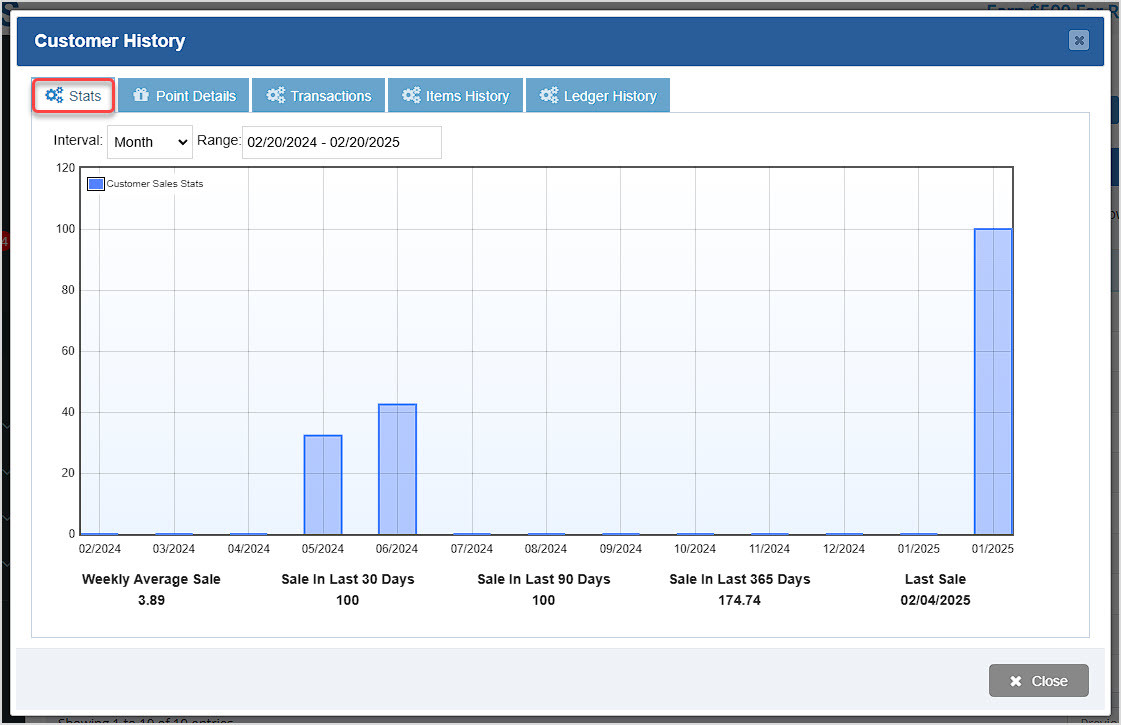
The Stats tab lets you set an Interval (Day, Week, Fortnight (two weeks), Month, 3 Months, or Year) and the date Range to whatever you need and displays the customer's spending over time. Below the graph are some useful statistics, including dollar amounts for Weekly Average Sale, and Sale in the Last 30, 90, and 365 Days, as well as the date of their Last Sale.
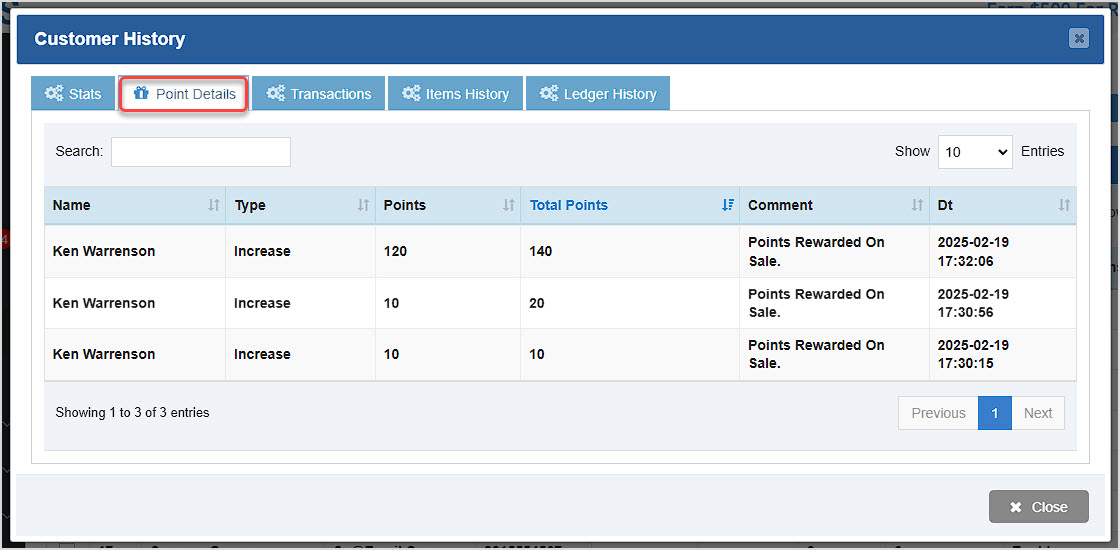
In the Point Details tab you can see a list of all events affecting the customer's Reward Points. There is information including their Name, the Type of event, the number of Points, the Total Points for the customer after the event, a Comment serving as an event description, and the Date the event occurred. If you need to look up a specific event you can Search for the number of Points of the event. You can also click the column headers to Sort alphanumerically.
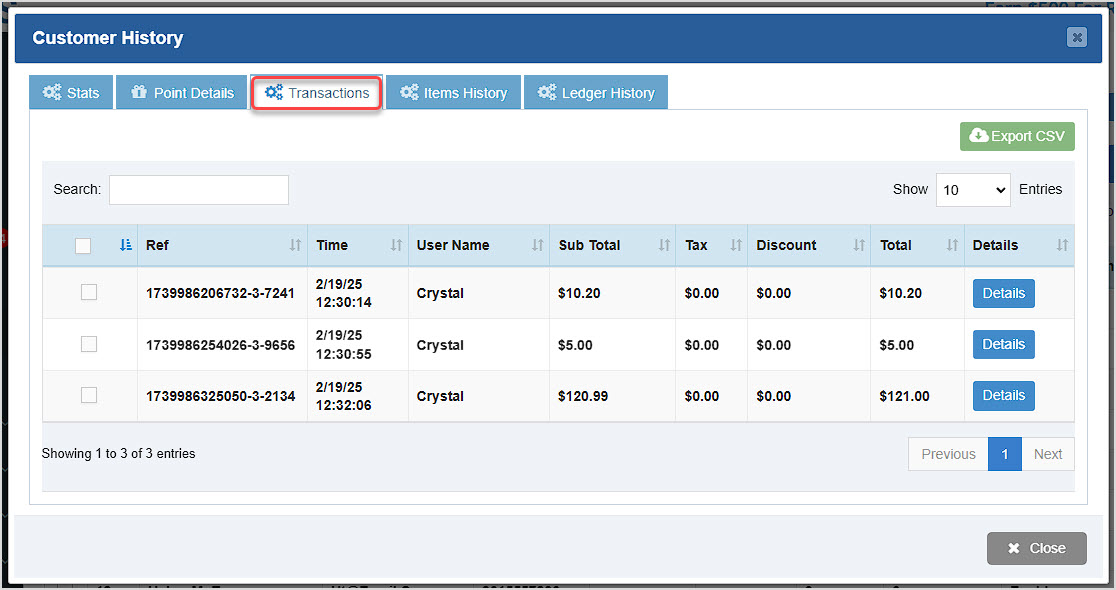
You can use the Transactions tab to look up any sale the customer has done throughout their history. The Search field allows you to find sales by their Reference number or by dollar amount. You can also click Details to view the full transaction details window. Click the Export CSV button to download a spreadsheet of all transactions for the customer, or you can use the checkboxes on the left and download only those you've selected.
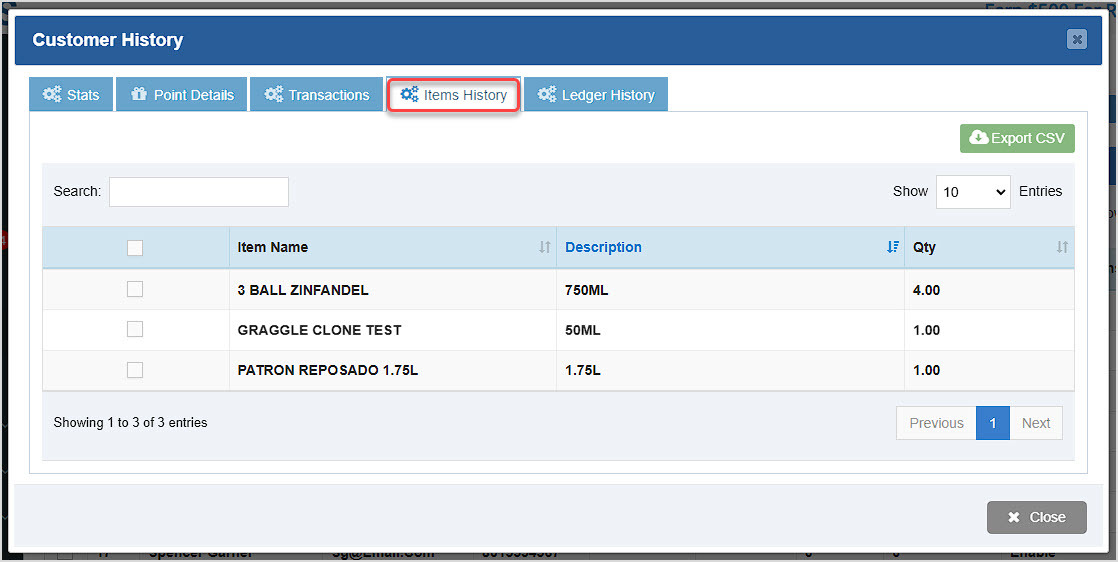
The Items History tab lists every item the customer has ever purchased. You can see the Item Name, Description, and the Quantity of the item the customer has bought in total. The Search field will let you find what you want by name or numerically. You can click the Export CSV button to download a spreadsheet of all of the data, or you can use the checkboxes on the left to download only those you need.
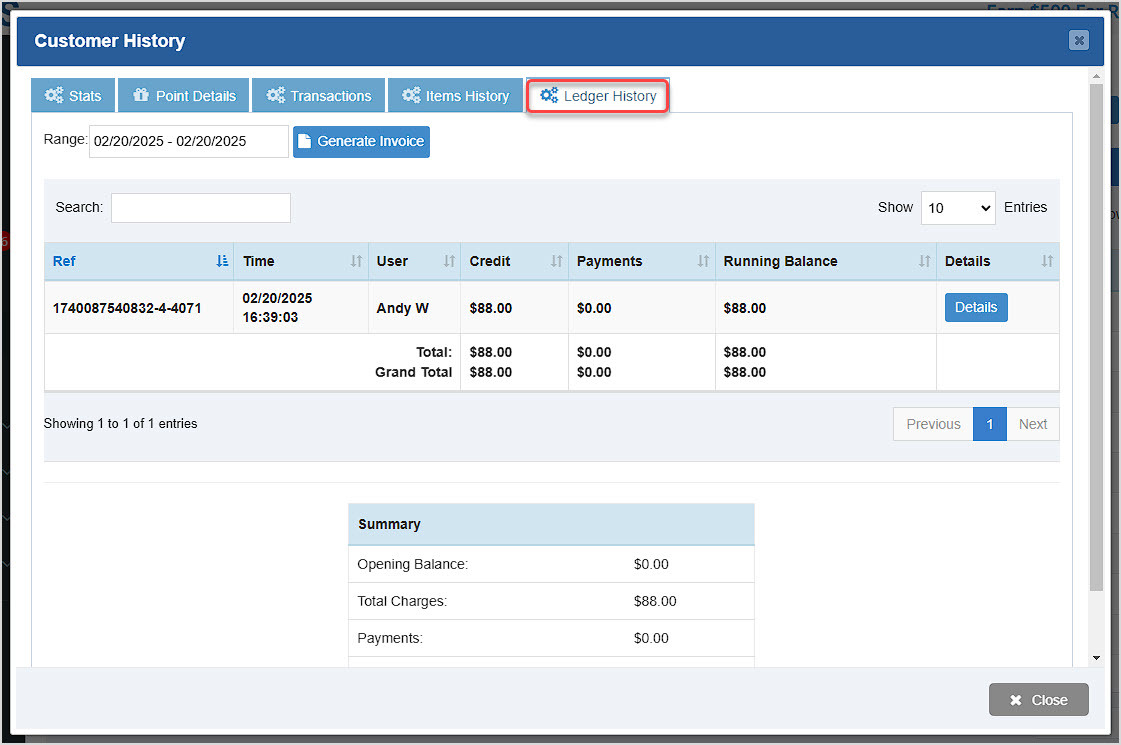
The Bottle POS system allows you to give trusted customers a House Account that lets them run a 'tab' on purchases they will pay off at a later time. You can view the House Account usage history from the Ledger History tab. You can set the date Range you want to view at the top. Click the Generate Invoice button to have the system create an invoice to bill the customer.
The data table shows all transactions for the customer's House Account and you can click the Details button on the right side of each line to view full transaction info. The table shows the transaction's Ref number, the User that rang up the sale, the amount of Credit the customer used on the House Account, any Payments that have been made toward that balance, and the Running Balance across all owed amounts. You can click the column headers to Sort alphanumerically and you can Search by Ref number or dollar amount to find what you want. At the bottom of the table, you can see the Total of the current page, or if the customer has enough items, the Grand Total across all pages. Below the table is a Summary showing the Opening Balance, Total Charges, Payments, and Closing Balance for your reference.
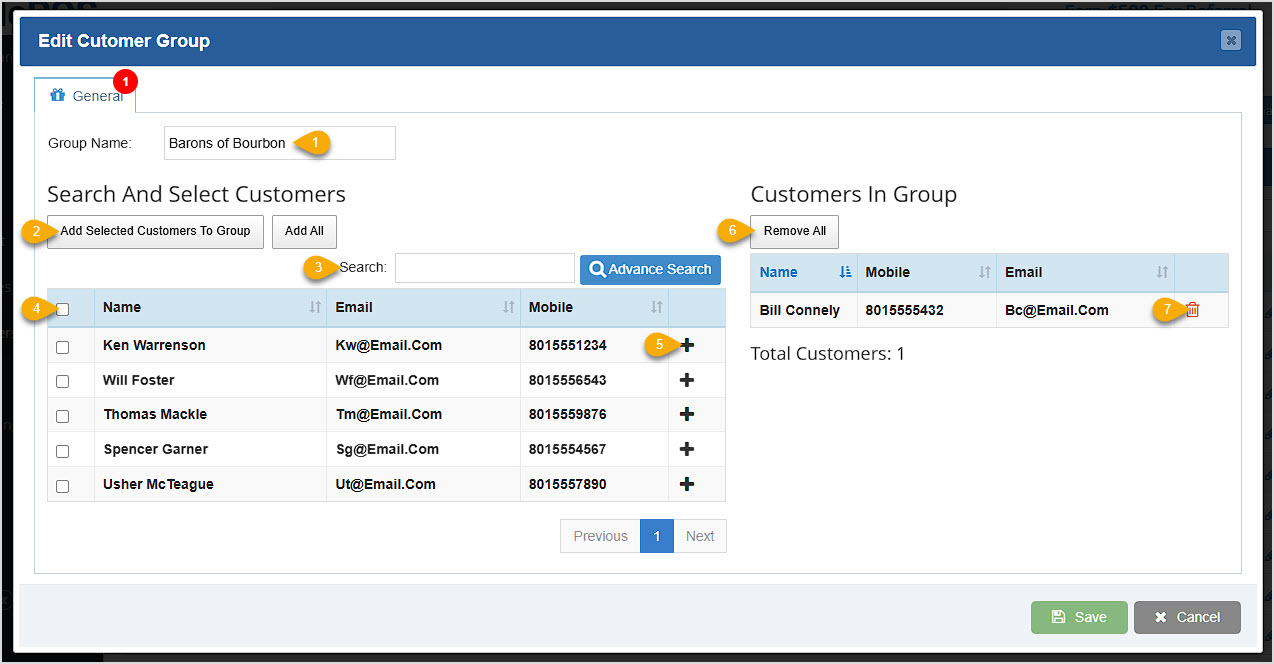
When you click to add a new customer group or edit one, you'll see the window below, and here is how you can work with your groups:
How to Set Up and Use a Customer House Account
How to Enable and Use Customer Loyalty
How to Generate and Email an Invoice from a Sale
Q: Do I have to use the Admin to add a new customer? What if I'm in the Register?
A: You can add new customers from the Register by entering their cell phone number in the Customer Mobile field in the Register, then click to Create New Customer.
Q: How can I see my customer balances for those I've given House Accounts?
A: You can see a list of all customers with that permission and their balances in the Admin by going to Reports. In the reports drop-list, open the House Account Report.
Q: If a customer is tax-exempt, how do I set that up properly?
A: This article can show you how to configure tax for a customer or business: How to Disable Tax for a Customer or Business
Q: I have a question, but I can't find my answer here, how do I get more assistance?
A: You can ask any question at the number below. Contact our 24/7 support team at: (877) 381-4087
Is this page helpful?
×Help us improve our articles