






How to Create and Manage Customers in the Admin
The Bottle POS Admin has powerful tools for working with your customers. Take a look at how easy it

 October 01, 2024
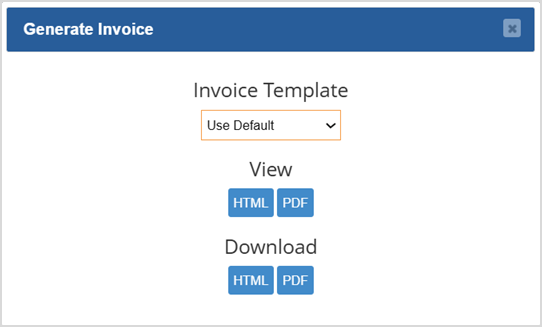
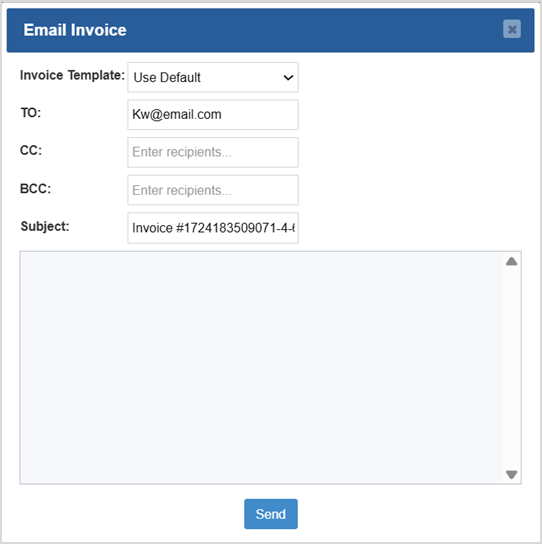
This article will explain how to generate and email an invoice for your customers from an existing sale. These invoices can be used to notify a customer of any unpaid amounts or to provide proof of payment.
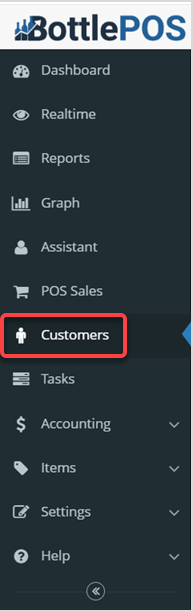
To get started, login into your Admin app. From there, click on the Customers tab on the left side navigation bar. This is where you can manage your customers as well as see a customer's transaction history.
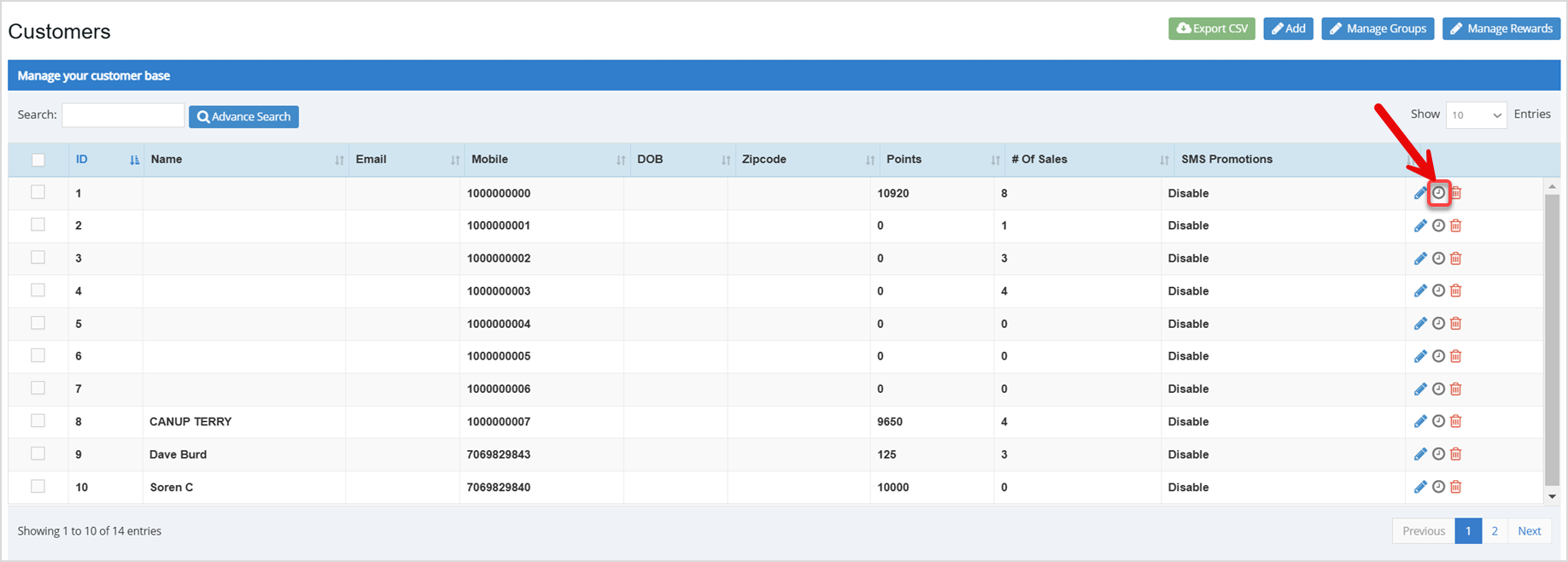
Use the Search or the Advance Search to find the Customer from the transaction. After you find the Customer, click on the clock icon to the right of the customer's name to view more details. The Customer History window will open.
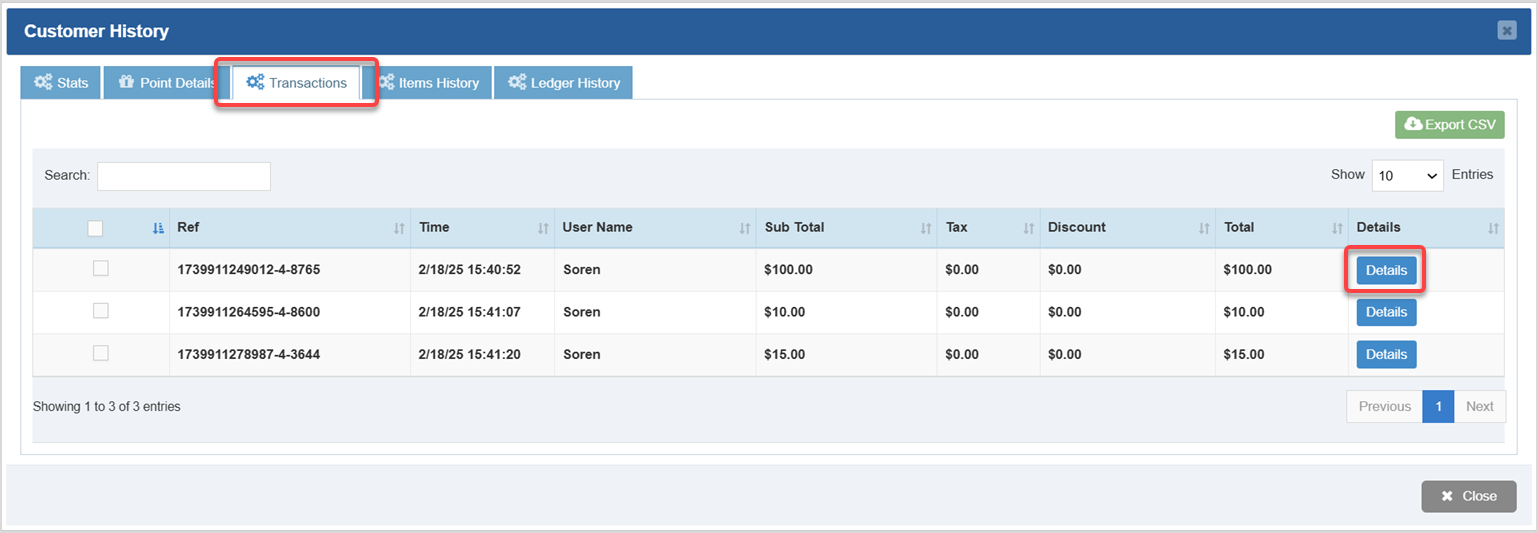
Click on the Transactions tab to view all the transactions the customer has and click on the Details button of the transaction for which you want an invoice. The Transaction Details window will open.
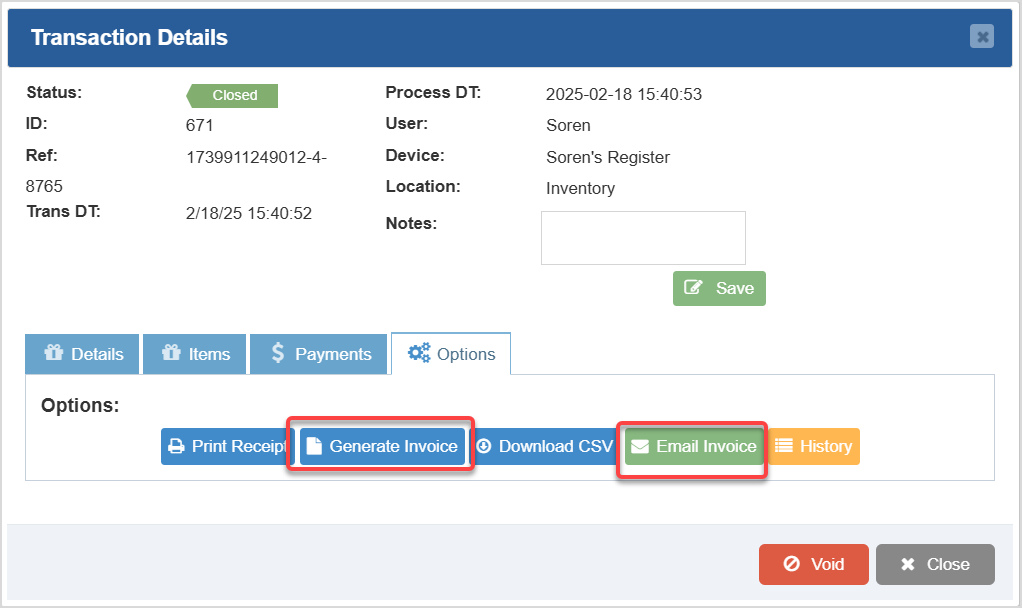
In the Transaction Details window, click on the Options tab and you'll see your options for working with the invoice:
Reprinting Transaction Receipts
Q: Will the email containing the invoice have my business name on it?
A: Yes the email will have your business name from the POS as the sender, but the email address will show noreply@bottlepos.com.
Q: I have a question, but I can't find my answer here, how do I get more assistance?
A: You can ask any question at the number below. Contact our 24/7 support team at: (877) 381-4087
Is this page helpful?
×Help us improve our articles