The Bottle POS Admin has a bulk Messaging Assistant to guide you in the creation and sending of text messages for your customers. Take a look at how easy it is!
You can get to this part of the system by logging into your Adminapp and clicking Customers on the left.
Please Note: Because the messaging assistant is bulk-sending text messages for you, there is a charge for this service based on how many customers you are sending to. The first 500 'segments' of messages each month are free for you. Please see the section below on Messaging Costs for full details.
Click here for a brief video demo of how to work with the bulk messaging assistant.
Please use the links below to jump to a specific part of this article:
For bulk messaging, you are only able to send bulk messages between 12pm and 8pm for your time zone. This restriction is in place to respect 'Quiet Hours' for messaging so recipients don't get too many messages during those hours. If you create a bulk text message using the instructions below outside of those hours, in the 'Send' step, instead you'll need to save the campaign as a Draft and you won't have the option to send it.
Creating and Sending an SMS Campaign
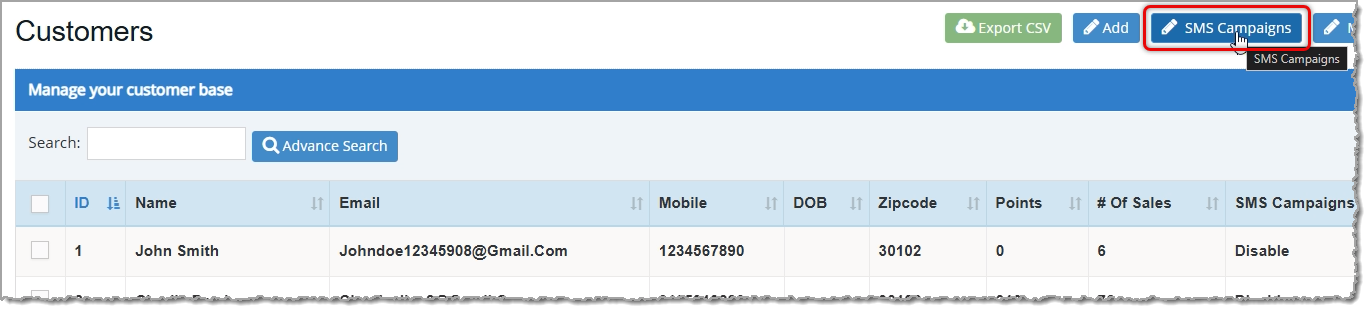
To begin working with the Messaging Assistant, in the Admin click the SMS Campaigns button in the upper right of the Customers page. Here are the steps to create and send your SMS bulk message:
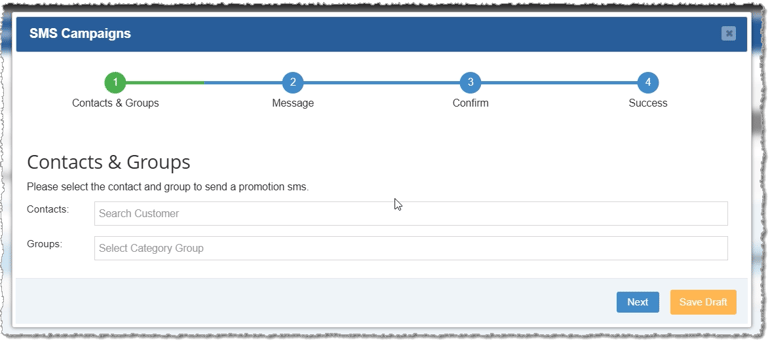
+Create SMS Campaign — Click to Create SMS Campaign and the Messaging Assistant will open and guide you through the process. At any point during this process you can click the Draft button in the lower right to save the campaign as a draft, and you will be able to edit it when you're ready.
Contacts & Groups — You can set your campaign to go to individual customers by searching for the name(s) you want, or you can have it go to any of your saved Customer Groups. Click Save Draft if you need to pause (this option is available in each step) or Next to proceed.
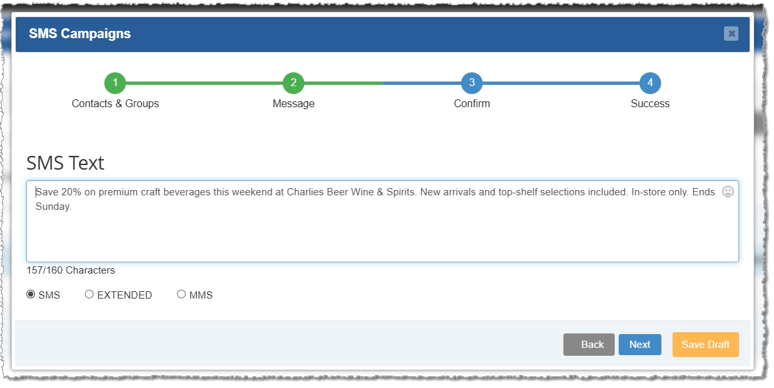
Message — You can choose the message protocol you will use with the radio buttons at the bottom. SMS (Short Message Service) is the default and allows you up to 160 characters including spaces. This is the cheapest option per message, and for most providers is around 3-cents per recipient. Extended allows you up to 320 characters, but like SMS is text-only and will typically cost a little more per recipient. MMS (Multimedia-Messaging Service) allows the inclusion of images and active URL links. MMS messages can be up to 1,600 characters long including spaces and cost more depending on the size of the message. Once you have chosen the protocol, enter your message content and click Next. You can also always go Back to a previous step, if needed.
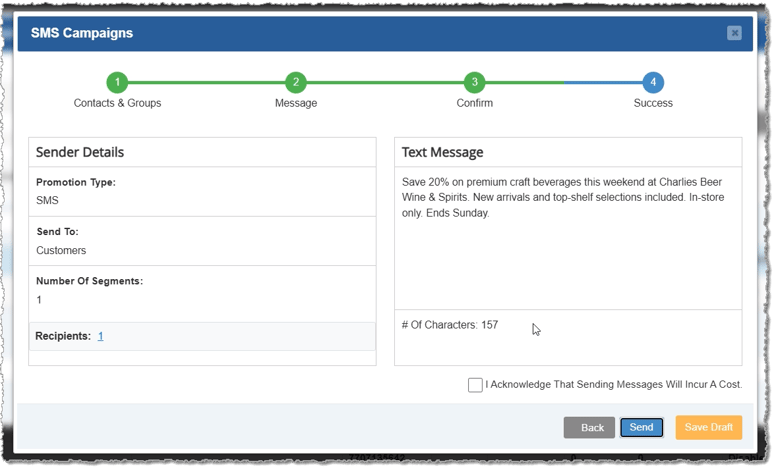
Message Details - After you click Next in the previous step, the system will check your message content to make sure it is in compliance with the federal regulations regarding bulk text messaging (the regulations look for any content in the SHAFT list: Sexually explicit, Hate speech, Alcohol, Firearms, and Tobacco which includes vaping / cannabis / CBD products even if legal in the recipient's state). If no offensive content is found, the Messaging Assistant proceeds to this step, where you will see all details of your campaign in case there is anything you want to change. Check the box acknowledging that sending the message will incur a cost, then click the Send button to have the Messaging Assistant proceed with sending to your recipients.
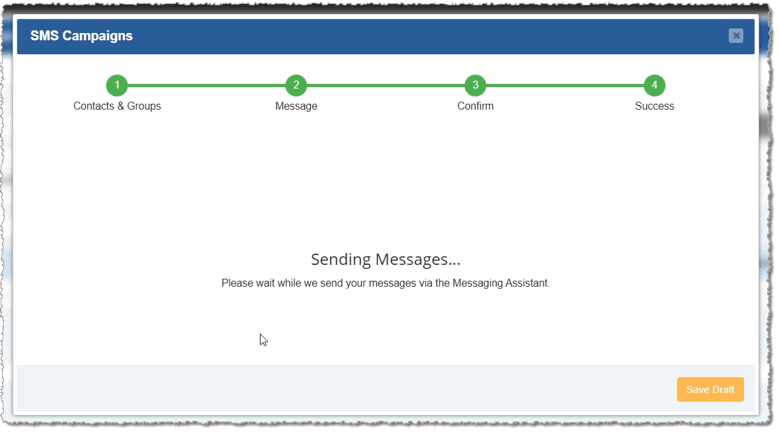
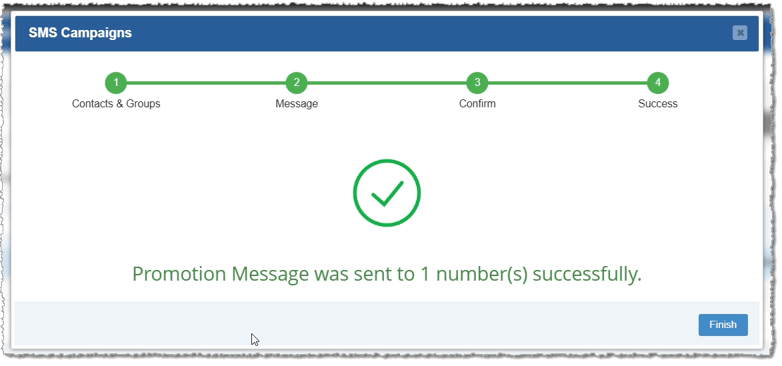
Sending Messages - The system will work on sending your message to all designated recipients and will display the message shown below until they've all been sent by your Messaging Assistant. Once the messages have been sent, you'll see a confirmation that the message was sent to the recipients, and you'll see the number to whom they were sent, as pictured here. Click the Finish button to return to your list of SMS Campaigns, where you'll see the campaign at the top of your list with the Sent status. It may take a while for all messages to be delivered, but once they are fully delivered, the status will become Delivered.
Customer Enrollment
When you send a customer a text message for the first time the system will require their enrollment (Opt-In). Enrolling a new customer will require three message 'segments' in addition to the original message itself (charges per segment are listed in the section below): an initial message asking the customer to enroll, a reply message from the customer agreeing to the enrollment, and a third message sent back to the customer to confirm enrollment.
The customer may already be enrolled if they opted in during their first transaction in the POS, where the system asks them if they want to opt-in for SMS text messages from the store, in which case they wouldn't get the above messages.
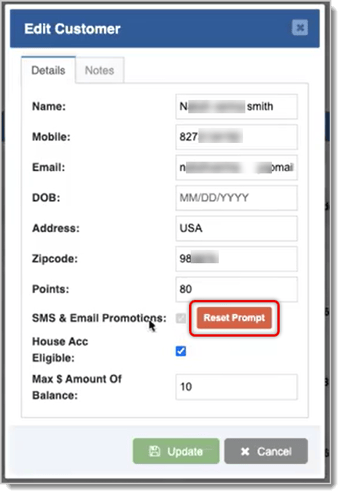
If the customer opts out, you can open the Admin and go to Customers > Customers, search for the customer and click the Pencil Icon to Edit them, and you can click the Reset Prompt button if you want them to be offered the POS opt-in prompt in their next transaction. Click the Update button to save the change.
Messaging Costs
Messages will cost $0.025 (2.5 cents) per message segment. Messages that 160 characters, including spaces, will generally be one segment. Special symbols such as emoji may affect character counts toward segments.
The Bottle POS system will give you your first 500 segments free each month! After that, further segment costs will be added to your monthly billing calculation for the calendar month.
The SMS Campaign Management Window
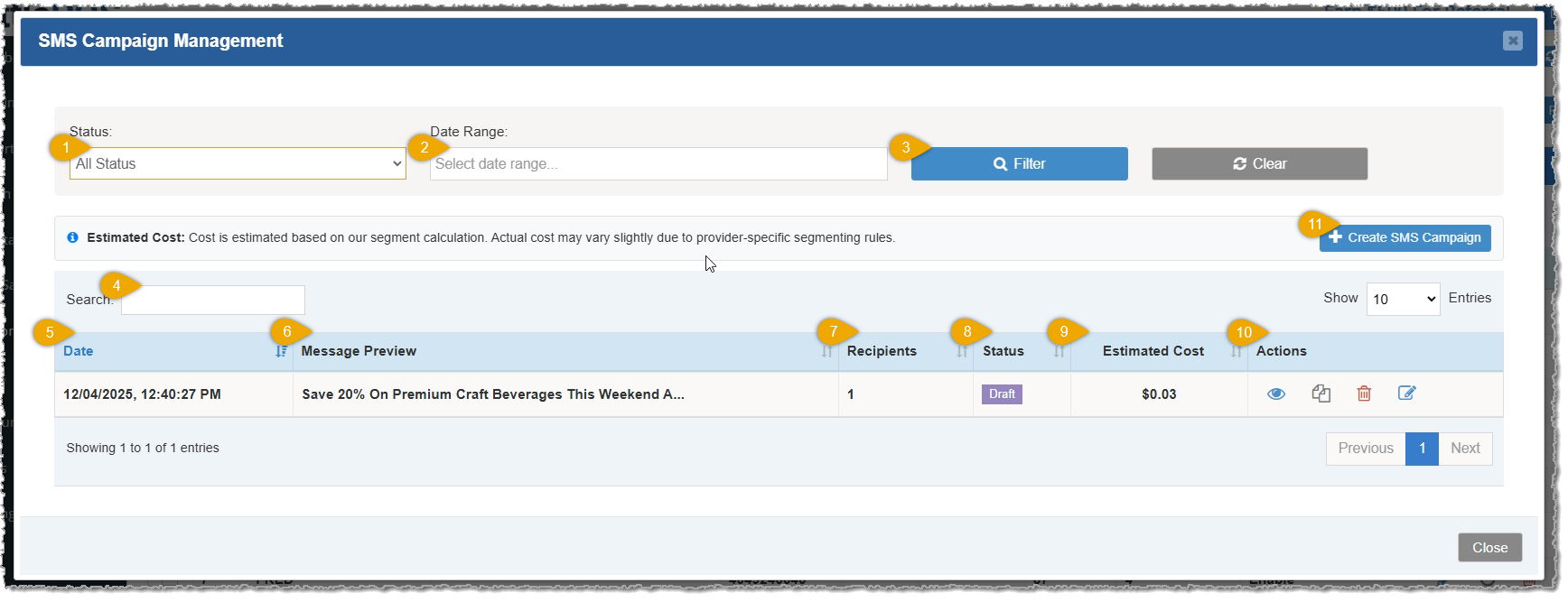
Here is how to use the functionality in the SMS Campaign Management window:
Status — Click this drop-list to filter the list of your SMS Campaigns to a specific Status, if needed. Statuses include Draft, Sent, and Delivered.
Date Range— Click this field to open a date-picker that will let you set your from and to dates for the date range you want. Doing so will filter your list of SMS Campaigns to display only those that fall within your date range after you click the Filter button described below.
Filter — Click this button to apply whichever filter you added and refresh the table to display SMS Campaigns that fit your filtered criteria.
Search — If you need to find a specific SMS Campaign, you can search numerically by date or alpha-numerically by Message Preview keyword to find the one you want.
Date — The date and time of the most recent save for each of your SMS Campaigns will display in this column.
Message Preview — The first few words of your message for each of your campaigns will display in this column.
Recipients — The number of recipients for each of your SMS Campaigns will display in this column.
Status — The current Status for each of your SMS Campaigns will display in this column.
Estimated Cost — The estimated cost to you for each of your SMS Campaigns will display in this column. The amount of this charge is based on the number of recipients and the message type (SMS, Extended, or MMS described below) and may vary according to provider segmenting rules, so this is only an estimate, but should be very close to the final charge for each of your campaigns.
Actions — You have the following options for the Actions you can take for each of your SMS Campaigns:
View — Click the Eye Icon to open a window with the SMS Campaign's details.
Duplicate — Click the Copy Icon to create a clone of the SMS Campaign. It will be in Draft status and its details will open in the Edit window so you can adjust it as needed.
Delete — Click the Trashcan Icon to delete the SMS Campaign. A confirmation will pop up for you to make sure you really want to permanently remove it.
Edit — Click the Edit Icon to open the Edit SMS Campaign window (exactly like the first step of the Messaging Assistant described below) where you can adjust the campaign as needed.
+Create SMS Campaign — Click this button to open the SMS Campaign window, which will start you at the beginning of the Messaging Assistant process described below to create a new campaign and either send it or save it as a draft for later.
Q: If I sent a campaign before I was ready, is there a way I can stop it from going out?
A: No, once you have clicked the Send button, the system will send the message to all recipients, and charges will be posted to your account for your next billing cycle for the cost of the service.
Q: I have a question, but I can't find my answer here, how do I get more assistance?
A: You can ask any question at the number below. Contact our 24/7 support team at: (877) 381-4087








 December 05, 2025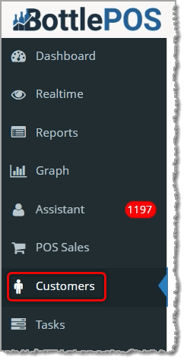
Is this page helpful?
×Help us improve our articles