






Manage Items Page
You can work with your Items in powerful and flexible ways using the main Items page in your Bottle

 October 01, 2024
Learn how to download a CSV (Comma Separated Value) spreadsheet file of your items. Take a look!
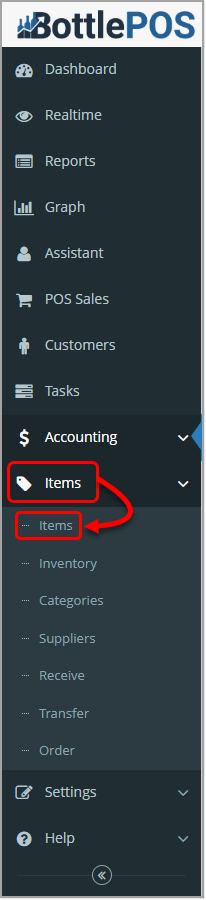
To access your items and print labels in the Admin app, click Items in the Items menu. Admin privileges are required to complete the steps in this article.
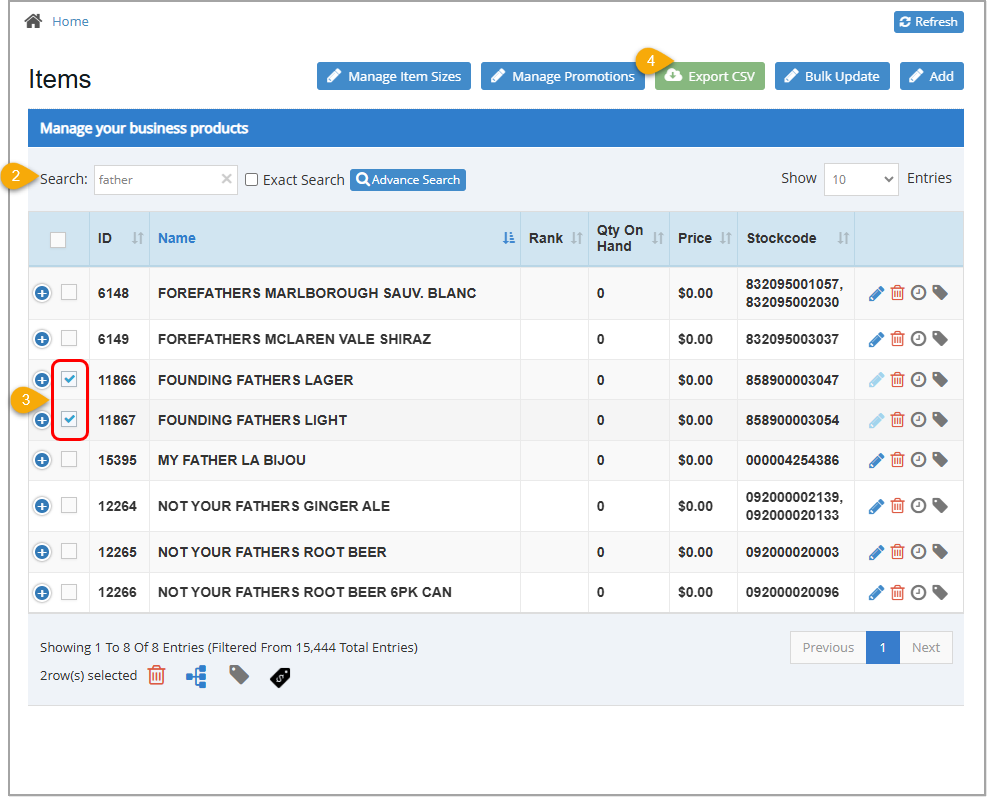
Q: Can I use this feature to re-upload my inventory using the Import CSV button?
A: No, there is no way to re-upload an inventory file.
Q: What if I only want the file to have specific information on it?
A: The file can be opened in any spreadsheet editor and be edited to have only the information you want in it.
Q: I have a question, but I can't find my answer here, how do I get more assistance?
A: You can ask any question at the number below. Contact our 24/7 support team at: (877) 381-4087
Is this page helpful?
×Help us improve our articles