How to Create Lottery and Hotkeys

October 01, 2024
You can create non-inventory items of several types in the Bottle POS as needed. Take a look at how easy it is!
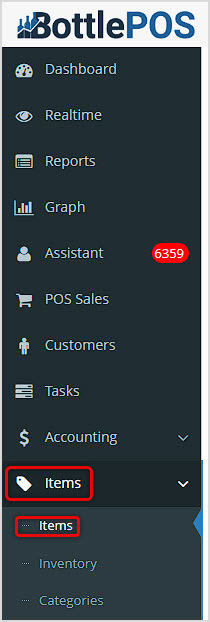
You can get to this part of the system by logging into your Admin app and clicking Items on the left. At the top of the menu that opens, click on Items.
How to Add Lottery Items and Other Non-Inventory Items
Item Types That Don't Track Inventory
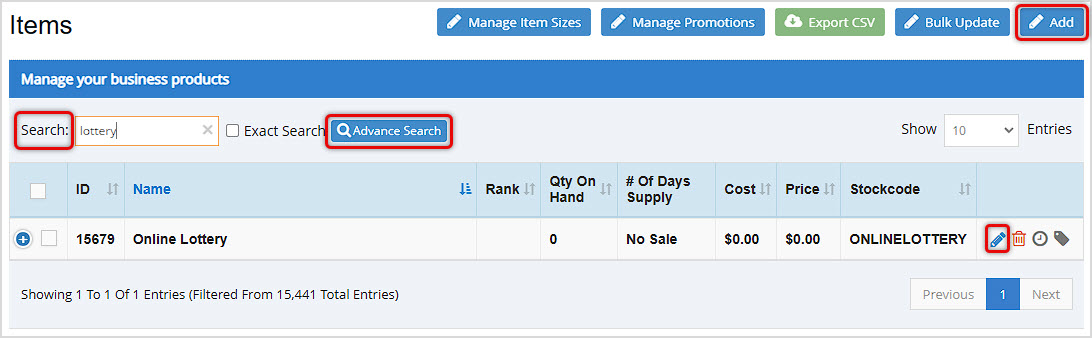
After you've loaded your main Items page, use the Search or Advanced Search to find the item you want. You can Edit an item you search for or click Add in the upper right to make a new one.
On the Options tab for the item, find the Item Type drop-list as pictured below and choose the type you need.
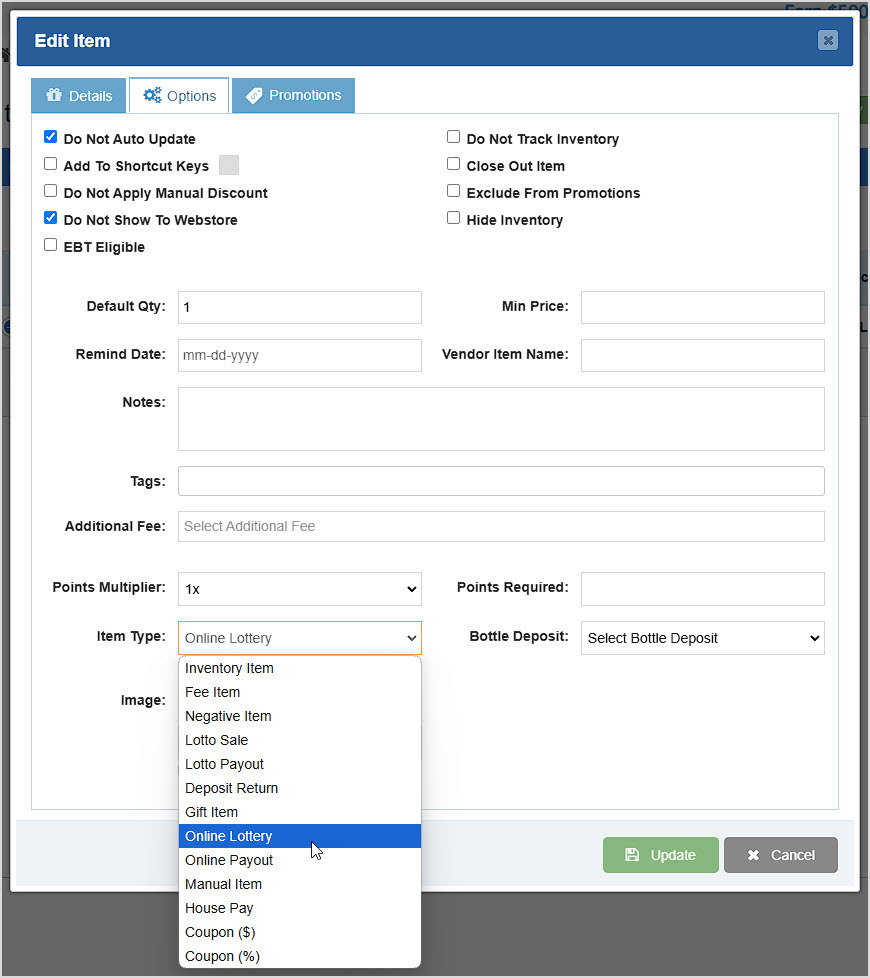
For items created this way, if any are frequently used, you can Add to Shortcut Keys at the top of the Options tab.
Item Types include the following:
- Inventory Item - This is standard inventory and will track quantities and reduce them from available inventory saved for the item.
- Fee Item - If you have any fees that need to be applied to transactions, you can create them as Items with this type.
- Negative Item - If you need to add an item that comes in with a negative quantity, you can set this as the Item Type and enter the Default Quantity above.
- Lotto Sale - Set this type for regular lottery tickets you sell.
- Lotto Payout - For this Item Type, when you enter it into the Register, you'll be prompted to set a negative Price for the amount being paid out.
- Deposit Return - For this Item Type, when you enter it into the Register, you'll be prompted to set the number of items being returned.
- Gift Item - Setting this for the item type will let you add a line item in the Register to add balance to an active Gift Card.
- Online Lottery - You can set this item type for situations where you will need to manually add an Online Lottery sale to a transaction.
- Online Payout - For this Item Type, when you enter it into the Register, you'll be prompted to set a negative Price for the amount being paid out.
- Manual Item - Item set with this type will always prompt in the Register for a Price. Use this for miscellaneous items of the same type that might be priced differently.
- House Pay - Creating an item of this type will allow you to add a line item to the Register for which you can set a manual amount a customer is paying toward their House Account.
- Coupon ($) - Items of this type will apply a dollar amount off of the sale.
- Coupon (%) - Items of this type will apply a percentage off of the sale.
Related Topics
Manage Items Page
How to Add an Inventory Item
Ringing Up Sales with the POS
Frequently Asked Questions
Q: I have a question, but I can't find my answer here, how do I get more assistance?
A: You can ask any question at the number below. Contact our 24/7 support team at: (877) 381-4087
It's common for employees to forget to clock in or out and when that happens you need an easy option
Your Admin Dashboard is your hub for keeping your finger on the pulse of your business. Take a look
The Reports in the Bottle POS Admin can show you details about all of your data, however you need to








Is this page helpful?
×Help us improve our articles