Inventory Counting

April 15, 2026April 15, 2026

Overview

The Inventory Count Module allows you to conduct physical inventory counts, track quantity changes across multiple count lists, account for sales that occur while a count is in progress, and generate a Variance Report documenting shrinkage or overages.

Location: Admin > Items > Inventory Count
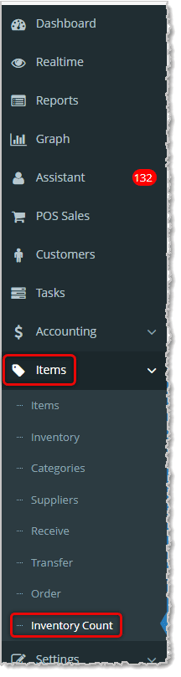
Image showing the Items menu of the  system's Admin with the Inventory Count tool highlighted.


User Permissions

Before getting started, ensure the user has the correct permissions. Permissions are managed at Settings > Staff & Admins > Edit User > Dashboard Permissions > Inventory Count.
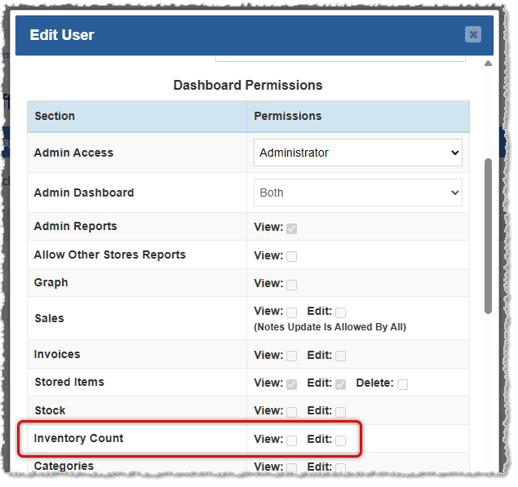
Image showing user permissions with the Inventory Count permission highlighted.

  • View — The user can see the module and review past counts, but cannot start a count, create lists, or make edits.
  • Edit — The user has full access to all module functionality.

Note: Administrator-level users receive full permissions automatically. However, if a user has Admin Access set to Yes but the View permission is not enabled, the Inventory Count module will not appear in their portal.


Important Restrictions During an Active Count

To protect inventory data integrity, the following actions are blocked while a count is in progress:

  • Finalizing Receive Orders

  • Finalizing Transfer Orders

  • Making Qty on Hand changes via the Inventory Module

  • Making Qty on Hand changes by editing an item via the Items Module or via the Register
 

Step-by-Step: Completing an Inventory Count


Step 1 — Start the Count

  1. Navigate to Admin > Items > Inventory Count.
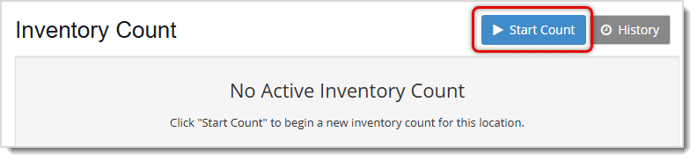
  2. The page will display No Active Inventory Count.
  3. Click Start Count (top right).
    Image showing the Start Count button on the Inventory Count page of the  system's Admin.
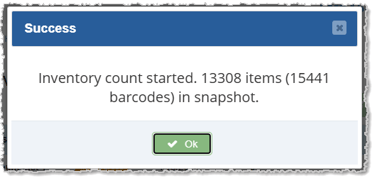
  4. A success popup will confirm the count has begun, displaying the number of items and barcodes captured in the inventory snapshot (e.g., "Inventory count started. 129 items (158 barcodes) in snapshot.").
    Image showing the Success popup visible after starting an Inventory Count in the  Admin.
  5. Click OK to dismiss. The count timestamp will appear next to the page title, and Count List 1 is automatically created.


Step 2 — Build Your Count List(s)

Each count list is an independent workspace. You can use one list for your entire inventory, or create multiple lists to divide the work (e.g., by section, employee, or product category).
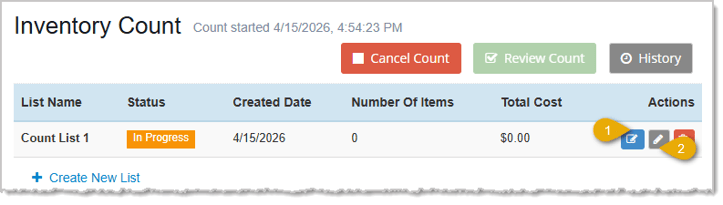
Image showing a Count List on the Inventory Count page with edit functions highlighted.

  1. To open and work a list, click the Edit/Open List icon on any list with an In Progress status.

  2. If you want to name your list or edit the name, click the Edit icon.


Adding Items to a List

After clicking the Edit/Open List icon, the Item Count window will open and you can begin adding items. There are four ways to add items:
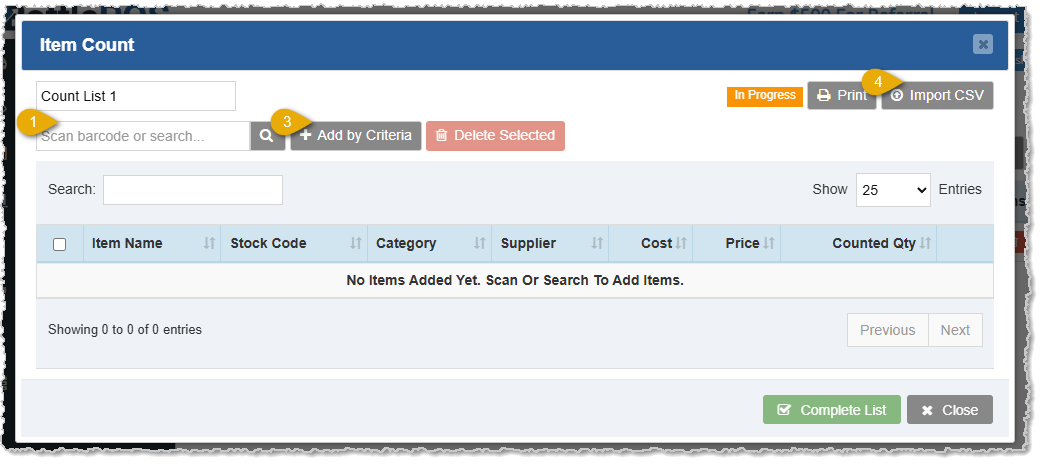
Image showing the Item Count window highlighting options for adding items.

  1. Scan / Search Bar — Type an item name or stock code, or scan a barcode directly. New items are added with a Counted Qty of 1; existing items are incremented by 1.
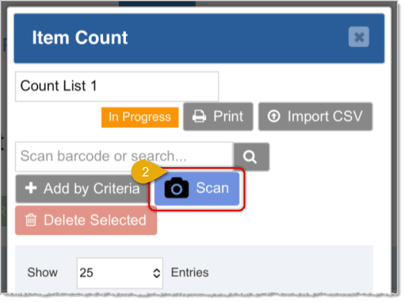
  2. Scan Button (Mobile Only) — Opens the device camera to scan barcodes. Follows the same logic as the search bar.
    Image showing the Scan button in the mobile version of the Item Count page.
  3. Add by Criteria — Bulk-adds items by filtering on fields like supplier, category, price range, and more. Items added this way start with a Counted Qty of 0.
  4. Import CSV — Upload a file or paste data in Stockcode, Quantity format (one per line). If an item already exists on the list, its quantity is incremented by the imported value, not replaced.

Adjusting Counted Quantities
  • Use the + and − buttons inline to increment or decrement quantities one at a time.
  • Click directly on the quantity value to type in a number manually.

Image showing the Quantity controls in the Item Count window of the Inventory Counting tool.


Deleting Items From a List

Items can be removed from an active list individually or in bulk. Note that deletion is only available while the list is in In Progress status — completed lists are read-only and items cannot be removed.
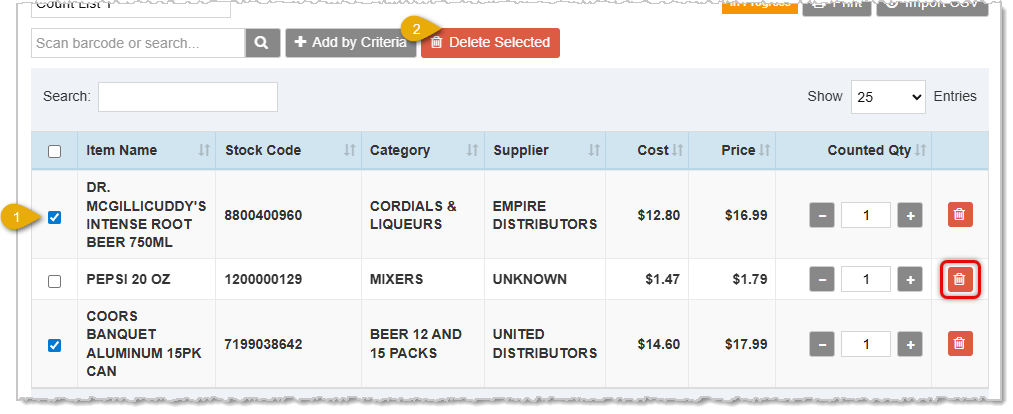
Image showing the item deletion options in the Item Count window of the Inventory Counting tool of the  system's Admin.

To delete a single item, click the Delete button in the Actions column on that item's row.

To delete multiple items at once:

  1. Check the checkbox next to each item you want to remove.
  2. Click Delete Selected in the toolbar. All checked items will be removed simultaneously.


Renaming a List

Click the list name field at the top of the window to rename it at any time. The updated name is reflected on the main Inventory Count page.
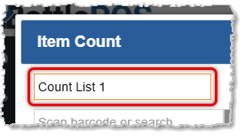
Image showing the list name field in the Item Count window of the Inventory Counting tool of the  system's Admin.


Step 3 — Complete Each List

When you have finished counting all items on a list:
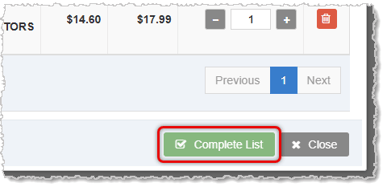
  1. Click Complete List at the bottom of the Item Count window.
    Image showing the Complete List button in the Item Count window of the Inventory Counting tool of the  system's Admin.
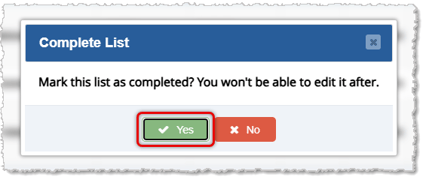
  2. Click Yes in the confirmation popup that appears.
    Image showing Completed list confirmation.
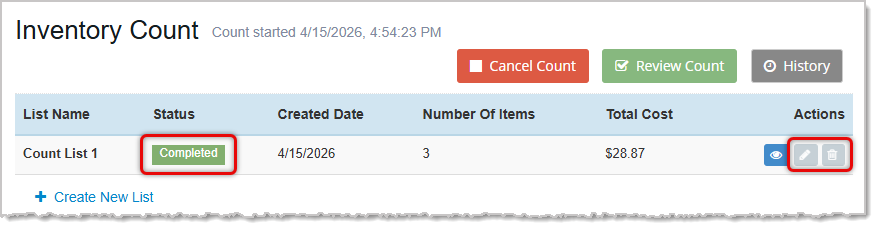
  3. The list status will change to Completed (green) and becomes read-only — no further edits can be made to that list.
    Image showing aCount List in the Completed status in the Inventory Counting tool of the  system's Admin.

Repeat Steps 2–3 for each additional count list. You can create new lists from the main Inventory Count page at any time during the count.

The Review Count button remains grayed out until ALL lists are marked Completed.


Step 4 — Review the Count

Once all lists are completed, the Review Count button (green, top right) becomes active.
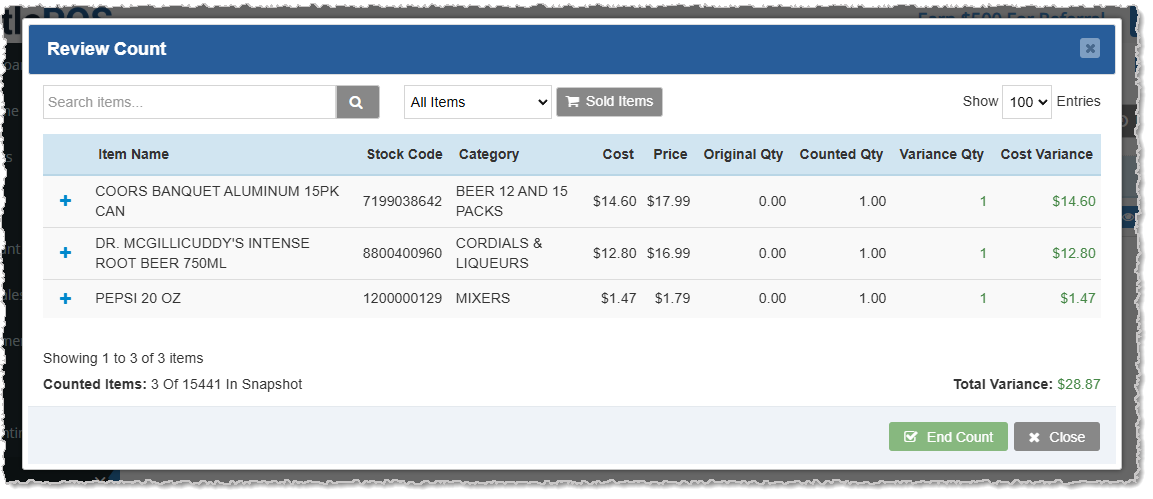
Image showing the Review Count window of the Inventory Counting tool of the  system's Admin.

  1. Click Review Count to open the consolidated master view.
  2. This view combines all counted quantities across every list into a single line per item.
  3. For items counted on multiple lists, click the + expand icon to see a Breakdown By List showing each list's contribution.
  4. Review the Original Qty, Counted Qty, Variance Qty, and Cost Variance columns. Positive variances display in green; negative in red.
  5. The footer displays two summary values: Counted Items: X of Y In Snapshot and Total Variance.
 
Checking for Sales During the Count

If sales occurred while the count was active, click Sold Items to open the Sold Item Review. This is a read-only reference showing which counted items were also sold during the count period — useful context before you finalize. Items sold but not on any count list are excluded from this view.
 

Step 5 — End the Count

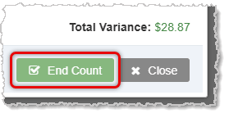
Image showing End Count button in the Review Count window of the Inventory Counting tool of the  system's Admin.

  1. In the Review Count window, click End Count.
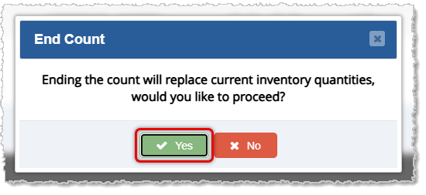
  2. A window will pop up with the prompt: Ending the count will replace current inventory quantities, would you like to proceed? Click Yes.
    Image asking for confirmation of count list completion for the Inventory Count tool.


If Sales Were Detected

If items on the count lists were sold during the count period, a Sales During Count window will appear with two options:

  • Overwrite Item Quantities Including Sold Items (default) — Uses your counted quantities as-is. Sales during the count do not affect the final inventory update.
  • Review Items Sold — Opens the Sold Item Review in edit mode, allowing you to manually adjust the Counted Qty for sold items before finalizing.

Select your preferred option and click Okay.


Sold Item Review — Edit Mode (Review Items Sold path)

If you selected Review Items Sold, the Sold Item Review window opens in edit mode. This is the only point in the workflow where you can make adjustments for sales activity before the inventory update is applied.

The window displays only items that meet both conditions: they were sold during the count period and they appear on at least one completed count list. Items sold but not included in any list are excluded entirely.

To adjust a quantity, click into the Counted Qty field for any item and enter the corrected value. For example, if you counted 5 units of an item but 2 were sold during the count after you physically counted the items you may want to update the Counted Qty to 3 to reflect that those units were present when you physically counted them.

Once you have reviewed and adjusted all relevant items, click End Count to proceed to the Zero Uncounted Items step. Clicking Cancel discards all edits and returns you to the Review Count window with no changes applied.


Zero Uncounted Items

The next prompt asks: Would you like to Zero the stock quantity of [X] uncounted items?

  • Yes — Items not included in any count list will have their Qty on Hand set to 0.
  • No — Uncounted items remain unchanged.

💡Tip: This option is useful when you intend the count to represent your complete inventory. If you only counted a subset of items, choose No to avoid incorrectly zeroing everything else.

 
Final Confirmation

The last window displays a complete summary of every action that will be performed. Review the checklist carefully — this action cannot be reverted. Click Yes, End Count to finalize.


Step 6 — Review the Variance Report

After a count is completed, the full Variance Report is available at Admin > Reports > Report > Variance Report.
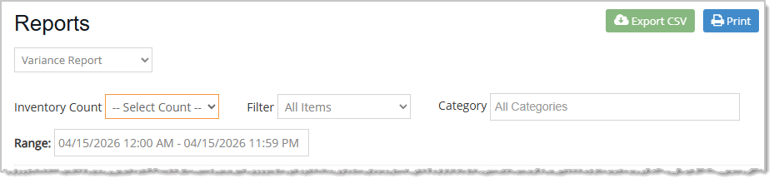
Image showing the Variance Report of the  system's Reports page in the Admin.

  • Use the Inventory Count dropdown to select which completed count to view.
  • Filter by All Items or With Variance Only to focus on discrepancies.
  • Filter by Category to narrow results.
  • Click the + expand icon on any row to see a per-list breakdown of where and how the item was counted.
  • Items that were zeroed display as 0 - Zeroed in the Counted Qty column.
  • Use Export CSV or Print to save or share the report.


Canceling a Count

If you need to abandon an in-progress count:
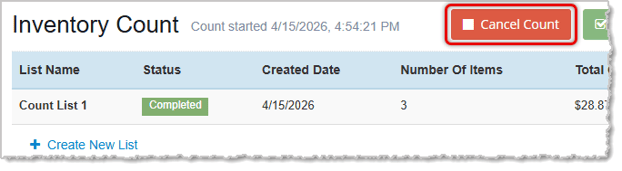
Image showing the Cancel Count button of the Inventory Count page in the  system's Admin.

  1. Click Cancel Count (red, top right).
  2. Confirm the prompt. All count lists and the inventory snapshot will be permanently deleted.
  3. The cancelled count will be recorded in History for reference, but no inventory changes will be applied.


Viewing Count History

Click History (top right) at any time — whether or not a count is active — to open the Count History log. This displays all completed and cancelled counts, filterable by status.
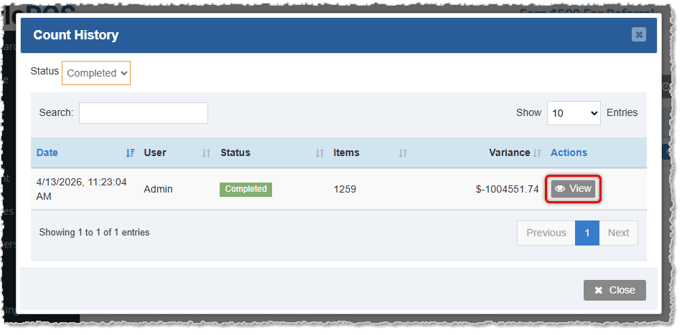
Image showing the Count History window of the Inventory Count page in the  system's Admin.

Click View on any record to open the Count Details window, which shows the full item-level breakdown for that count, including Original Qty, Counted Qty, Variance, and Cost Variance.
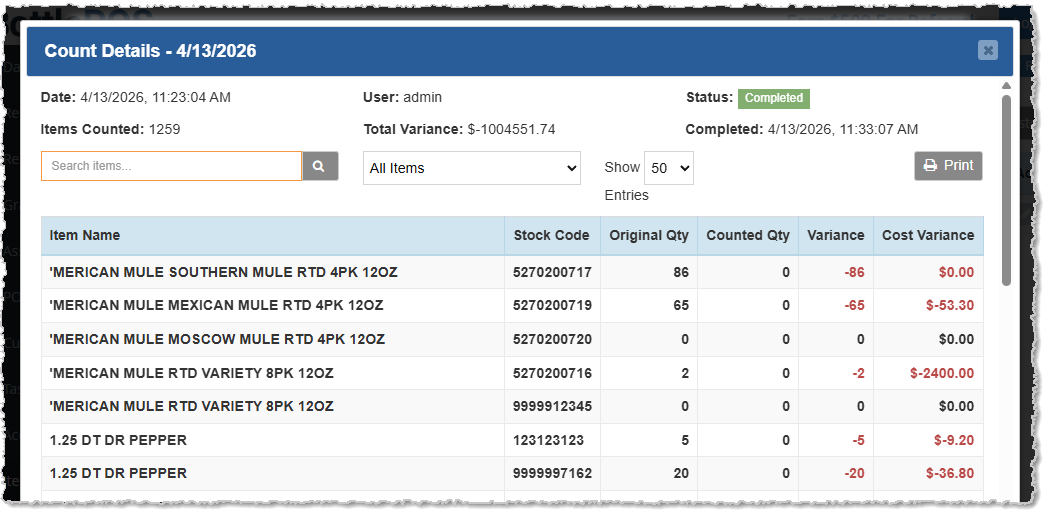
Image showing the Item Count details from the Count History window of the Inventory Count page in the  system's Admin.


Walkthrough Example

The following example walks through a complete inventory count from start to finish.

Scenario: A store has 158 items in inventory. Two team members will each count a separate section of the store simultaneously using separate lists. Some sales occurred during the count. The team wants to zero out anything they didn't count.


1. Start the Count

Navigate to Admin > Items > Inventory Count and click Start Count. The success popup confirms: Inventory count started. 129 items (158 barcodes) in snapshot. Click OK. Count List 1 is created automatically.


2. Set Up Two Count Lists
  • Click the Edit icon on Count List 1. Rename it "Front of Store" by clicking the list name field. Use the + Add by Criteria windowto bulk-add all items in the "Single Beer" and "Wine" categories. These items are added with a Counted Qty of 0.
  • Return to the main page and create a second list. Rename it "Back Storage" and use Import CSV to load a file of stock codes and quantities prepared in advance by the second team member.


3. Count Items on Each List
  • On the Front of Store list, scan each item using a barcode scanner or the search bar as it is physically counted. Quantities increment automatically with each scan.
  • On the Back Storage list, any items missed in the CSV import are added individually via the search bar.
  • Quantities are adjusted as needed using the +/− buttons or by typing directly into the Counted Qty field.


4. Complete Both Lists

Once each section is finished, click Complete List on each. Both lists now show a green Completed badge.


5. Review the Count

Click Review Count. The consolidated view shows all items across both lists. Clicking Sold Items reveals that 1 item — Corona Beer — was sold during the count period. The team notes this for context but decides to proceed without adjusting for it.


6. End the Count
  • Click End Count → Yes to confirm.
  • The Sales During Count window will open. Click Overwrite Item Quantities Including Sold Items and click Okay.
  • The Zero Uncounted Items window will open showing 153 uncounted items. Click Yes to zero them.
  • The Confirm End Count window will open and displays the final action summary:
    • ☑ Update counted items with new quantities.
    • ☑ Zero uncounted items — 153 items not counted will be set to 0.
    • ☑ Sales during count will be overwritten by counted quantities.
  • Click Yes, End Count.


7. Review the Variance Report

Go to Admin > Reports > Report > Variance Report. Select the just-completed count from the Inventory Count dropdown. Filter to With Variance Only to focus on discrepancies. Export to CSV and share with management for review.