Payment Portal

October 01, 2024October 01, 2024

The Payment Portal is a dashboard included as part of our payments offering. It allows you to view or edit account details, review recent transactions, process new sales, access reports, and manage disputes. As an extra security measure, we also host this page independently. Should the POS software ever experience any outages, the Payments Portal would continue to function and serve as a backup allowing you to process transactions without interruption.

The Payment Portal is available to stores with a merchant account. For more information about gaining access to the Payment Portal, contact Bottle POS Support at 704-405-5089.

Please Note: The Payment Portal is not backward compatible. Transactions completed through the Virtual Terminal will NOT show up in the POS software and inventory will not be affected.
  

The Payments Page

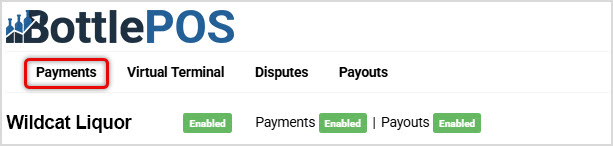
Image of the BottlePOS Payment Portal site header highlighting the Payments link in the main menu. 

This page shows all recent transactions processed through the POS or website.

Please Note: It may take up to 5 minutes for a transaction to appear; if you don't see it, please refresh the page.

From this page you can view the following information about your recent transactions:

  • Amount
  • Currency
  • Status
  • Transaction ID
  • Date

 Click any row to view more information about the transaction.
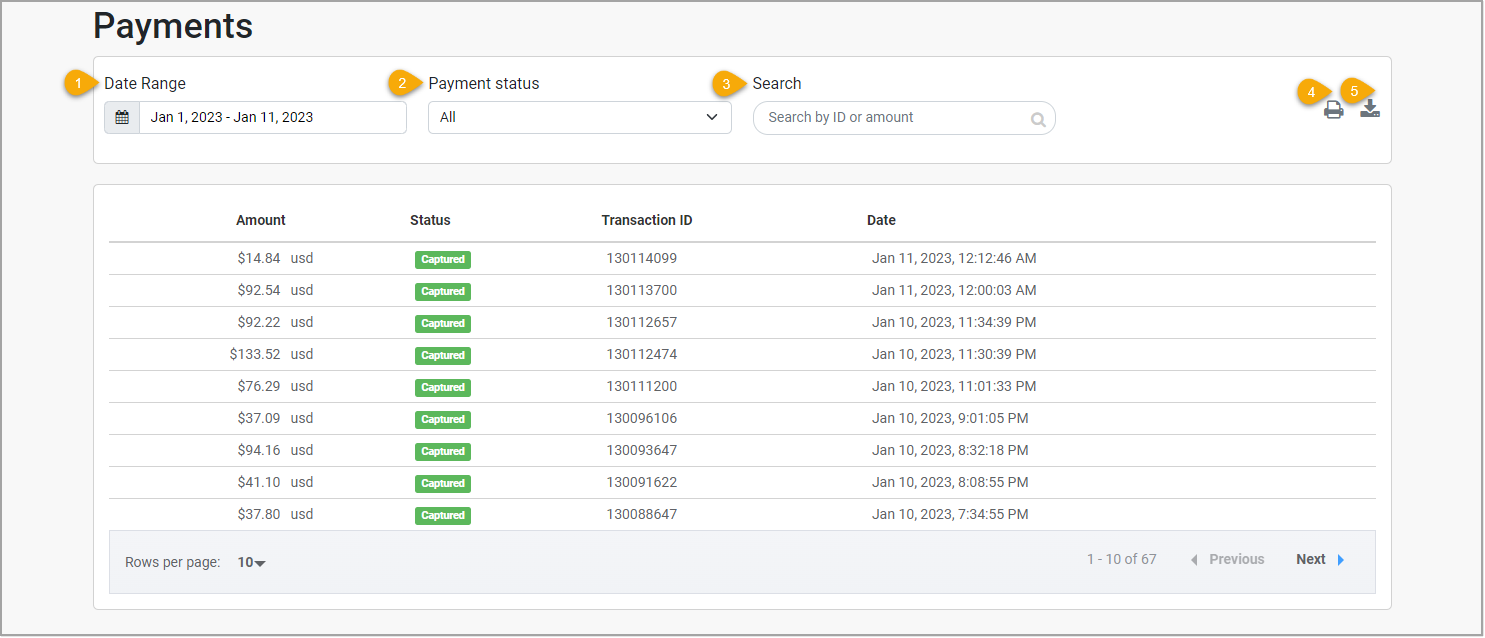
Image showing the BottlePOS Payments Portal and how to use the different areas to view specific information.

  1. Date Range - Identify a range of dates, up to 30 days, to filter the results shown in the table.
  2. Payment status - Select a status to filter the results shown in the table. By default you'll see All payment statuses.
  3. Search - Enter a Transaction ID or payment amount to search for a specific payment.
  4. Print (icon) - Click to print this page.
  5. Download (icon) - Click to download the data shown to a CSV spreadsheet file on your device.


Refunding Transactions

To refund a transaction, click a row in the Payments table (see above) then click the Refund button near the bottom of the transaction details.

Please Note: This action cannot be reversed. 
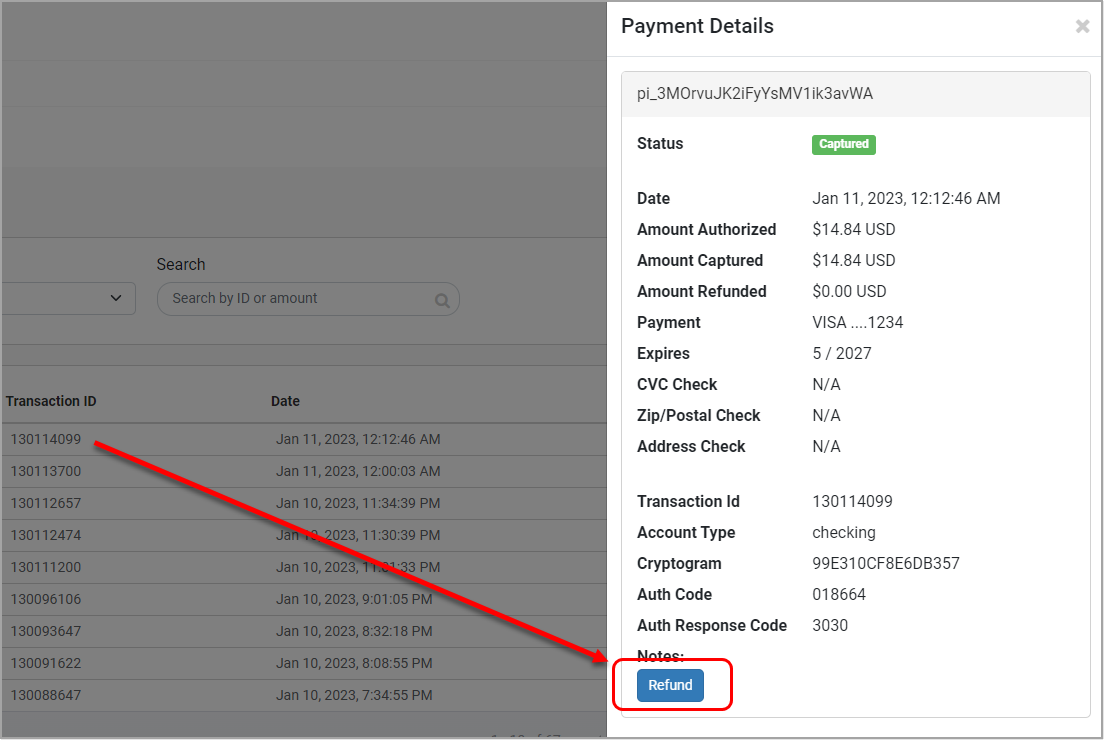
Image showing how to refund a payment through the Bottle POS Payment Portal.


Using the Virtual Terminal

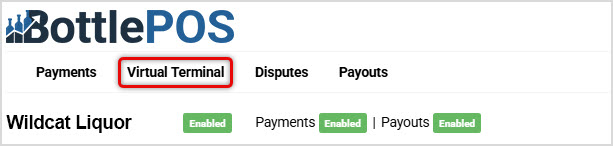
Image of the BottlePOS Payment portal site header highlighting the Virtual Terminal link in the main menu.

Click Virtual Terminal in the Payment Portal's main menu. Use the Virtual Terminal to accept transactions outside the point of sale. Generally, you should only use this if you are unable to use your card swipe, such as if Bottle POS is down. If this happens, you'll need to enter the payment information manually, here.
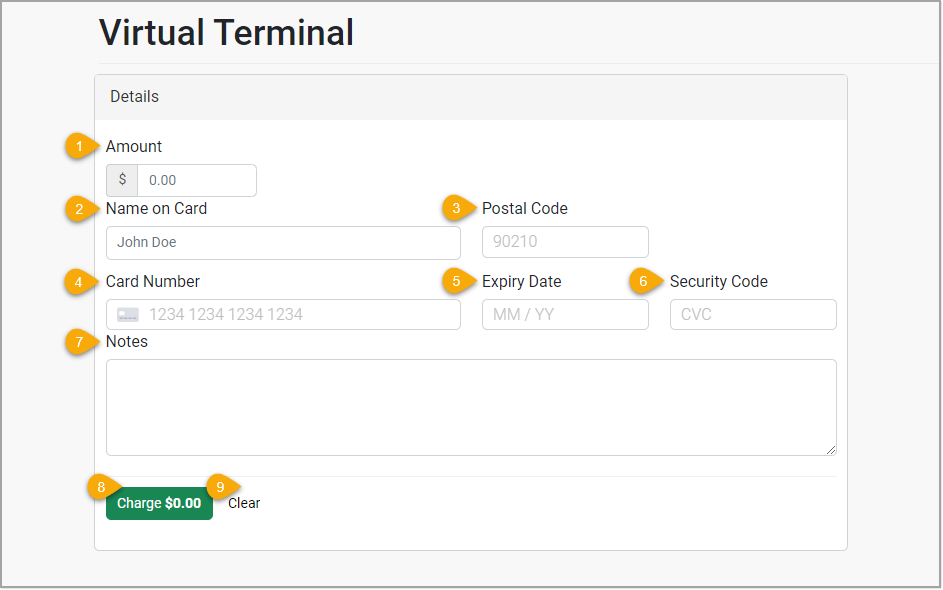
Image showing how to enter a charge through the Bottle POS Virtual Terminal Payment Portal.

  1. Amount - Enter the amount to charge for the transaction. Note: Negative balances (unreferenced refunds) are not supported.
  2. Name on Card - Enter the name on the credit or debit card.
  3. Postal Code - Enter the postal or ZIP code associated with the card.
  4. Card Number - Enter the credit or debit card number.
  5. Expiry Date - Enter the expiration date on the card.
  6. Security Code - Enter the 3-digit security (CVC) code on the card.
  7. Notes - Enter any notes about inventory, transaction details, or other information for later use.
  8. Charge - Click to process the sale.
  9. Clear - Click to clear the details shown on the page.


Please Note: The Payment Portal's Virtual Terminal does NOT integrate with your POS. Charges completed through the Virtual Terminal will NOT show up in the POS software and inventory will not be affected.
  

The Disputes Page

Image of the BottlePOS Payments site header highlighting the Disputes link in the main menu. 

When you receive a dispute the Administrator on the account should receive an email notification. You can respond to and manage disputes on this page.

Please Note: If you use our Managed Chargeback service, all of this work is taken care of for you by our expert team.

If you need, you can Print the data on the page or Download a CSV data file using the icons in the upper right. The following information is available on this page and you can filter by Date and Status:
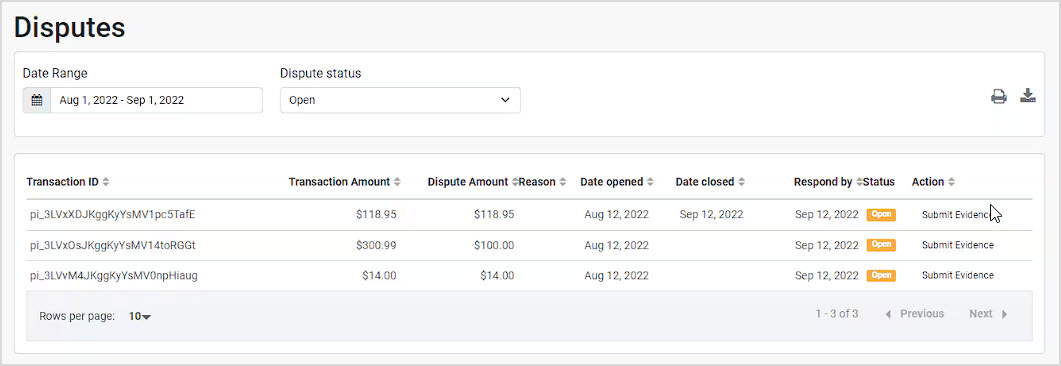
  • Transaction ID
  • Transaction Amount
  • Dispute Amount (may differ from the Transaction Amount)
  • Dispute Reason
  • Date Opened
  • Date Closed
  • Respond by (Date)
  • Status
  • Action


Image of the BottlePOS Payments Disputes page.

To submit evidence in a dispute, click the Submit Evidence link on the far right in the appropriate row. The Dispute Details panel will open and will have additional details and information about the transaction. If you are challenging the dispute, you will need to fill out the details in the Submit Evidence area. Once you have filled out the form, click the Submit Evidence button (not pictured) at the bottom to submit the information.  

Please Note: This action cannot be undone.

To accept a dispute without submitting evidence, click the
Accept Dispute button at the bottom of the panel.
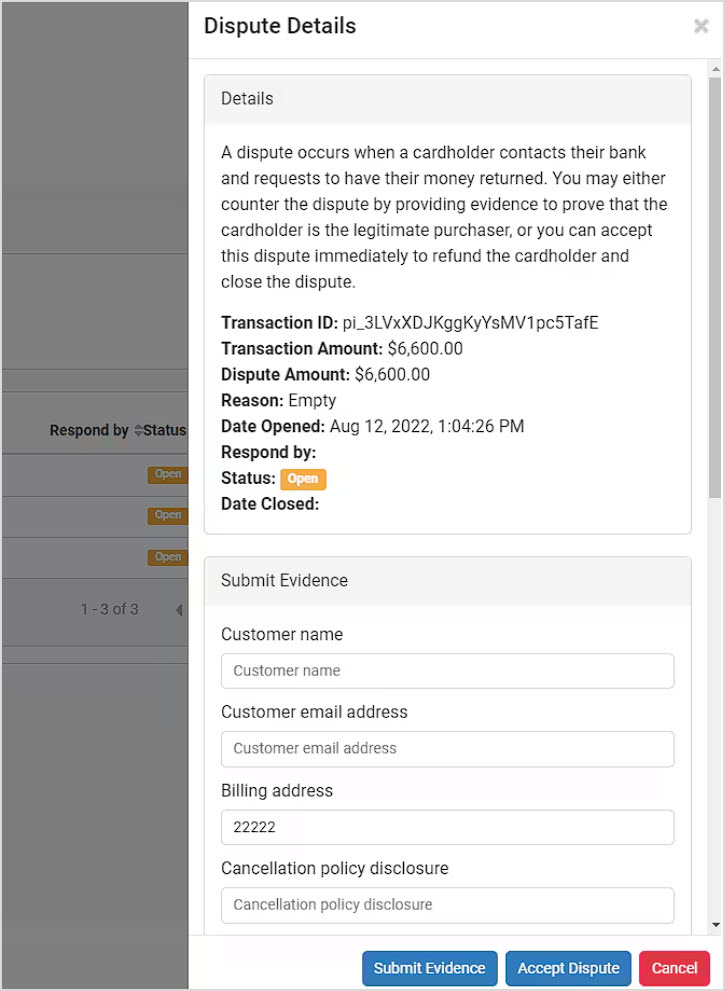
Image of the Dispute Details panel of the Bottle POS Payments portal.


The Payouts Page

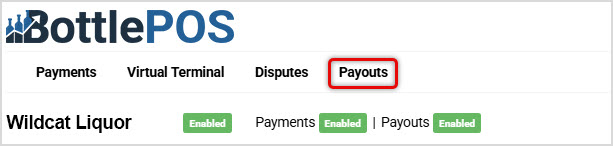
Image showing the Bottle POS Payment Portal site header highlighting the Payouts link in the main menu.

Use this page to view deposit information as soon as the payout has been initiated. This page is intended to be as transparent as possible, showing the breakdown of fees, refunds, and deposits. To access this page click Payouts in the main menu of the Payment Portal.

From this page you can view the following information about your payouts:

  • Payout Date
  • Payout ID
  • Bank Account
  • Payout Status
  • Collected (Gross Total)
  • Fees
  • Refunds
  • Net

Click any row to view the individual transactions that make up the payout.
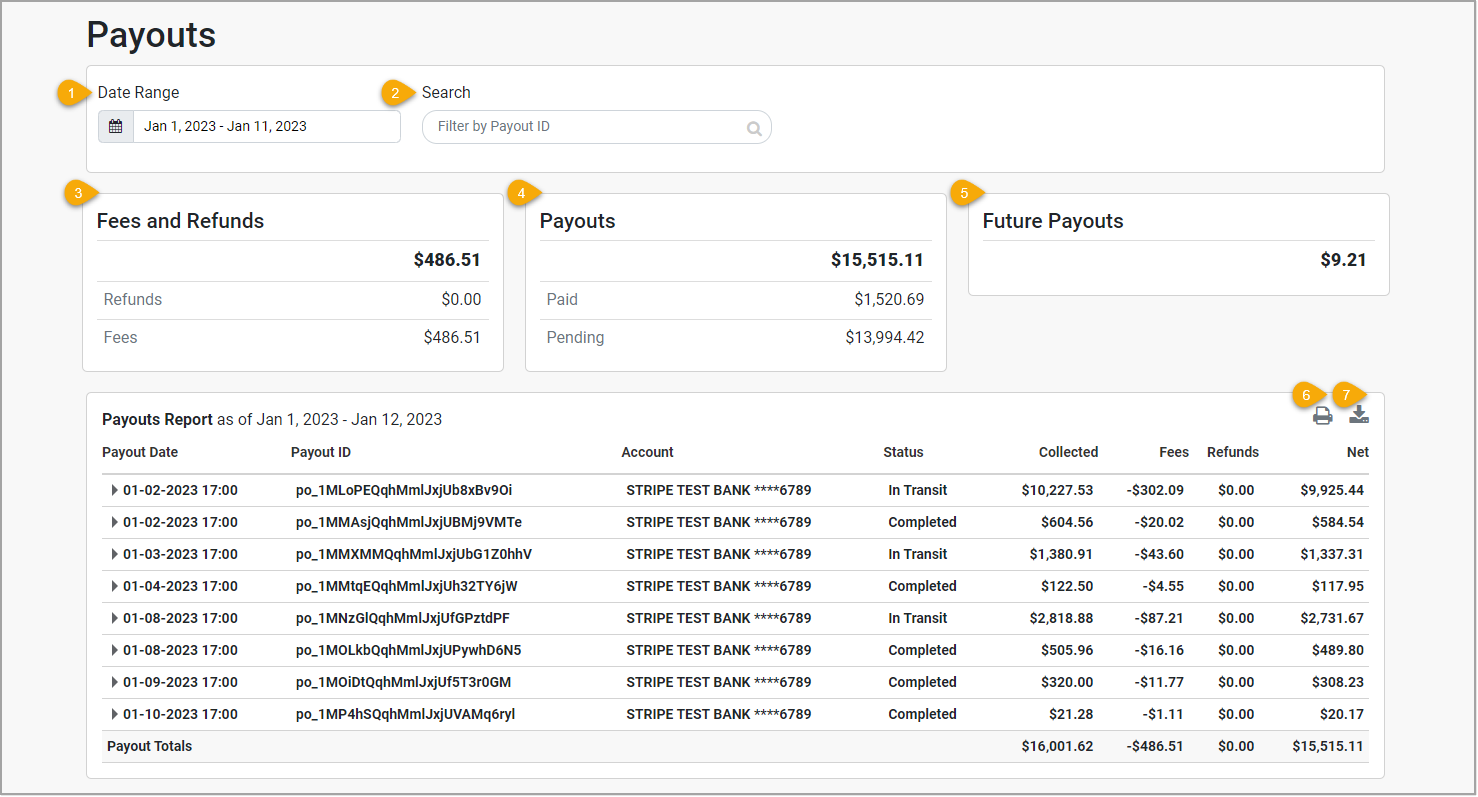
Image showing where to view your expected payouts in the Bottle POS Payment Portal.

  1. Date Range - Identify a range of dates, up to 30 days, to filter the results shown in the table.
  2. Search - Enter a payout ID to search for a specific payout.
  3. Fees and Refunds - Displays the total amount of refunds or fees you've paid out during this date range.
  4. Payouts - Displays your net payouts once all transactions are completed (Total Collected less Fees and Refunds), the amount paid so far, and the amount pending.
  5. Future Payouts - This area will display amounts you've collected that will be part of a future payout.
  1. Print (icon) - Click the printer icon to print this page.
  2. Download (icon) - Click the download icon to save a CSV spreadsheet file of the data to your device.


Viewing Account Details

View your account information on the Account Details page. To access this page, click Settings 012in the upper right of the portal then click Profile.
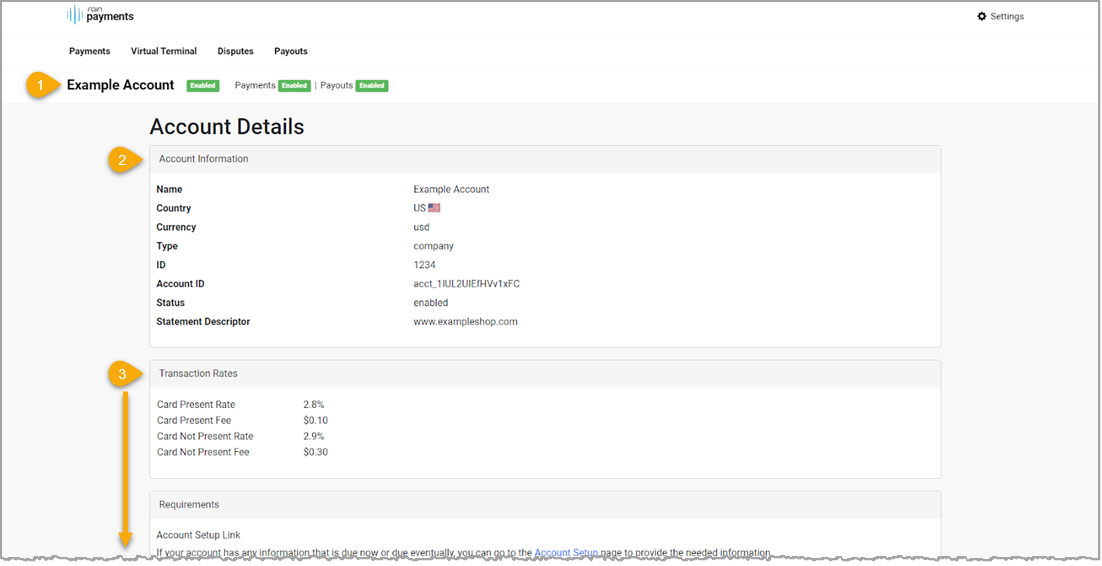
Image of the Account Details page of the Bottle POS Payment Portal with key areas highlighted.

  1. At the top of the page, you can see your Account Status, Payment Status, and Payouts Status. The statuses are Disabled until the account has been completed the application and been approved. Once complete, the statuses are Enabled, as pictured above.
  2. You can see basic account information on this page and includes the following details:
    • Account Name
    • Country
    • Currency
    • Business Type
    • Account ID
    • Account Status
    • Statement Descriptor (the name displayed on consumer's credit card statement)
  1. Below the basic account information, you can view account-specific processing fees, account requirements, bank account, and hardware information. For accounts with multiple locations, you can also view the additional locations associated with your account.


Managing Users

Add, edit, or delete users in the Payment Portal from the Manage Users page. To access this page, click Settings in the upper right of the portal then click Manage Users.

From this page you can view the following information about your users:
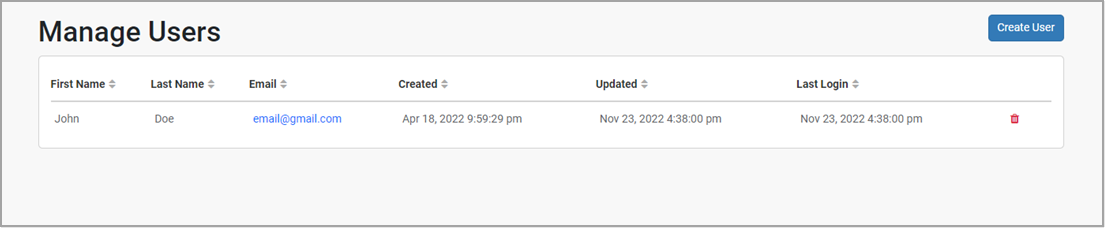
  • First Name
  • Last Name
  • Email
  • Created Date
  • Updated Date
  • Last Login Date
  • Delete action


Creating and Editing Users

Image showing the Manage Users page of the Bottle POS Payments portal.

To add a new user, click the Create User button in the upper-right corner of the Manage Users page (see above). The Add User panel will open for you. To edit an existing user, click the email address of the user and the Edit User panel will open for you.

Please Note: Login access can be added or disabled without affecting permissions.
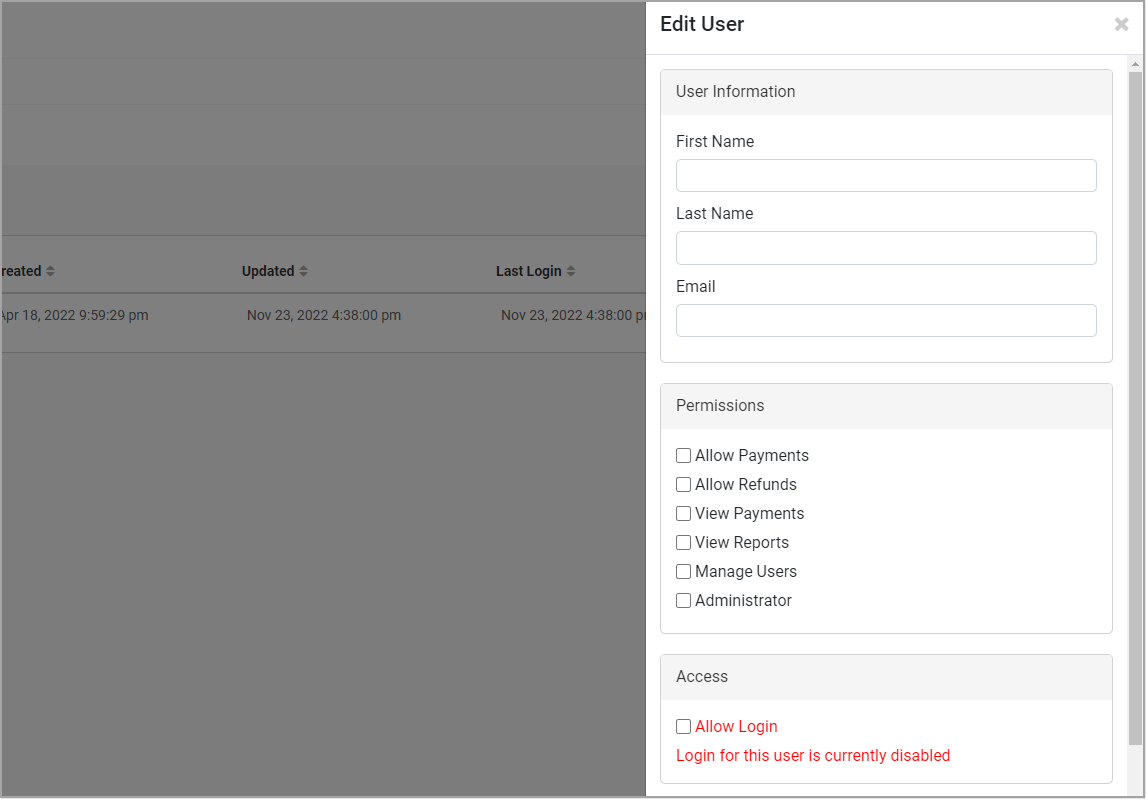
Image showing the Edit User panel of the Manage Users page of the Bottle POS Payments Portal.

  1. First Name - Enter the user's first name.
  2. Last Name - Enter the user's last name.
  3. Email - Enter the user's email address.
  4. Permissions - Select the check box for each allowable action for this user.
  5. Access - Select Allow Login to allow this user to log in to the Payment Portal.


Related Topics

Managed Chargeback Service


Frequently Asked Questions

Q: How can I set up and use the Payment Portal?

A: As part of the onboarding process for Payments, you will be sent your login credentials for the Payment Portal.  


Q: I have a question, but I can't find my answer here, how do I get more assistance?

A: You can ask any question at the number below. Contact our 24/7 support team at: (877) 381-4087