Compare Period Report

October 01, 2024
Need to see how well you're doing this year's sales compared to last year? Take a look at the steps below to learn how!
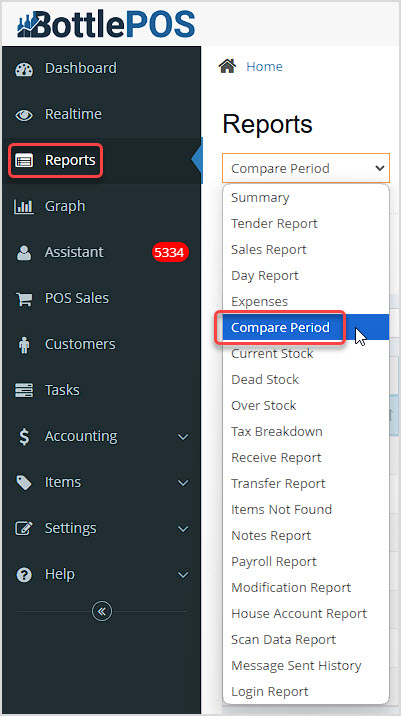
You can get to this part of the system by logging into your Admin and going to the Reports area. Click into the Reports drop-list and click on Compare Period.
Comparing Data
Let's explore how to work with the Compare Period report below:
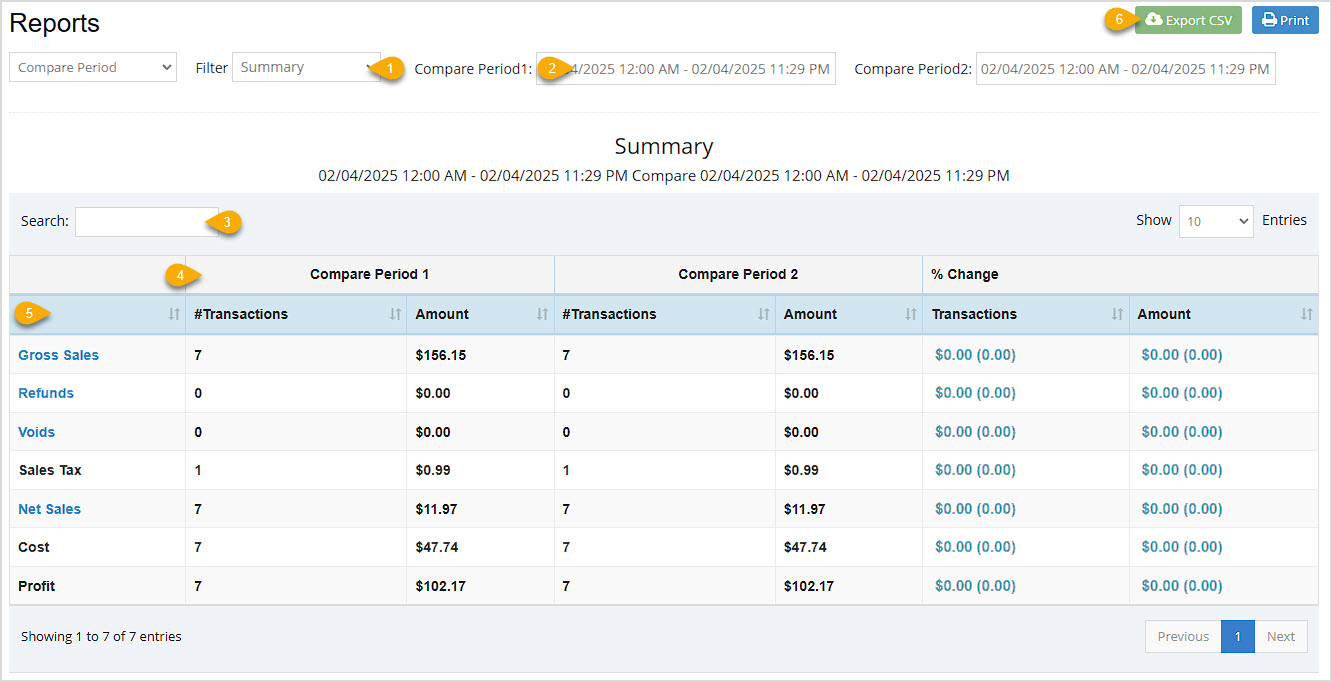
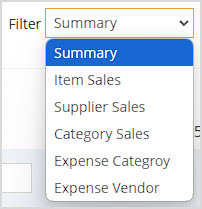
- Filter – There are several different ways to view data in the Compare Period report, and each shows period comparisons of different kinds of data. All filters show the Percentage Change for Transactions and Amount.
- Summary – By default, we see the Summary view, pictured above, which breaks down financial data over the periods.
- Item Sales – Selecting this will allow you to view the full list of items and the amounts that sold during both periods.
- Supplier Sales – This filter breaks down sales by Supplier so you can see how each vendor is performing.
- Category Sales – Selecting this will allow you to see how sales by Category compare for the periods you specify.
- Expense Category – Clicking this will show how your expenses compare between specified periods, broken down by your Expense Categories.
- Expense Vendor – Clicking this will show how your expenses compare between periods, broken down by the vendors you pay your expenses.
- Compare Periods Date & Time Pickers – The report is flexible and allows you to compare irregular periods that don't match. You can set each independently, in whatever order you like. The second period could be set to be before the first period and the report will still compare chronologically in the results. For example: if we set Period 1 to be January of 2024 and Period 2 to be January of 2023, the Percent Change results will still show how the earliest period changed in the latest period. The date pickers can cover any time frame for which the system has data.
- Search – You can search across all pages of results using this Search area to get to the data you need.
- Periods and Change – These columns remain the same across all filtered views of the report, and break down the number of Transactions and Amounts for the different types of data.
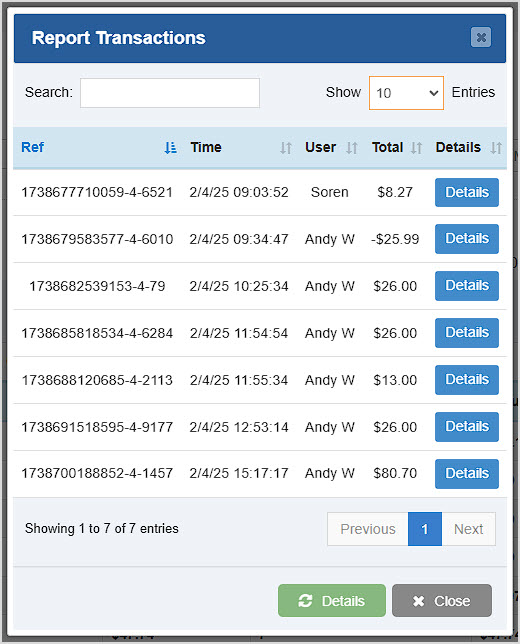
- Data Table – The first column of the data table will link to a list of involved transactions for the different types of data. For example, from the Summary filter for the past week compared to the same week this time last year, we might see a list of transactions like this under Gross Sales. Each transaction that contributed to the total for that area is listed and you can click to view the Details of each.
- Export and Print – You can export the full data across all pages of the currently-filtered report by clicking the Export button. This will be a CSV spreadsheet file download. You can Print the current page in view using the Print button, and either print to a physical printer or save a PDF file by printing to PDF.
Related Topics
Dashboard
Guide to the Admin Reports
POS Sales Manager
Frequently Asked Questions
Q: Why does the report only print the page in view?
A: Printing can really only handle the current page, but if you need all of the data across all pages, you can Export and download a CSV spreadsheet file that contains everything. You can use the Show Entries function to have the page display more line items.
Q: What are the transactions shown for Expense Category and Expense Vendor views of the Compare Periods report? The filter shows multiple transactions, but when I click to view them nothing comes up.
A: Those are actually Expense events that are logged in the system whenever you pay an expense. You can see more details under Reports > Expenses and under Accounting > Expense.
Q: I have a question, but I can't find my answer here, how do I get more assistance?
A: You can ask any question at the number below. Contact our 24/7 support team at: (877) 381-4087
Your Admin Dashboard is your hub for keeping your finger on the pulse of your business. Take a look
Your Admin Realtime page gives you a live view of your sales as they come in and has some useful uti
The Reports in the Bottle POS Admin can show you details about all of your data, however you need to








Is this page helpful?
×Help us improve our articles