Dead Stock Report

October 01, 2024
The Dead Stock report shows inventory which hasn't sold during a specified time frame. Take a look!
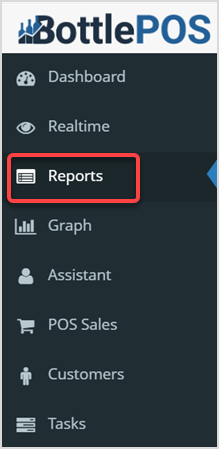
You can get to this report by signing into the Admin app and clicking Reports in the main menu.
Working With the Dead Stock Report

- Reports Drop-List – Find the Dead Stock report and click to open it.
- Filter – Click this to view a drop-down menu to filter the report by stock age in days. You can filter for stock age by None, 30 Days, 60 Days, 90 Days, 120 Days, 180 Days, and 360 Days. Depending on which one you select, the table below will display the inventory that hasn't sold in the selected time frame.
- Range – While the date Range controls are on this page, the report will actually base all data on current dead stock status, so there is no need to make adjustments to this area.
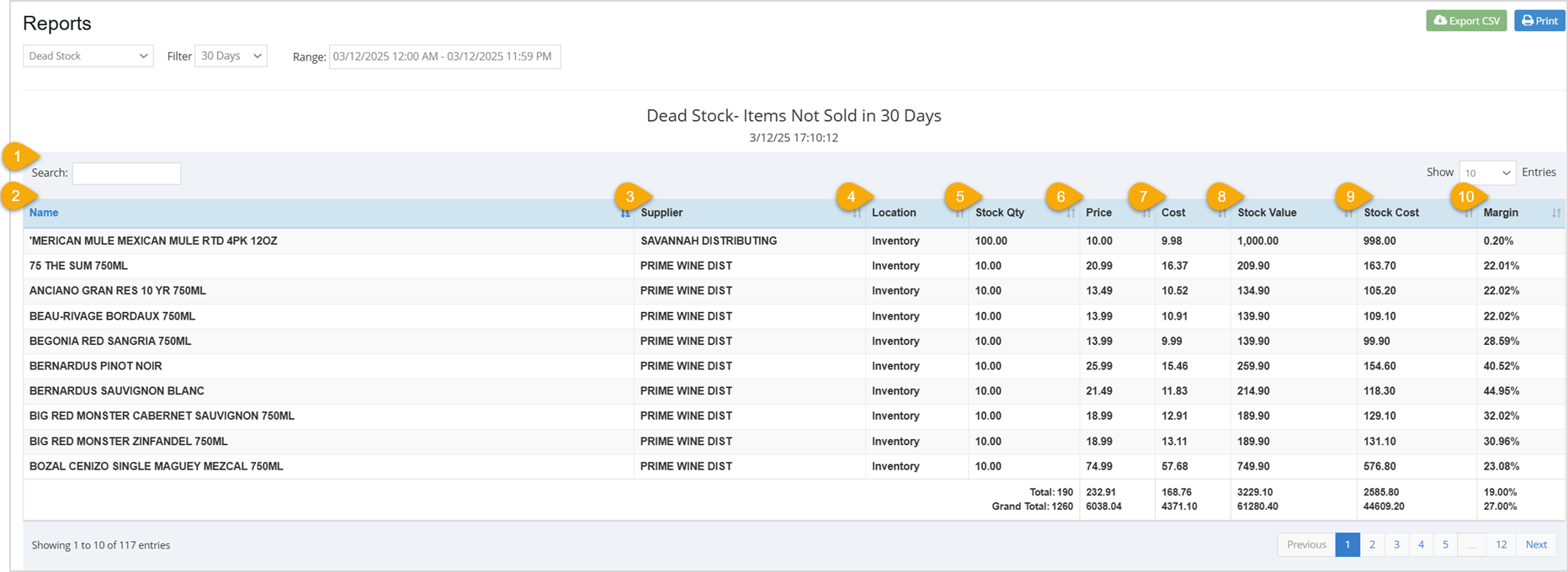
- Search – Enter text or numbers to search the report data for what you want.
- Name – This column displays the item Name.
- Supplier – This column displays the item's Supplier.
- Location – This column displays the inventory Location of the item. This will almost always be Inventory.
- Stock Quantity – This column shows the Quantity of each item considered to be dead stock.
- Price – This column displays the per unit Price of each dead stock item.
- Cost – This column displays the per unit Cost of each dead stock item.
- Stock Value – This column displays the total selling value of the unsold inventory considered to be dead stock.
- Stock Cost – This column displays the total amount you paid to obtain the dead stock inventory.
- Margin – This column displays the profit percentage your business would normally earn on each item.
Related Topics
Guide to the Admin Reports
POS Sales Manager
Frequently Asked Questions
Q: Can I print my reports from the Admin?
A: Yes. If you have a printer connected to your device, you can click the Print button on the top right of the report page to print the report you are viewing.
Q: I have a question, but I can't find my answer here, how do I get more assistance?
A: You can ask any question at the number below. Contact our 24/7 support team at: (877) 381-4087
Your Admin Dashboard is your hub for keeping your finger on the pulse of your business. Take a look
Your Admin Realtime page gives you a live view of your sales as they come in and has some useful uti
The Reports in the Bottle POS Admin can show you details about all of your data, however you need to








Is this page helpful?
×Help us improve our articles