






How to Add Employees - Staff & Admins Settings
Learn how to successfully add new employees to your Bottle POS and to set their security permissions

 October 01, 2024
This article will explain how to display images on a smart TV through your Bottle POS. This feature allows you to advertise products, display promotions, and much more. Take a look at your options!

To get started, log into your Admin app and go to Settings > POS Settings and scroll down to the TV Screen section.
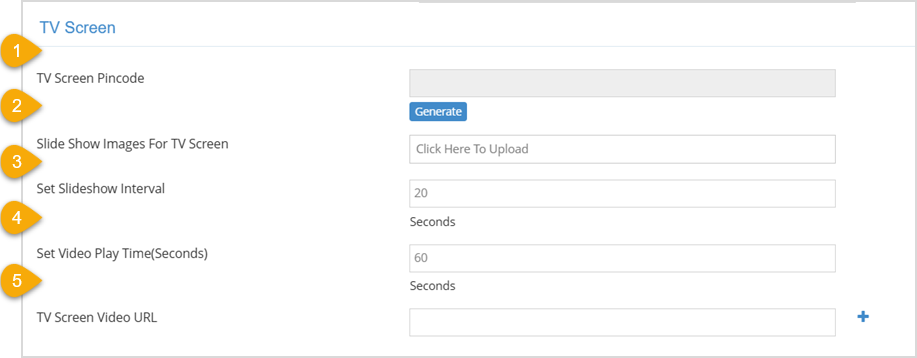
Now that we know what each section is for, let's use them to connect your POS to your TV! First, you're going to want to upload the image or video you would like to display on the Smart TV:
After uploading the video or picture(s), you need to set the time between slides on the slideshow or the video play time if a video is uploaded:
Now we want to open the internet browser on your smart TV and enter the connection URL. The connection URL is going to be businessurl/tv-screen.html where the business URL is replaced by the URL for your store.
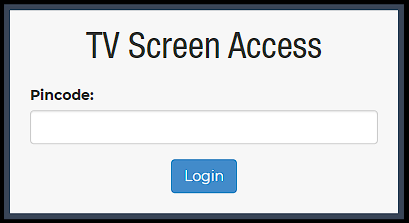
Finally, we want to enter the TV Screen Pincode from the TV Screen settings into the TV Screen Access box on the smart TV:
Finally, click the Save button at the bottom of the page to finalize your settings. Now you're all set!
How to Add the Admin App to Your Smartphone
Q: Does this only work on smart TVs?
A: No. This feature can work on almost any device which has an internet browser.
Q: I have a question, but I can't find my answer here, how do I get more assistance?
A: You can ask any question at the link below, once received one of our technicians will be in touch! If you need immediate assistance, feel free to contact our 24/7 support team at: (704) 405-5089
Q: I have a question, but I can't find my answer here, how do I get more assistance?
A: You can ask any question at the number below. Contact our 24/7 support team at: (877) 381-4087
Is this page helpful?
×Help us improve our articles