Manage POS Devices & Locations

October 01, 2024
Your Devices & Locations area is where you initially set up and configure your register devices for the Bottle POS. Take a look at what's there for you!
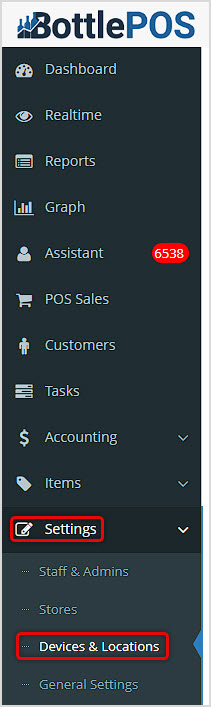
You can get to this part of the system by logging into your Admin app and clicking Settings on the left. Near the top of the menu that opens, click on Devices & Locations.
Settings for Devices & Locations
This area is for your reference: the actual setup of your Devices and Locations is done by your Bottle POS Onboarding Manager. The Add button in the upper right and adjustments within the View function for the Devices are not areas you can directly modify.
The page displays all POS Devices and all POS Locations, and here is what that means:
- POS Device – This is the POS Register which can be installed onto a computer. You will need a separate license for each device. The exception is the Admin Dash, which is a 'virtual' device needed for the Admin.
- POS Location – This is the location in which your inventory is stored. The default is Inventory. This section should not be adjusted and is hidden by default.
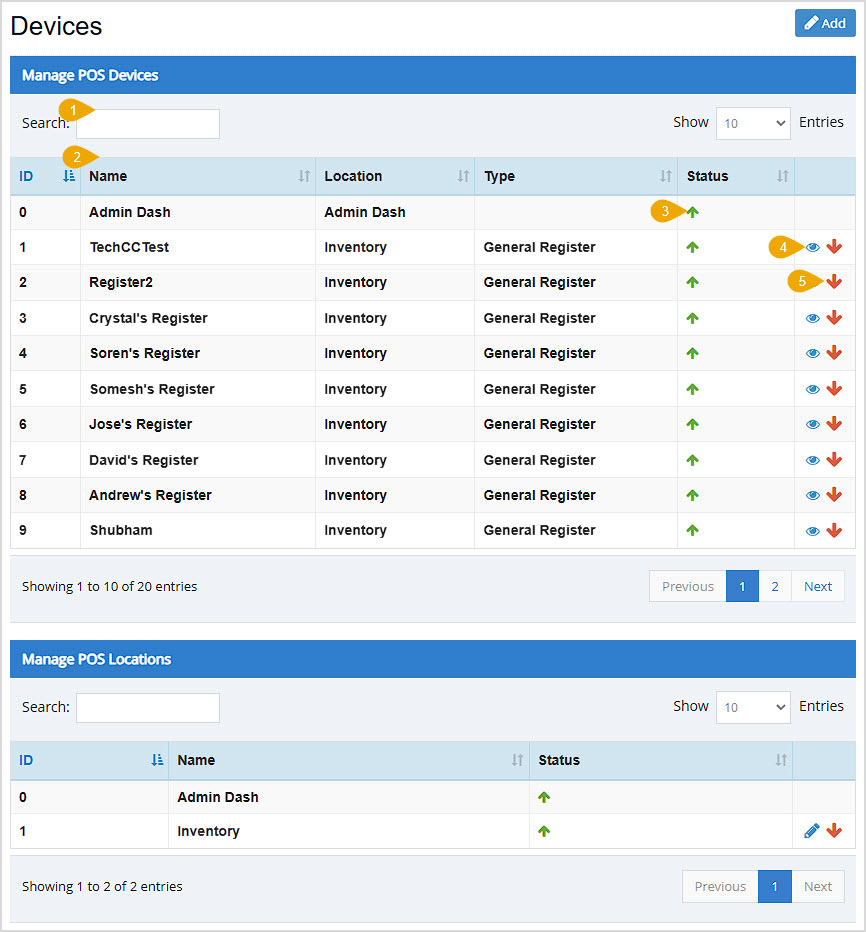
- You can Search, if needed, by Name, Location, or Type in the Devices table. In the Locations table you can search by Name.
- The data table for Devices will list the simple ID number given to each Device by the system, the Name, Location, Type of device, the device Status, and Tools (see detailed descriptions of these last three elements below). The data table for Locations shows the ID, Name, Status, and Tools.
- The Green Up Arrow Icon in the Status column means the device is Enabled and the Red Down Arrow Icon means it's Disabled.
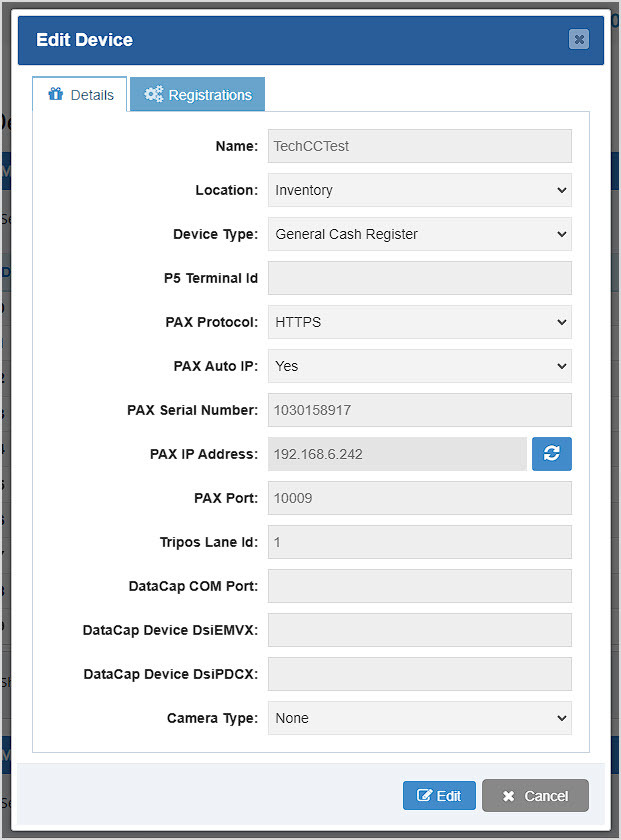
- In the Devices table you can click the Eye Icon to View the item, which will open the Details tab of the Edit Device window and let you see how it's configured. All areas are grayed out since the setup for each item is done by the Bottle POS team for you. The Registrations tab will show you technical details about the configuration registry. You don't need to do anything with any of the data in this window.
- In the Devices table you can click the icon farthest on the right to Disable an Enabled device, or to Enable a Disabled one, depending on the item's current Status.
Related Topics
General Settings
POS Settings
Register Printing Settings
Frequently Asked Questions
Q: I have a question, but I can't find my answer here, how do I get more assistance?
A: You can ask any question at the number below. Contact our 24/7 support team at: (877) 381-4087
Learn how to successfully add new employees to your Bottle POS and to set their security permissions
Bottle POS makes having multiple stores a breeze, allowing you to manage inventory for them with jus
Your Admin allows you a wealth of options in how you configure your system to work for you. Take a l








Is this page helpful?
×Help us improve our articles