






Managing Timesheet Entries
It's common for employees to forget to clock in or out and when that happens you need an easy option

 October 01, 2024
Bottle POS makes having multiple stores a breeze, allowing you to manage inventory for them with just a few clicks. Keep reading to learn more on how to add your stores.
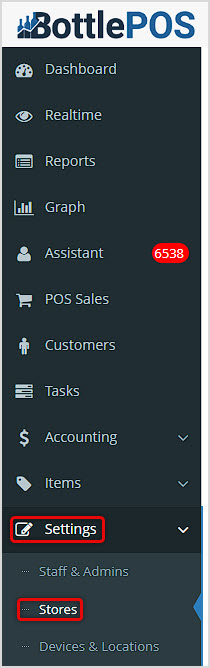
You can get to this part of the system by logging into your Admin and clicking Settings on the left. Near the top of the menu that opens, click on Stores.
To work with inventory for tasks such as transfers, make sure you have your different Stores set up in the system so they can 'see' each other.
Please Note: This functionality will not work if you only have a single store using Bottle POS.
You'll need a Bottle POS account for each store. The Stores page under Settings will show you all stores you have set up within the current store you are logged into. Linking your stores in the Admin allows you to view a snapshot of the reporting and item data from your other stores from one Admin page.
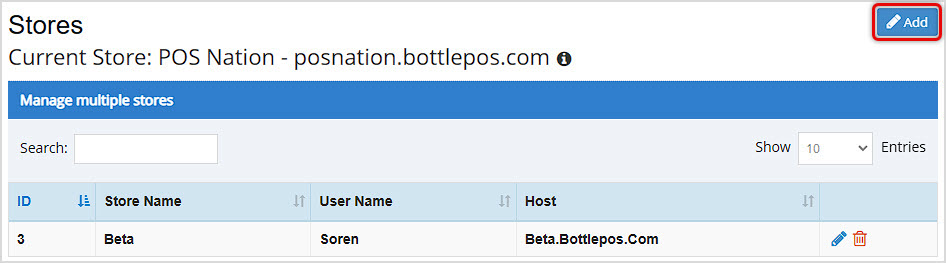
Click the Add button in the upper right to add a store to the list.
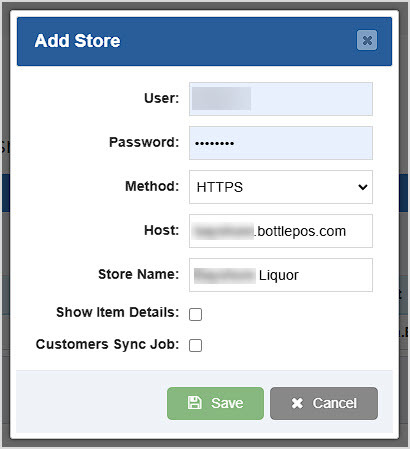
Once the stores you have are in place, you'll be able to use the Transfers area under the Items menu to transfer items between them whenever you need. You will also be able to transfer individual items from the Inventory page under the Items menu.
How to Transfer Items Between Your Stores
Manage Your Stock Inventory Levels
Q: Can I transfer inventory out of a store using Bottle POS and note it was transferred to a store not using Bottle POS?
A: No, both stores must be using the Bottle POS system and must have a URL for the store on the bottlepos.com domain.
Q: Can I transfer to multiple stores at once?
A: No, you can only transfer to a single store at a time.
Q: I have a question, but I can't find my answer here, how do I get more assistance?
A: You can ask any question at the number below. Contact our 24/7 support team at: (877) 381-4087
Is this page helpful?
×Help us improve our articles