How to Enable the Fraud Warning

October 01, 2024
Your Fraud Warning is something the Bottle POS team can help you configure. Take a look at how it can help your staff avoid fraud!
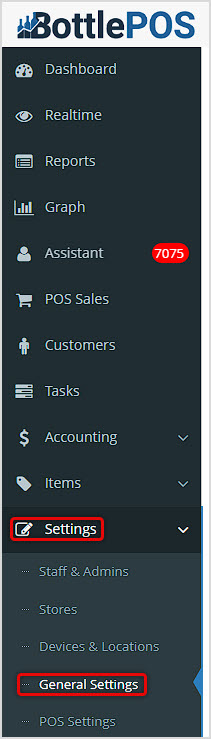
To see how your system is configured for Fraud Warning, in the Admin click Settings and go to General Settings in the menu that opens for you.
Fraud Warning Settings
In the General Settings page, scroll down to the Credit Card section in the left column. The Fraud Warning area is in the middle of the section:
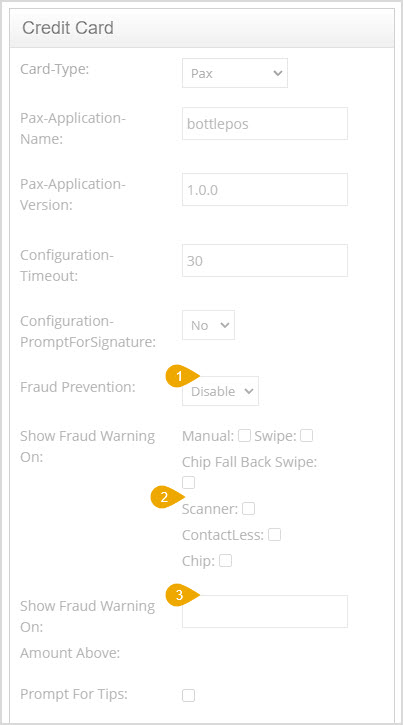
- Fraud Prevention - If Fraud Prevention is enabled for you, this setting will display for you. The Bottle POS team can configure this for you if it is not on and you need it. With this on, your sales clerks will see warnings pop up based on how the settings below are configured.
- Show Fraud Warning On (read type) - When working with the Bottle POS team, you'll set the card read types for which warning will pop up if the card read type you set is used. Boxes for all items you want to apply will be checked.
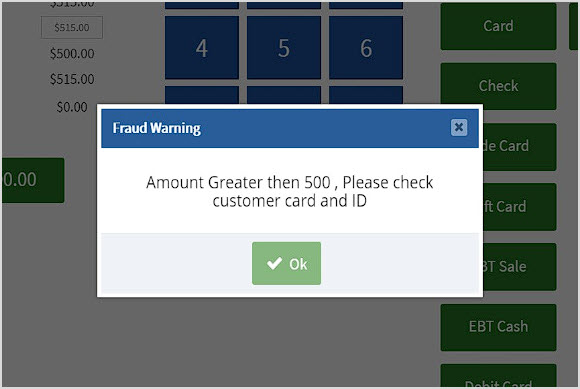
- Show Fraud Warning On (amount) - If you're setting this up new with the Bottle POS team, choose the amount for which you want the warnings to pop up. They can advise you on common amounts, but $500 is a good example. The warnings will pop up when the conditions are met and will look like this:
Related Topics
Ringing Up Sales with the POS
General Settings
Frequently Asked Questions
Q: I have a question, but I can't find my answer here, how do I get more assistance?
A: You can ask any question at the number below. Contact our 24/7 support team at: (877) 381-4087
Learn how to successfully add new employees to your Bottle POS and to set their security permissions
Bottle POS makes having multiple stores a breeze, allowing you to manage inventory for them with jus
Your Devices & Locations area is where you initially set up and configure your register devices








Is this page helpful?
×Help us improve our articles