






How to Add Employees - Staff & Admins Settings
Learn how to successfully add new employees to your Bottle POS and to set their security permissions

 October 01, 2024
Learn how to add your logo to the top of your printed customer receipts. Placing a logo at the top of your receipts adds a level of professionalism to your business and helps you stand out.
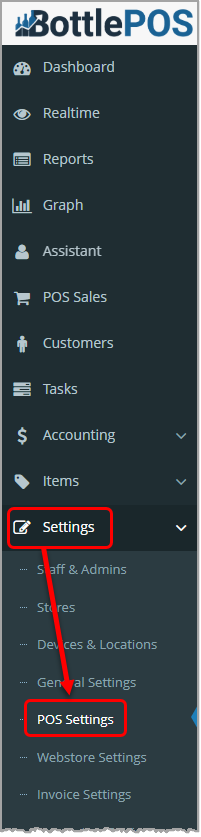
To add a logo to your receipts, click POS Settings in the Settings menu of your Admin system. Admin privileges are required to complete the steps in this article.
Before you can add a logo, make sure you have one saved on your computer. Receipt logos should meet the following requirements:
You can follow the steps below to change your logo to a different image file if you already have one saved in the Bottle POS Admin or to add a new one.
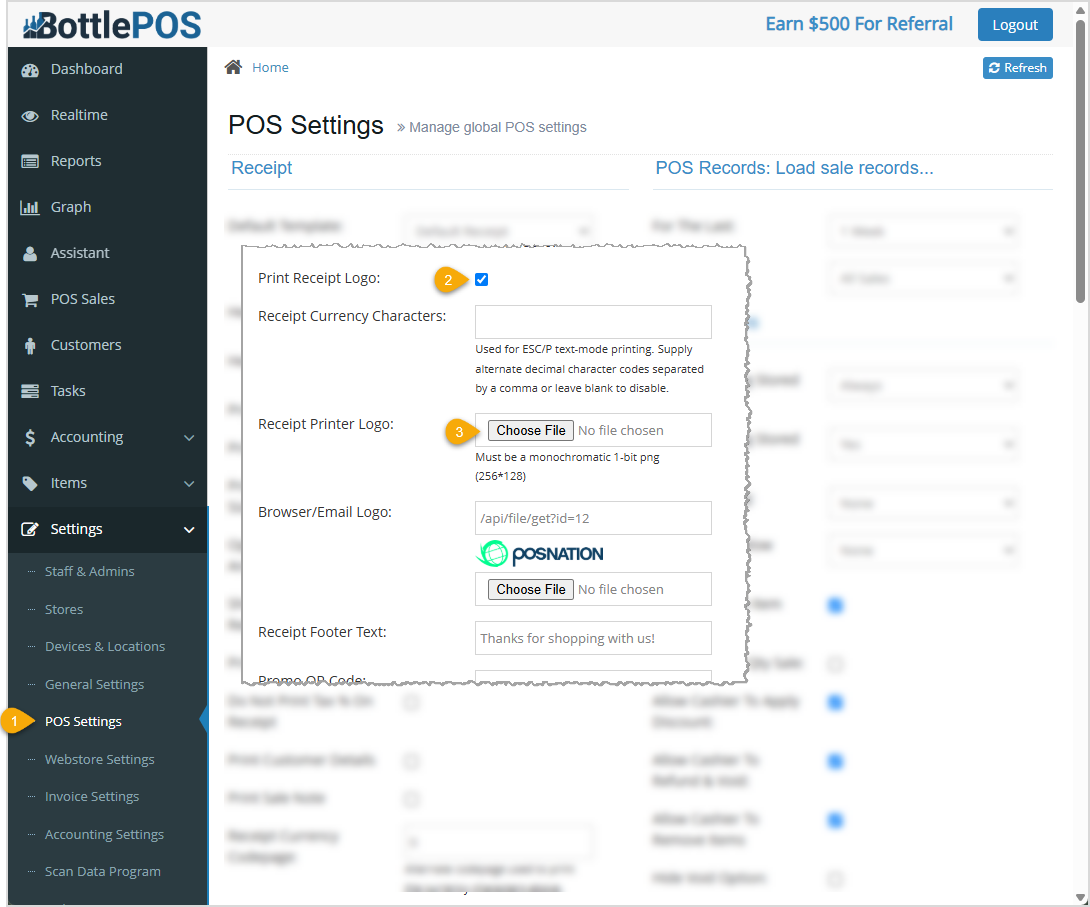
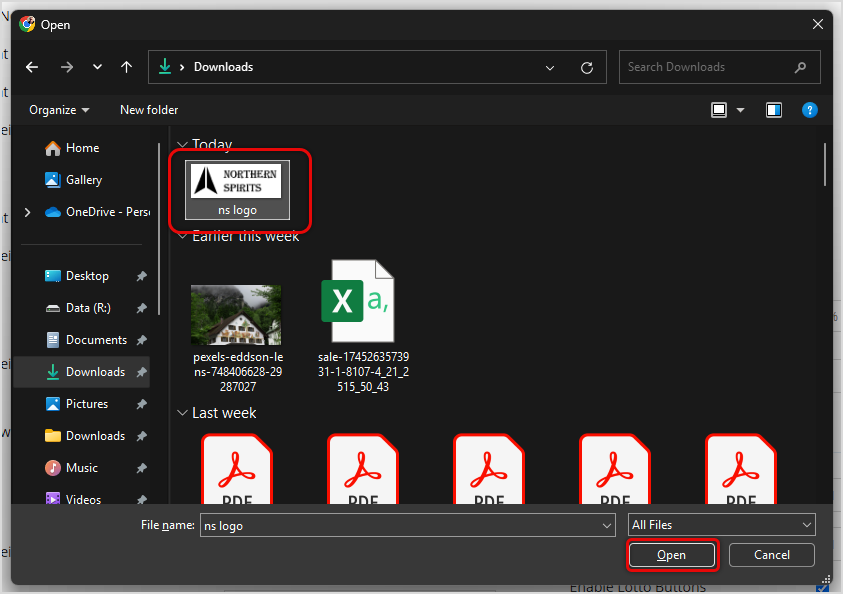
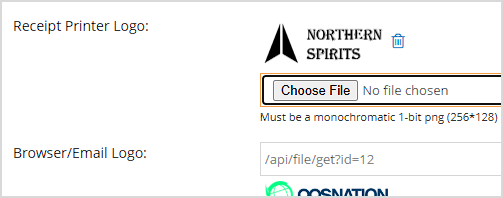
How to Customize Your Receipt Header and Footer
Q: After uploading my receipt logo, my receipt printer won't print receipts.
A: When the uploaded logo does not meet the requirements (monochromatic 1-bit PNG no larger than 256x128px), it can cause your printer to not print receipts at all. You can fix this by changing the logo or clearing the Print Receipt Logo check box to disable the logo.
Q: I have a question, but I can't find my answer here, how do I get more assistance?
A: You can ask any question at the number below. Contact our 24/7 support team at: (877) 381-4087
Is this page helpful?
×Help us improve our articles