






Managing Timesheet Entries
It's common for employees to forget to clock in or out and when that happens you need an easy option

 October 01, 2024
Learn how to print labels from the Bottle POS Register. When you print labels from the Bottle POS, you can print multiple labels for an item at one time.

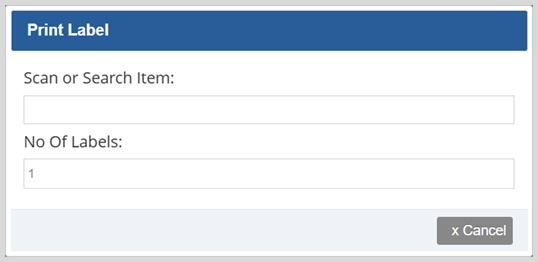
In the new window, you will see two boxes labeled Scan or Search Item and Number Of Labels. The Scan or Search Item field is where you will either scan the item for which you wish to print labels, or enter the item name into the field manually. Number Of Labels is where you will enter in how many labels you would like to print. If you want to go back or close the window, click on the x Cancel button.
As you scan or search for items, matches will show up in a drop-list under the search field. Click the one you want to print. Each click will print a label, so click as many times as you need for the number of labels you require.
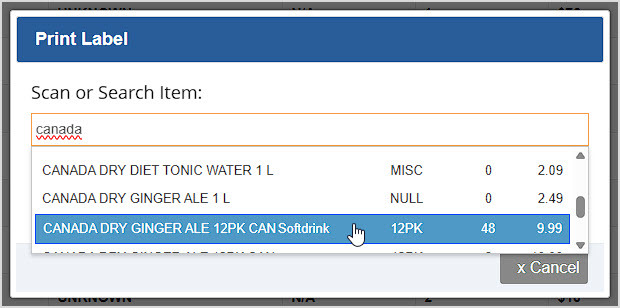
And with that, you're able to print as many labels as you'd like!
How to Print Labels from the Admin
Q: Can I print labels for more than one item at once?
A: Not from the Register: This feature is only available when printing from the Admin.
Q: I have a question, but I can't find my answer here, how do I get more assistance?
A: You can ask any question at the number below. Contact our 24/7 support team at: (877) 381-4087
Is this page helpful?
×Help us improve our articles