How to Review a Receive Order for Errors

October 01, 2024
Use this article to learn how to receive your inventory in the Bottle POS after you receive a shipment. By receiving your items this way, you will always be able to go back and review the invoices to track when you got your inventory and what inventory was in the shipment.
Reviewing Received Invoices to Prevent Errors
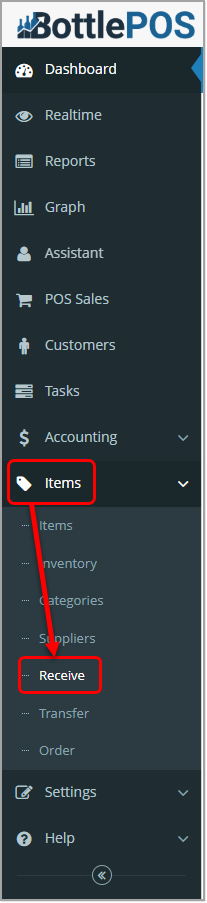
To access and enter a received item invoice, click Receive on the Items menu in your Admin system. Admin privileges are required to complete the steps in this article.
Reviewing Your Received Items Before Finalizing
There are a few steps you can take to double-check your work before finalizing your received item invoice.
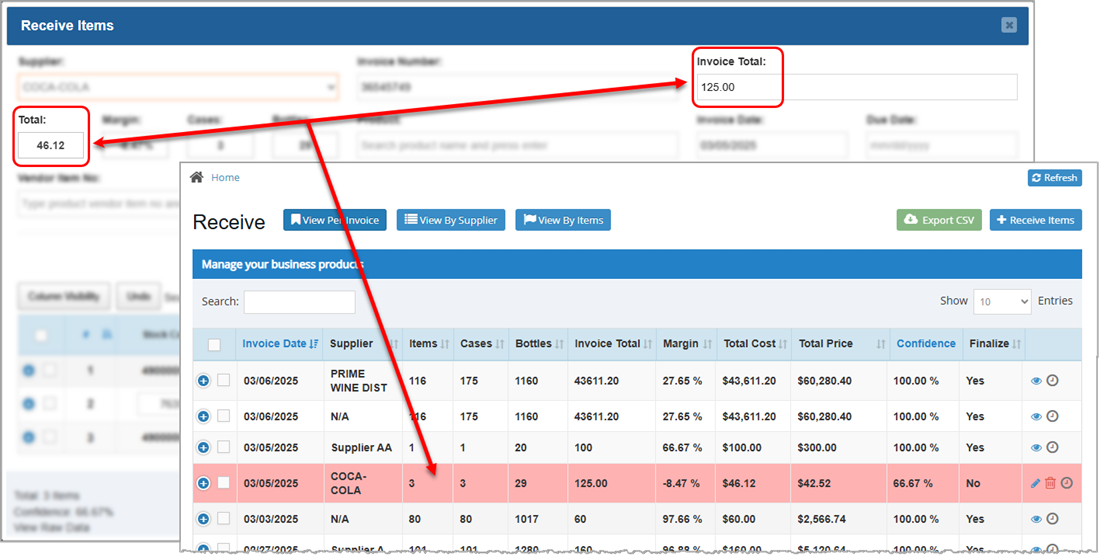
- When entering an invoice in the Admin under Items > Receive > Receive Items, verify that the Invoice Total and Total Cost amounts match. If they do not, there's an error either in the Invoice Total or in one of your item entries. If you've already exited the Receive Items window and are viewing invoices in the Receive window, invoices with unmatched Invoice Total and Total amounts are highlighted in red. The image below shows mismatched totals in the Receive Items window and the result of this mismatch in the Receive window.
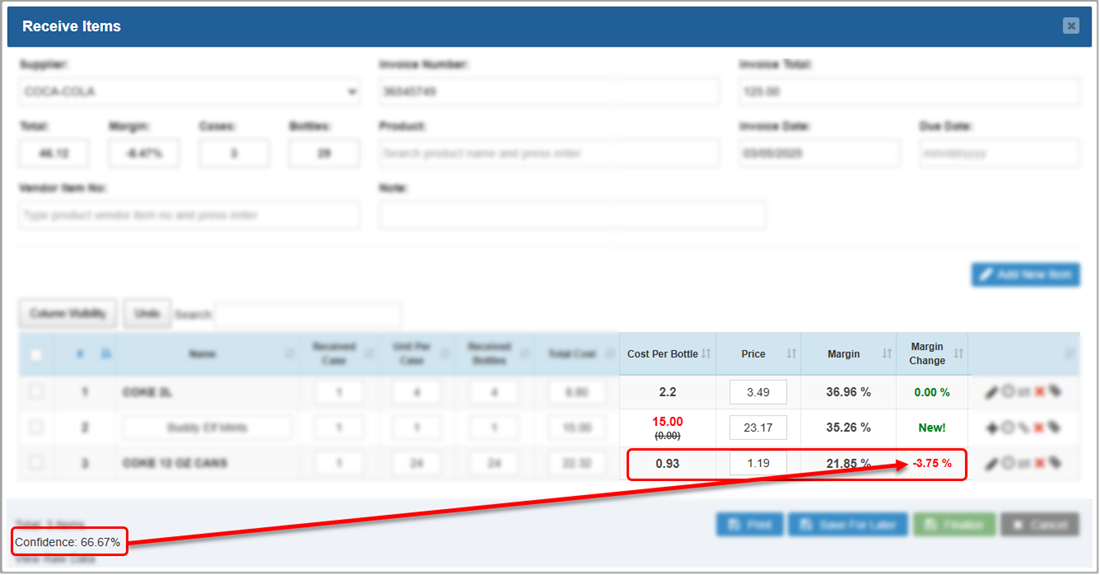
- When entering or reviewing an invoice in Items > Receive > Receive Items, take advantage of the built-in confidence percentage. The confidence calculator looks at Cost Per Bottle and Price to determine if the gross profit margin is within a normal historical variance range. While not a fool-proof way to know you've entered everything correctly, it's a strong indicator if it's good or if there may be an error. If the confidence level is low, sort your invoice by margin to identify any items with a negative margin or a margin close to 100%. Extreme margin variations are typically red flags indicating an error in your values. In the image below, the confidence percentage is low because the overall margin percentages are somewhat low. The Margin Change for an item is a negative number, indicating the calculated margin for that item is lower than it was previously.
Related Topics
Receive Invoices in the Admin
Frequently Asked Questions
Q: I have a question, but I can't find my answer here, how do I get more assistance?
A: You can ask any question at the number below. Contact our 24/7 support team at: (877) 381-4087
You can work with your Items in powerful and flexible ways using the main Items page in your Bottle
Keeping track of inventory and stock levels is an important part of any business. Your Bottle POS ha
You can create non-inventory items of several types in the Bottle POS as needed. Take a look at how








Is this page helpful?
×Help us improve our articles