






Reprinting Transaction Receipts
Reprinting a Transaction Receipt You can reprint transaction receipts from the Bottle POS and Admin.

 October 01, 2024
Use this article to learn how to suspend and recall your Bottle POS transactions. You can Suspend transactions and save them for later. This allows you to run the checkout for another customer without losing any of the details from an unfinished (suspended) sale. Once you are ready to finish the suspended transaction, you can Recall it to the Bottle POS page intact. You might need to do this for a variety of reasons, but one might be if a customer left their wallet in the car and needs a few minutes to retrieve it.
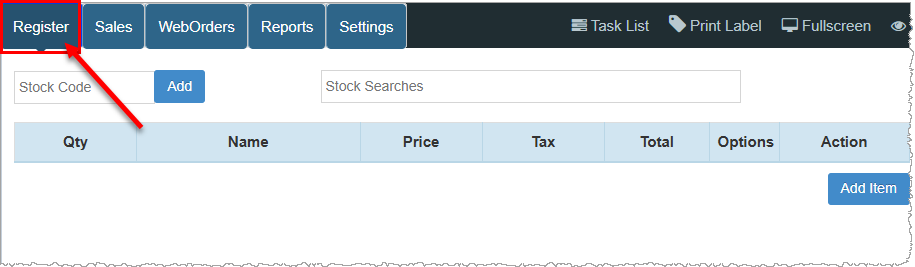
To access this feature, log into your Bottle POS app and click the Register tab in the upper left. Before you can suspend (or recall) a sale, you need to start a transaction by adding one or more items.
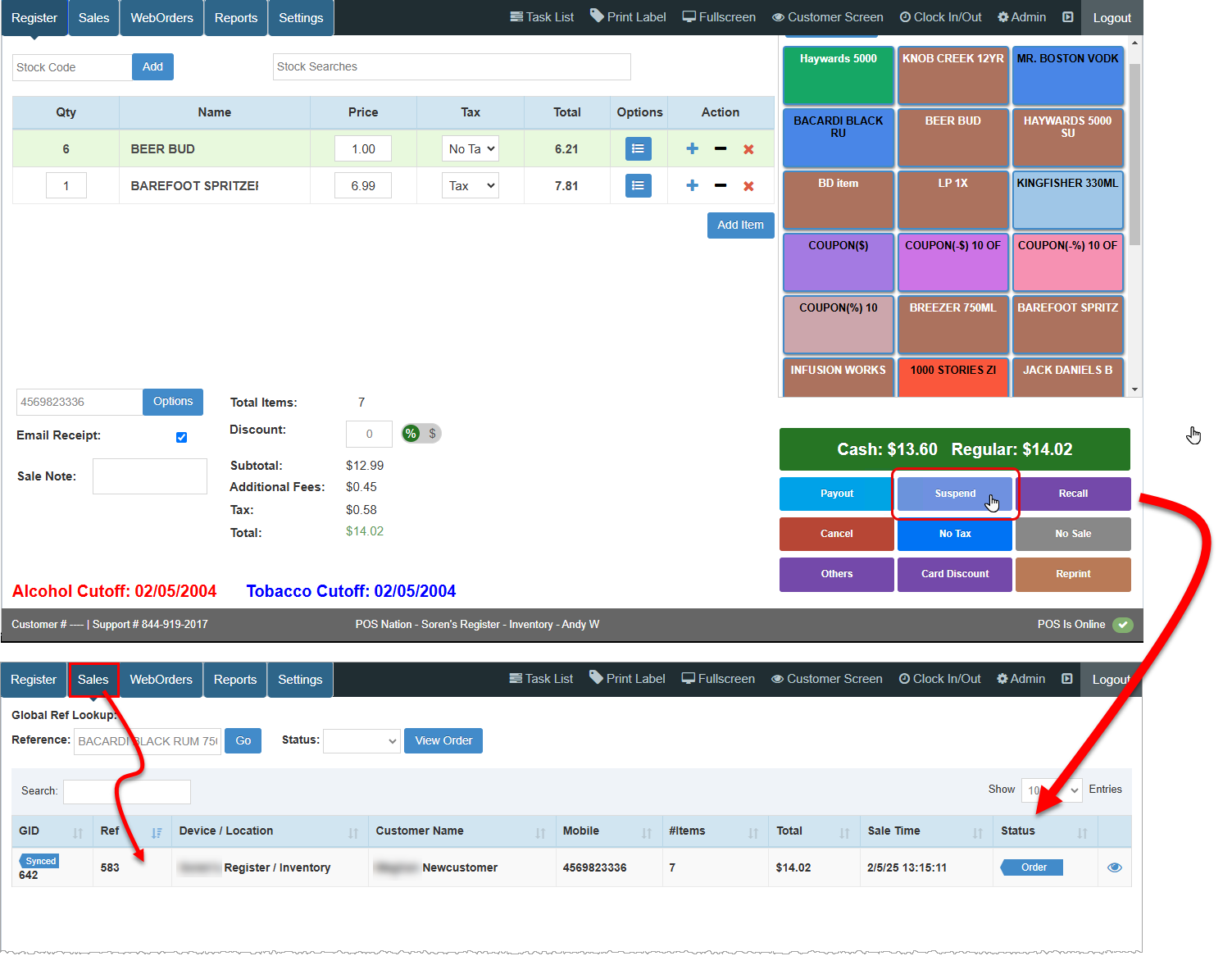
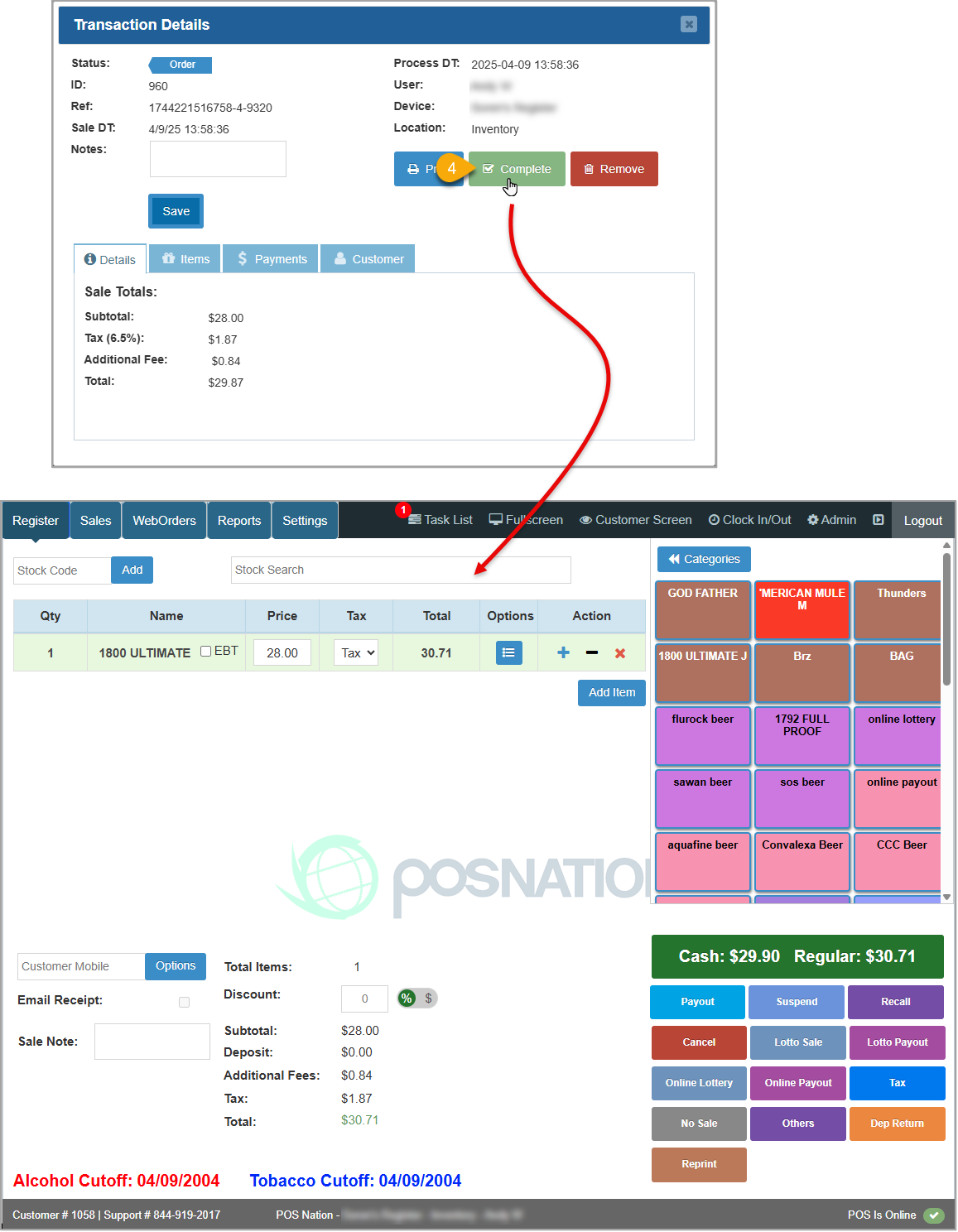
To suspend an active sale click the Suspend button just below the Checkout button. The sale will be moved to the Sales tab of your register and will be accessible at any point in the future, as shown in the image below.
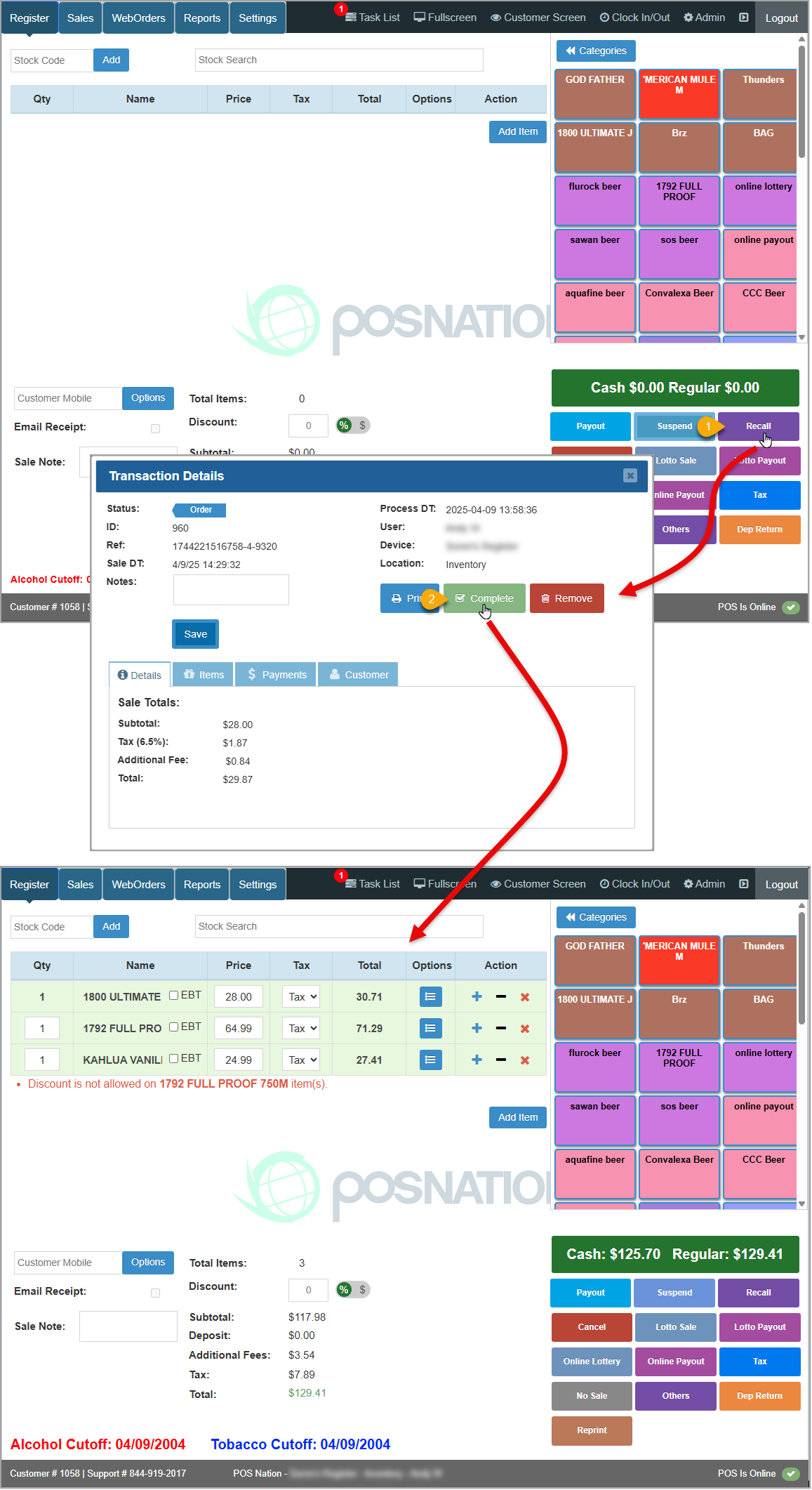
If you're ready to bring a previously suspended sale back into the Register, simply complete these basic steps.
Please Note: These steps only apply to the most recently suspended transaction. For any other suspended sale, follow the steps in Open a Suspended Sale, below.
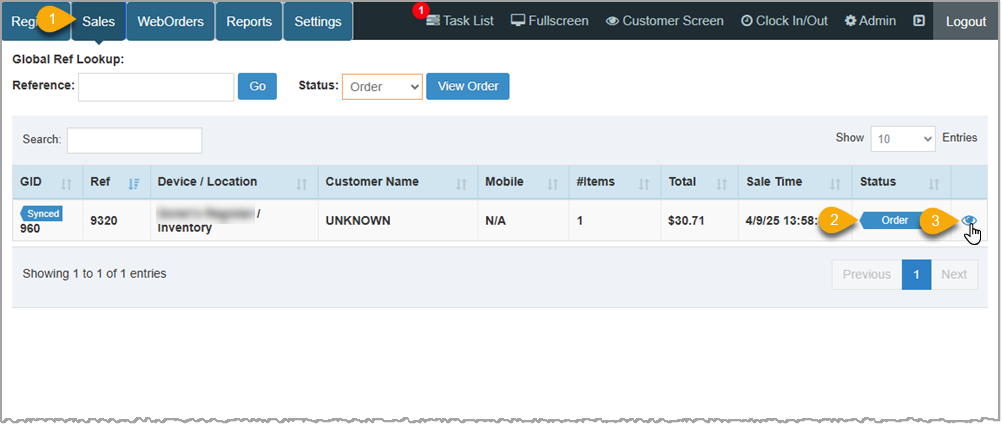
If a sale was suspended but is not the most recently suspended sale, you won't be able to Recall it as described above. Follow these instructions to load it into the Register.
Q: Can I suspend more than one transaction at a time?
A: Yes, but the Recall button will only work for the most recently suspended transaction.
Q: Do my suspended transactions go away at the end of the day?
A: No, they will be available for recall indefinitely from the Sales tab of your Bottle POS App.
Q: I have a question, but I can't find my answer here. How do I get more assistance?
A: You can ask any question at the number below. Contact our 24/7 support team at: (877) 381-4087
Is this page helpful?
×Help us improve our articles