






Managing Timesheet Entries
It's common for employees to forget to clock in or out and when that happens you need an easy option

 October 01, 2024
The Bottle POS Register is flexible, fast, and easy to use! Look below to see how you can work in your Register.
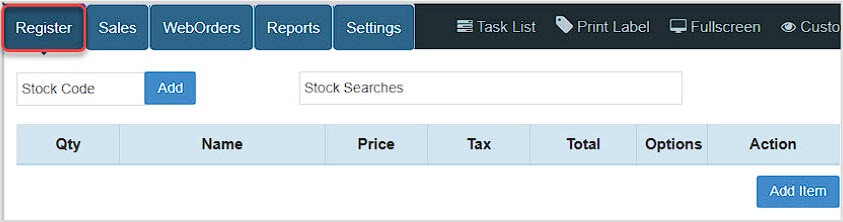
You can get to this part of the system by logging into your Register App. The Register page will load for you.
This is an overview of the different parts of the Register app, and you'll find links to articles with more details on each area below. We'll start with the Register tab itself. There are five major sections of the Register page:
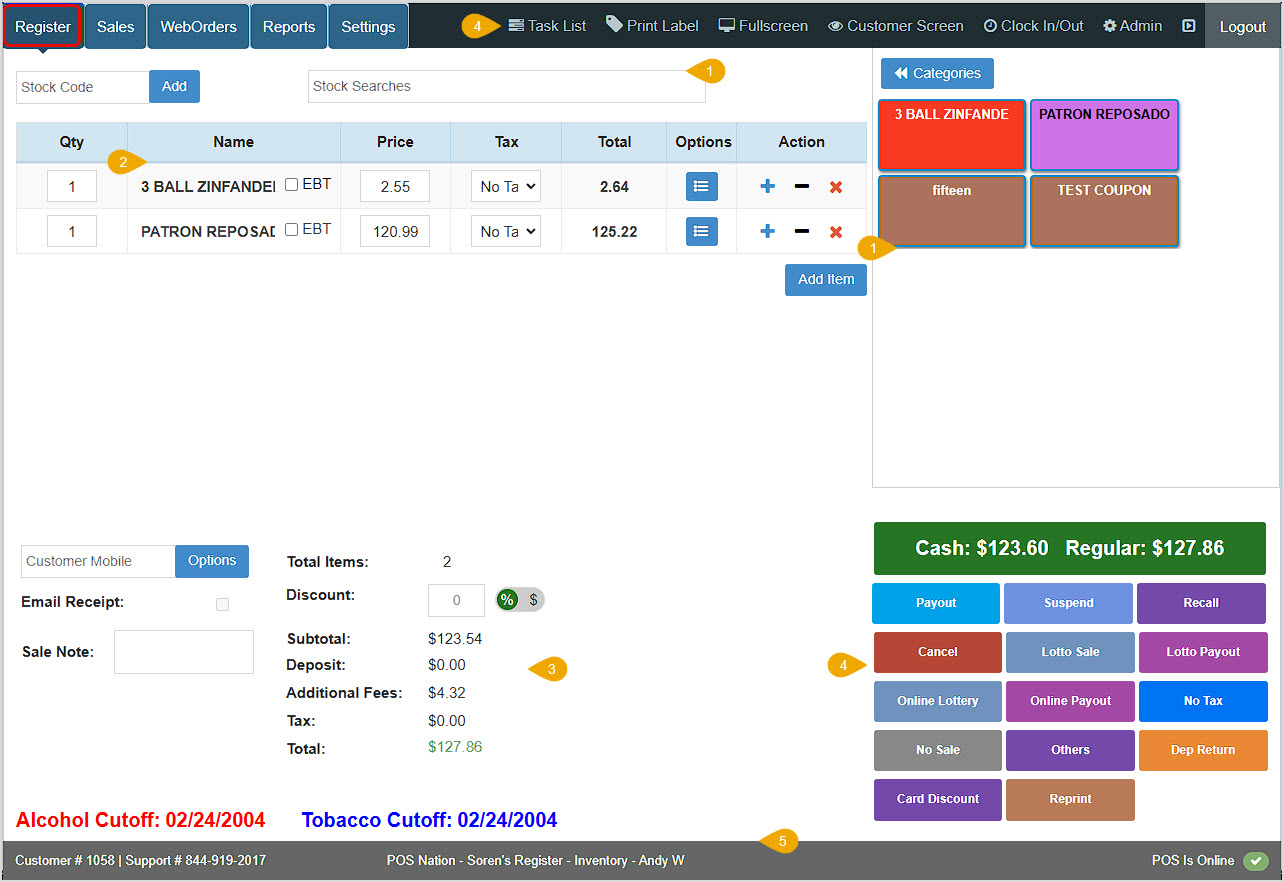
For full details on the Register tab, take a look at this article: Ringing Up Sales With the POS
You can see recent transactions under your Sales tab. You can look them up using the Ref ID, or use the Search to find the one you want by Customer Name, Mobile, or the Total. You can click the Eye icon on the right to open the full transaction details.
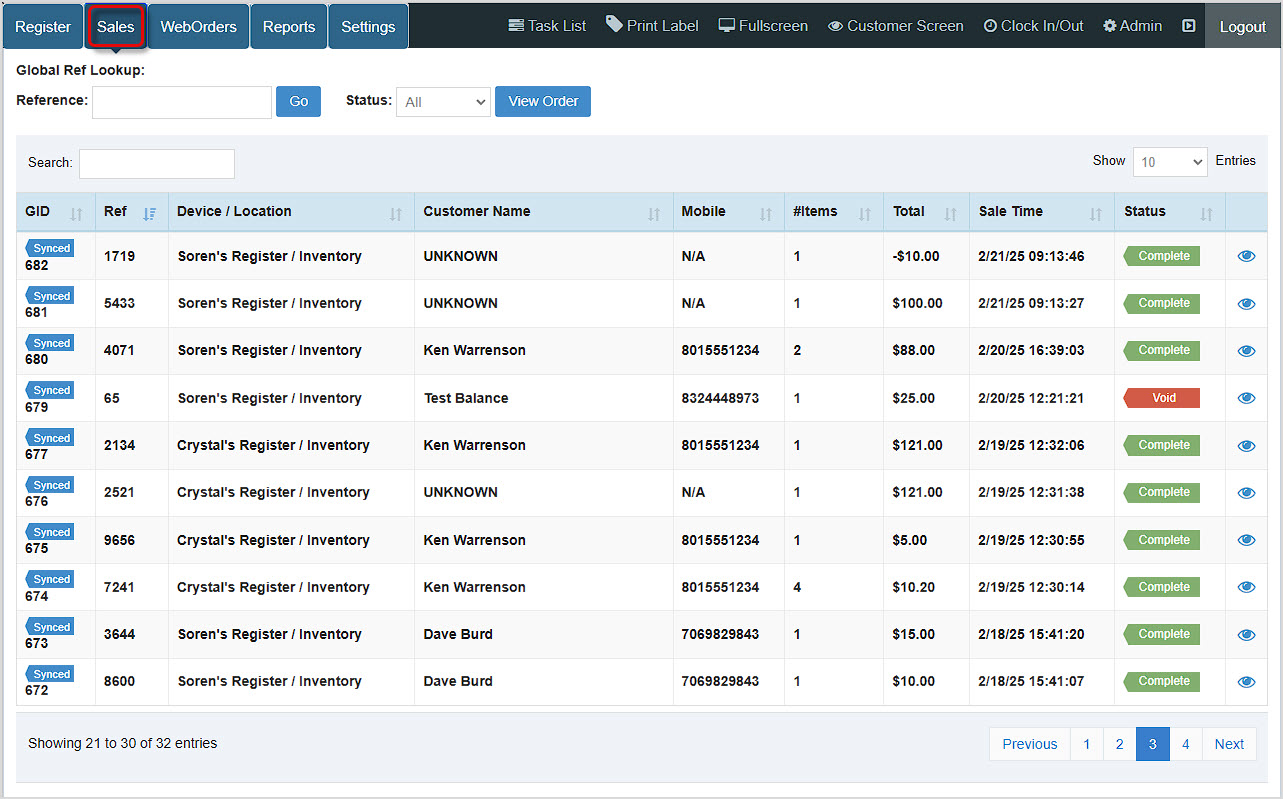
For full details on the Sales tab, take a look at this article: Working With Transaction Details in the POS
As orders come in for your online store, they will show up in the WebOrders tab. The section below details how you can work with your online orders.
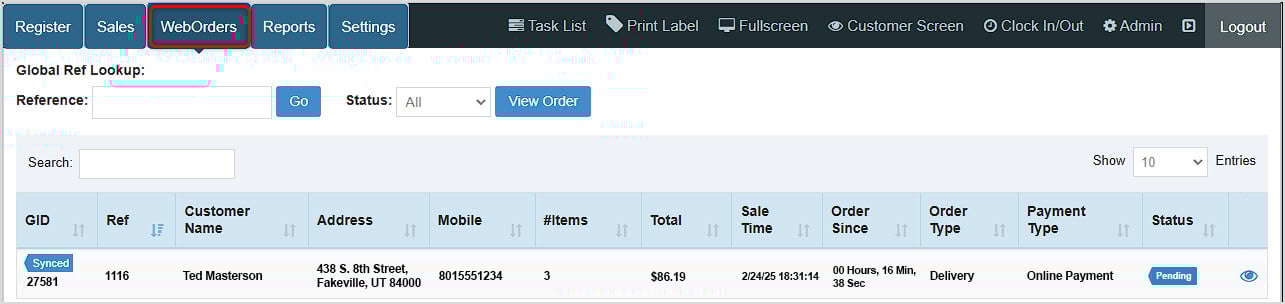
You can look up Weborders using their 4-digit Ref ID. You can also Search by any of the numbers for the order (GID, Mobile, Total, etc.) or by keyword text such as Customer Name or Address. You are also able to filter the list by any of the Status types (All (default), Pending, Accepted, Complete, Void, Refunded, Declined, Canceled, or No Sale). When you have found the Weborder you want you can click the Eye icon on the far right to work with it (there are full details about Weborder fulfillment in the article linked below).

For full details on the WebOrders tab, take a look at this article: Bottlezoo Online Ordering Walk-Through
There are three main sections to your Reports page displaying data for the current day:
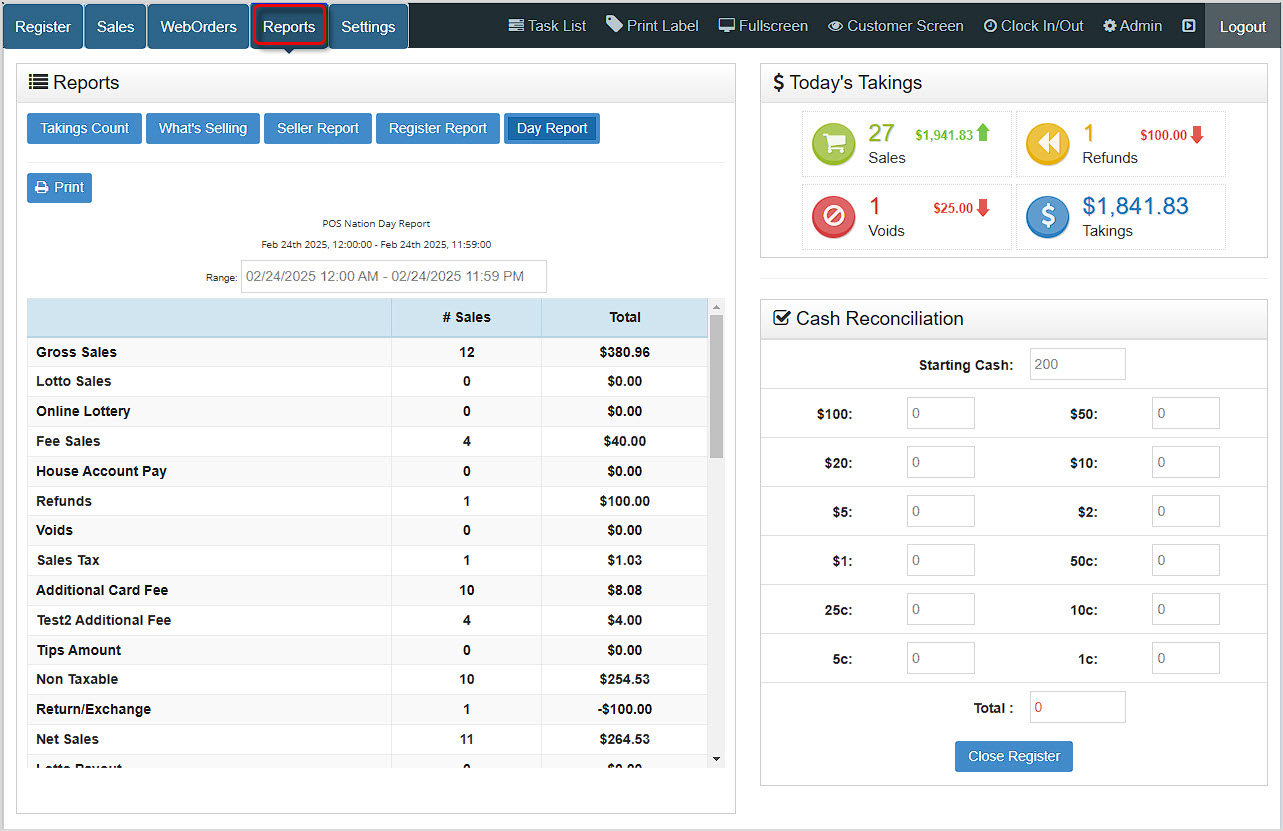
For full details on the Register Reports tab, take a look at this article: Guide to the Register Reports
There are two sub-tabs in your Settings tab: General settings will let you configure some important options for your Register and Printing will let you set up your receipt printing for the Bottle POS.
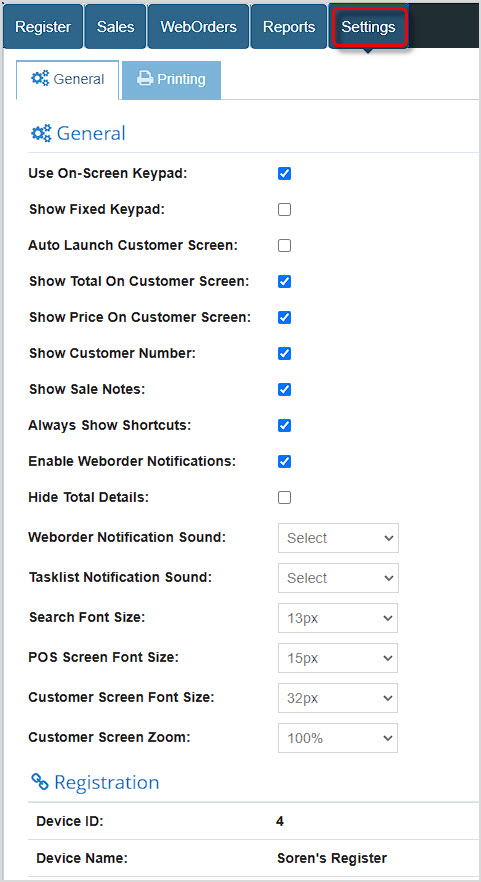
For full details on your Register Settings tab, take a look at these articles:
Q: How do I configure Category Shortcuts?
A: To configure Hot Keys you will need to use the Admin. Review the following article for more information on setting up Category Shortcuts. Register Categories
Q: I have a question, but I can't find my answer here, how do I get more assistance?
A: You can ask any question at the number below. Contact our 24/7 support team at: (877) 381-4087
Is this page helpful?
×Help us improve our articles