Message Sent History Report

October 01, 2024
The Message Sent History Report shows the details of all SMS promotional messages sent during the specified date range. Take a look at what it can show you!
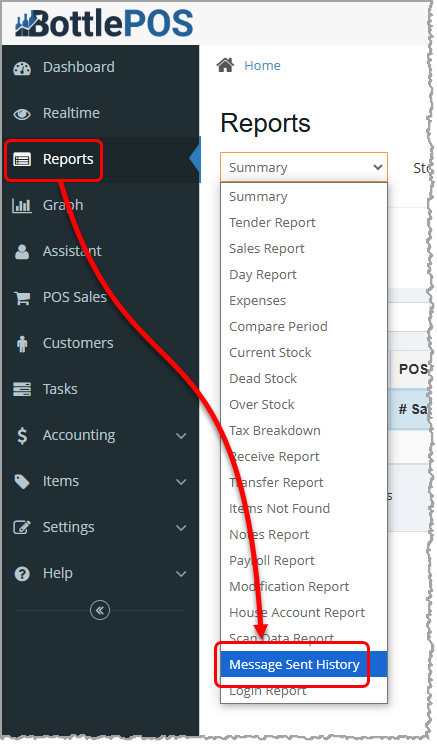
To get to this report, log in to your Admin and go to Reports. Select Message Sent History in the report selection drop-list.
The Message Sent History Report

- Home – Click to navigate away from Reports back to your Dashboard.
- Reports Drop-List – Click and select Message Sent History here to view any SMS promotional messages sent during a specified range of dates.
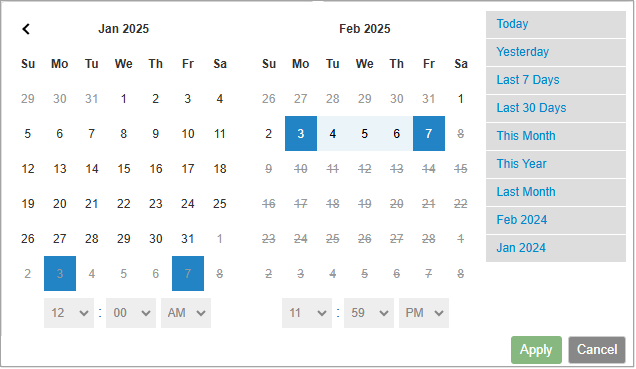
- Range – This is the Date Range used in the report calculations in the table below. Click in this box to select another date or dates from a pop-up window as shown here:
- Refresh – Click to Refresh the page if new SMS messages might have been sent since you loaded the page.
- Export CSV – Click to Export all the data in the report to a CSV file (spreadsheet).
- Print – Click to Print a copy of the current page of the report to a PDF file or to a printer connected to your device.
Data Table Details
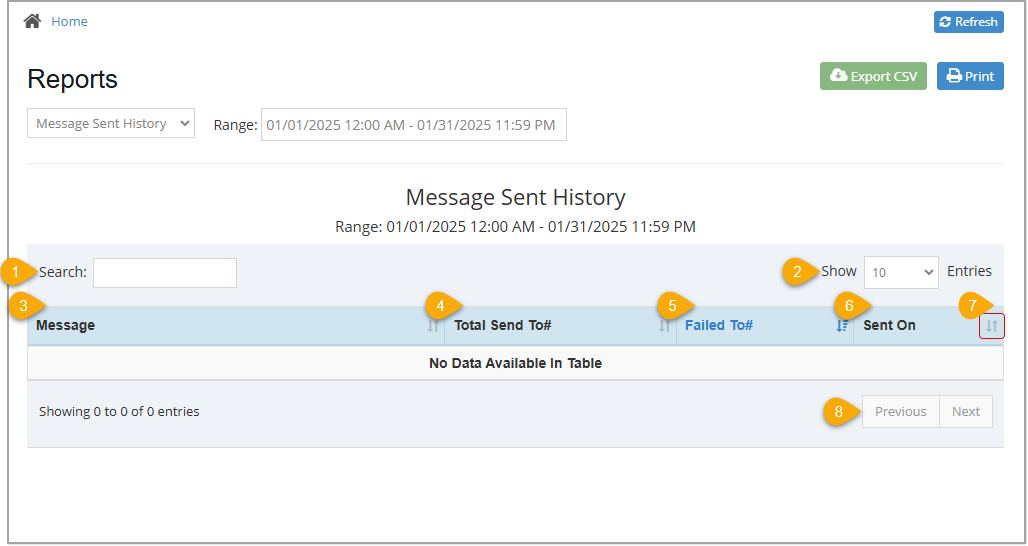
- Search – Enter any text here to Search for a specific row in the data table. You can search by keyword or numeric amounts. For example, you might start entering 'president's day' to filter the search results to only messages including that phrase. The Bottle POS starts searching for matches as soon as you start typing.
- Show Entries – Click and select 10, 25, 50, or 100 to show that many results per page on your report.
- Message – This column displays the text of any SMS promotional message you sent during the specified date range.
- Total Send To # – This column displays the total number sent of each of the messages sent.
- Failed To # – This column displays the number of each message that failed to send.
- Sent On – Displays the date each SMS message was sent.
- Sort –
 The Sort icon displays in the header row of any sortable column. The currently sorted column displays in blue, as shown on the left. All other sortable columns show this icon in gray, as shown on the right. Click the column header of any sortable column to sort the table alphabetically or numerically, depending on the information in that column. Click it again to reverse the sort order.
- Previous / Next – Click Previous, Next, or a Page Number to navigate to another page of report results.
Related Topics
Guide to the Admin Reports
How to Create and Manage Customers
Frequently Asked Questions
Q: Can I print my reports from the Admin?
A: Yes. If you have a printer connected to your divide, you can click the Print button in the upper right of the report page to print the report you are viewing.
Q: I have a question, but I can't find my answer here, how do I get more assistance?
A: You can ask any question at the number below. Contact our 24/7 support team at: (877) 381-4087
Your Admin Dashboard is your hub for keeping your finger on the pulse of your business. Take a look
Your Admin Realtime page gives you a live view of your sales as they come in and has some useful uti
The Reports in the Bottle POS Admin can show you details about all of your data, however you need to








Is this page helpful?
×Help us improve our articles