






Dashboard
Your Admin Dashboard is your hub for keeping your finger on the pulse of your business. Take a look

 October 01, 2024
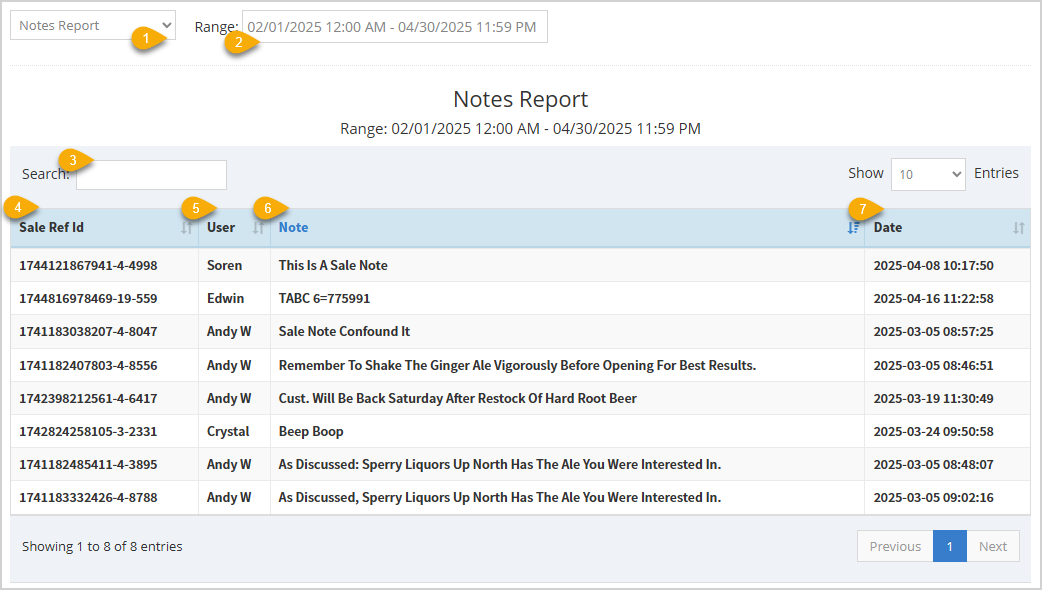
The Notes Report shows all notes added to your sales during a specified time frame. Take a look at how it works!
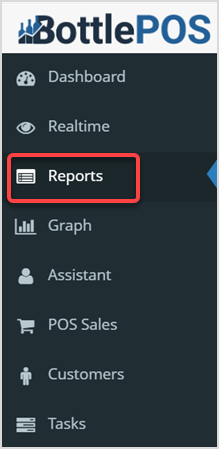
To get to your Notes report, click the Reports tab of the Bottle POS Admin main menu and follow the instructions below.
In the table, you can click the column headers to sort alphanumerically, or click again to reverse-sort.
How to Add Notes to a Transaction
Q: Can I print my reports from the Admin?
A: Yes. If you have a printer connected to your device, you can click the Print button on the top right of the report page to print the report you are viewing.
Q: I have a question, but I can't find my answer here, how do I get more assistance?
A: You can ask any question at the number below. Contact our 24/7 support team at: (877) 381-4087
Is this page helpful?
×Help us improve our articles