Receive Invoices With Auto PO

March 30, 2026
Tired of manually entering items from your vendor invoices into the system to build your Purchase Orders? We've built a huge time-saver for you: Using AI, we have an Auto PO importer that will read a photo or PDF of your invoice and intelligently build a PO in the system for you to work with on the Receive page. Take a look at how easy we've made this for you!
How to Import Invoices Using Auto PO
You can work with this tool from the Items area of the main menu on the Receive page.
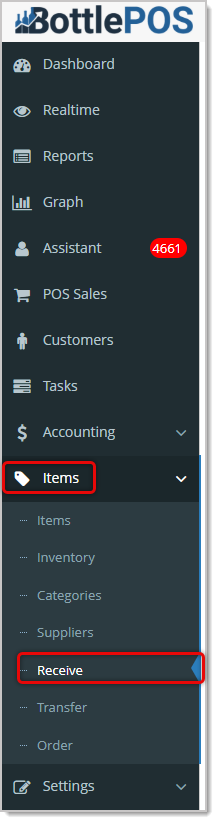
- Either take a photo of your vendor invoice or make ready a PDF file of it and make sure you are familiar with the folder it is in on your computer (for example, in your Downloads folder, on your Desktop, etc.).
- Near the top of the Receive page, click on the Auto PO button. The Auto PO window will open for you.
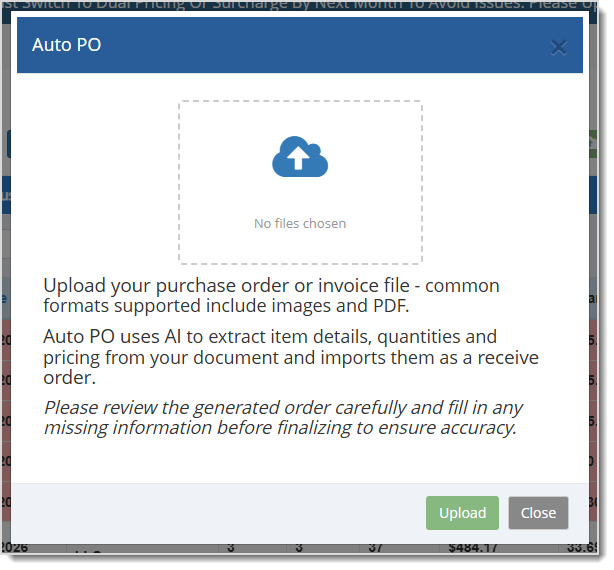
- You can click in the 'target' area of the window to choose the file you want to upload. If you need to preview the file, you can drag and drop your file and the system will give you a preview in a new browser tab (please note that the drag and drop does not load the image into the tool for upload, you have to click in the target area to choose the file). Common image files such as JPG or PNG or the document format of PDF files can be used with this tool. You'll see the name of your file in the gray text below the Upload icon.
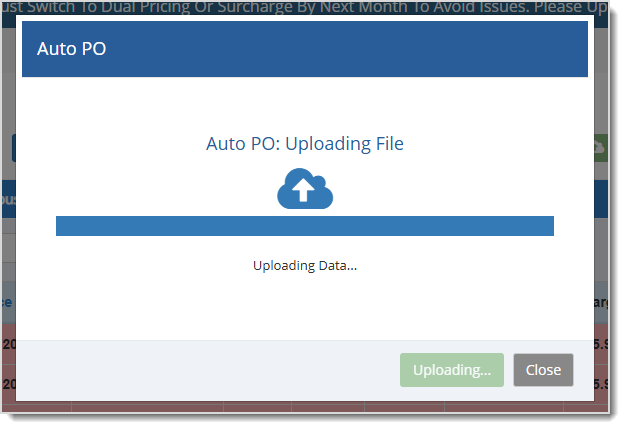
- Click the Upload button. You'll see a window open indicating the upload is in process. Be patient, the AI is preparing the file.
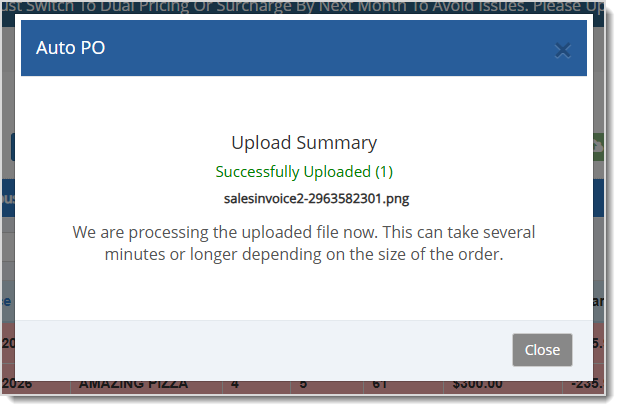
- Once the upload is processed, you'll see a Successfully Uploaded message, and the system will be working on pulling the relevant data from the file and building your new PO. At this point, you can close the window, and the system will continue working in the background. Your new PO will populate in your list on the Receive page using the date that's on the invoice itself, within the file (that may be different from today's date). You may need to refresh your Receive page to load the new PO listing.
You can now review and manage the Purchase Order invoice as normal. We recommend you
double-check the data the AI populated for accuracy. Our AI is pretty good, but may make occasional errors due to smudges on the page, unclear image areas, or other inconsistencies.
Related Topics
How to Create Purchase Orders
How to Receive Invoices in the Admin
How to Manage Suppliers
Frequently Asked Questions
Q: Can the Auto PO create new Suppliers or Items?
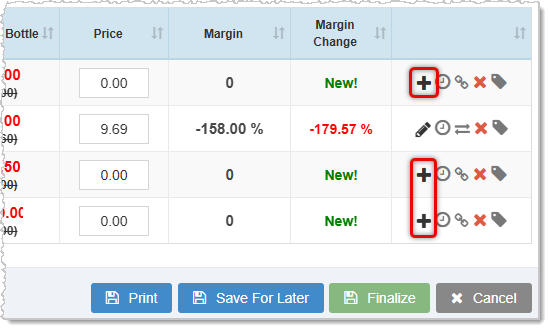
A: No. If there is an unknown Supplier on an imported PO, it will not populate a new one, so you will need to create the Supplier in the Suppliers area of the Items menu. If there are unknown items in the order, the system will populate their names and data such as Stock Codes and costs, but will not create new items for them in the system. You can click the + icons on the far right for such items to create them in the system.
Q: I have a question, but I can't find my answer here, how do I get more assistance?
A: You can ask any question at the number below. Contact our 24/7 support team at: (877) 381-4087
You can work with your Items in powerful and flexible ways using the main Items page in your Bottle
Keeping track of inventory and stock levels is an important part of any business. Your Bottle POS ha
You can create non-inventory items of several types in the Bottle POS as needed. Take a look at how








Is this page helpful?
×Help us improve our articles