Summary Report

October 01, 2024
The Summary Report shows a general summary of your sales information and can be filtered by store, register, shift, user, and date.
Summary Report Video
Viewing the Summary Report Page
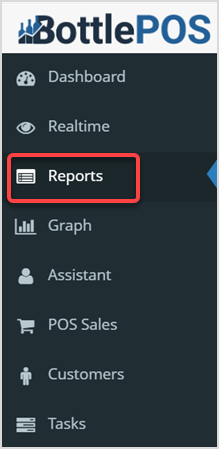
The Summary Report is a useful report that offers an overview of your Bottle POS sales. Log into the Admin app and click on Reports. The Reports page with the Summary Report will open for you by default.
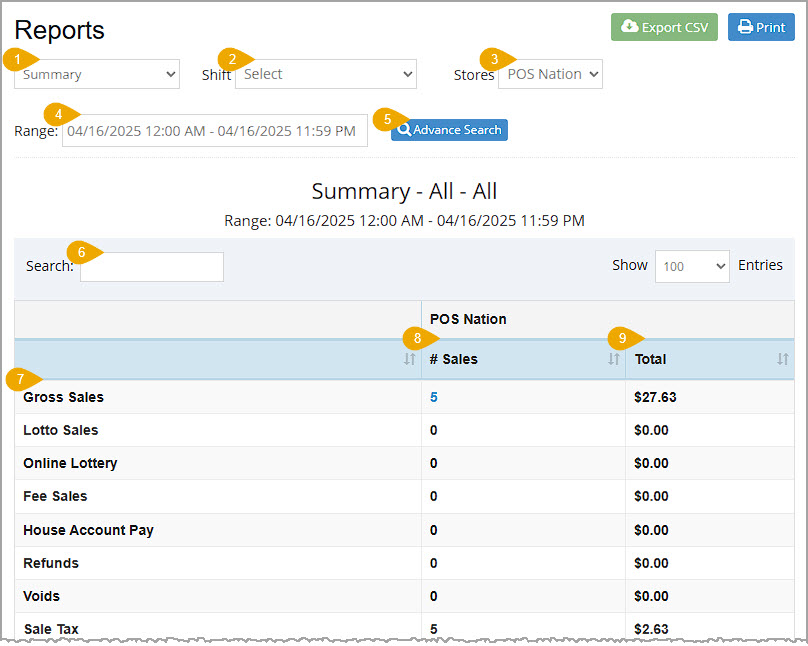
If needed, in the upper right you can click the Export CSV button to export the data in the report. You can also click the Print button to either print the report to a connected printer or download the report as a PDF file. In the data table you can click on the column headers to sort the report alphanumerically. Here are the features of the Summary Report:
- Report List – Use the Report List to load whatever report you want to view. The Summary Report will load by default when you open the Reports page.
- Shift – You can use the Shift drop-list to view data from a specific Shift if you are viewing a single Store's sales summary. If the Stores filter is set to All, you will not see this option.
- Stores – Use this filter to view data for a specific store, or select the All option to view data for all of your stores.
- Range – By default this will load data for the current day. If you want a specific date range click in the box to select the dates you want.
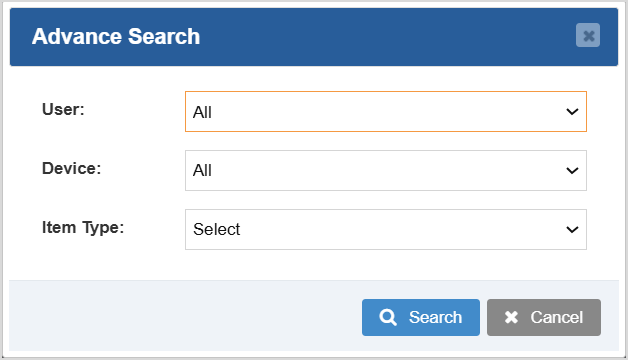
- Advanced Search – Click this button to filter the data by User, Device, or Item Type.
- Search – Enter text into the Search to find a specific item or value.
- Financial Summary – The Summary report has a wealth of Data Points for register activity such as sales, House Account payments, refunds and voids, taxes, fees, discounts, promotions, canceled and No Sale events, payouts, cost, profit, and sales by Tender type. The Data Point names display in this column.
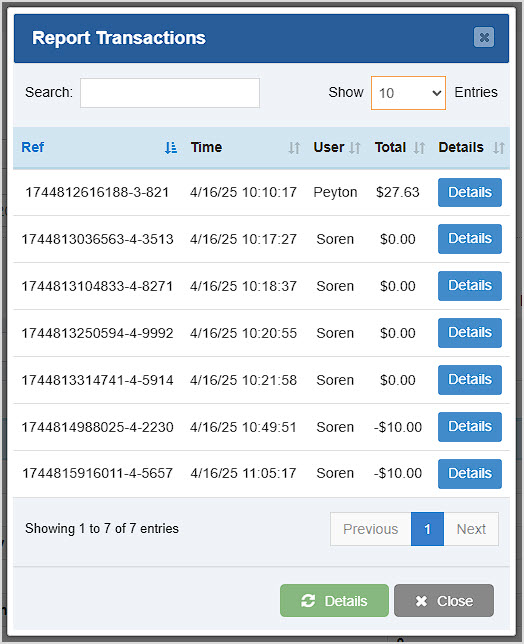
- Number of Sales – This column displays the number of sales for each of the Data Points, where applicable. You can click on the numbers to open a window showing a list of all the transactions and giving you the Reference Number, Time and Date, User, and Total for each. You can also click to view the full Details of each transaction.
- Total – This column shows the total dollar amounts for each Data Point.
Related Topics
Guide to Admin Reports
How to Run Reports for Customers
Frequently Asked Questions
Q: Can I print my reports from the Admin?
A: Yes. If you have a printer connected to your device, you can click the print button in the upper right of the report page to print the report you are viewing.
Q: I have a question, but I can't find my answer here, how do I get more assistance?
A: You can ask any question at the number below. Contact our 24/7 support team at: (877) 381-4087
Your Admin Dashboard is your hub for keeping your finger on the pulse of your business. Take a look
Your Admin Realtime page gives you a live view of your sales as they come in and has some useful uti
The Reports in the Bottle POS Admin can show you details about all of your data, however you need to








Is this page helpful?
×Help us improve our articles