Closing Drawer Count

October 01, 2024
It's easy to close out your till at the end of the day, take a look at the steps below to learn how!
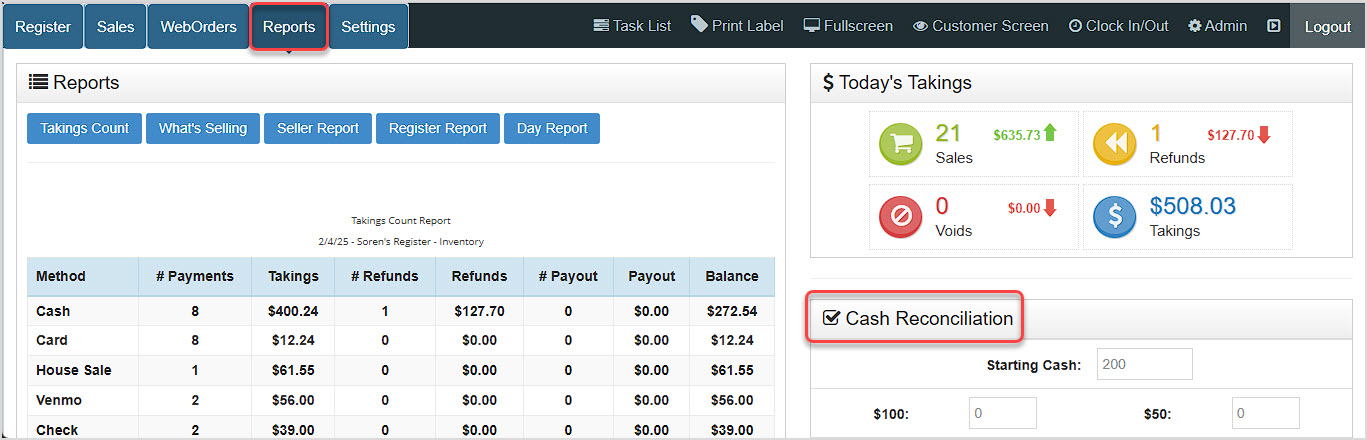
You can get to this part of the system by logging into your Register App and going to the Reports area. You'll see the Cash Reconciliation area in the lower right.
How to Run End of Day Procedures
Closing Out the Register
After the Reports page loads, you can begin working on your closing counts in the lower right in the Cash Reconciliation area:
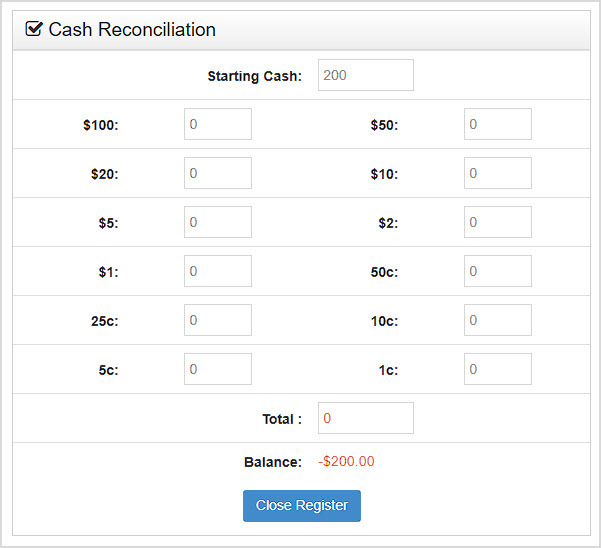
- Reconcile Cash: Now you can begin counting the money in the drawer. This step is necessary in order to provide your Bottle POS with the information it needs to produce an accurate report.
- Fill in your Starting Cash value, the total dollar amount of tender with which you started the shift, if it's not already in place.
Please Note: This may be pre-filled if you have set a Starting Cash amount in the Back Office in your Accounting Settings at the bottom of the page in the Default Starting Cash area.
- Count and fill in the total numbers you have of each cash bill denomination and coin type in your drawer. The system will automatically calculate totals in dollars and cents as you go.
- When complete, verify the Total.
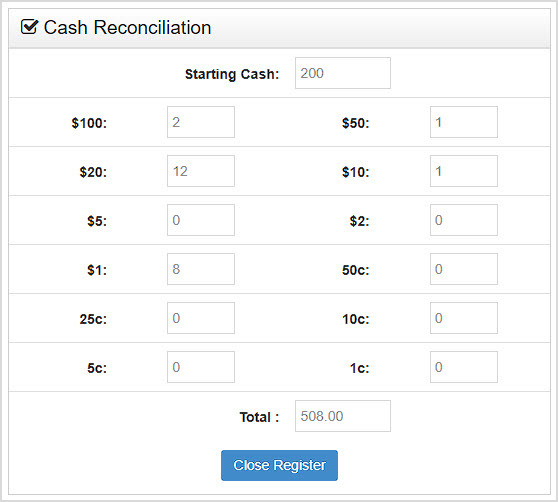
- Close the Register: Now you can close the register and produce a Current Shift Report. We recommend double-checking your drawer count before proceeding.
- Click the Close Register button.
- If your printer is connected to the Bottle POS, you will get a popup offering to print the Current Shift Report. Click Yes to proceed to the next step.
- Print or Save the Current Shift Report:
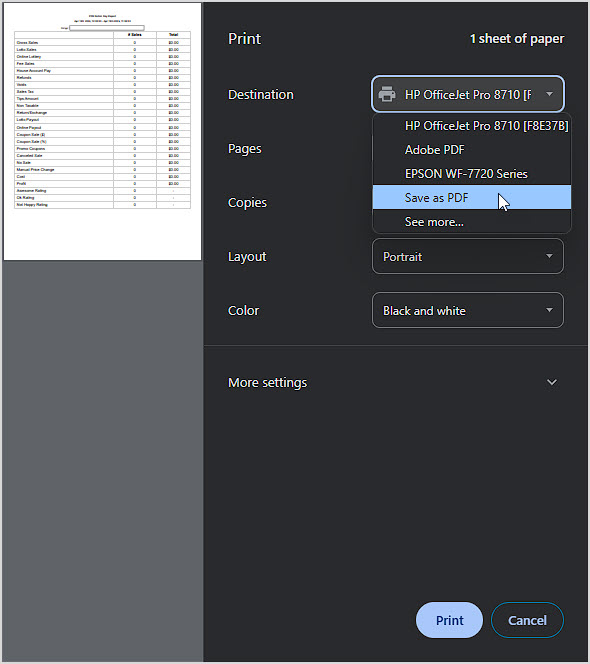
- Saving the Report:
- Click to Save as PDF as the Printer (this may appear as Microsoft Print to PDF or Adobe PDF, depending on your system).
- Click Print.
- Select a destination to save the PDF.
- Enter a File Name.
- Click Save.
- Printing the Report:
- Click to select your Printer.
- Click Print.
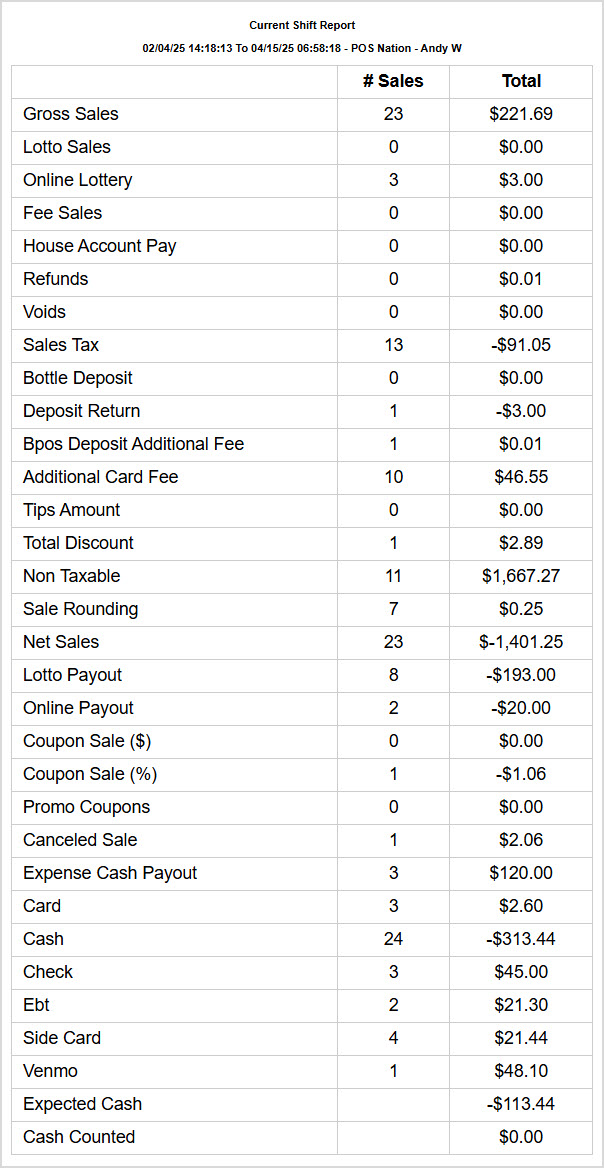
An example of the Current Shift Report:
Related Topics
Accounting Settings
Guide to the POS Reports
Frequently Asked Questions
Q: How do I print a register report from a past day?
A: From the Register, click Reports and at the top of the page, click the Day Report button. Set the Date Range for what you need and click to Print the report.
Q: I have a question, but I can't find my answer here, how do I get more assistance?
A: You can ask any question at the number below. Contact our 24/7 support team at: (877) 381-4087
It's common for employees to forget to clock in or out and when that happens you need an easy option
Use this article to learn how to view and manage the drawer count information for a previously close
This article will explain how to create and manage your Expenses from the Bottle POS and the Admin.









Is this page helpful?
×Help us improve our articles