






Managing Timesheet Entries
It's common for employees to forget to clock in or out and when that happens you need an easy option

 October 01, 2024
The Reports in the Bottle POS Register App can show you details about current sales such as totals and items sold during the current shift. They are super easy to use and highly informative, take a look!
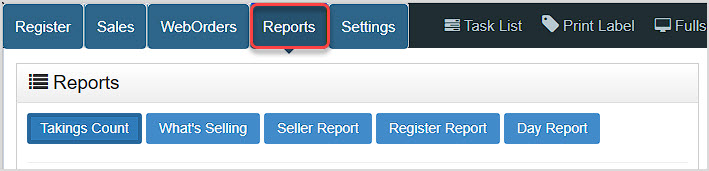
To get to this part of the system, sign in to your Register App. Click Reports to view the various sales reports detailed below.
Please Note: you can click on Sales to view a list of recent transactions for the current Register device.
The Register Reports section will primarily show you what is happening for the Register Device you're currently logged into for sales during the current shift. The only exception to this is the Day Report, pictured below, which will default to showing sales for the current day, but has a Range area you can set to a different date range.
For most of your sales data needs, to view historical data, go to the Back Office and explore the Reports there.
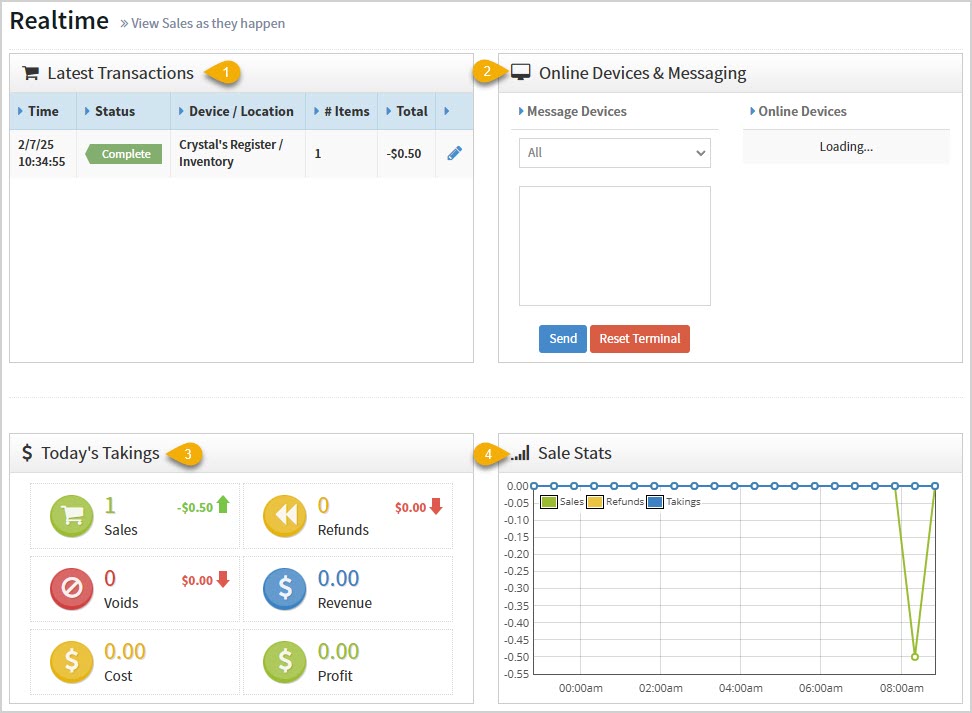
In the Register App, once you are viewing the Reports page, you'll see some important information:
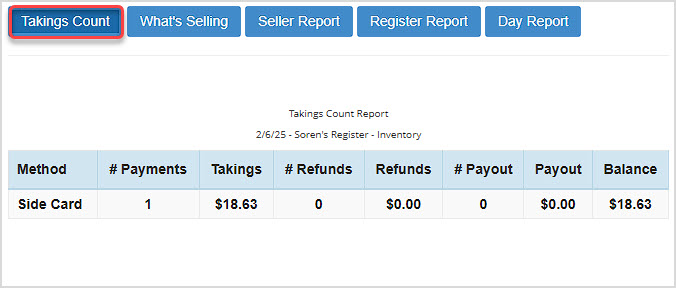
This report shows your number of payments, takings, refunds, payouts, and balance by tender type Method for the Register device you're signed into for the current shift. The Takings is the total amount of each tender you have taken in, your Net Sales, whereas the Balance is the amount you have actually gained after your payouts and refunds are removed. The Balance amount is not quite the same as Gross Sales, since Gross Sales include Processing Fees.
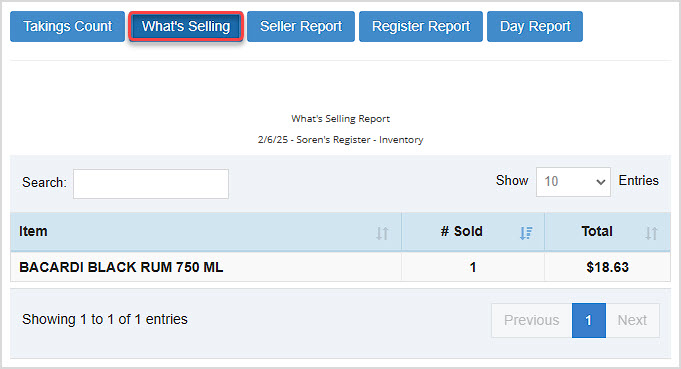
This report shows what items are being sold for the register device you're signed into for the current shift. It lists the item name, quantity sold, and total dollars from the combined sales of each item.
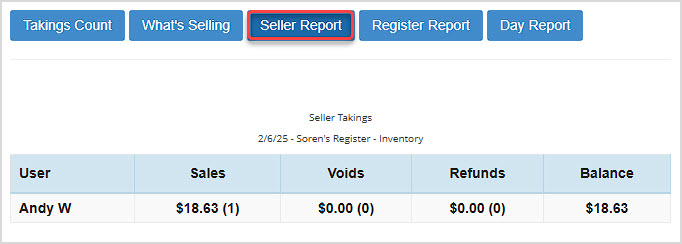
This report shows the total sales, voids, refunds, and balance for each user that logged in on this register device during the current shift.
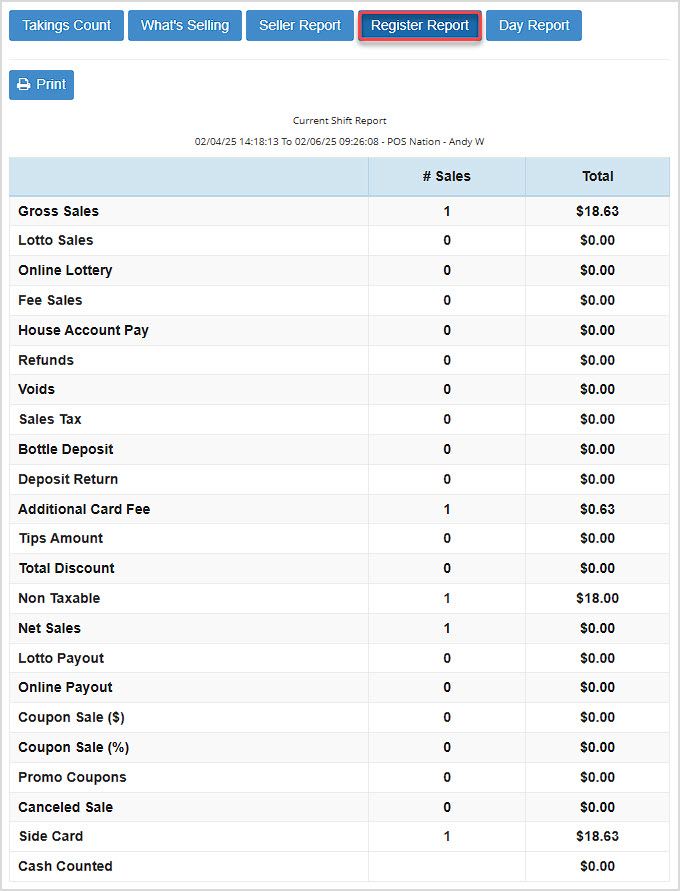
This report shows a summary of your sales, payouts, other charges, tenders, and drawer cash counted for this register during the current shift. When closing the shift, this is the report that will print out.
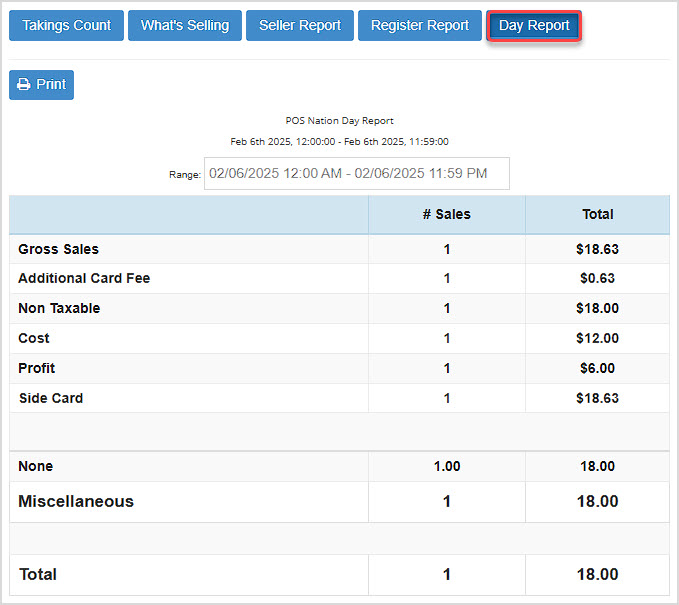
The Day Report is similar to the Register Report, except that it shows sales information for all registers in the store and the date/time frame for the report can be manually selected.
Q: Why is my register report showing a higher number of sales than my day report for today?
A: Every report in the Bottle POS except for the Day Report will continue to count sales until the register is closed. If you don't close the register after every shift, the report will not reset and will contain sales from multiple shifts instead.
Q: Can I print my shift report for a previous shift?
A: The Shift Report for a previous shift can't be re-printed, but you can use the Day Report to print a sales report for a previous date or time.
Q: I have a question, but I can't find my answer here, how do I get more assistance?
A: You can ask any question at the number below. Contact our 24/7 support team at: (877) 381-4087
Is this page helpful?
×Help us improve our articles