How to View and Manage Closing Info for Previous Shifts

October 01, 2024
Use this article to learn how to view and manage the drawer count information for a previously closed shift. This allows you to verify the information from any previous shift and correct your drawer count if needed.

To access and view the drawer count information for a closed shift, select Closing in the Accounting menu in your Admin system. Admin privileges are required to complete the steps in this article.
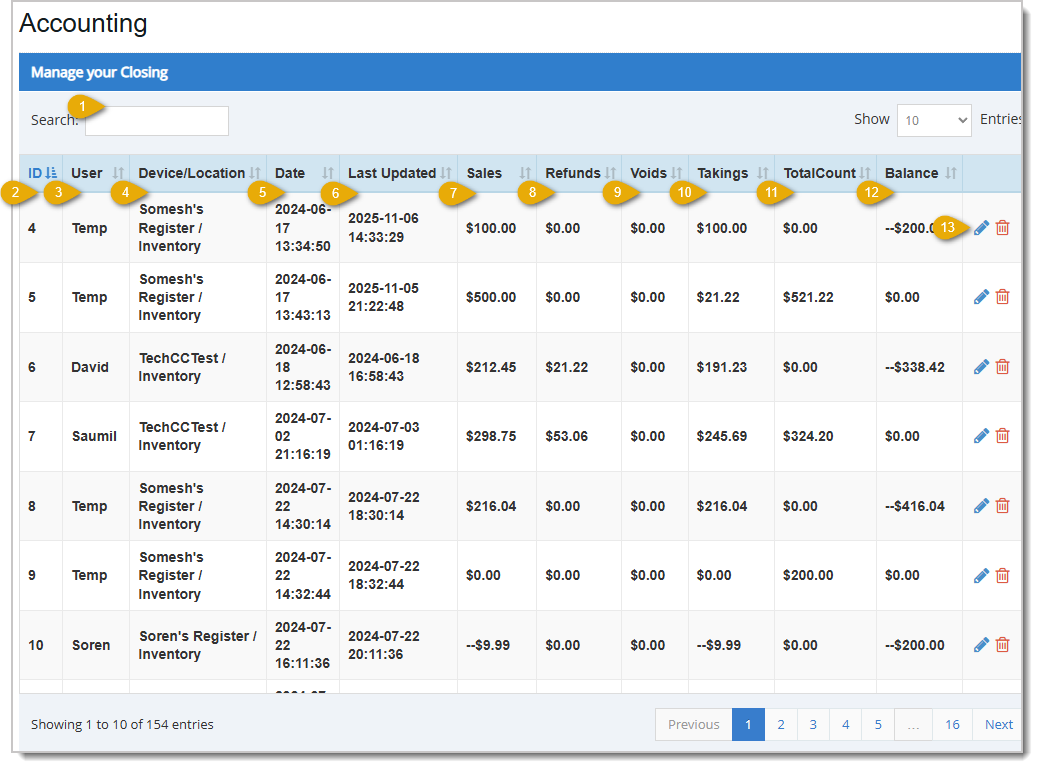
The Sort icon  displays in the header row of any sortable column. The currently sorted column displays in blue, as shown in the ID column above. All other sortable columns show this icon in gray. Click the header of any sortable column to sort the table alphabetically or numerically, depending on the information in that column. Click it again to reverse the sort order.
- Search - Enter any keyword or numeric value to Search for a specific row in the data table. For example, you might search by the device or the name of the employee who closed the register. The software starts searching for matches as soon as you start typing.
- ID - This column displays the ID number assigned to the Closing entry by the system. This is used only for internal purposes. If your window is less than full width you will see a + Icon here you can use to expand the row and see data for columns that don't have room to display in the table.
- User - This column displays the Username of the staff member associated with each closing drawer count.
- Device/Location - This column displays the name of the Device and the Location of the device.
- Date - This column displays the Date and Time a drawer was closed.
- Last Updated - This column displays the date and time of the last update to the Closing entry.
- Sales - This column displays the total dollar amount sold for the Closing entry.
- Refunds - This column displays the total dollar amount of any Refunds for the Closing entry.
- Voids - This column displays the total dollar amount of Voids for the Closing entry.
- Takings - This column displays the total dollar amount of Sales remaining after deducting Refunds and Voids for the Closing entry.
- TotalCount - This column displays the counted drawer amount.
- Balance - This column displays the over / under amount counted at the drawer. $0 indicates the drawer count was equal to what the system expects.
- Action - Use these icons to edit a timeclock entry or delete it from the table.
- Click the Pencil icon
 to open the Edit Closing window. From there you can change the details of the closing.
- Click the Trashcan icon
 to delete the closing. You will be asked to confirm that you want it deleted.
When editing a closing, you are not able to edit the User, Device/Location, and Date. Editable fields are Sales, Refunds, Voids, Takings, TotalCount, and Balance.
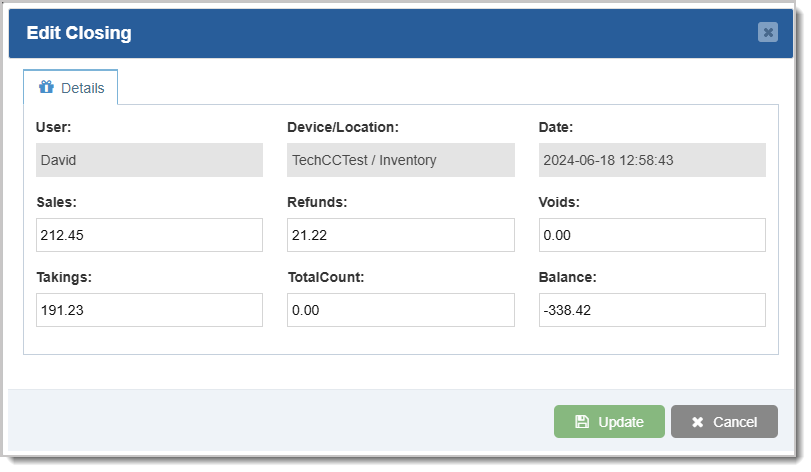
Click the Update button when your changes are in place.
Related Topics
Closing Drawer Count
Day Report
(Admin Reports)
Guide to the POS Reports
Frequently Asked Questions
Q: Can I create a new shift close entry from Admin?
A: No. To create a new entry you must close the shift in the Register.
Q: I have a question, but I can't find my answer here, how do I get more assistance?
A: You can ask any question at the number below. Contact our 24/7 support team at: (877) 381-4087
It's common for employees to forget to clock in or out and when that happens you need an easy option
This article will explain how to create and manage your Expenses from the Bottle POS and the Admin.
Time Card entries are an important part of tracking employee hours. Proper usage of the Time Card fe








Is this page helpful?
×Help us improve our articles