How to Find Transactions

October 01, 2024
This article will cover how you can find transactions, something you'll likely need to do from time to time. Your Bottle POS software gives you the ability to search for past transactions in a variety of ways.
Finding Transactions in the Bottle POS

- Click the Sales tab to see your sales history.
- The easiest method of finding the transaction you want is to use the Transaction Reference ID located at the top of your receipt:
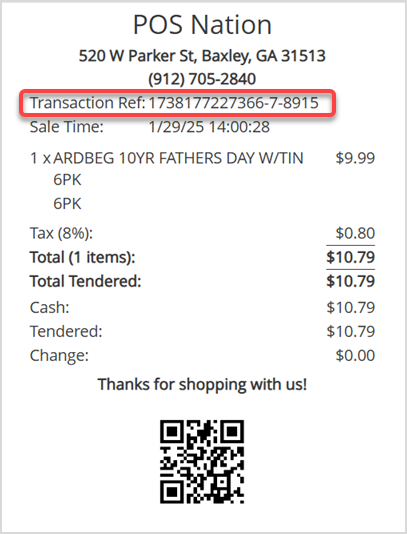
- In the Reference field, enter the final digits after the last hyphen of the ID.
- Click on the Go button. If the ID is correct, the results will populate in the table below.
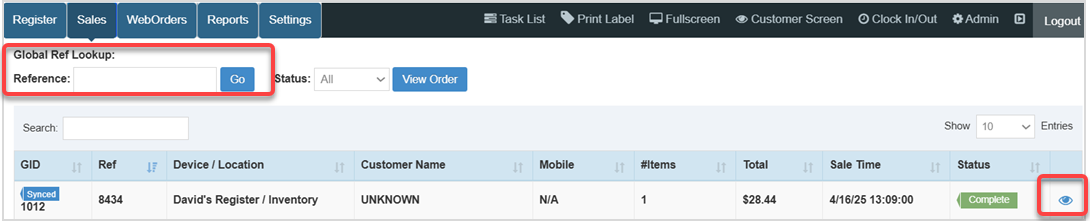
- Click the Eye icon in the far right column. The Transaction Details window will open.
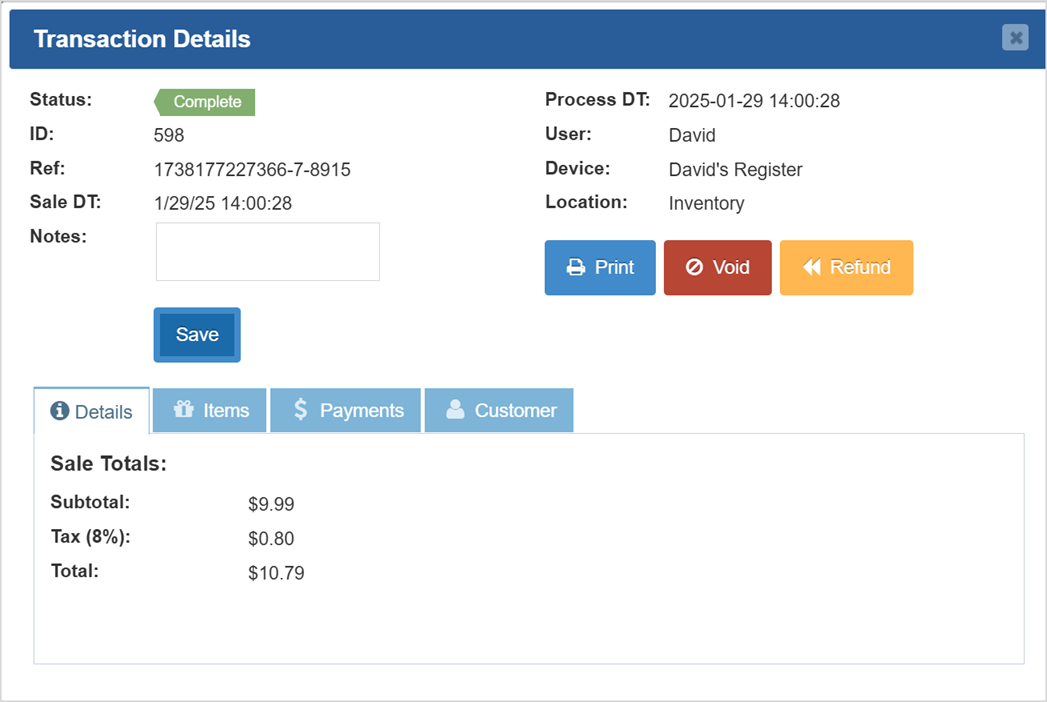
- In this window you can find:
- Status - This will display the status of the transaction. Whether it's voided, refunded, etc.
- ID - This ID is the GID on the Sales page and serves as a quick way to pull up a transaction using the Search field on the Sales tab of the POS app. It's the official database record number.
- Ref - The Reference ID is the transaction reference number found at the top of the receipt.
- Sale DT - The transaction's date and time will show here.
- Notes - This field shows any notes made about the sale.
- Process DT - This displays the date and time that this sale was processed in the database.
- User - This will display the Username of the employee that made the sale.
- Device - Whichever device the transaction was run on will display here.
- Location - This will show the Inventory Location you used for the transaction.
- Details Tab - This tab will show important details of the transaction.
- Items Tab - This tab lists the items purchased.
- Payments Tab - This tab shows the payment methods and amounts for the sale.
- Customer Tab - This tab gives you information on the customer in the transaction.
- Save - Click this button to save any changes you've made.
- Print - Click this button to print the receipt.
- Void - Click this button to void the purchase. This will reverse the payment, restore the inventory, and reverse all amounts made by the transaction in the reports. You will be asked to confirm that you want to void the transaction.
- Refund - Click this button to return all items and refund all amounts to the customer.
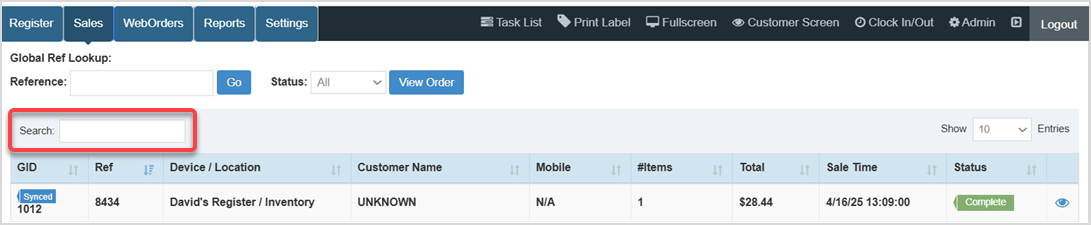
- If you do not have the Transaction Reference ID, you can search your sales history through the Search bar by the following fields:
- GID
- Customer Name
- Mobile
- Sale Time
- Status
If you're still unable to find the transaction that you're searching for, there are more options available for finding it for you below.
Finding Transactions in the Admin
Log into the Admin App and to the POS Sales tab to get started.
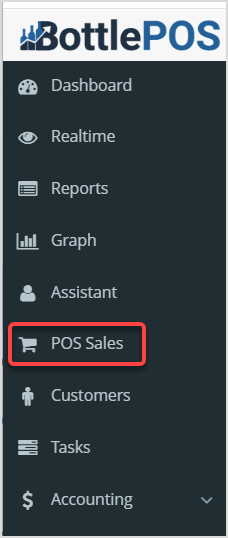
You can use the standard Search field here or search by the transaction's Ref ID if you have the digits after the final hyphen. If you don't have that information to search by, you can use the Advanced Search to find what you want using whatever other information you might have.
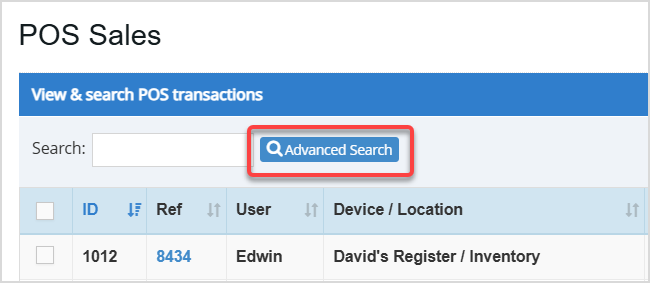
- In the POS Sales window, click the Advanced Search button.
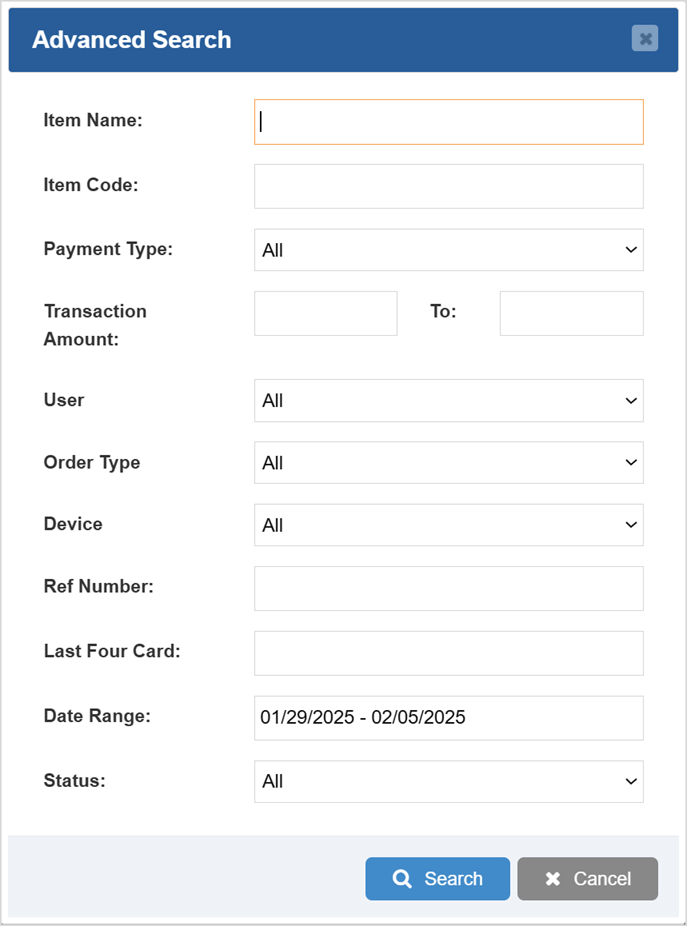
- Enter information into the Advanced Search window to find the transaction you're looking for.
- Click the Search button.
Related Topics
How to Suspend and Recall Transactions
POS Sales Manager
Frequently Asked Questions
Q: How do I do a return for a past transaction?
A: You will first need to find the transaction, pull up its details, then click the Return button. For more information on this workflow, review this article:
How to Process a Return
Q: I have a question, but I can't find my answer here, how do I get more assistance?
A: You can ask any question at the number below. Contact our 24/7 support team at: (877) 381-4087
The Reports in the Bottle POS Register App can show you details about current sales such as totals a
The Bottle POS offers a variety of ways you can work with the details of your completed transaction.
It's easy to close out your till at the end of the day, take a look at the steps below to learn how!








Is this page helpful?
×Help us improve our articles