






Dashboard
Your Admin Dashboard is your hub for keeping your finger on the pulse of your business. Take a look

 October 01, 2024
The Expenses Report shows all of your expenses for a specified time frame. To view your Expenses Report, you'll need to click on the Reports tab on the left of your POS screen.
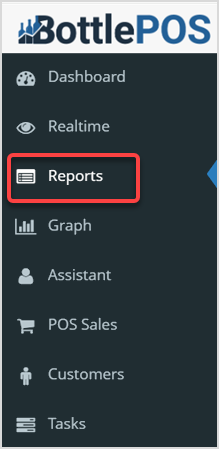
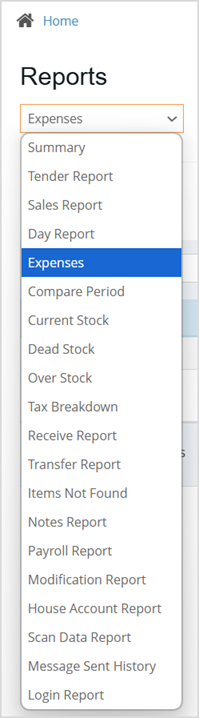
On the Reports page, click on the Reports drop-list and click on Expenses. The Expenses Report will load in the Category view.
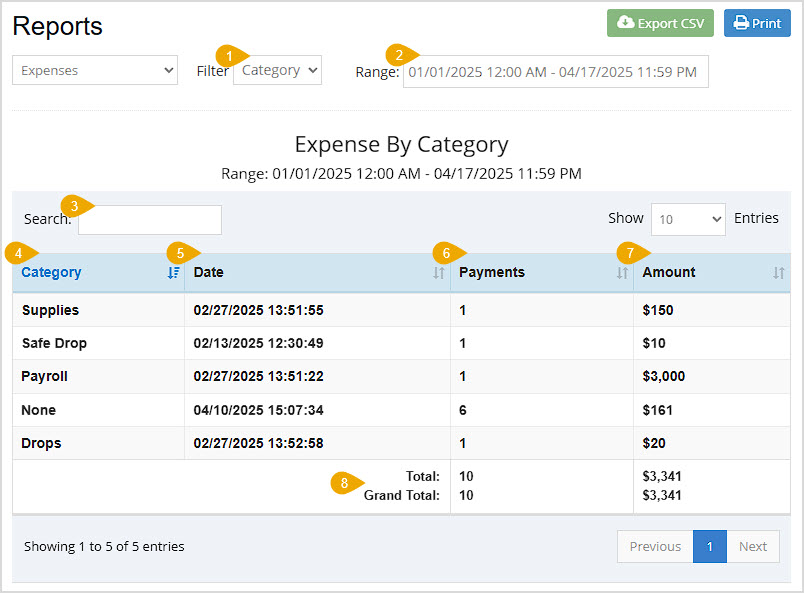
Export CSV – Click this button to download all of the report's data in a CSV spreadsheet file.
Print – Click this button to print the current page of the report.
Column Sorting – Click on the column headers to sort the line items in the report alphabetically or numerically, depending on the column data. Click again to reverse-sort.
Selecting the All filter displays your Expense Report differently. You'll see a new filter at the top and all the same columns from the Category view, plus a few others, described below.
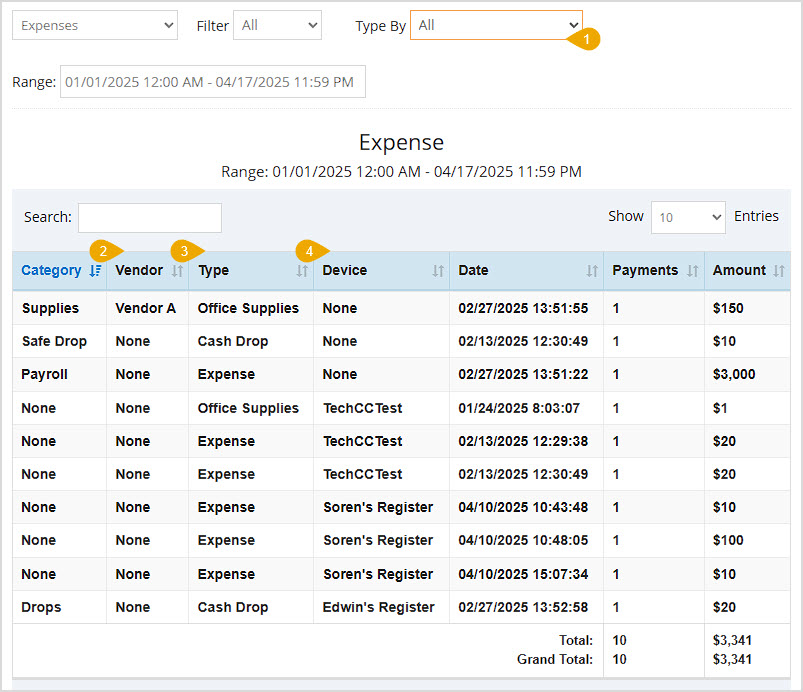
The All filter still shows you the Category, Date, Payments, and Amounts columns described above but adds others as well as an additional filter:
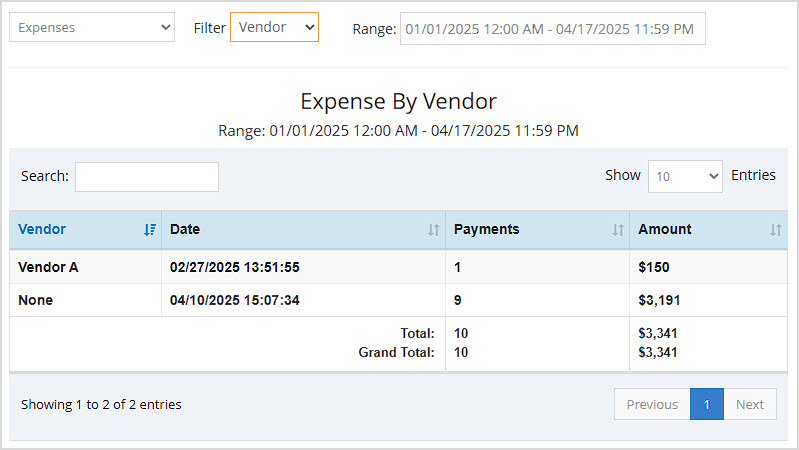
The Vendor View of the Expenses report shows the Vendor, Date, Payments, and Amounts columns described above. It arranges your expense data by Supplier.
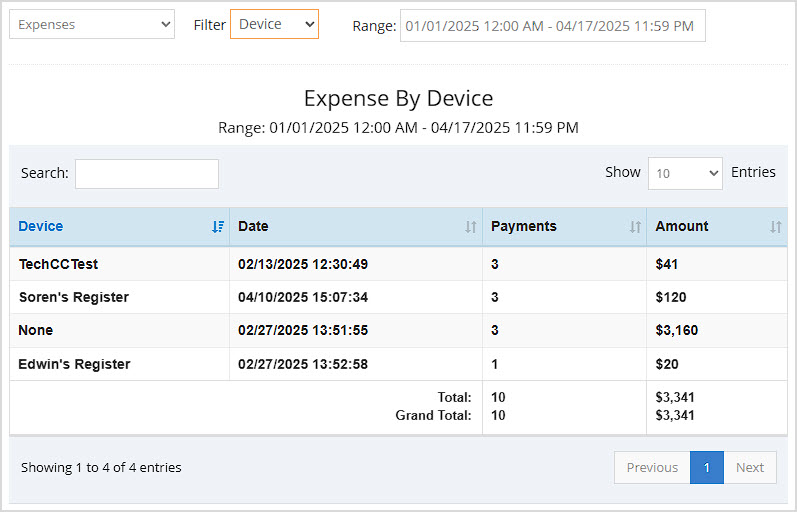
The Device View of the Expenses report shows the Device, Date, Payments, and Amount columns described above. It lists expense data by the Device on which each was created.
How to Create and Manage Expenses
Q: Can I print my reports from the Admin?
A: Yes. If you have a printer connected to your device, you can press the Print button on the top right of the report page to print the report you are viewing.
Q: I have a question, but I can't find my answer here, how do I get more assistance?
A: You can ask any question at the number below. Contact our 24/7 support team at: (877) 381-4087
Is this page helpful?
×Help us improve our articles