






How to Create and Manage Customers in the Admin
The Bottle POS Admin has powerful tools for working with your customers. Take a look at how easy it

 October 01, 2024
This article will explain how to remove taxes for all items that a specific customer will buy from your store. The Promotions function allows for the removal of taxes for customers. This method allows you to remove taxes from all items a customer will purchase without having to manually remove the tax from each item each time the customer comes in.
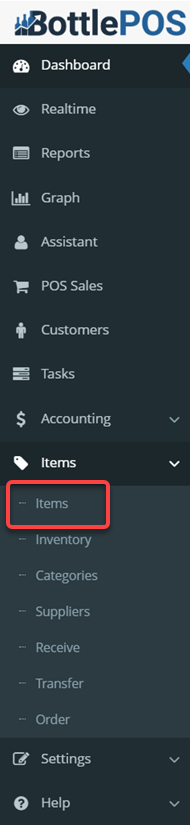
To get started, log into your Bottle POS Admin. Then, on the left-hand side of your screen, click on the Items tab. In the Items menu, click the first option, also named Items.

On the Items page, click the Manage Promotions button in the upper right.
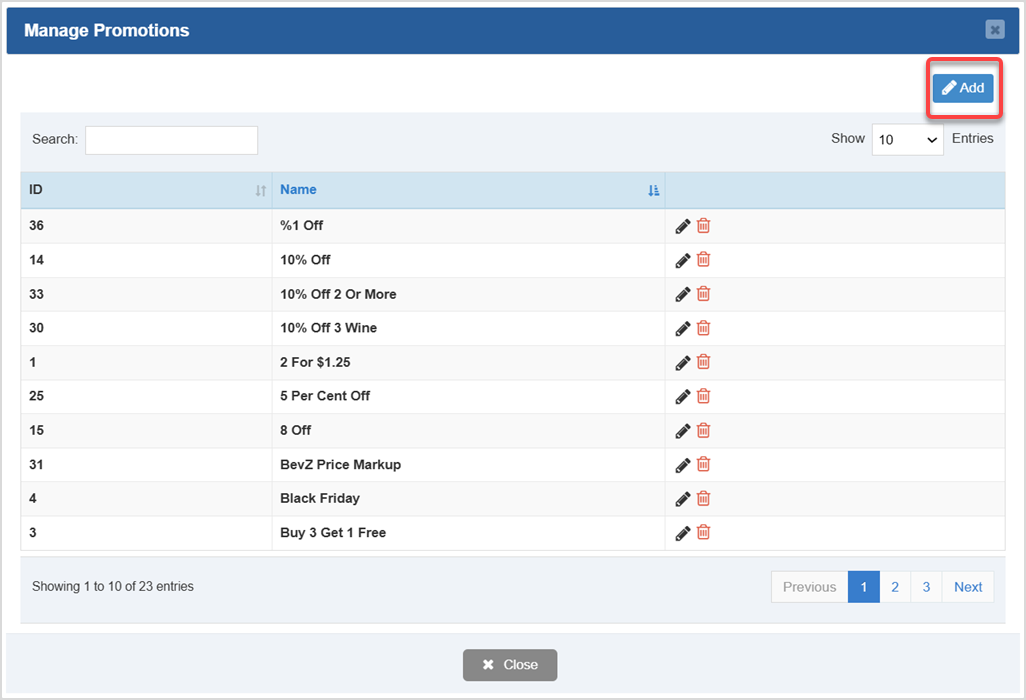
Create a new promotion that will remove tax for the customer. To do that, click the Add button at the top right, the Add Promotion window to pop up.
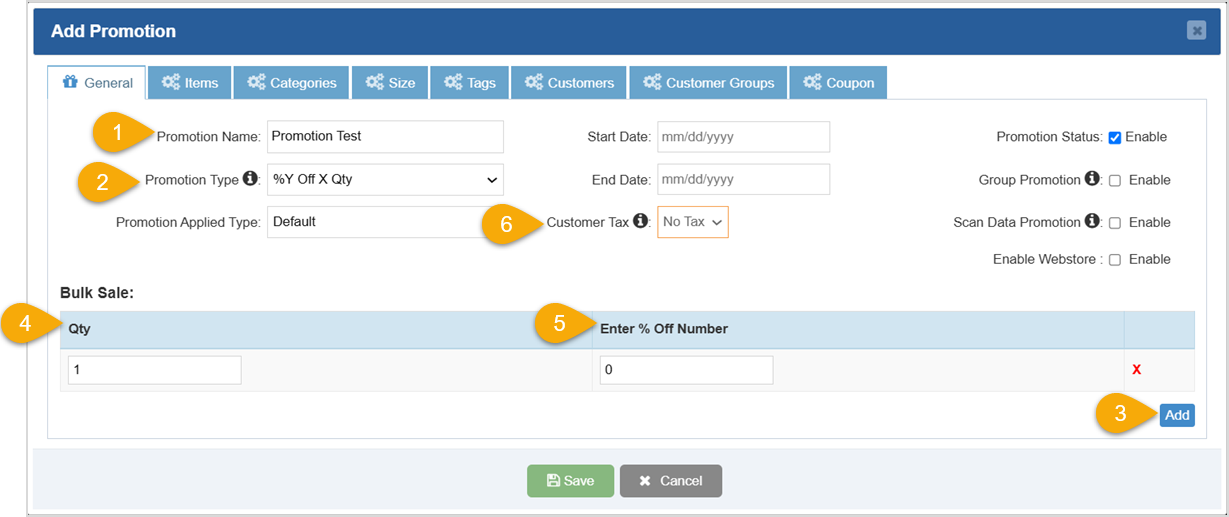
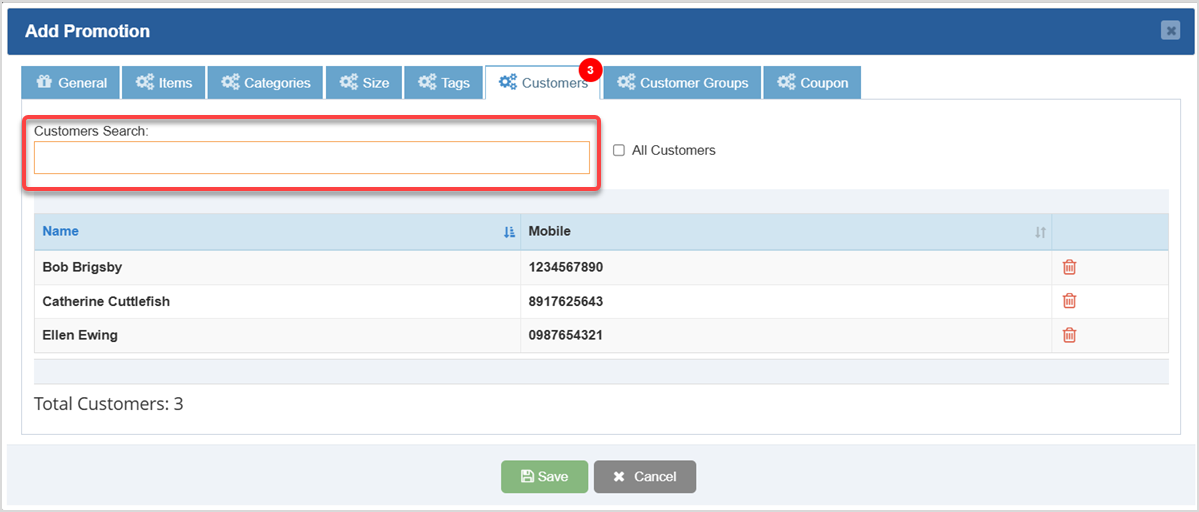
Next, add the customer to the Promotion so they will be tax-exempt moving forward:
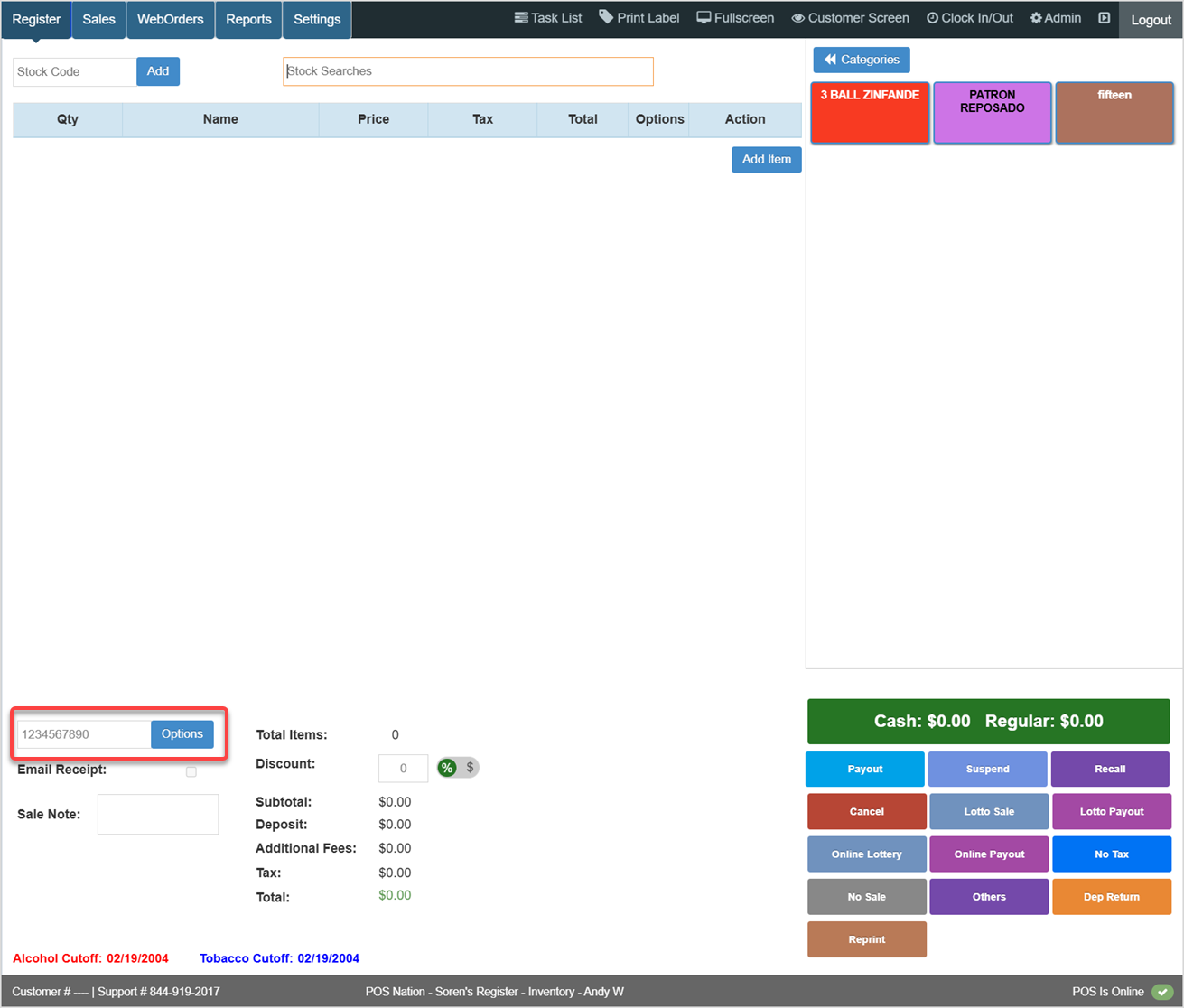
Here is how the Tax-Exemption Promotion will work for you in the Register:.
How to Create and Manage Customers
How to Enable and Use Customer Loyalty
Q: I set everything up correctly according to the guide, but the promotion isn't applying.
A: Close your POS software, log back in, and then try again.
Q: I have a question, but I can't find my answer here, how do I get more assistance?
A: You can ask any question at the number below. Contact our 24/7 support team at: (877) 381-4087
Is this page helpful?
×Help us improve our articles