How to Enable and Use Customer Loyalty

October 01, 2024
Loyalty programs offer customers an opportunity to earn points for dollars spent. Customers can use accumulated points for discounts or credits on future purchases. In this article you'll learn how to set up and use customer loyalty points and rewards in the Bottle POS software.
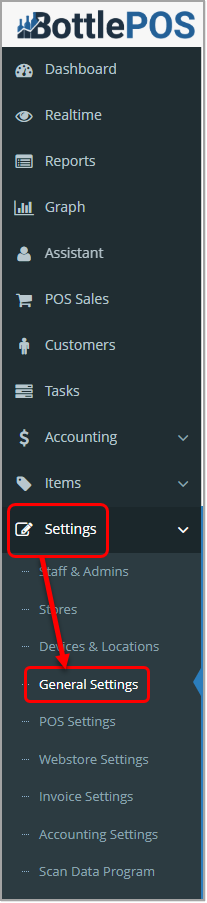
In the Admin app, go to Settings > General Settings. The General Settings page will open.
Setting Up Loyalty Points
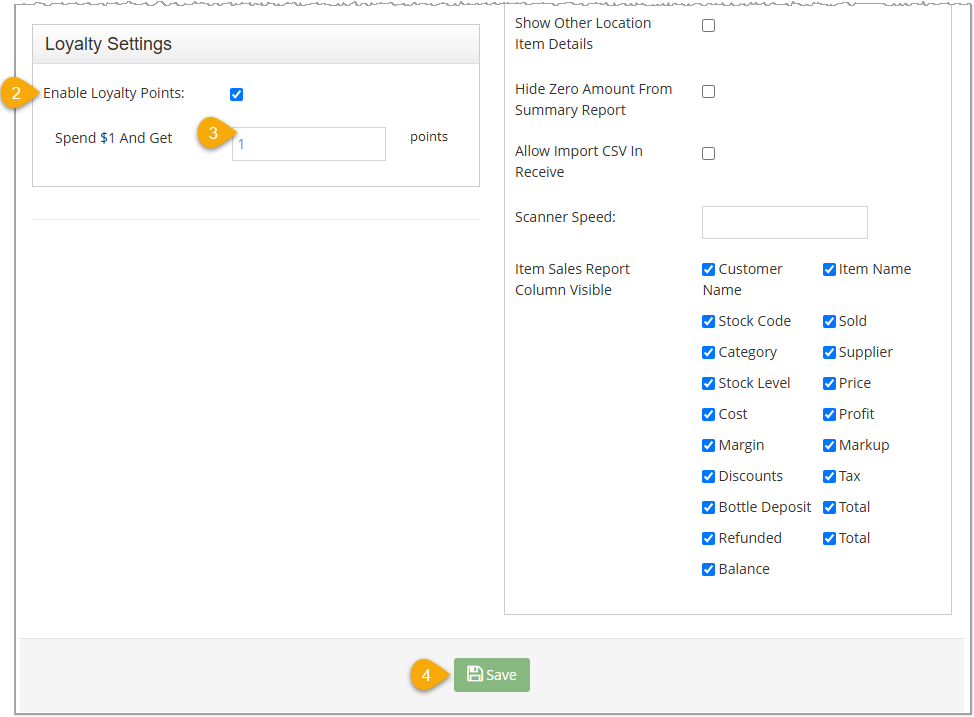
- Scroll to the bottom of the General Settings page to locate the Loyalty Settings area.
- Check the box to Enable Loyalty Points.
- Enter the number of points a customer will earn with each dollar spent. Bottle POS recommends keeping it simple by entering 1 (earn 1 point for every dollar spent).
- Click the Save button.
Working With Loyalty Reward Offers
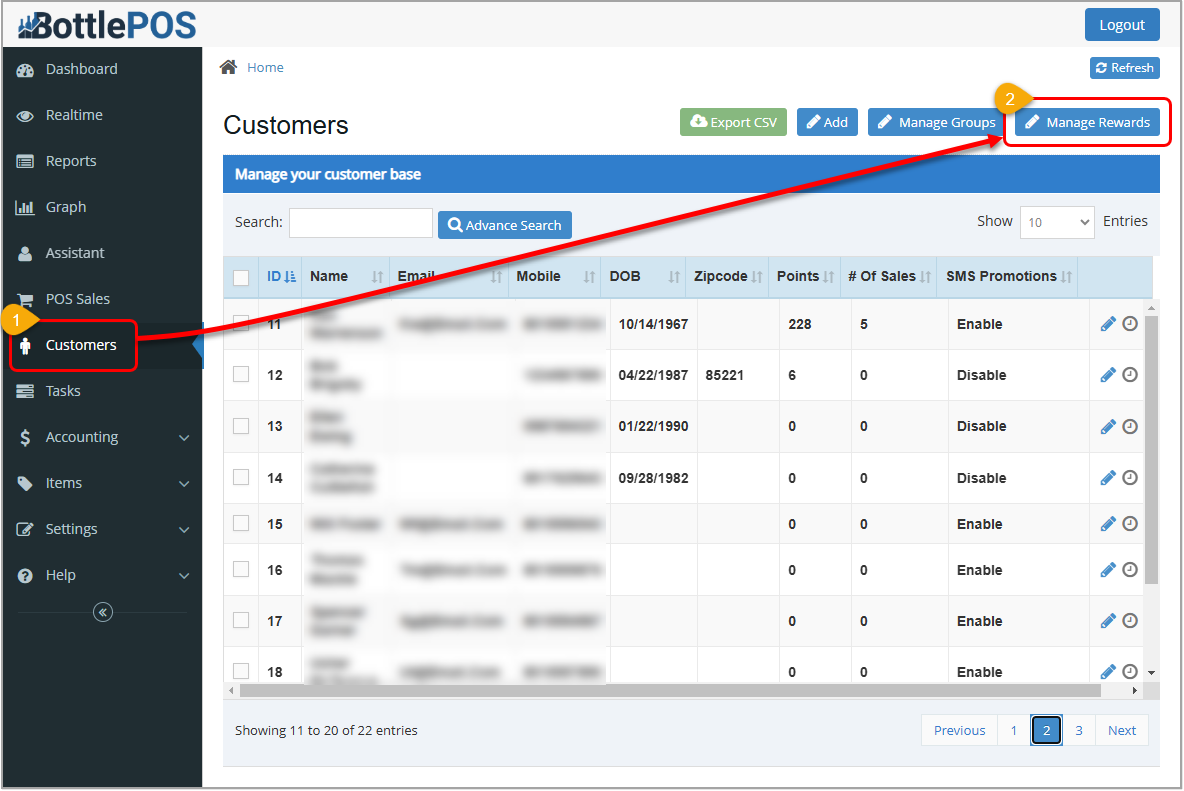
In the Admin app, go to the Customers menu. In the upper right of the Customers page, click the Manage Rewards button to open the Manage Customer Rewards window.
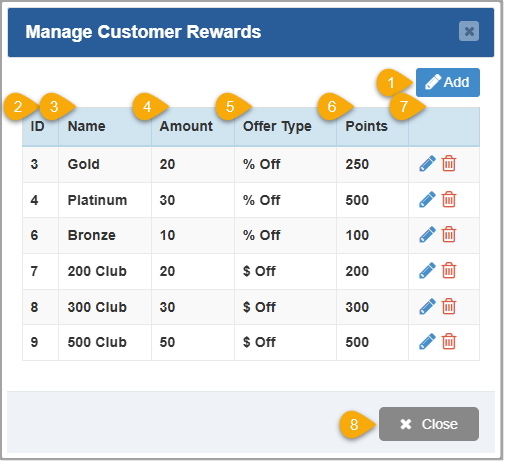
- Add - Click the Add button to open the Add Reward window and create a new loyalty reward.
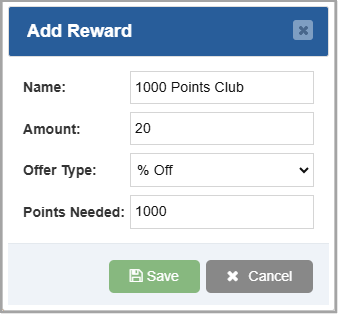
- Name - Enter a name for the reward. For example, you might create a reward for Get $1 off for 100 points, Get Get $5 off for 250 points, and so on.
- Amount - Enter the amount of discount offered with the reward. If you enter 10 here, you have the option of making it 10% or $10 based on your selection in the next box.
- Offer Type - Select % Off or $ Off to indicate if the discount amount in the Amount box is a percentage or dollar amount.
- Points Needed - Enter the number of points a customer needs to earn the reward discount.
- Save - Click to save the reward and make it available at POS.
- Cancel - Click to close the window without saving your changes.
- ID - This column shows the ID number is created by the system for each reward and is used internally.
- Name - This column displays the descriptive name of each reward available in your system.
- Amount - This column displays the dollar or percentage amount of discount that can be applied when this reward is used during a POS transaction.
- Offer Type - This column indicates if the discount type is based on a percentage of the sale or if it's a static dollar amount.
- Points - This column displays the number of loyalty points a customer must have to use this reward. Once used, their point total is reduced by this amount.
- Actions - This column has action icons you can use for the rewards:
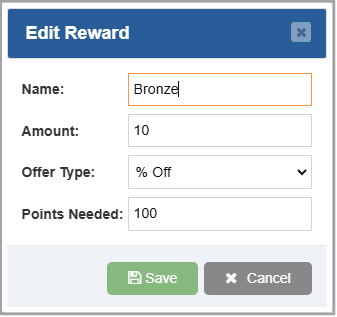
- Click the Pencil icon
 to open the Edit Reward window. From there you can Edit the reward name, amount, and points. Make changes as necessary to the Name, Amount, Offer Type, and / or Points Needed, then click Save.
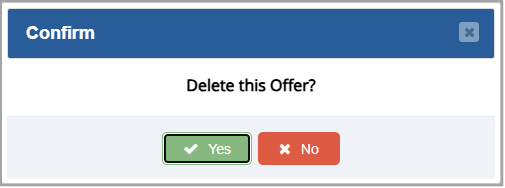
- Click the Trashcan icon
 to Delete the reward. Once you click Yes on the message to confirm the deletion it will no longer be available to use in your Register.
- Close - Click to exit the window.
Redeeming Rewards
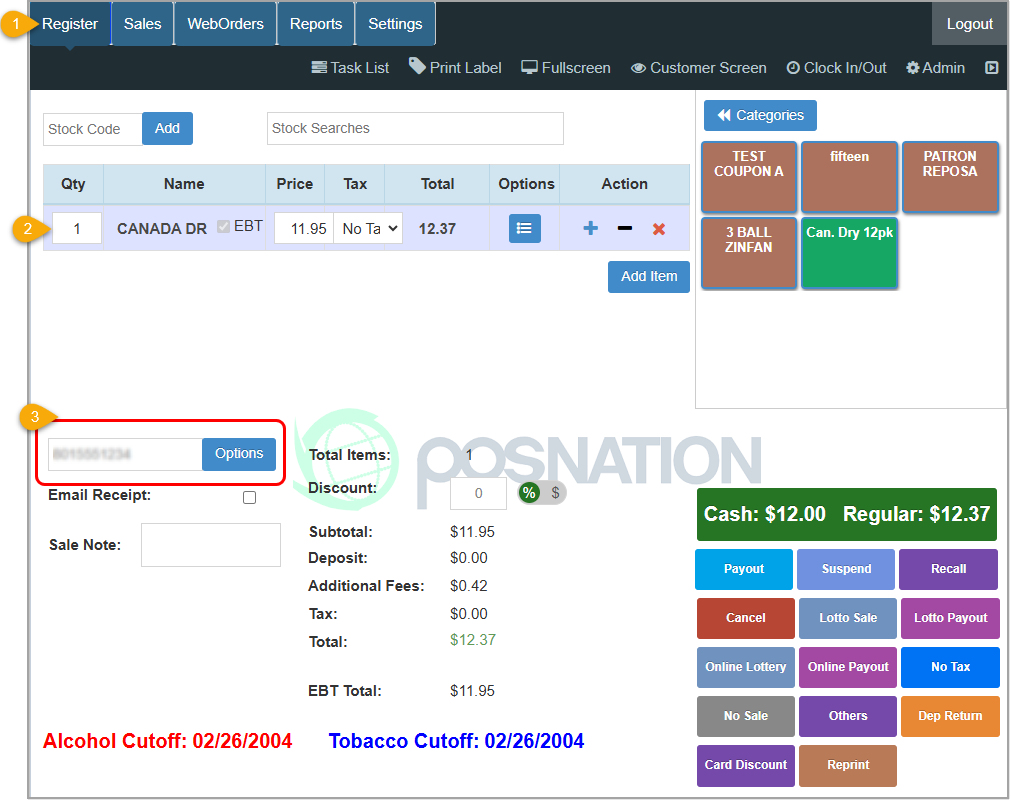
- In the POS app, start a new sale in the Register.
- Add Items to the sale.
- Enter the customer's mobile number in the Customer Mobile box and click Options. The Customer Info window will open.
- Click any of the offers in the Rewards/Offers area that the customer wants to use. Only offers available to the customer display here.
Please Note: If a maximum discount limit is set in Admin > Settings > POS Settings, rewards exceeding that limit will not be redeemable.
- Click OK. The points are deducted from the customer's account and the transaction cost is reduced according to the reward.
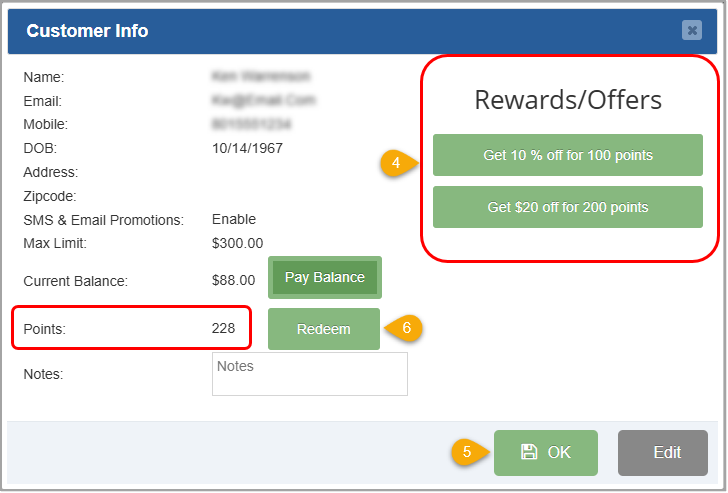
- Alternatively, click Redeem to enter a specific number of points. You might do this if the customer wants to redeem points for an item you don't have in your inventory. For example, you might offer your customers the option to redeem 50 points for a free sticker with purchase but you don't track the stickers in your inventory.
Manually Adjust Customer Loyalty Points
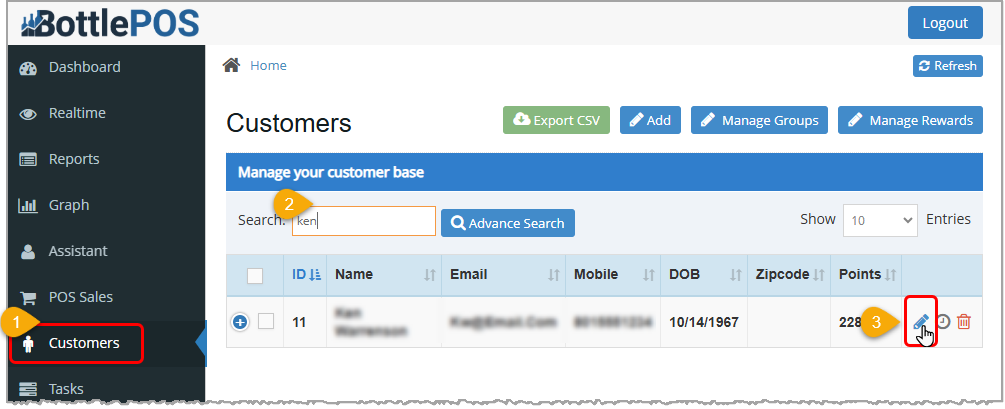
- In the Admin app, go to the Customers menu.
- Use the Search or Advanced Search to find the customer account you want.
- Click the Pencil Icon on the far right. The Edit Customer window will open.
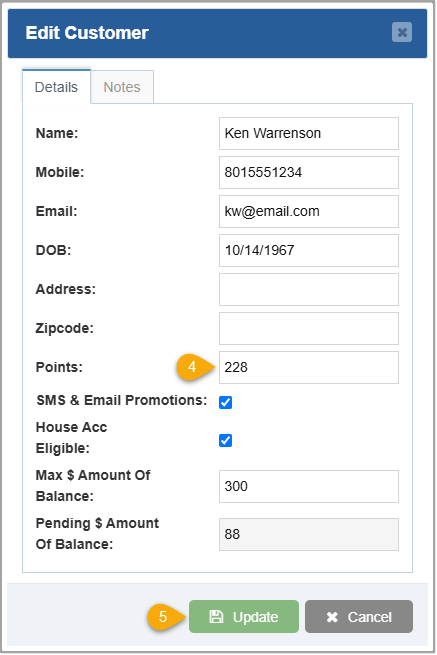
- Enter the number of loyalty points you need in the Points box.
- Click the Update button. The next time the customer is added to a POS transaction their available points balance will reflect your changes.
Related Topics
How to Create and Manage Customers
Working with Customers in the Register
Frequently Asked Questions
Q: My customer has enough points for a reward, but the reward is not appearing on the list of redeemable rewards. Where is it?
A: If you have a maximum discount limit set in the Admin > Settings > POS Settings, rewards which will exceed that limit will not be available to be redeemed.
Q: Can I make certain inventory items only available to my loyalty customers?
A: Every item has a setting under the Options tab called Points Required. This setting requires a customer to have a certain number of points before it can be purchased.
Q: I have a question, but I can't find my answer here, how do I get more assistance?
A: You can ask any question at the number below. Contact our 24/7 support team at: (877) 381-4087
It's common for employees to forget to clock in or out and when that happens you need an easy option
Your Admin Dashboard is your hub for keeping your finger on the pulse of your business. Take a look
The Reports in the Bottle POS Admin can show you details about all of your data, however you need to








Is this page helpful?
×Help us improve our articles