






Reprinting Transaction Receipts
Reprinting a Transaction Receipt You can reprint transaction receipts from the Bottle POS and Admin.

 October 01, 2024
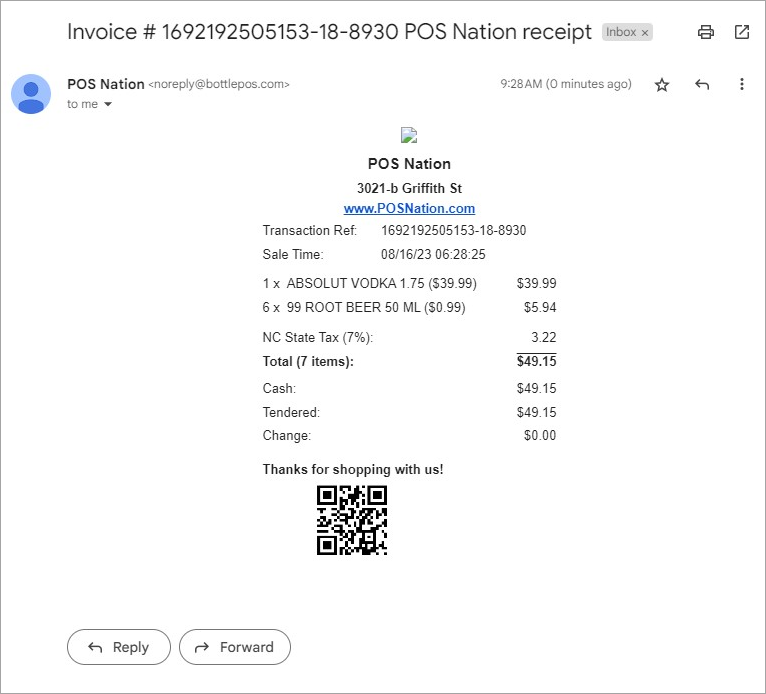
Learn how to send a receipt to a customer's email after a transaction is completed. This feature can be a great way to save receipt paper and ensure your customers always have access to their receipts.
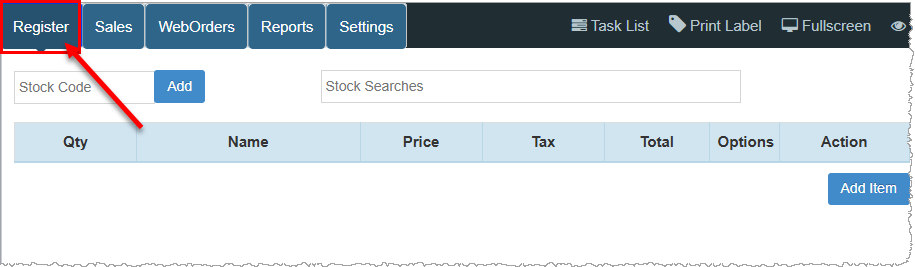
To access this feature, log into your Bottle POS app and navigate to the Register tab.
Please Note: The customer must exist in the software if they'd like to receive an emailed copy of their receipt. If a customer record does not already exist for the individual or if you do not create one for them on the fly, you will be unable to email a receipt.
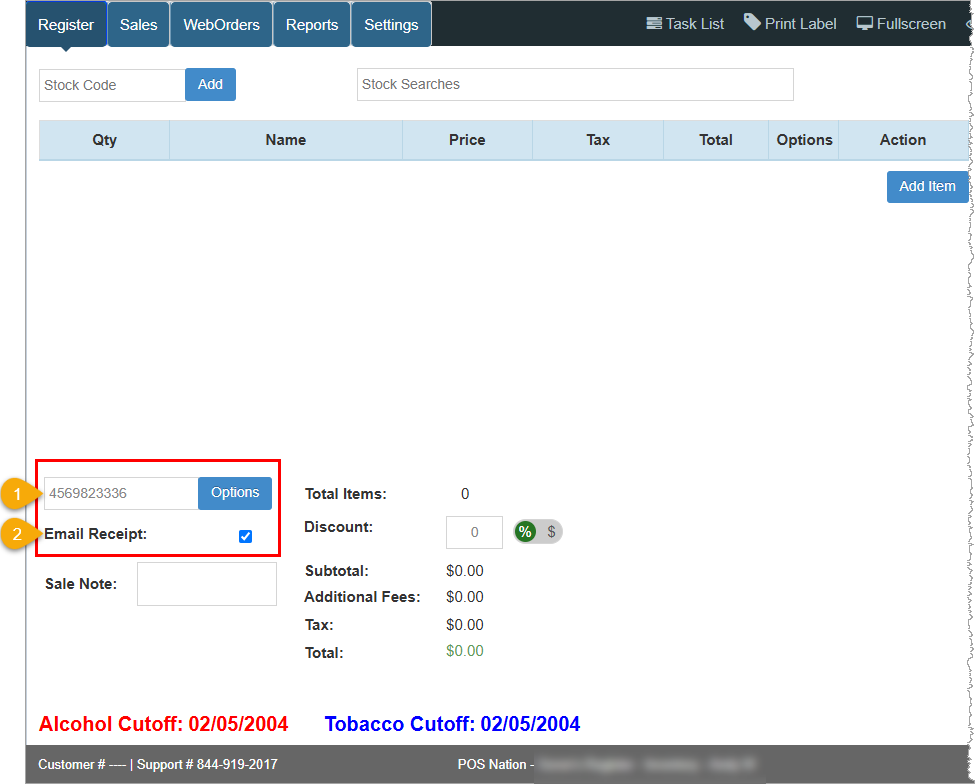
Follow these steps to email a customer their receipt:
|
Does the customer already exist in your system? |
Then: |
|
Yes |
|
|
No |
|
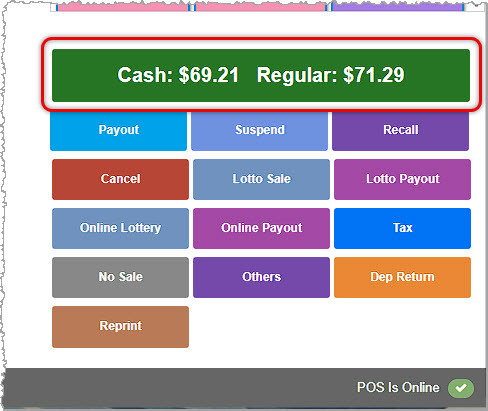
Working with Customers in the Register
Q: Can I email the receipt and print it?
A: Yes. Whether or not the system prints the receipt is dependent on the printer settings and is not reliant on the receipt being emailed.
Q: Can I email the receipt without saving the customer details into my system?
A: No. The customer must be saved in the system for the receipt to be emailed to them.
Q: Will the system verify that the email address on file is valid?
A: No. The system cannot verify the validity of an email address. Optionally ask the customer to confirm their email address on the screen.
Q: I have a question, but I can't find my answer here, how do I get more assistance?
A: You can ask any question at the number below. Contact our 24/7 support team at: (877) 381-4087
Is this page helpful?
×Help us improve our articles