






How to Add Employees - Staff & Admins Settings
Learn how to successfully add new employees to your Bottle POS and to set their security permissions

 October 01, 2024
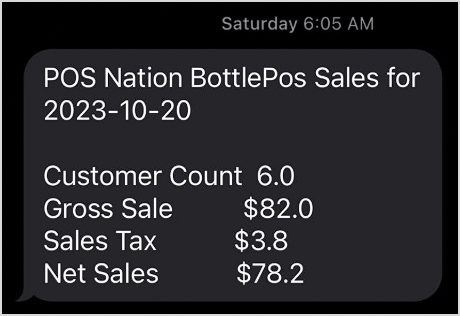
Learn how to enable a daily text message to be sent to your phone with your sales totals. This feature allows you to get a quick assessment of how your business is performing on a daily basis without having to sign into the Admin.

To get started, log into your Admin app and click Settings on the left and then General Settings in the menu that opens. On the General Settings page, scroll down to Automation Settings.
Enter the details of the automation as explained below:

How to Create and Manage Customers
How to Enable and Use Customer Loyalty
Q: Can I customize the information that is sent in the text message?
A: No, the messages cannot be customized.
Q: I have a question, but I can't find my answer here, how do I get more assistance?
A: You can ask any question at the number below. Contact our 24/7 support team at: (877) 381-4087
Is this page helpful?
×Help us improve our articles