Working With Transaction Details in the POS

October 01, 2024
The Bottle POS offers a variety of ways you can work with the details of your completed transaction. Take a look below at what we have for you!
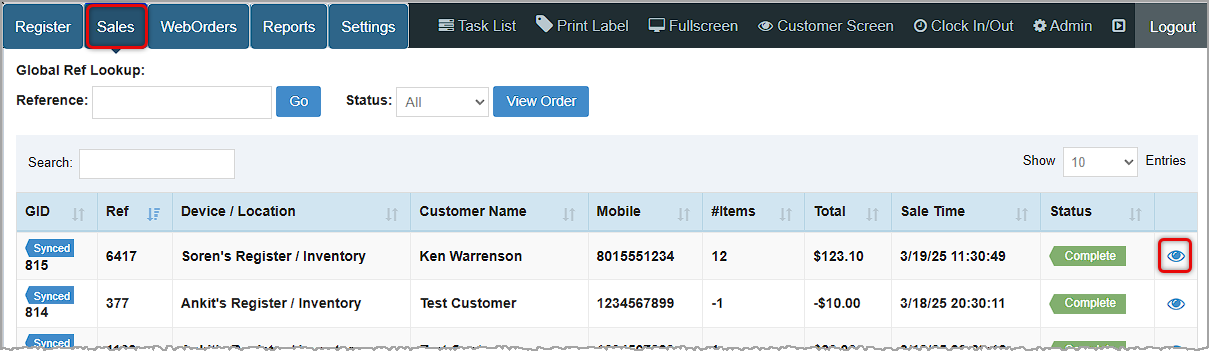
You can get to this area by logging into the Bottle POS app and clicking on Sales in the upper left. Use the Reference search to find a transaction by its Ref ID (the final few digits after the last hyphen is all you need) or search by any text or number in the data table in the Search field just above the table. Once you have the transaction you want, on the far right, click on its Eye icon to open the Transaction Details window.
In the Transaction Details window at the top you will see the Status of the transaction, the simple ID given to it by the system, the full Ref ID, the Sale Date & Time (when it was completed in the Register), the Process Date & Time (when it was saved to the database as processed), the Username of the staff member that completed the transaction, the Device it was run on, and the Inventory Location where it was run.
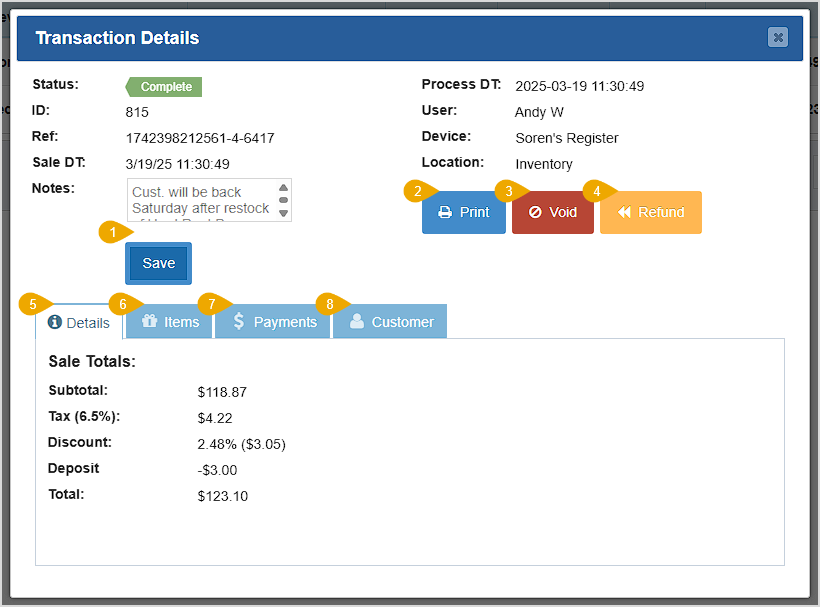
- Notes - You can add any Notes you might need to reference in the future about the transaction in this field. Click the Save button to save the text to the transaction. Your note will be visible in the Transaction Details window whenever you view the transaction, and also in your Notes Report in the Admin.
- Print - Click this button to Print the transaction receipt to a PDF file or to the connected printer of your choice.
- Void - If you have admin privileges, you can click the Void button to void the transaction. You'll be prompted to enter the Reason for the void, click the Process button to proceed, then you'll be asked to click Yes to confirm. Once voided, the transaction will be in a Void status, its revenues will no longer apply in the sales reports, and inventory will be restored. If the transaction was run on an integrated terminal and you haven't batched out your processing, the funds will go back on the card. In all other cases, you will want to manually refund the customer before voiding.

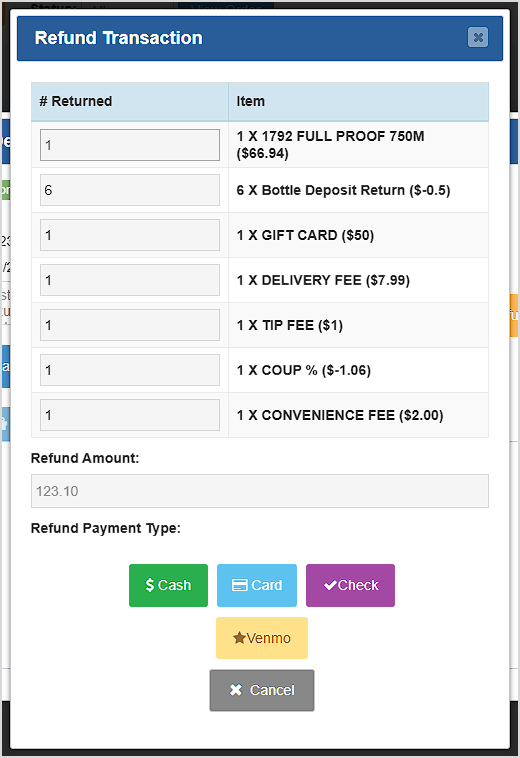
- Refund - If you have permission, you can click the Refund button to refund all items in the transaction. The Refund Transaction window will open showing you the items that are being returned (for reference only, you can't do a partial refund), the Refund Amount, and the different Payment Types that you are refunding. For integrated card processing, the charges will be reversed, but for external tender types you will need to manually return the funds.
- Details Tab - The Details tab of the POS Transaction Details window shows the Sale Totals for you, listing the Subtotal (total before tax, discounts, and deposits), the Tax percentage and dollar amount, any Discount percentage and dollar amount, any Deposit adjustments, and the final Total dollar amount, as pictured above.
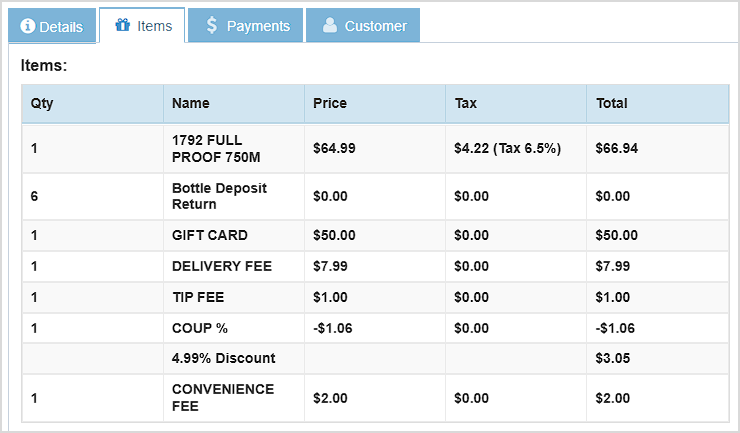
- Items Tab - The Items tab of the POS Transaction Details window shows the following information about each item in the transaction: Quantity, Name, Price, Tax, and the Total paid for the item.
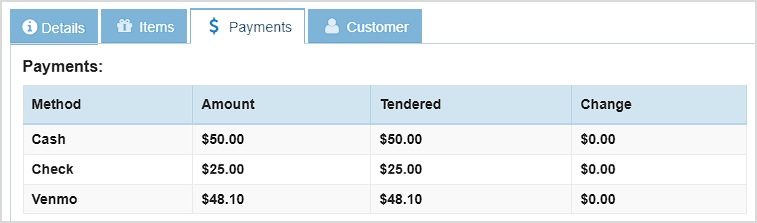
- Payments Tab - The Payments tab of the POS Transaction Details window shows the following details about the Tender types used in the transaction: Method (the payment method name), dollar Amount paid using each method, the full amount Tendered, and any Change returned for the payment method.
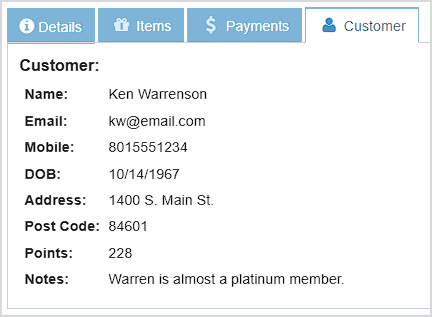
- Customer Tab - The Customer tab of the POS Transaction Details window shows the following details if a customer was added to the sale: Name, Email, Mobile phone number, Date of Birth, street Address, Postal Code, loyalty reward Points, and any saved Notes, as pictured here.
Related Topics
Working With Transaction Details in the Admin
How to Add Notes to a Transaction
Notes Report
Reprinting Transaction Receipts
How to Void Transactions
How to Process a Return
Frequently Asked Questions
Q: Do I have to go into each transaction to view notes, or is there somewhere I can see them all?
A: In the Admin under the Reports area, you can view all notes added to transactions in whatever date range you need using the Notes Report.
Q: I have a question, but I can't find my answer here, how do I get more assistance?
A: You can ask any question at the number below. Contact our 24/7 support team at: (877) 381-4087
The Reports in the Bottle POS Register App can show you details about current sales such as totals a
This article will cover how you can find transactions, something you'll likely need to do from time
It's easy to close out your till at the end of the day, take a look at the steps below to learn how!








Is this page helpful?
×Help us improve our articles