






Reprinting Transaction Receipts
Reprinting a Transaction Receipt You can reprint transaction receipts from the Bottle POS and Admin.

 October 01, 2024
In the Bottle POS you are able to easily set items to be eligible for EBT (SNAP - Supplemental Nutrition Assistance Program) as a payment method. Take a look at how you can work with them in the Register!
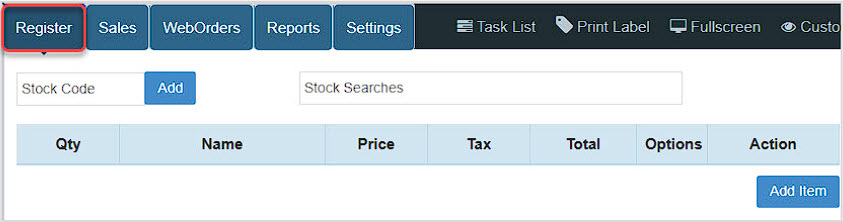
You can get to this part of the system by logging into your Register app. The Register tab will load for you automatically.
To begin setting up your system to work with EBT, you'll start with your Tax settings in the system Admin. Log into your Admin app and go to Settings > Accounting Settings.
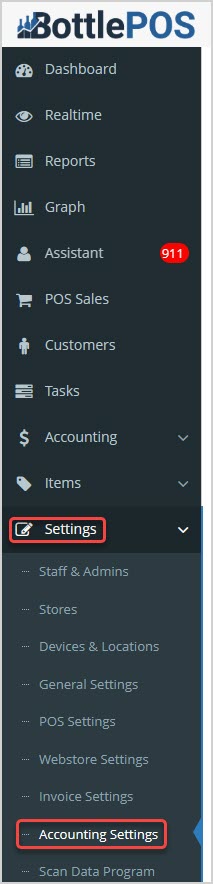
On the Accounting Settings page in the Tax Rules area, set the Default EBT Tax to No Tax, as shown below. Check the box to Enable the setting. When you're finished, scroll to the bottom of the page and click the Save button. Your system is now ready to work with EBT items not charging any tax in the Register.
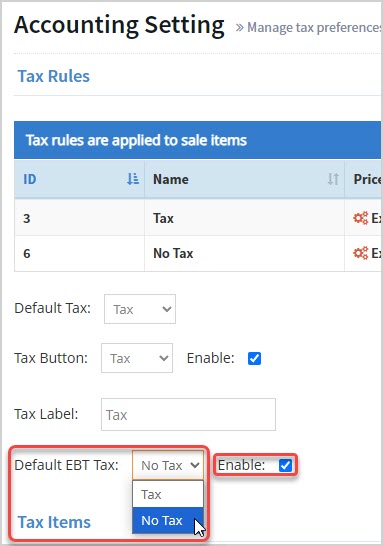
The best and fastest way to set up EBT as a payment type in your system is to call Bottle POS Support at 844-919-2017 and have our team set it up for you. If you want to try it yourself, you can add that ability by logging into your Admin app and going to Settings > General Settings.
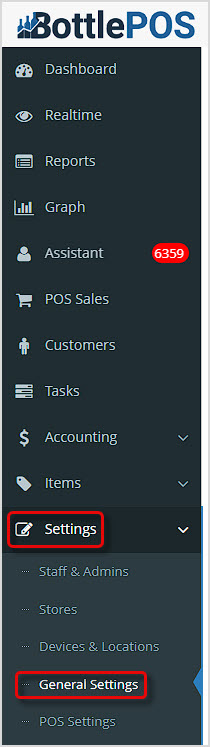
Once you've opened your General Settings page, scroll down until you see the Tenders area on the right:

If you don't see EBT in your list of Tender Types, click the +Add Tender button to add it. Check the box in the Status column for EBT to enable it as a tender option at your register. Check the EBT column box for EBT so that items that can be paid for using EBT can use that option. Leave the Amount column blank so that whatever amount can be paid using EBT will be automatically tendered when you click the EBT Tender button at checkout, so you won't have to enter the amount manually. Once you've set up what you need, scroll to the bottom and click the Save button.
You can get to this area by logging into your Admin app and going to Items > Items.
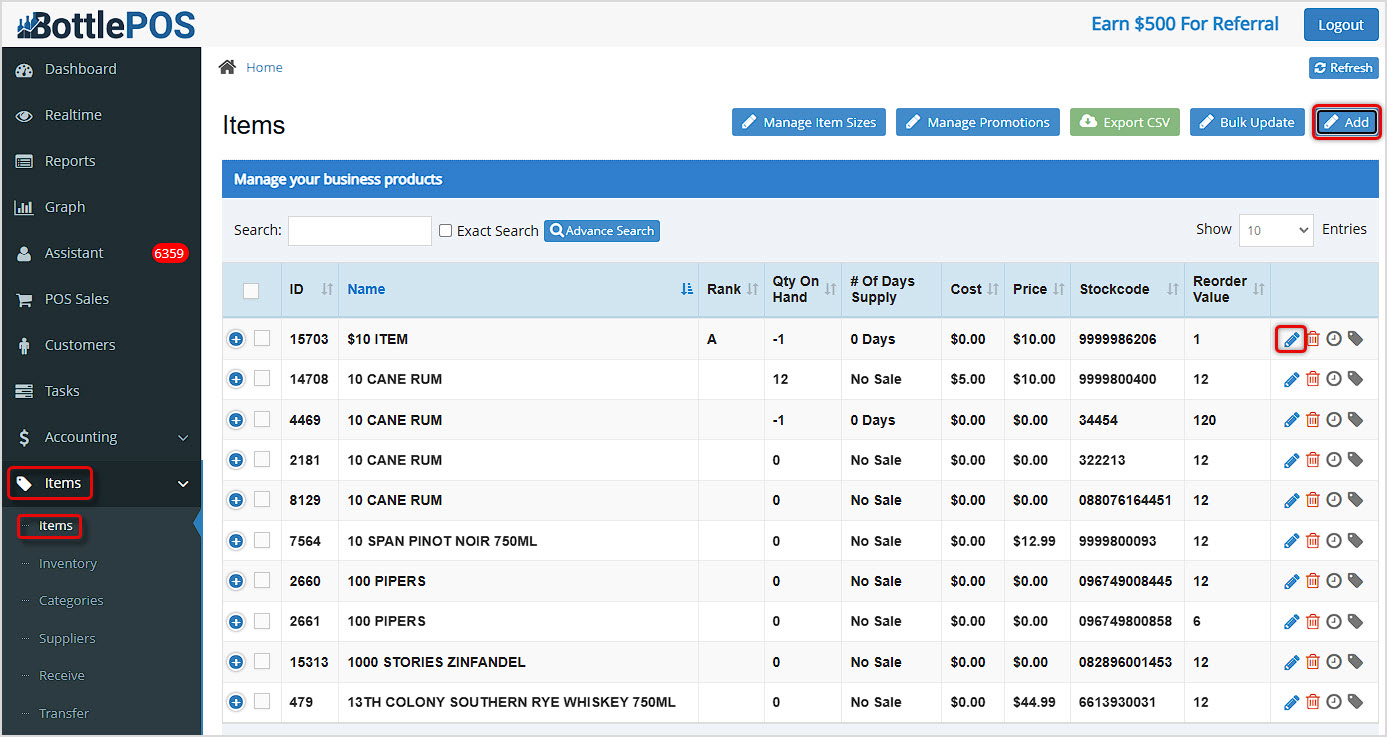
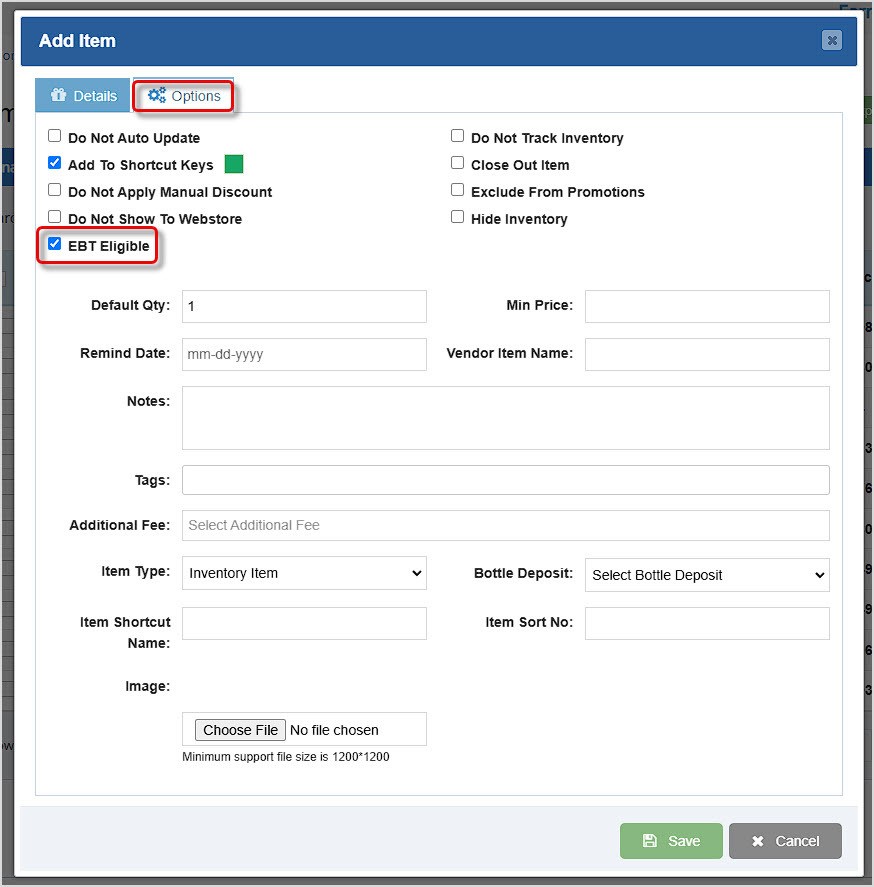
You can either click the Add button to create a new item, or you can find the item you want and click the Pencil Icon on the far right to edit it. Once you have opened the Add Item or Edit Item window, to set it to be able to use EBT as a tender type click on the Options tab at the top and check the box for EBT Eligible. When you've finished setting up the product, click the Save button at the bottom and your item will be ready to go!
Please Note: You can set items to be EBT eligible at the Category level under Items > Categories by editing a Category and checking the box to make the category's items EBT Eligible, as pictured here:

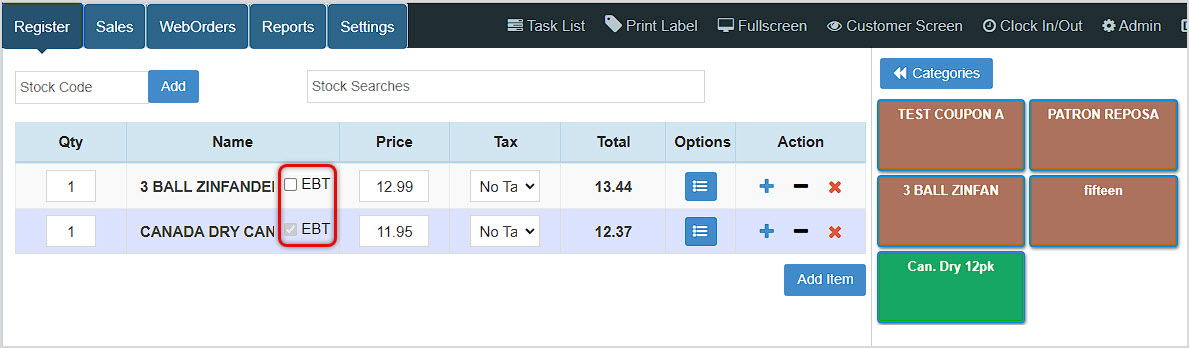
After logging into your Register app, when you're adding the Items you'll see if any are set to be able to use EBT: they will have a grayed out check-mark in the EBT check-box. Other items, like the first one listed below, can be set to be paid for using EBT by checking the box.
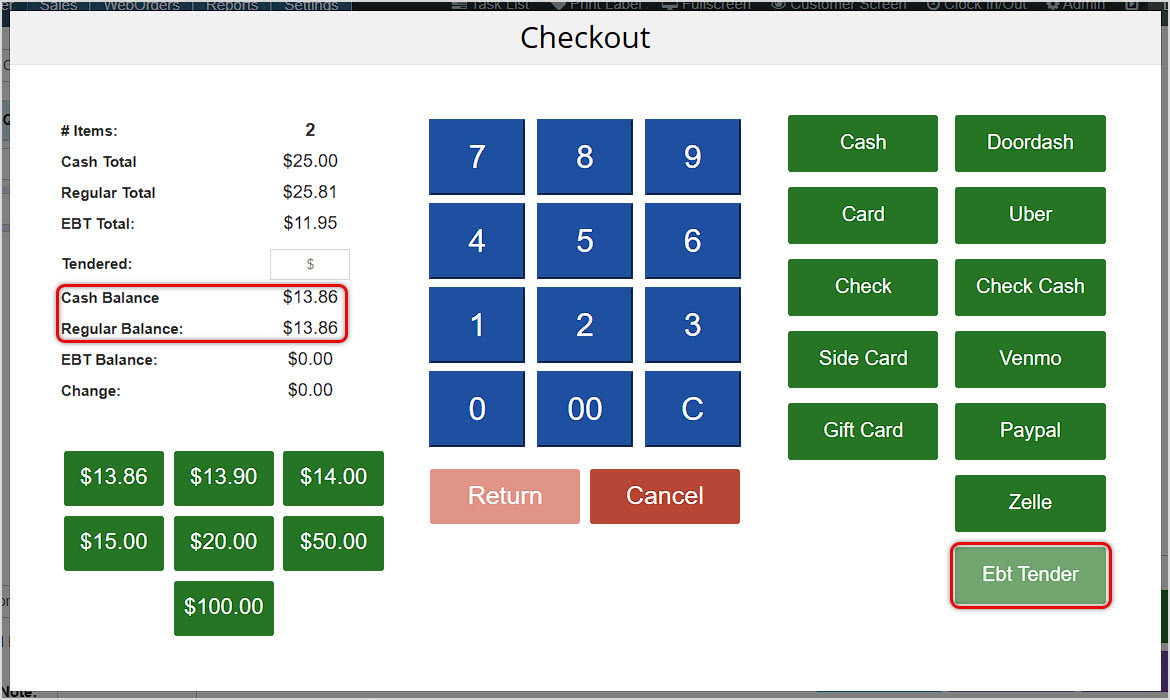
When you go to Checkout, you'll see the EBT Total, and if all items in the transaction are not EBT-eligible, the Cash / Regular Total will be a larger amount. When you click the tender button for EBT, only the EBT Total will be tendered.
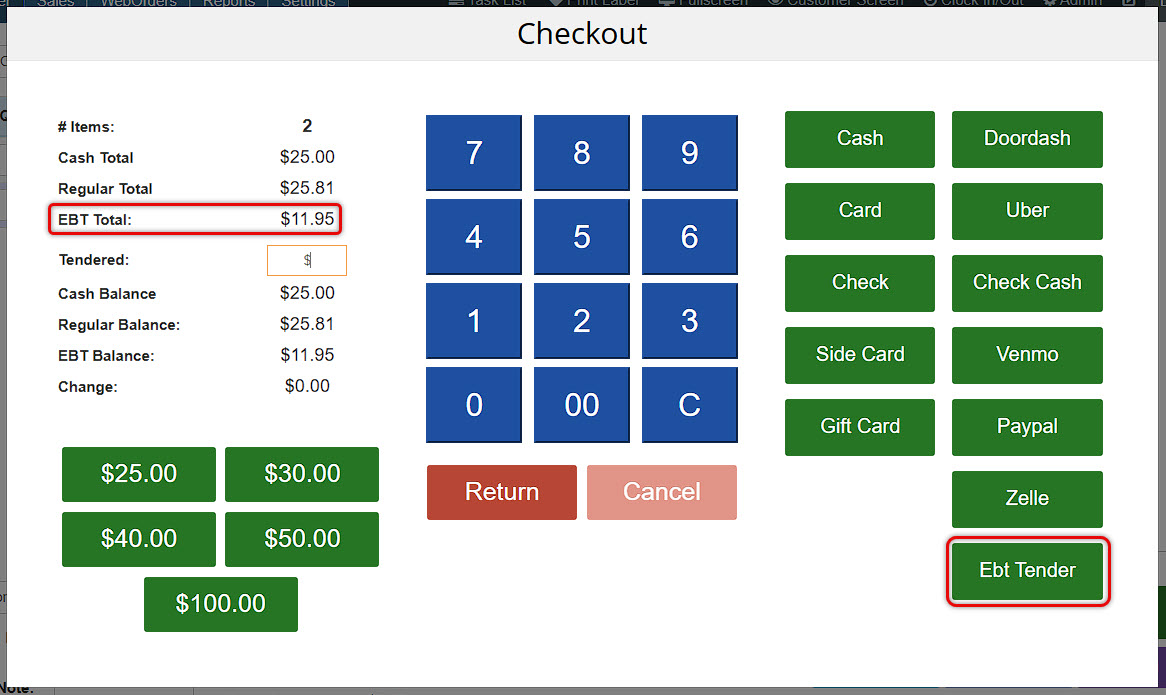
Once you've tendered the EBT Total, the remaining balance will display in the Cash Balance and Regular Balance areas, and you can complete the transaction with the customer's preferred tender type. Since the EBT amount has already been paid, that Tender button will be grayed out.
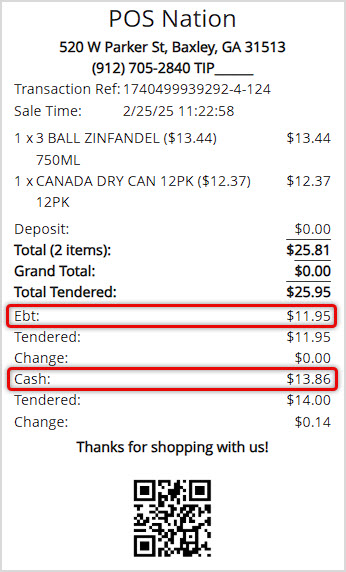
On the receipt, the EBT amount will be itemized and the other payment amount will be separate, as seen in this example:
Q: How can I find which items are EBT eligible?
A: The USDA SNAP guidelines do not allow alcohol items to be purchased using EBT.
Q: I have a question, but I can't find my answer here, how do I get more assistance?
A: You can ask any question at the number below. Contact our 24/7 support team at: (877) 381-4087
Is this page helpful?
×Help us improve our articles