The Bottle POS system offers you many ways to take payment including electronic services such as Venmo, PayPal, and Zelle. Take a look at how you can work with the tender types you need!
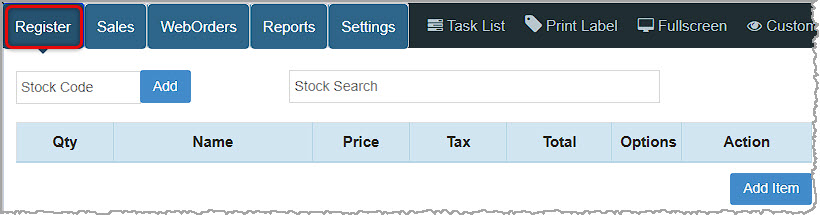
You can get to this part of the system by logging into your Admin App. To begin working with Tender Types you will need, in the Admin go to Settings > General Settings, and scroll down to the Tender Settings area on the right.
Adding Custom Tender Types
You can create whatever Tender Types you need in the Admin app.
Please Note: Custom tender types do not integrate with third-party services, so you will collect payment from services such as Venmo, PayPal, Zelle, Doordash, etc. as a separate process and then use the tender type for that service in the Register app to complete the transaction.
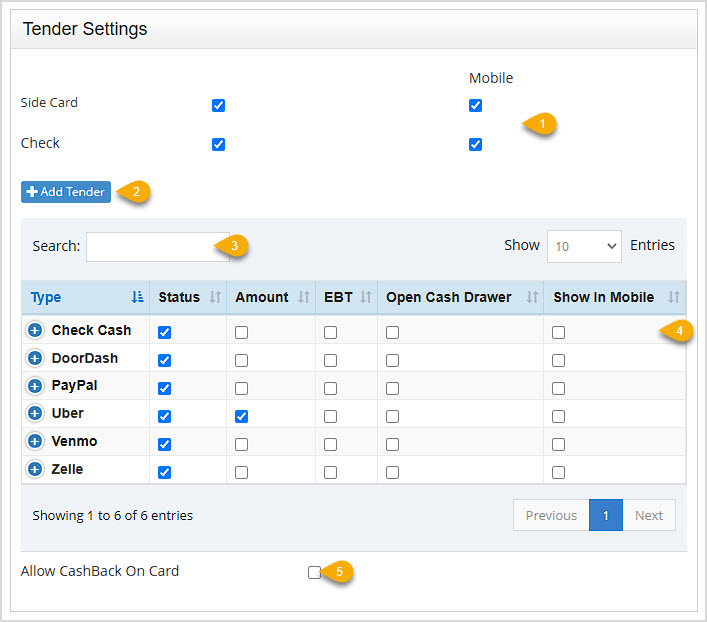
- Side Card and Check - The Side Card is what you use for non-integrated card processing. Checking the first box for each will enable that Tender type in your Register. Checking the Mobile box will allow that Tender option on the Mobile app that is used for the PAX A920 Pro (a card processing terminal capable of running mobile transactions). Checking the Mobile boxes is not relevant if you are not using that device. The Check tender is for personal checks.
Please Note: Personal Check payment will NOT electronically confirm the account has funds for the transaction and will not integrate with an external check scanner device.
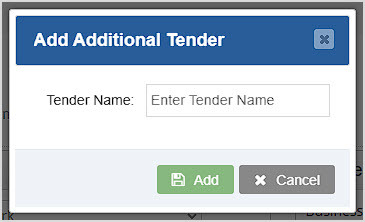
- +Add Tender - Click the +Add Tender button to enter the name of any Custom Tender you need for your store or online.
Please Note: This will just create a button with the name you enter and will not integrate with third-party services. You will need to collect funds separately before completing transactions for services such as Venmo, Zelle, or PayPal.
- Search - If you have a large number of Tender Types, you can use this Search to go straight to the one you want.
- Tender Line Items:
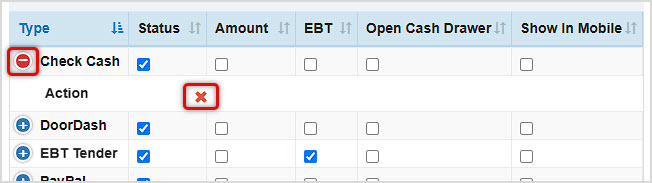
- If not viewed full-screen, this area may display a + button to expand and offer Actions for the Tender type. If you click the X icon to Delete, you can remove the tender type, and you will be prompted to confirm you wish to do so.
- Type - Each line item in this table will display the name of the Tender in the Type column.
- Status - If the Tender's Status checkbox is checked it will be available to use in the Register.
- Amount - If the Amount checkbox is checked the system will require the cashier to enter an amount into the Tendered field before clicking the button for the Tender (a popup will prompt the cashier if they haven't yet entered an amount). If this is unchecked, when clicking the button for the Tender, the full amount due will automatically be tendered.
- EBT - If the EBT checkbox is checked, any EBT-eligible amount shown in the EBT Total will be charged when the Tender's button is used. The customer will need to pay the remainder using another method.
- Open Cash Drawer - If the Open Cash Drawer checkbox is checked, the cash drawer will automatically open when the Tender is used in the Register.
- Show in Mobile - If the Show in Mobile checkbox is checked, the Tender will be available to use in the Mobile App for the PAX A920 Pro (a card processing terminal capable of running mobile transactions). This check box is not relevant if you are not using that device.
- Allow CashBack on Card - Checking this box will give your customers the option to request cash back on card transactions from your card processing terminal.
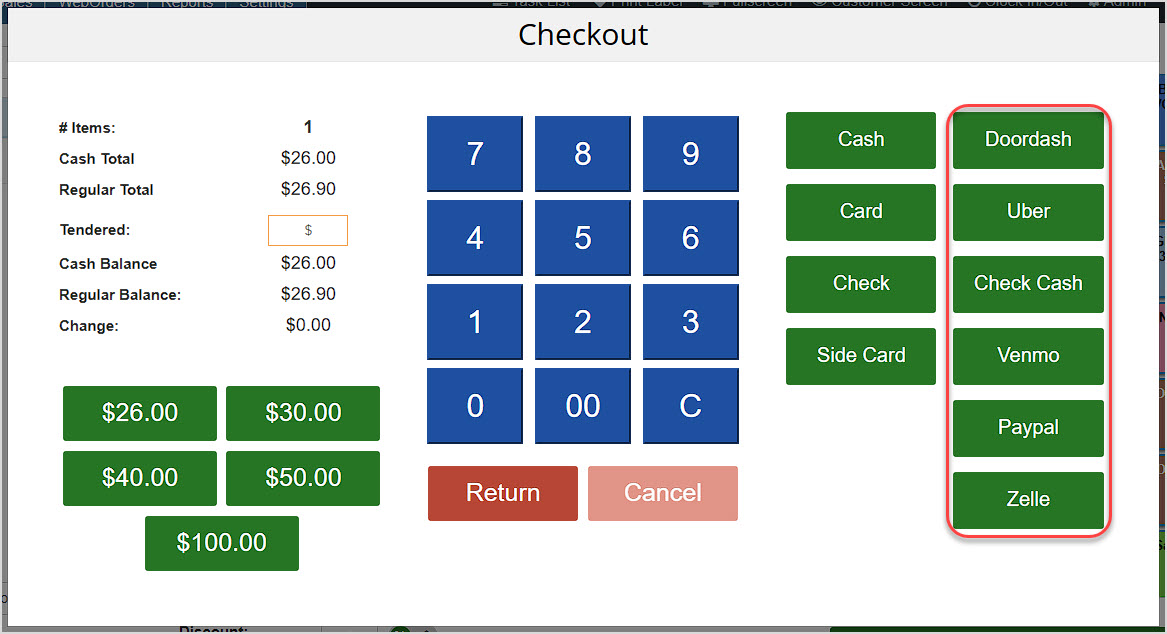
Once you've finished configuring your Tender Types, scroll to the bottom and click the Save button. Your changes will appear in the Register in the Checkout window when completing transactions, as shown in the image below.
Using Tender Types in the Register
Any Tender Types you have added in the settings as described above will be usable in the Register app. Below is information on each standard and a few popular custom Tender types:
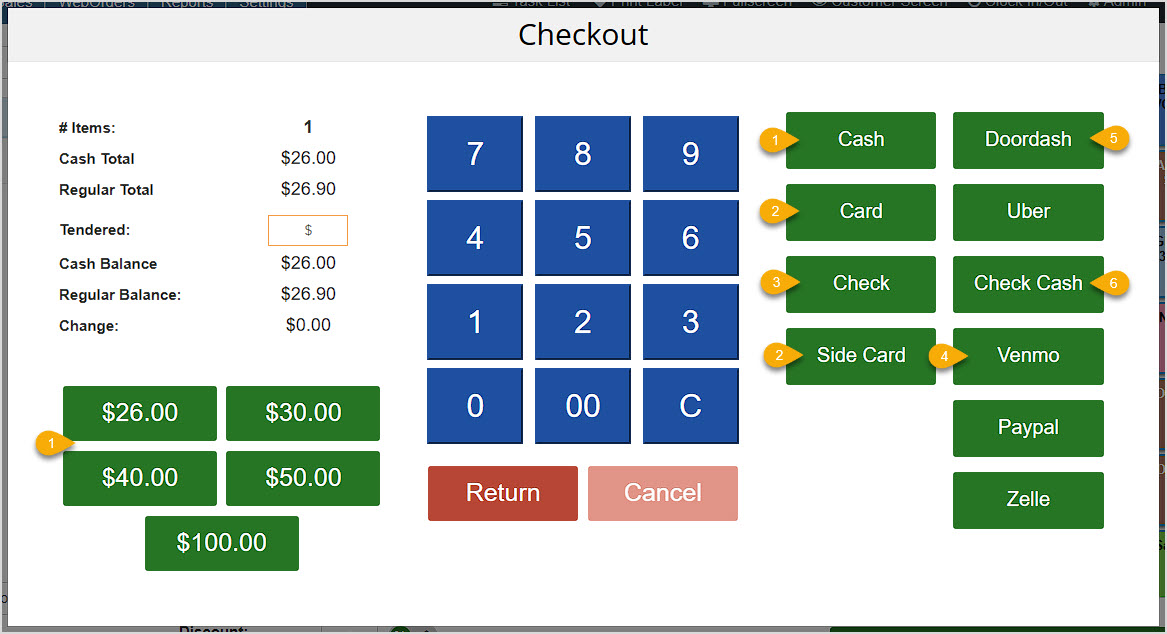
- Cash - The Register app offers common Cash Amounts a customer might have (shown in the buttons on the right), including exact change, next dollar total, and amounts for larger bill combinations, as pictured above. Clicking on any of the buttons will 'collect' that amount in the Register and proceed to the Receipt print offer popup. If you enter an amount in the Tendered field, you can click the Cash button on the right and the amount will be tendered as cash and the customer can pay any remaining amount using a different Tender Type.
- Card - For integrated card processing terminals, this tender type will send the payment amount to your payment terminal. At that point, the terminal will take over the transaction. Type in the amount Tendered if it is less then the total amount to take a partial payment by Card. Click Credit, and this will send the payment to the card terminal for payment completion by the customer.
- Check - This tender type will apply a Check payment to the transaction. The next screen will request a check amount and number so that you can account for all checks during the closing drawer procedure.
- Side Card - This payment type is for external (non-integrated) card processing terminals, and will apply a credit payment to the transaction. If you're processing the full amount with this method, just click the Side Card tender button and the entire amount will be tendered. If the customer is doing a partial amount, enter the amount into the Tendered field to take a partial payment by Side Card. Now it is your business's responsibility to process the transaction on your external payment solution. It is recommended to complete collection through your external solution card terminal before completing the transaction in the Register.
- Custom Tenders - If you have created custom tenders such as Doordash, Venmo, PayPal, and Zelle (pictured above), click the button for that Tender to pay the exact amount due for it. If you're doing a partial payment with the custom tender, you can enter the amount being paid in the Tendered field, then click the custom tender's button. You can then charge the remaining amount to a different Tender Type.
- DoorDash - Our Webstore feature integrates directly with Doordash, and you don't need a DoorDash account to use it. For more information on setting up this integration, take a look at the LINK: Webstore Settings: Delivery Settings article.
- Check Cash - If your store offers check cashing, you have likely created a Shortcut Key for check cashing transactions. After a check qualifies, enter the item, change the Quantity to -1 and the Price to whatever the check amount is as a negative number, then complete the sale and pay out to House Account and/or Cash.
- EBT Sale (not pictured) - This tender type will apply an EBT payment to the transaction. EBT is the official terminology for Food Stamps. For integrated processing solutions, this tender type will send the payment amount to your integrated payment processing terminal. At that point, the terminal will take over the transaction so the customer can enter their EBT card for processing. Please Note: This type of processing, like integrated card processing, is set up by the Bottle POS team for you.
- Gift Card (not pictured) - For integrated solutions, this tender type will send the payment amount to your integrated payment processing terminal. At that point, the device will take over the transaction. For database-managed solutions, you will need to swipe or scan the gift card so your Bottle POS can check the balance against the database. Once validated, this tender type will apply a gift payment to the transaction. Please note that the internal tracking for this type of tender is set up for you by the Bottle POS team.
- House Account (not pictured) - For customers trusted by the store, you can activate a House Account to allow them to 'run a tab' on charges they will pay off later. They can pay by Invoice or in person and you can see all owed balances in the House Account Report.
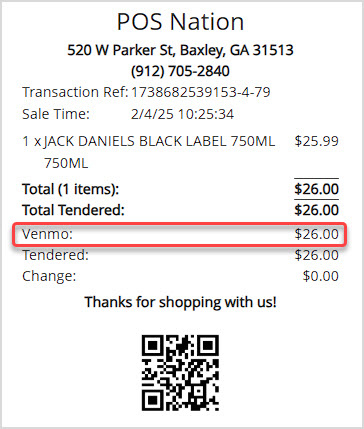
When you print your transaction receipt, it will display all Tender Types used in the transaction, as pictured below:
Related Topics
General Settings
Webstore Settings
How to Set Up and Use a Customer House Account
Frequently Asked Questions
Q: How do I sell a gift card?
A: At this time, your Bottle POS only supports gift cards through an integration with your payment processor, contact support for more details.
Q: How do I process a payment?
A: Completing a transaction in your Register is very simple. Review the following article for more information: Ringing Up Sales with the POS
Q: I have a question, but I can't find my answer here, how do I get more assistance?
A: You can ask any question at the number below. Contact our 24/7 support team at: (877) 381-4087








 October 01, 2024
Is this page helpful?
×Help us improve our articles