






Managing Timesheet Entries
It's common for employees to forget to clock in or out and when that happens you need an easy option

 October 01, 2024
Having the ability to scan and manage inventory from your phone is essential for inventory counting and tracking. In this article, you'll learn how to do that with your Bottle POS.
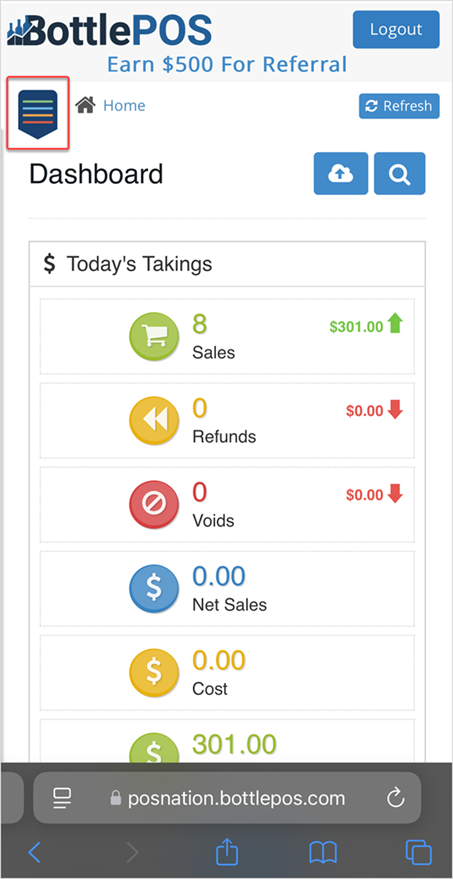
To get started, login to your Admin application on your smartphone. Then you'll want to tap the multi-colored arrow in the upper left to view the function menu.
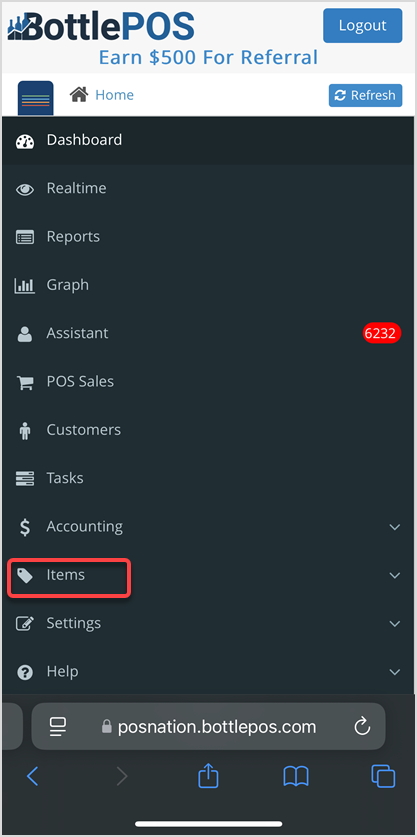
Tap the Items section to open the menu. Tap on Items in the menu to open that page.
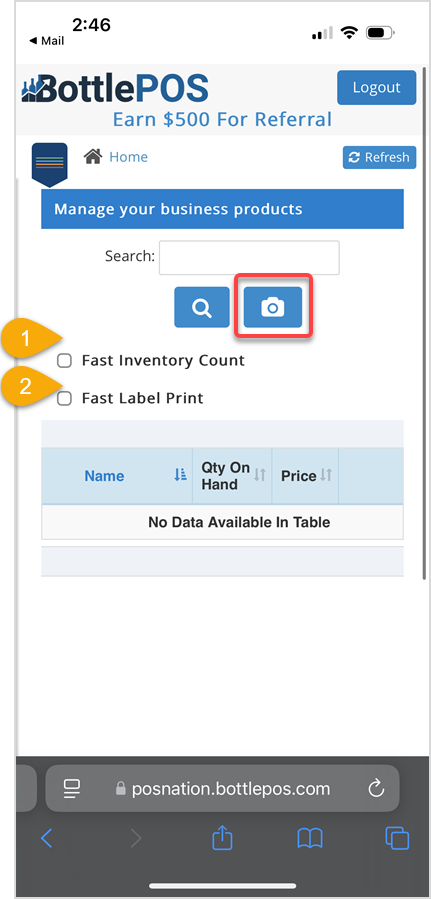
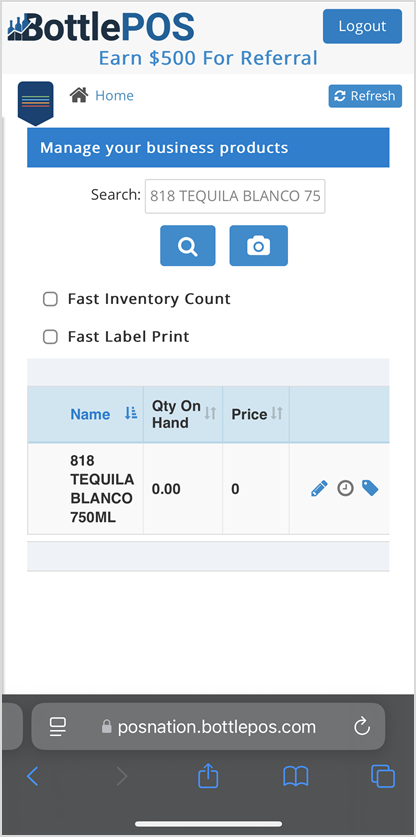
Once you're in the Items section, tap on the camera button to open the barcode scanner.
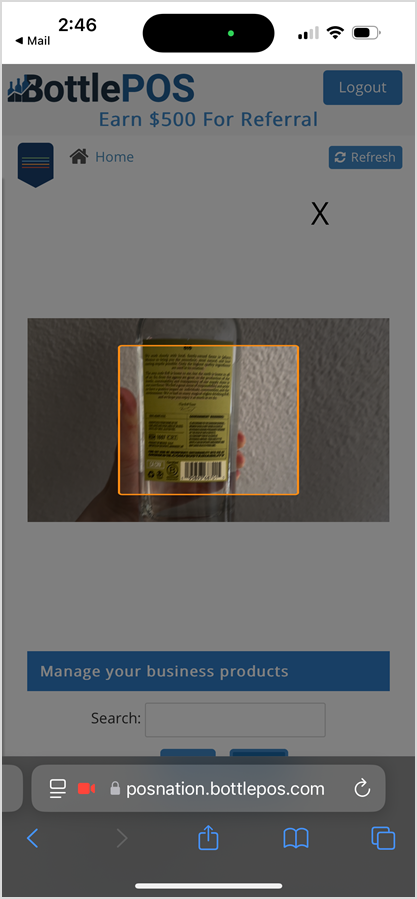
Now, scan the item by positioning the barcode inside the orange box in the center of the screen.
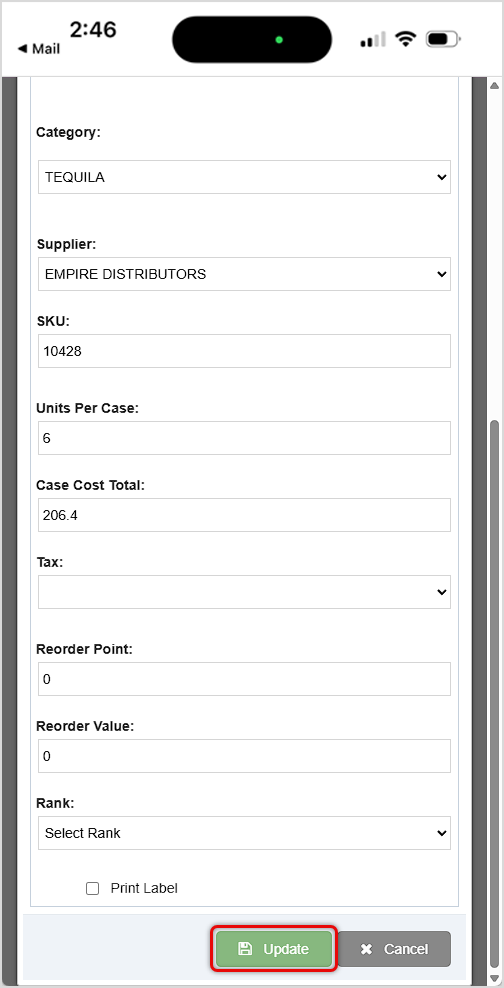
Edit your item as needed and tap the Update button at the bottom of the screen to save your changes.
From the Items page, you can use the Camera button to scan your next item, if needed.
How to Add the Admin App to Your Smartphone
Q: Why isn't my barcode scanning?
A: If the barcode is dirty or damaged it may not be able to be scanned.
Q: I have a question, but I can't find my answer here, how do I get more assistance?
A: You can ask any question at the number below. Contact our 24/7 support team at: (877) 381-4087
Is this page helpful?
×Help us improve our articles