







Managing Timesheet Entries
It's common for employees to forget to clock in or out and when that happens you need an easy option

 October 01, 2024
Take a look at how you can set up age verification for your items at the category level so the system will prompt to verify the age at purchase. See how easy it is to set up!
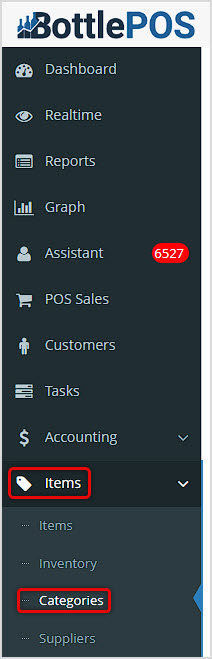
You can get to this part of the system by logging into your Admin app and clicking Items on the left. Near the top of the menu that opens, click on Categories.
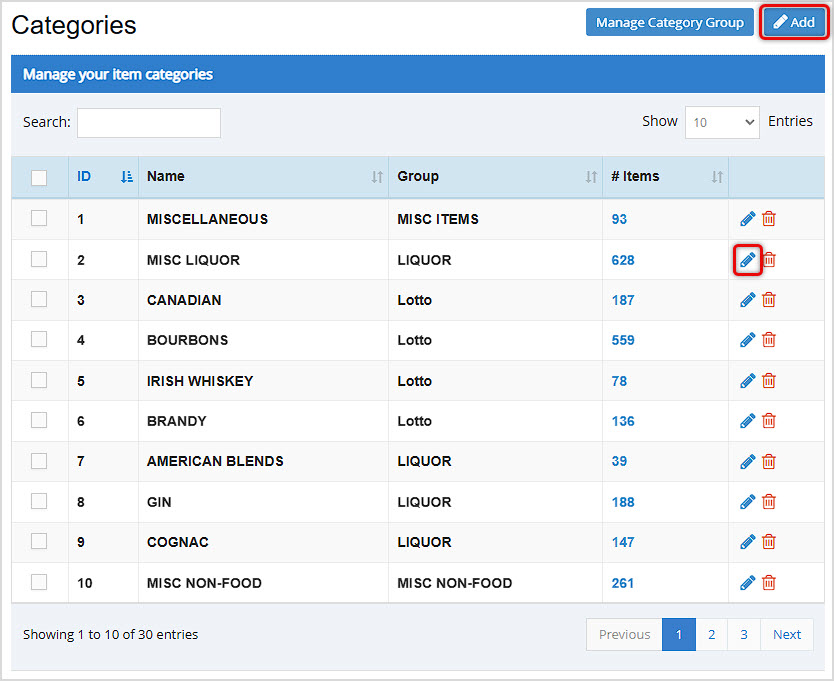
Once your Categories page loads, you can set up Age Verification by either creating a new Category with the Add button in the upper right or by clicking the Pencil Icon to Edit an existing Category. In the example below, we are editing the MISC LIQUOR Category.
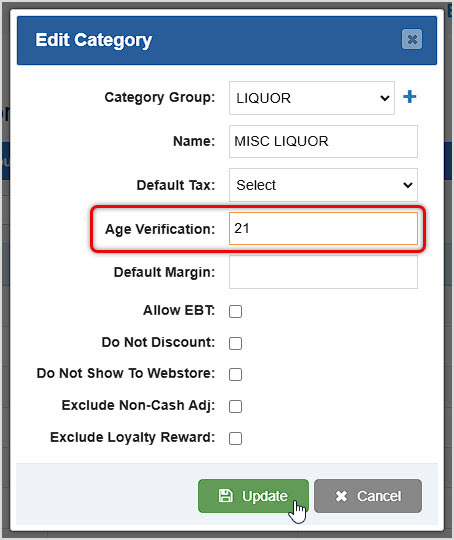
Set the Age Verification to the appropriate age, then when you are finished with your adjustments, click the Save button if you're saving a new Category, or click the Update button if you're editing.
Moving forward, all items in the Category will now require Age Verification in your POS Register whenever they are loaded for a transaction. If you have an ID scanner connected to your POS, the ID can be scanned into the box to automatically verify the age.
Q: Can I set Age Verification from the Register?
A: No. You'll need to set it for items at the Category level.
Q: Does the Register Age Verification work with my ID Scanner?
A: Yes! The device just needs to be connected to the computer you're using for your Register.
Q: I have a question, but I can't find my answer here, how do I get more assistance?
A: You can ask any question at the number below. Contact our 24/7 support team at: (877) 381-4087
Is this page helpful?
×Help us improve our articles