






How to Create and Manage Customers in the Admin
The Bottle POS Admin has powerful tools for working with your customers. Take a look at how easy it

 October 01, 2024
The Bottle POS gives you the ability to offer your best customers House Accounts for in-store, short-term credit. Take a look below at how easy it is to work with your House Accounts!
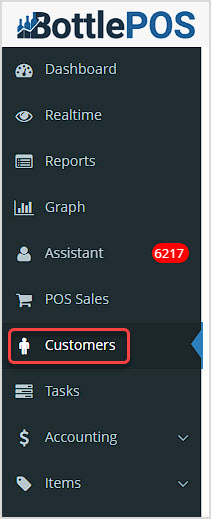
You can start working with House Accounts by logging into your Admin App and going to Customers.
If you are working with a customer that has a House Account, they are able to keep a running tab they can pay off periodically. To set up a customer with this permission, login to your Admin and go to Customers. Search for the customer you want, then click the Pencil Icon on the right to open the Edit Customer window.
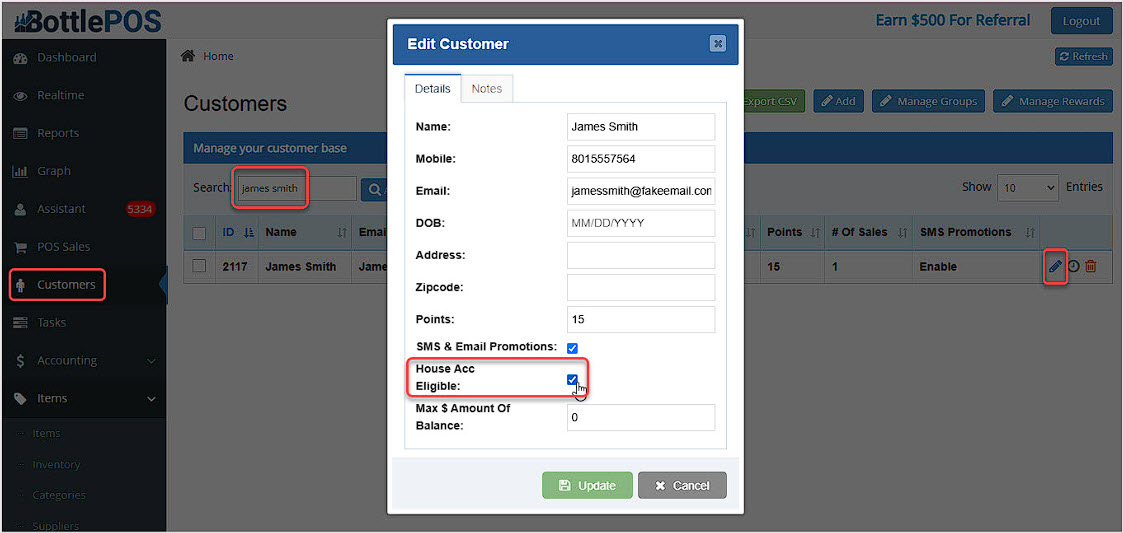
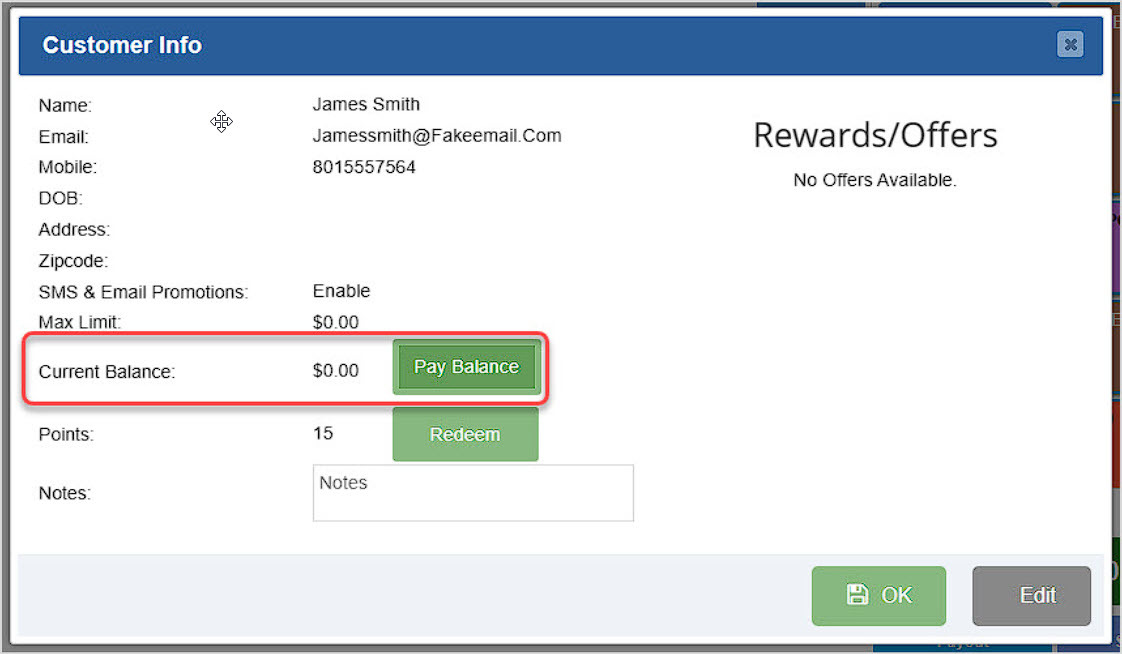
Check the box to make them House Acc Eligible, then click Update to save the change to their account. Now whenever you load the customer into the Register (by entering their mobile into the Customer Mobile field in the lower left), you will see an area in their Customer Info to Pay Balance if they have one.
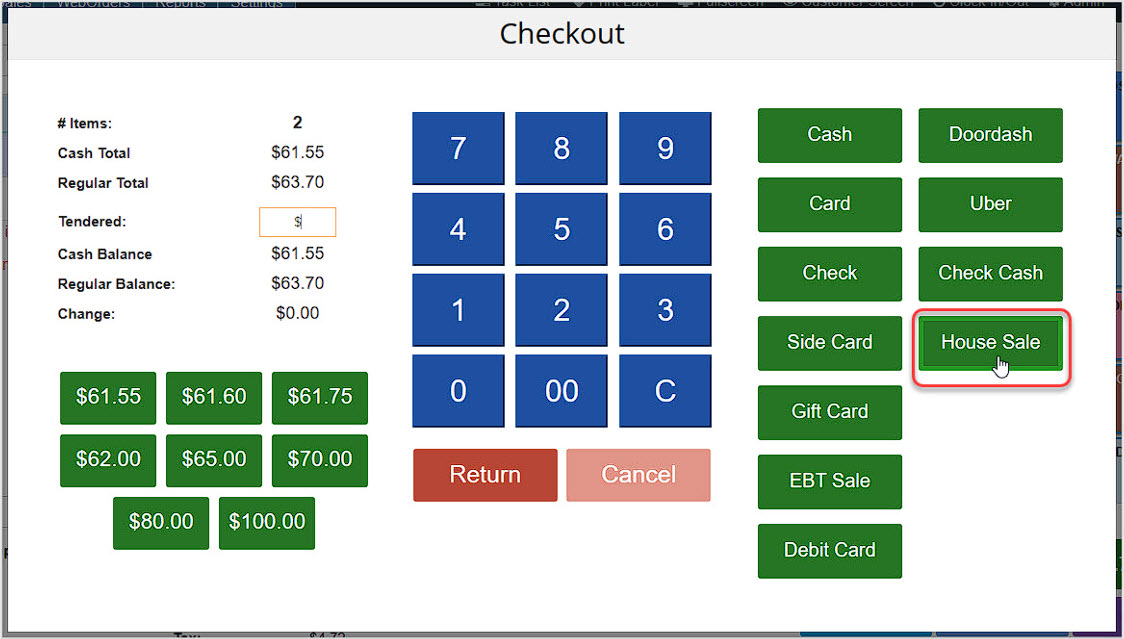
When you go to collect payment for a transaction, in the Checkout window you'll see the option to use House Sale to pay for the transaction.
As you work with your customer House Accounts you will periodically want to send them invoices to collect on their credit balances.
Open the Admin and go to the Customers area. Search for the customer and click the Clock Icon on the right to view their Customer History. The Ledger History tab allows you to work with the customer's transactions involving House Account and you can generate Invoices for whatever time frame you need.
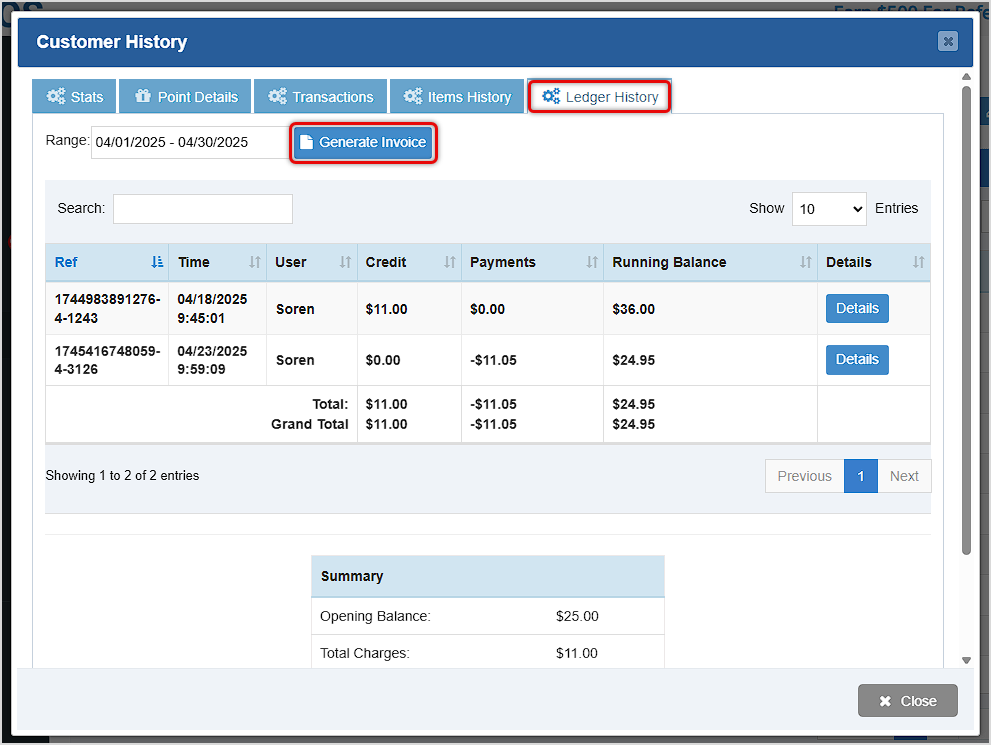
In the Range area, set the time frame you want. Transactions will load that either made charges to the House Account or paid toward the balance, or both. Click the Generate Invoice button to create an invoice for the transactions displaying.
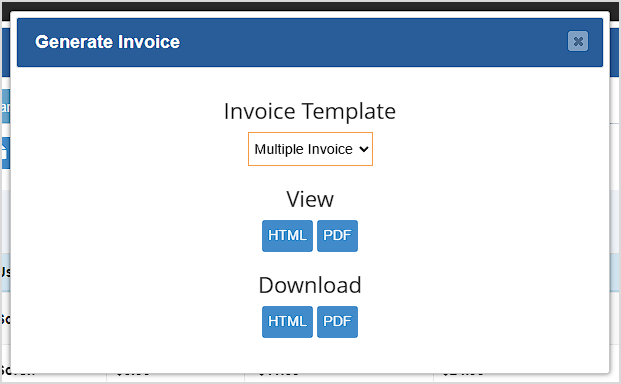
If you generated an invoice from this area it will use the Multiple Invoice template. You can choose to View or Download the invoice. You can use HTML in an email to make the email message be the invoice, or you can download a PDF of the invoice, if needed.
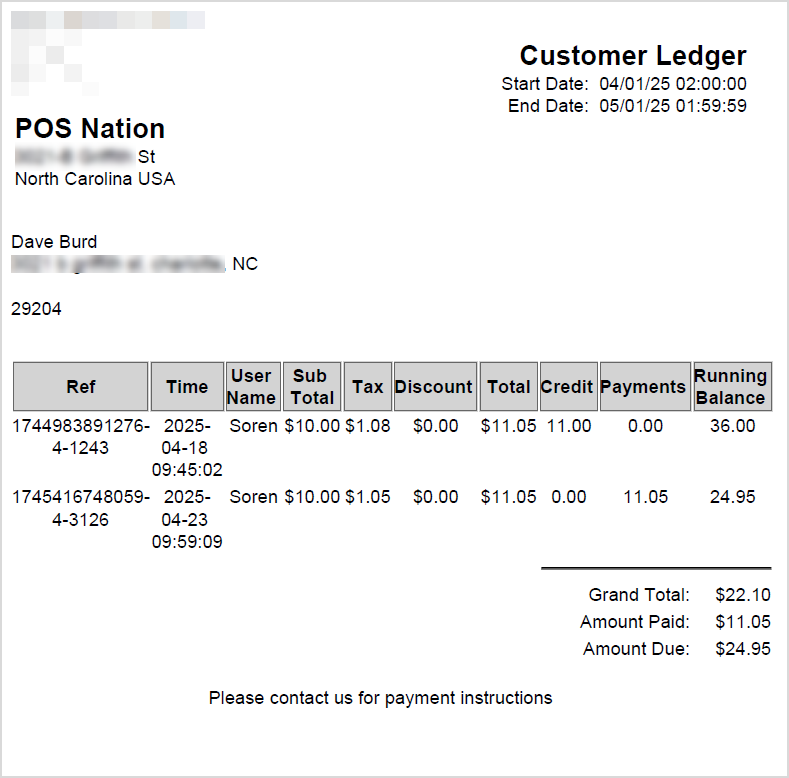
The Invoice for the above sample customer would look like this:
If you have only a single transaction for which you need an invoice, you can go to the Transactions tab of the Customer History window, find the transction you need and click to open its Details, then when you click to Generate Invoice you'll have the option of emailing or printing.
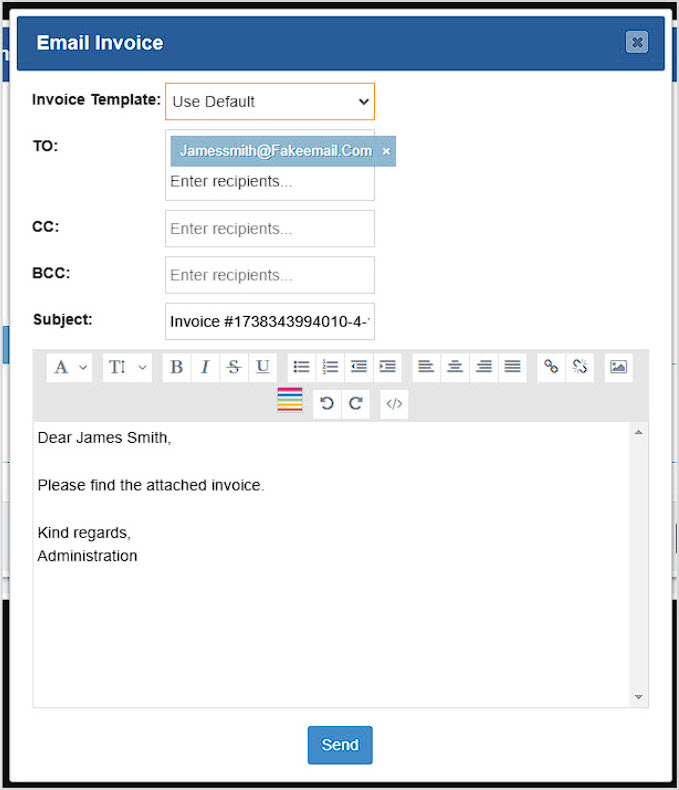
If you choose the Email Invoice option, an editor will open with the customer's email loaded and you can adjust the text as needed. A PDF file of the invoice will automatically be attached.
How to Create and Manage Customers
Working with Customers in the Register
Q: Do I have to use the Register to add a new customer? What if I'm in the Admin?
A: You can add new customers from the Admin from the Customers page by clicking Add.
Q: How can I see my customer balances for those I've given House Accounts?
A: You can see a list of all customers with that permission and their balances in the Admin by going to Reports and in the reports dropdown, clicking House Account Report.
Q: Is there a way to automatically email an invoice to my customers with House Account balances?
A: Not at this time. You will need to use the Email Invoice function described above.
Q: I have a question, but I can't find my answer here, how do I get more assistance?
A: You can ask any question at the number below. Contact our 24/7 support team at: (877) 381-4087
Is this page helpful?
×Help us improve our articles