






How to Add Employees - Staff & Admins Settings
Learn how to successfully add new employees to your Bottle POS and to set their security permissions

 October 01, 2024
The DoorDash settings in the Admin > Settings > General Settings > DoorDash will show the Onboarding Status to indicate if the integration has been finished on the DoorDash side:
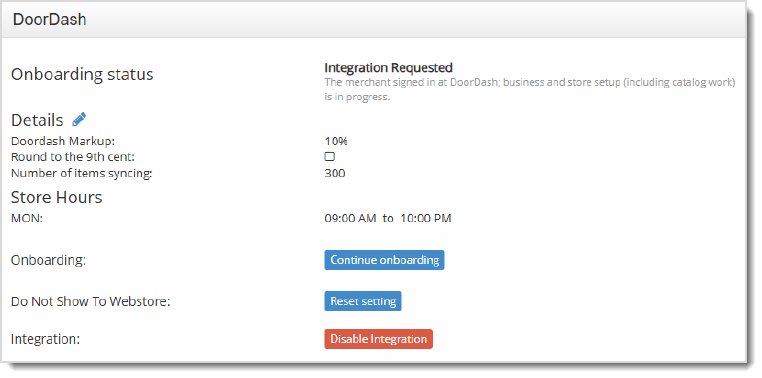
Pictured Above: The DoorDash integration for this store is in progress. If you haven't yet started the integration, you'll just see the DoorDash logo you can click on to start the process (pictured below in the Open DoorDash Settings section).
⚠️Please Note: If your store is still in the Bottle POS onboarding process, please wait until your Bottle POS Implementation Specialist has completed your final inventory data import before you attempt to integrate with DoorDash.
Before starting the DoorDash integration, your store's catalog must meet the following minimum requirements. The Bottle POS will not allow you to begin onboarding if you have not met these conditions.
Your store must have at least 200 items, each containing:
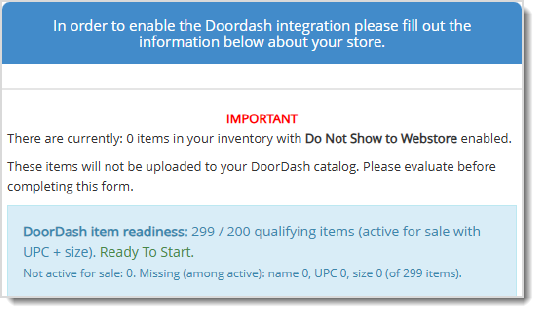
Follow these steps to begin setting up the integration:
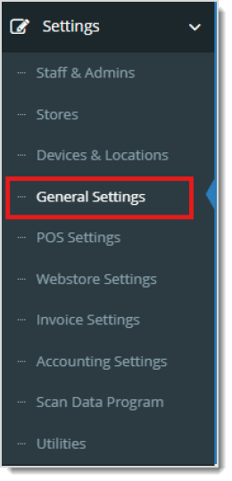

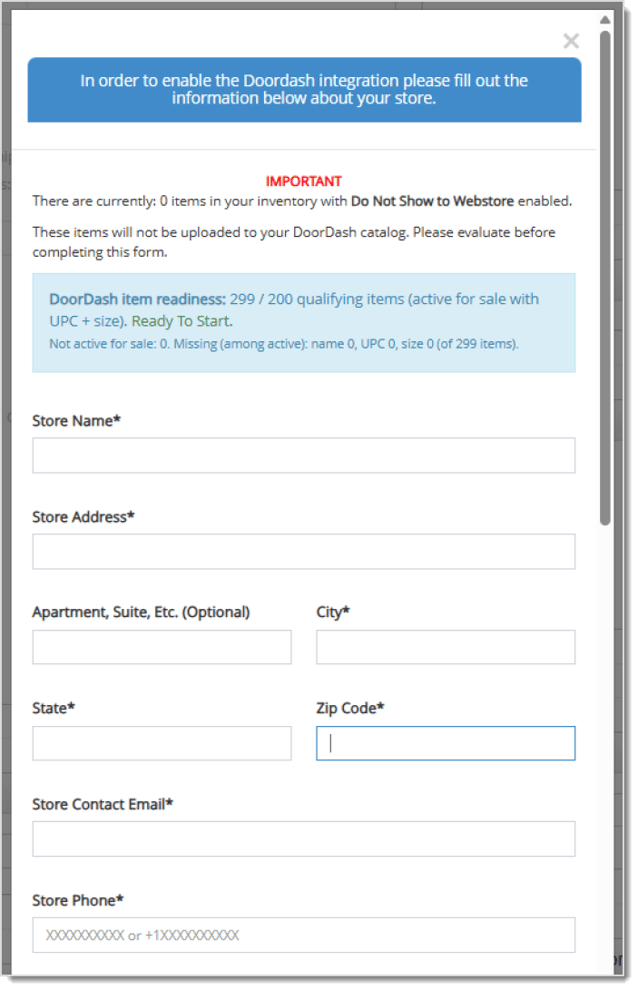
Bottle POS will now send your store's information to DoorDash and retrieve a unique, secure onboarding link for your store.
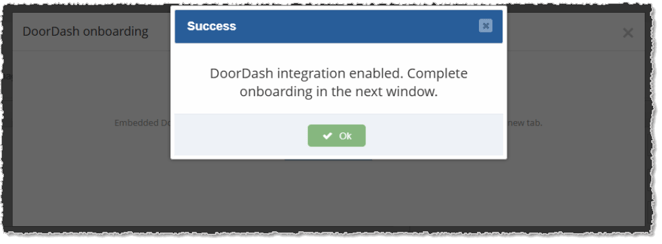
A will pop up explaining that the integration has been enabled and you can confirm to continue the onboarding process in the next window.
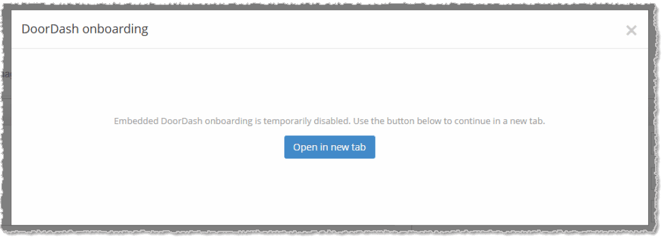
A DoorDash-hosted onboarding page will open (either within Bottle POS or in a new browser tab). What you need to do next depends on whether your store is new or already has a DoorDash Marketplace presence. Please follow the appropriate steps that are applicable to your store (Option 1 or 2).
💡Please Note: If you already have a DoorDash account, please proceed to Option 2.
Create a DoorDash Account
If your store is new to DoorDash, you'll land on the Sign up for DoorDash for Merchants page. Fill in the following:
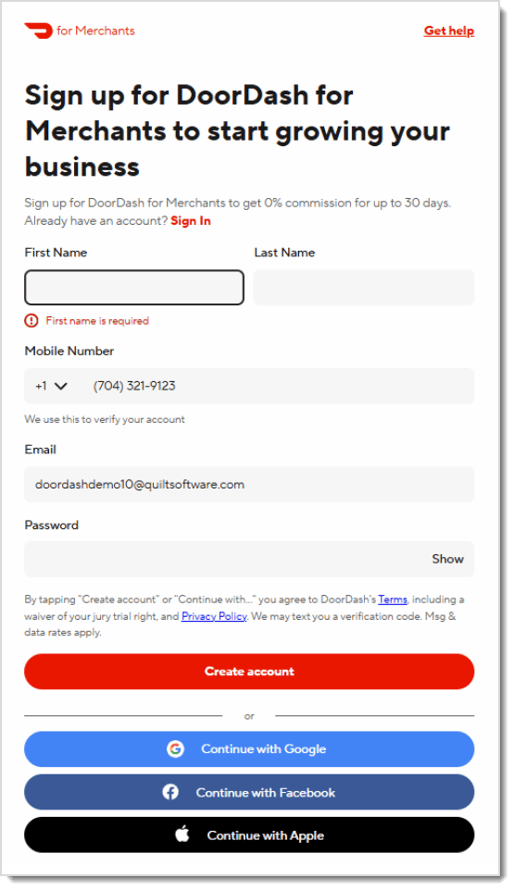
Then click Create Account. Alternatively, you can sign up using Google, Facebook, or Apple.
Select Your Store Category
DoorDash will ask: "What type of products do you sell?"
Select the category that best describes your business. For most Bottle POS clients, this will be Alcohol. Other available categories include Grocery, Convenience, Retail sub-categories, and more.
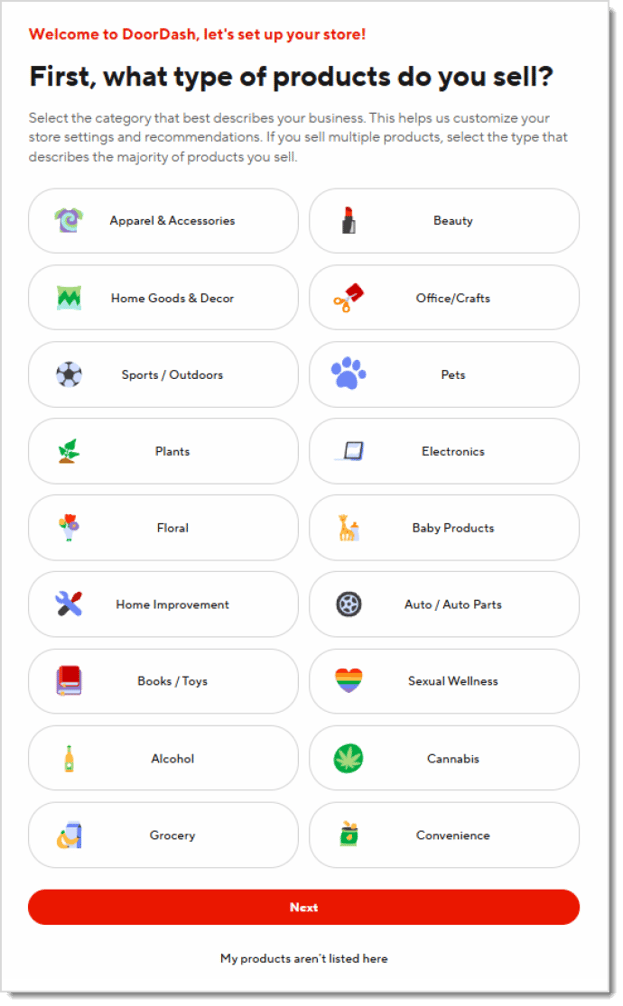
Click Next to continue.
Set Your Store Hours
On the "When are you open for business?" page, enter your store's hours for each day of the week.
⚠️Please Note: DoorDash will stop accepting orders 20 minutes before your closing time. You can always update these hours later. Be sure these hours match what's set in Bottle POS.

Click Next to continue.
Choose a DoorDash Plan
Select the plan that best fits your business goals.
All plans include a DoorDash Tablet and 24/7 support. You can change or cancel your plan at any time.
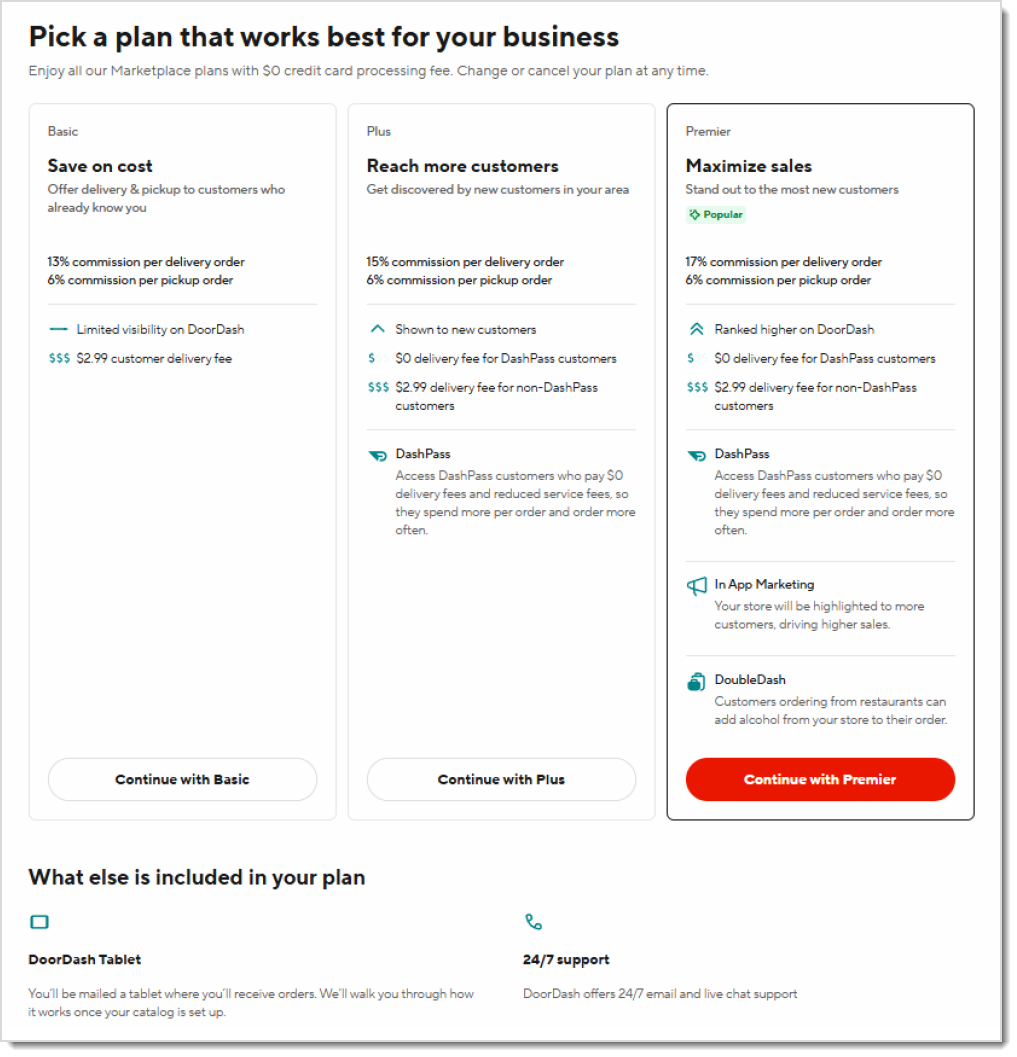
Click the Continue with [Plan] button for your chosen plan.
Enter Banking and Business Information
DoorDash needs your banking and business details to pay you for orders:
Bank Account
Company
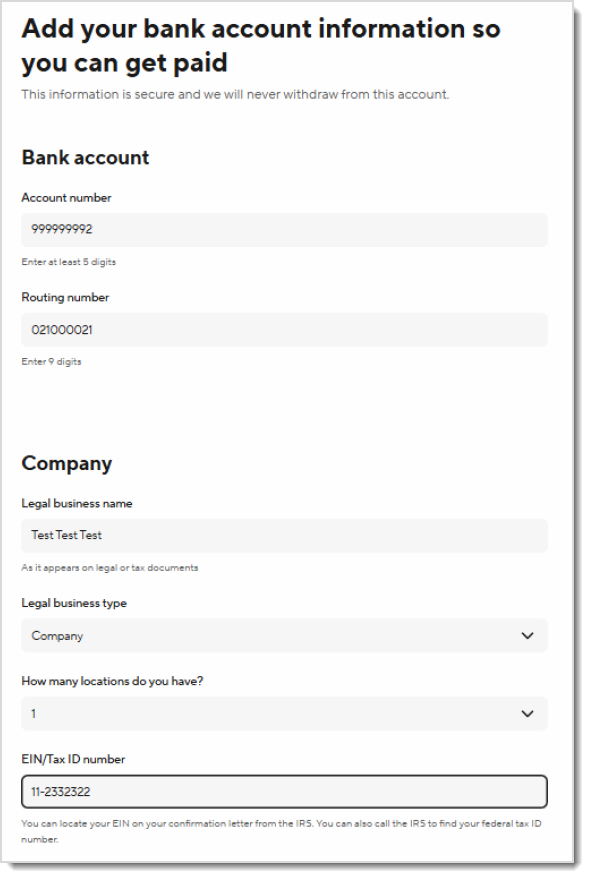
Click Next to continue.
Enter Representative Information
DoorDash requires details for an individual authorized to represent your organization.
Review and check the two acknowledgment checkboxes:
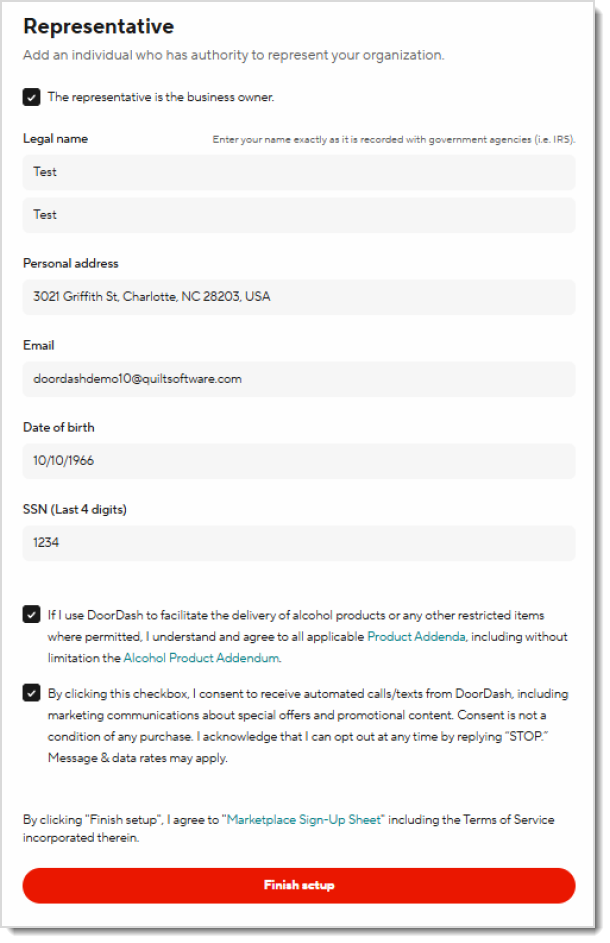
Once you've filled out the page, click Finish Setup.
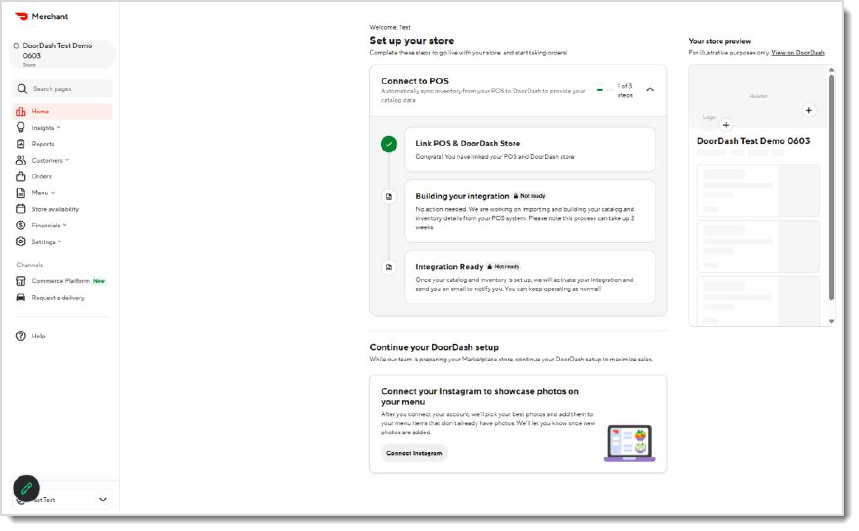
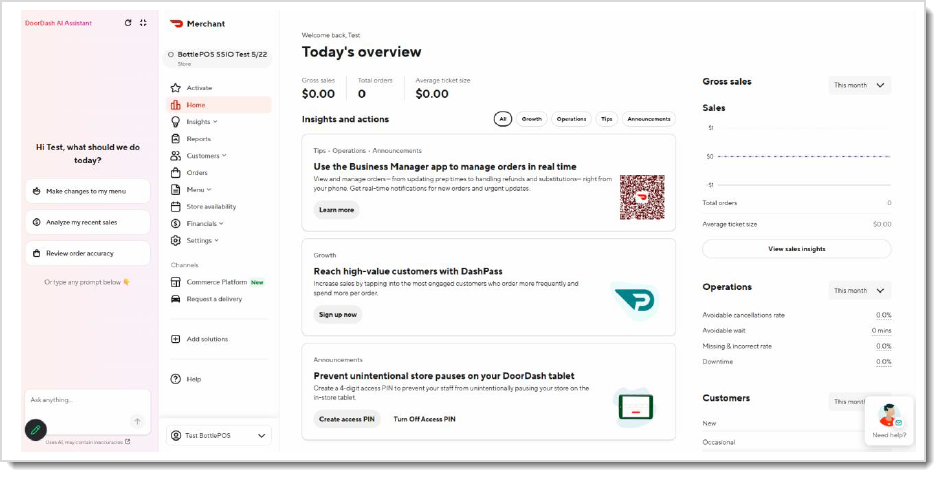
Once the DoorDash account setup has been completed, you’ll be taken to your DoorDash Merchant Portal.
⚠️Please Note: Do not complete this step unless you are already selling on DoorDash.
Confirm Your Store
If you already have a DoorDash account, after signing in you'll be shown a Store Matching screen. Determine the DoorDash store that corresponds to your Bottle POS location.
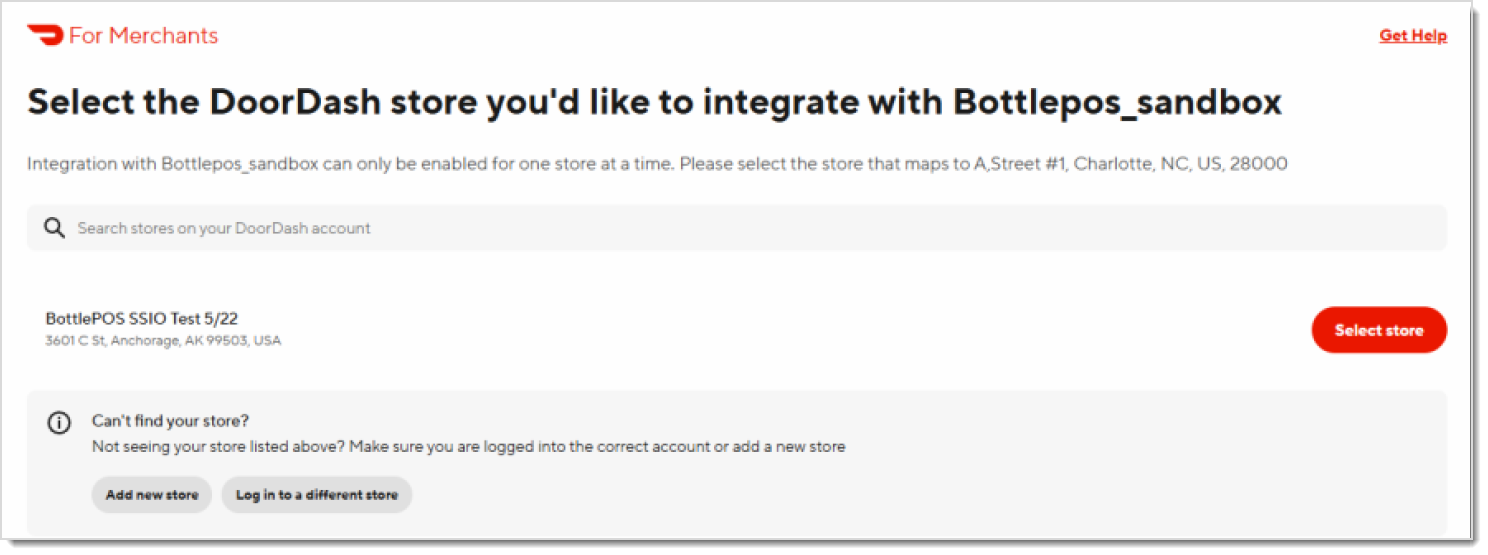
Click Select Store.
Once your store is linked, you’ll be taken to your existing DoorDash Merchant portal.
Back in Admin > Settings > General Settings > DoorDash, you'll see an Onboarding Status tracker that updates as DoorDash processes your store. To receive the latest status updates, all you need to do is refresh the webpage.
| Status | What It Means |
| Integration Requested | Your store info was received. Account setup and catalog build in progress. |
| Store Connected | Your store was successfully matched to DoorDash. |
| Business ID Mapped | Your DoorDash business ID has been linked. |
| Catalog Requested | DoorDash is pulling your item catalog from Bottle POS. |
| Catalog Data Received | Your catalog was received successfully. |
| Menu Requested | DoorDash is building your marketplace menu. |
| Menu Imported | Menu data passed initial validation. |
| Hours Set | Your store hours have been confirmed. |
| Menu Audit | DoorDash is reviewing your menu for quality. |
| Menu Qualified | Your menu passed review and is ready for activation. |
| Integration Activated | Your DoorDash integration is live! Bottle POS will now sync inventory automatically. |
If your onboarding becomes blocked, the status tracker will show why. Common causes and what to do:
| Status | Common Cause | What to Do |
| Catalog Pull Failed | DoorDash couldn't retrieve your items. | Verify your items have all required fields (name, UPC, size, etc.), then contact support. |
| Catalog Block | Catalog processing is blocked due to catalog data or partner-side issues. | Review item data quality in Bottle POS. Contact DoorDash support to retry once corrected. |
| Menu Block | Menu is blank, store hours are missing, or item data has errors. | Check the exclusion code for the specific reason. Ensure store hours are set in Bottle POS and item data is complete. Contact support if the issue persists. |
| Activation Block | Final activation failed. | Contact DoorDash Support at (855) 222-8111. |
| Abandoned | A duplicate store ID or unsupported store type was detected. | Review the exclusion code for the specific cause. In many cases, the issue can be corrected and the flow restarted. Contact DoorDash Support for assistance (855) 222-8111. |
💡Please Note: DoorDash monitors blocked onboardings daily. For partner-owned issues (like data discrepancies), Bottle POS support can work with DoorDash on your behalf.
When a Blocked or Abandoned status occurs, an exclusion code will appear alongside it in the status tracker to explain the specific reason.
| Exclusion Code | What It Means | What to Do |
| DUPLICATE_LOCATION_ID | This location ID is already linked to another POS store at DoorDash for this integration. | Contact support. DoorDash will confirm the correct location ID and unblock if the duplicate store has been decommissioned. |
| VIRTUAL_BRAND_DETECTED | DoorDash flagged this store as a virtual brand that this integration does not support. | Contact DoorDash support to review the store setup. |
| SELF_DELIVERY_DETECTED | Self-delivery is enabled on the store, but this integration does not support it. | Contact DoorDash support — this configuration needs to be adjusted on the DoorDash side. |
| DOORDASH_DRIVE_STORE | This DoorDash Drive store cannot be moved onto Marketplace with this flow. | Contact DoorDash support for guidance on next steps. |
| STORE_LIVE_ON_REQUESTED_ POS_PROVIDER |
The store is already live on the POS integration you selected; DoorDash cannot duplicate it. | Contact support. DoorDash will notify you that the store is already active. |
| SFDC_ACCOUNT_RECORD_ NOT_FOUND |
DoorDash could not find an internal account record for this store. | Contact support — this requires DoorDash to resolve internally. |
| MENU_PULLING_REQUEST_ FAILURE |
An internal DoorDash job failed while pulling or building the menu. | Contact support. DoorDash will investigate and notify you of error details. |
| STORE_HOURS_NOT_ POPULATED_FAILURE |
Store hours are missing or invalid in the data DoorDash received. | Verify store hours are correctly set in Admin > Settings > General Settings > DoorDash, then contact DoorDash support to trigger a retry. |
| MENU_BLANK_FAILURE | The menu DoorDash built has no sellable items. | Check that your items are active, have positive stock quantities, and are not excluded via the Do Not Show to Webstore setting. Contact DoorDash support to republish. |
| MENU_JOB_FAILURE | Menu ingestion failed due to structural or data issues in the menu payload. | Contact support. DoorDash will confirm the failure reason and notify you with error details. |
Bottlezoo Online Ordering Walkthrough
Q: How does DoorDash know if an item is in or out of stock?
A: Any item with a 0 or negative qty on hand will be out of stock on DoorDash, and any item with a positive qty on hand will be in stock.
Q: How can I change the price of an item?
A: DoorDash takes the item price from the Bottle POS, but if you would like to mark up that price you can do so in the Admin > Settings > General Settings > DoorDash > Edit 'Markup %' > Save.
There is also a round up prices to the next 9th cent setting called 'Round to the 9th' that can be enabled from the DoorDash settings.
Q: How do I keep specific items from appearing on DoorDash even if they are in stock?
A: The 'Do Not Show to Webstore' setting that can be found in the item or category settings will remove that item from DoorDash.
Q: I already have a DoorDash account, do I need to do anything before starting?
A: No separate prep is needed. When you open the onboarding flow, you'll simply sign in to your existing DoorDash account and confirm which store to connect.
Q: My onboarding seems stuck — what should I do?
A: Check the onboarding status in Admin > Settings > General Settings > DoorDash. If a status shows as Blocked, contact DoorDash Support. If a status shows as Abandoned, contact DoorDash Support and retry the onboarding flow. The DoorDash contact information can be found within your DoorDash portal when you select the “Help” option.
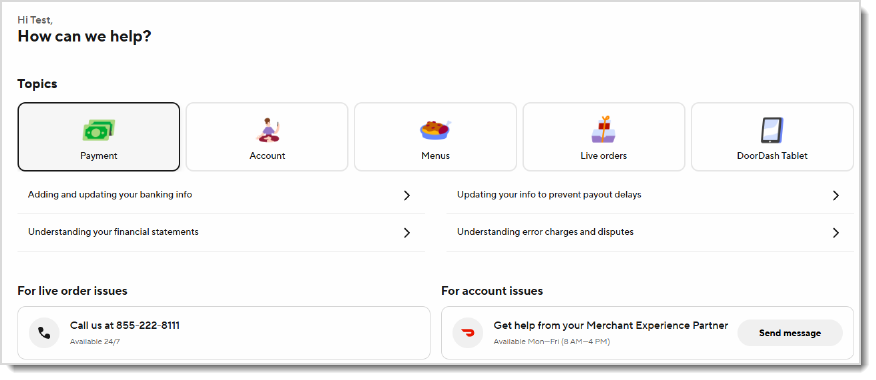
Q: I have a question, but I can't find my answer here, how do I get more assistance?
A: You can ask any question at the number below. Contact our 24/7 support team at: (877) 381-4087. For DoorDash support, call (855) 222-8111.
Is this page helpful?
×Help us improve our articles