






Managing Timesheet Entries
It's common for employees to forget to clock in or out and when that happens you need an easy option

 October 01, 2024
Bottlezoo is a service that let's you facilitate online ordering through your Webstore. Learn how to take orders that come through online with our Bottlezoo integration. Take a look at how easy it is to add volume to your sales through webstore orders!
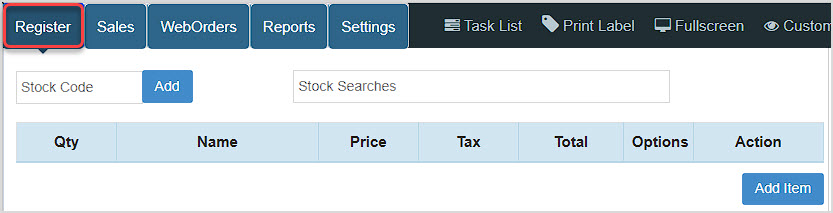
Your Webstore will be set up for you by the Bottle POS team. There are some settings for configuring your Webstore that you should take care of before processing online orders as described below. If you have not already done this, please take a look at the article linked here for your setup instructions: Webstore Settings
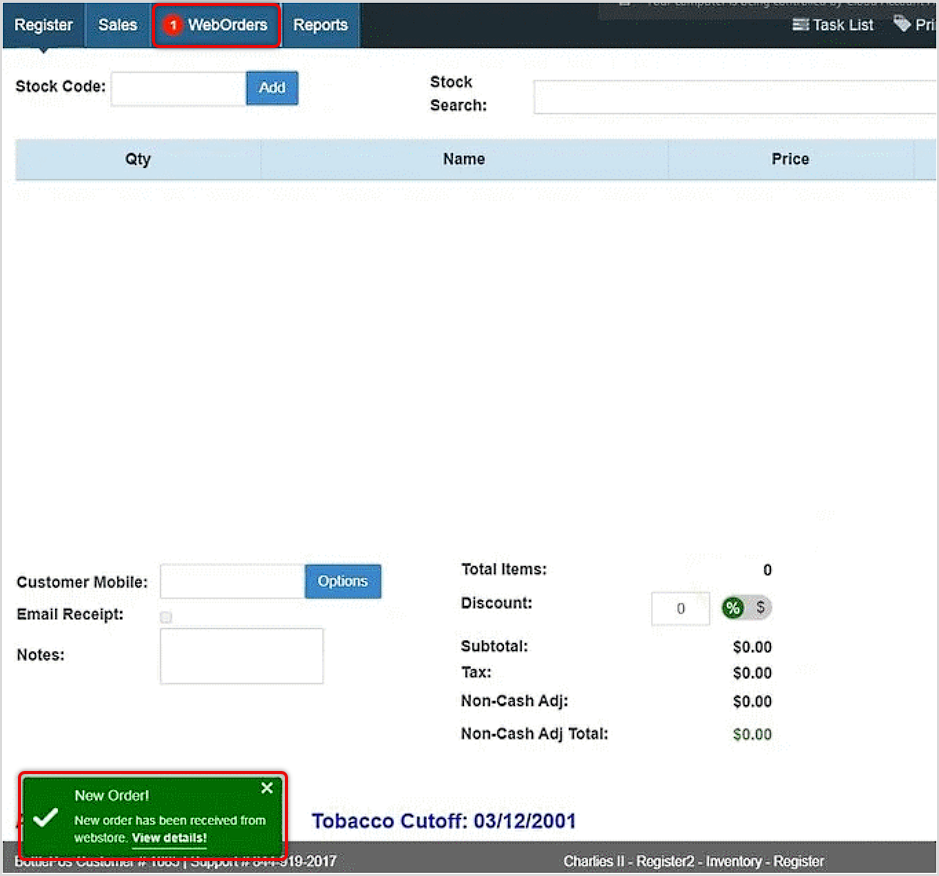
You'll see alerts pop up in your Register as webstore orders come in, so you'll need to be signed in to the Register App. The Register loads automatically when you log in. You will also see the number of waiting orders you have on the WebOrders tab, as pictured below. Alerts for new orders pop up in the lower left.
First, the customer will place their order on your Webstore, which is automated for you via our integration with Bottlezoo.
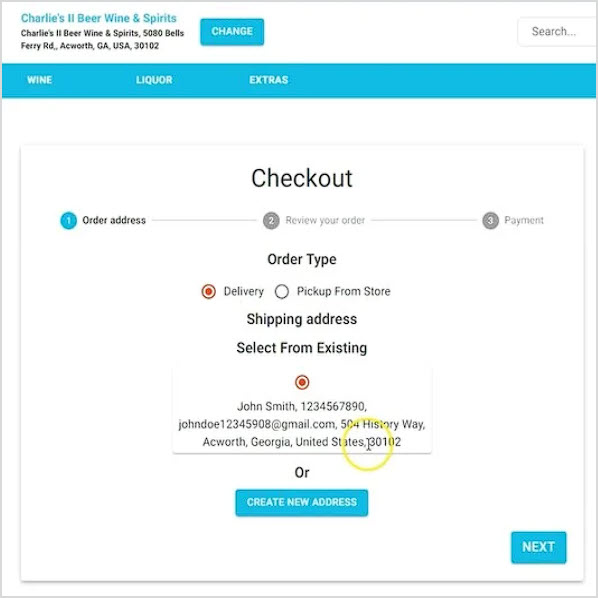
After the customer enters their information and their payment has been submitted, they will receive confirmation of the order via text message. At that point, the Weborder is sent to your Register and will pop up an alert, as described below.
While you're working in the Register, whenever a Weborder is submitted, you will see an alert pop up in the lower left letting you know that a new order has come in. You can either click the alert or click the WebOrders tab at the top (which will be displaying how many new orders you have) to view the order details.
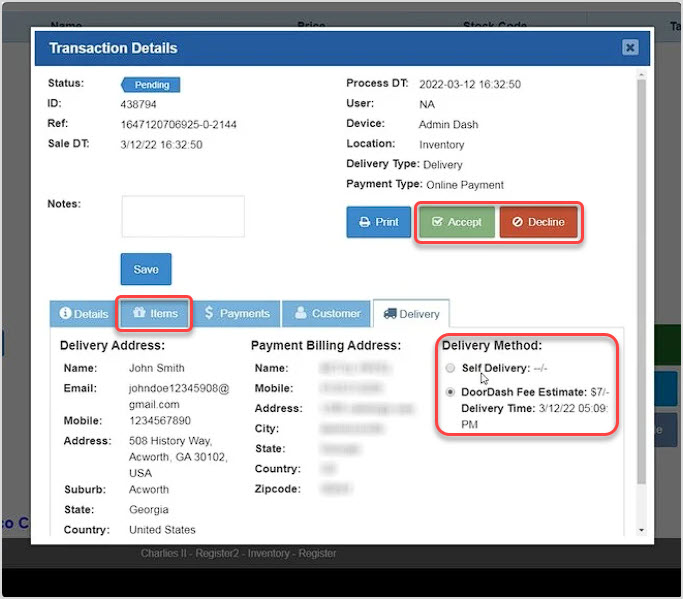
After reviewing the order information, you can Accept or Decline the order in the top right of the window. If you Decline the order, the funds will be returned to the customer's card and the customer will be notified that the order cannot be filled and that it has been refunded. Before you Accept the order, confirm that the Items in the order are in stock. Next go to the Delivery tab and choose the delivery method. The customer will then get a text message notification that their order has been accepted and is being prepared for delivery.
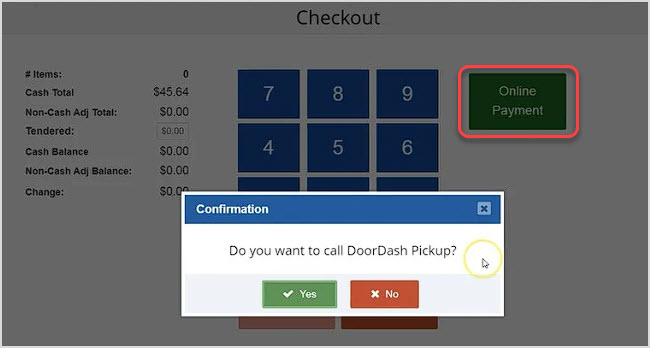
At this point, you'll be able to click to Complete the order. Once you click the Accept button in the Transaction Details window:
Q: Does the DoorDash delivery require that I have an account with DoorDash?
A: No, we handle everything on our side and DoorDash is simply the delivery method for the orders placed on your online store.
Q: I have a question, but I can't find my answer here, how do I get more assistance?
A: You can ask any question at the number below. Contact our 24/7 support team at: (877) 381-4087
Is this page helpful?
×Help us improve our articles