






Managing Timesheet Entries
It's common for employees to forget to clock in or out and when that happens you need an easy option

 October 01, 2024
Whenever you need to apply sweeping changes to a large number of items in your inventory, the Bulk Updater can save you hours of work. You have the ability to update any field with a variety of different options based on your needs. Keep reading to learn more!
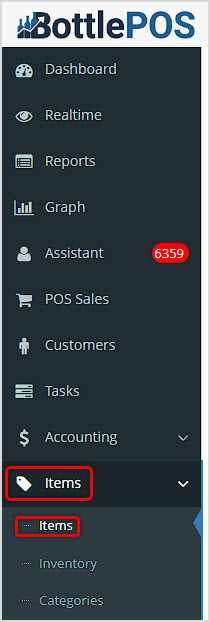
You can get to this part of the system by logging into your Admin app and clicking Items on the left. At the top of the menu that opens, click on Items.
On the main Items page, click the Bulk Update button in the upper right.
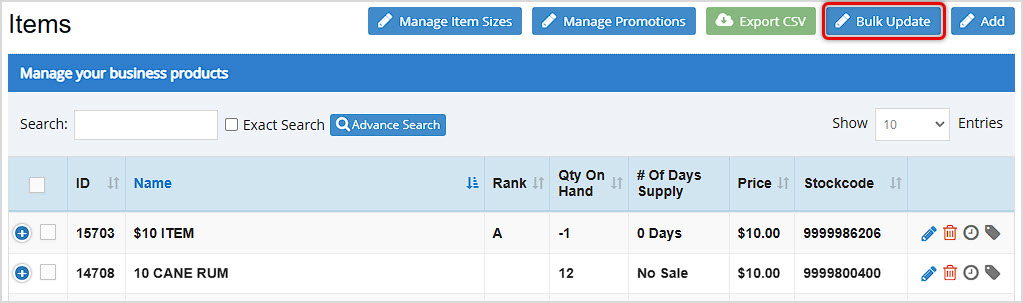
With the Bulk Update window open, our first step is to find the items that we need to update.
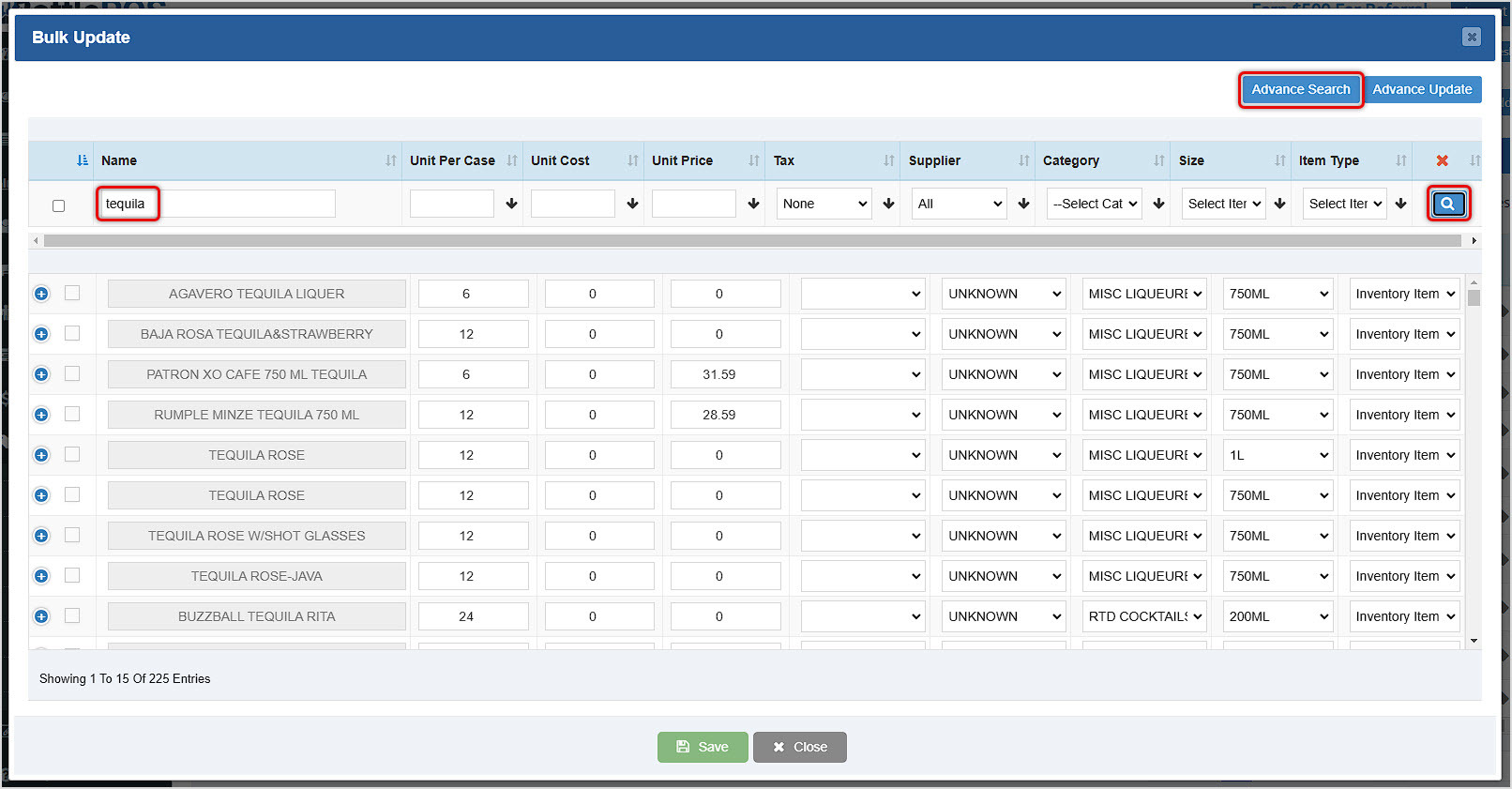
Please Note: If you are unable to locate the items using the normal search method, you can use the Advance Search feature to help you perform a more comprehensive search.
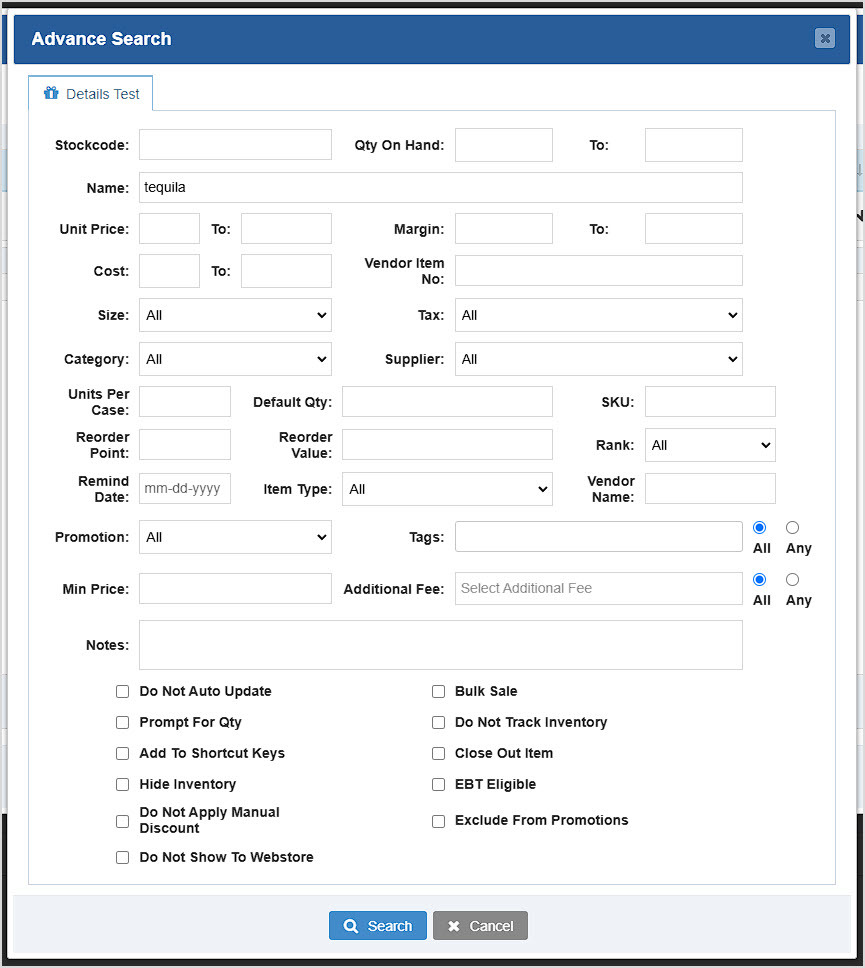
Advance Search - This is a powerful filtering tool that allows you to find items you want holistically by different item attributes. The full list of searchable attributes includes Stockcode, Quantity On Hand (range 'from' and 'to', noted hereafter as Range), Name, Unit Price (Range), Cost (Range), Margin (Range), Vendor Item Number, Size, Tax, Category, Supplier, Units Per Case, Default Quantity, SKU, Reorder Point, Reorder Value, Rank, Remind Date, Item Type, Vendor Name, Promotion, Minimum Price, Additional Fee (All / Any), Tags (All / Any), and Notes. Also, from the Item settings, you can filter for items that have or don't have the following options toggled: Do Not Auto Update, Prompt For Quantity, Add to Shortcut Keys, Hide Inventory, Do Not Apply Manual Discount, Do Not Show to Webstore, Bulk Sale, Do Not Track Inventory, Close Out Item, EBT Eligible, and Exclude from Promotions.
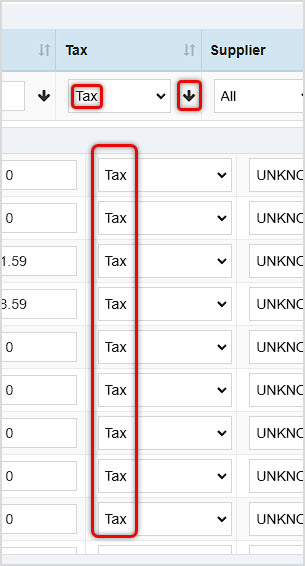
Once you have the items you want loaded into the Bulk Update window, you can update data for an entire column across all products loaded using the controls at the top of the column. For example, if we never set our products up for Tax, we could choose Tax from the drop-list for that column, then click the Down Arrow button to Apply that option to all items at once, as pictured below.
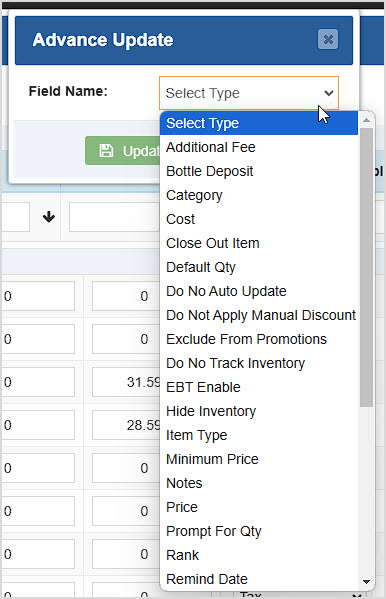
You can also use the Advance Update tool if you need to apply special changes, such as decreasing Cost or Price by a percentage. The Advance Update tool will allow you to customize your field updates. In the Field Name drop-list you'll see most of the options listed above for the Advance Search.
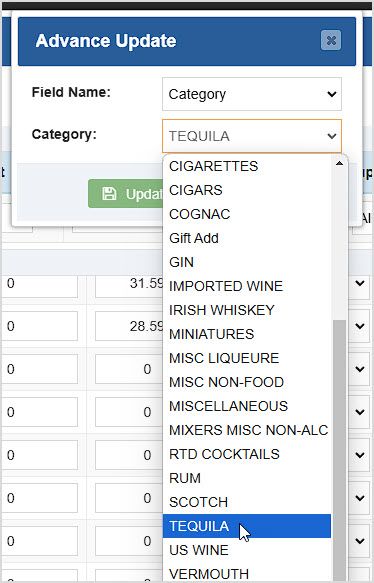
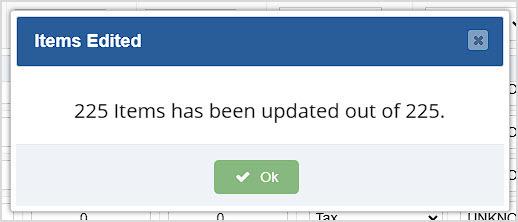
Using the Tequila example, if you Advance Update for Category, you can add the Tequila category to all items selected that don't already have it. After you click Update, the system will notify you how many products were updated.
Q: Can I update my inventory with a CSV or Excel sheet upload?
A: This is a supported feature as long as you're updating item quantities. For other bulk updates, we will need you to contact our support staff so they can assist you.
Q: I have a question, but I can't find my answer here, how do I get more assistance?
A: You can ask any question at the number below. Contact our 24/7 support team at: (877) 381-4087
Is this page helpful?
×Help us improve our articles