Register Printing Settings

October 01, 2024
Learn how to configure Printing behavior for printers connected to your Register. See how below!
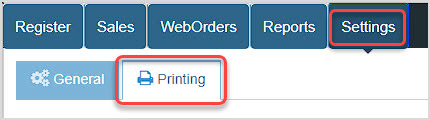
To work in this area log into your Register App and go to the Settings tab, then to Printing.
Please Note: This setup is technical in some places and if you need assistance please contact our support team using the information at the bottom of this article.
Configure Printer Behavior for Your Register
Receipt Printing
General
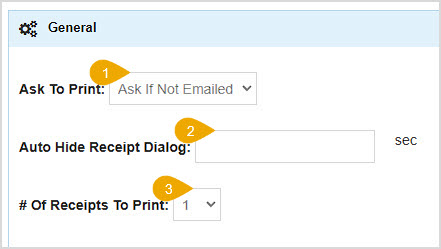
- Ask to Print - You can set the POS Register to Always Ask to print every time a transaction is completed, Ask If Not Emailed, or to Always Print.
- Auto-Hide Receipt Dialog - This lets you set a number of seconds the Ask to Print window will be visible, after which it will automatically close. Leave this blank if you want it to close the window manually.
- Number of Receipts to Print - If you need multiple copies of receipts, set the quantity here and the system will always default to printing that many. When a receipt Print window opens, the user can manually change this number.
Connection

Use this area to define how you'll connect and the device you'll use to print your receipts:
- Method - Set the printing Method you will use; either Browser Printing, Web Print ESCP, or Electron Print.
- Type (device) - Set the printer you'll be using, either Epson or Star receipt printing.
- Type (data) - Set either RAW or TEXT. If you don't know the data type, our support team can help you set up this area.
Format & Layout
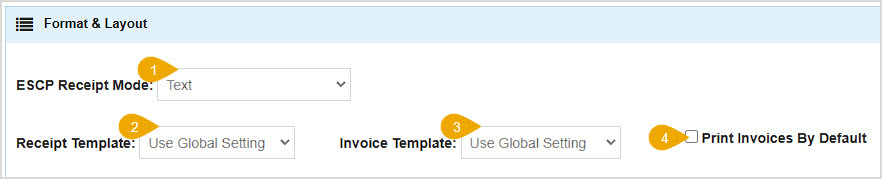
- ESCP Receipt Mode - Set either Text or Bitmap (Unicode Support). If you are unclear on what to use here, the support team can help you.
- Receipt Template - These settings are auto-set by the POS and should not be changed: Use Global Setting, Default Receipt, Mixed Language, and Alternate Language.
- Invoice Template - These settings are also auto-set by the POS and should not be changed: Use Global Setting, Default Receipt, Mixed Language, Alternate Language, Multiple Invoice, and WebOrder Status.
- Print Invoices by Default - Check this box if you want the system to default to printing Invoices instead of Receipts.
Report Printing

- Method - Set either Browser Printing, Web Print ESCP, or Electron Print.
- Type (device) - Epson or Star receipt printing.
- Type (data) - Set either RAW or TEXT.
- Printer - Choose your default printer for Reports from the list of printers installed on your device. When you print a report, you can change the printer if you need from the Print window.
Label Printer Settings
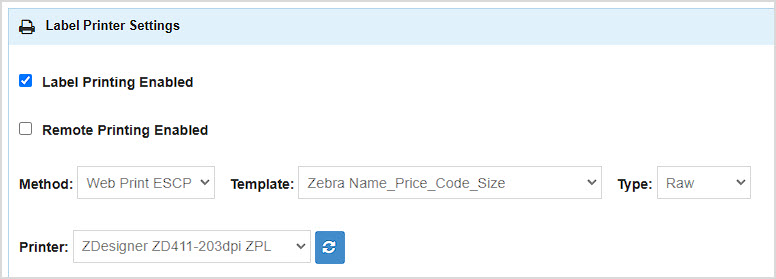
- Label Printing Enabled - Check this box if you want to be able to print barcode price labels from the system for items.
- Remote Printing Enabled - If you want to be able to print to the specified printer from this device remotely, check this box.
- Method - Choose either Browser Printing, Web Print ESCP, DYMO, Brother, or Remote (using this setting will send print jobs to another Register that has Remote Printing enabled, and should not be used if the Remote Printing Enabled checkbox above is checked).
- Template - Choose the label print Template you prefer.
- Type (data) - Choose either Serial, Raw, or Text.
- Printer - Choose the label printer you prefer from the list of printers installed on your device. If you have installed a device you don't see in the list, click the Refresh button next to the list to update it.
Pole Display
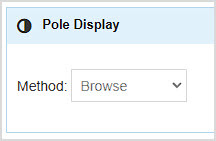
- Method - This setting is to configure a dot-matrix pole display to work with the Bottle POS. We cannot guarantee that all such displays will work via this connection. Choose either Browse if you are displaying web browser content or Electron Pole if it is a fixed customer display.
Print Service Options (WebPrint / Android)

Please Note: These settings are for Zebra label printers only and allow them to print remotely, if you are using that option. There is no option in the Bottle POS for a receipt printer to print remotely.
- IP Address - Enter the IP address for a Zebra label printer. The web print app that connects the printer to the POS requires this.
- Port - Enter the Port address for your Zebra label printer here.
Related Topics
Register General Settings
Manage POS Devices & Locations
POS Settings
Frequently Asked Questions
Q: How do I keep the Bottle POS from prompting for a receipt when I finish a sale?.
A: In the Bottle POS Admin under Settings > Printer Settings, in the General section, you can set the Auto-Hide Receipt Dialog setting to 0 seconds.
Q: I have a question, but I can't find my answer here, how do I get more assistance?
A: You can ask any question at the number below. Contact our 24/7 support team at: (877) 381-4087
It's common for employees to forget to clock in or out and when that happens you need an easy option
Your Admin Dashboard is your hub for keeping your finger on the pulse of your business. Take a look
The Reports in the Bottle POS Admin can show you details about all of your data, however you need to









Is this page helpful?
×Help us improve our articles