







Reprinting Transaction Receipts
Reprinting a Transaction Receipt You can reprint transaction receipts from the Bottle POS and Admin.

 October 01, 2024
Have a lot of bottles in your inventory? Organize them by Category Group and Category to make it easier to find them in your Register and in your WebStore! Learn how below.
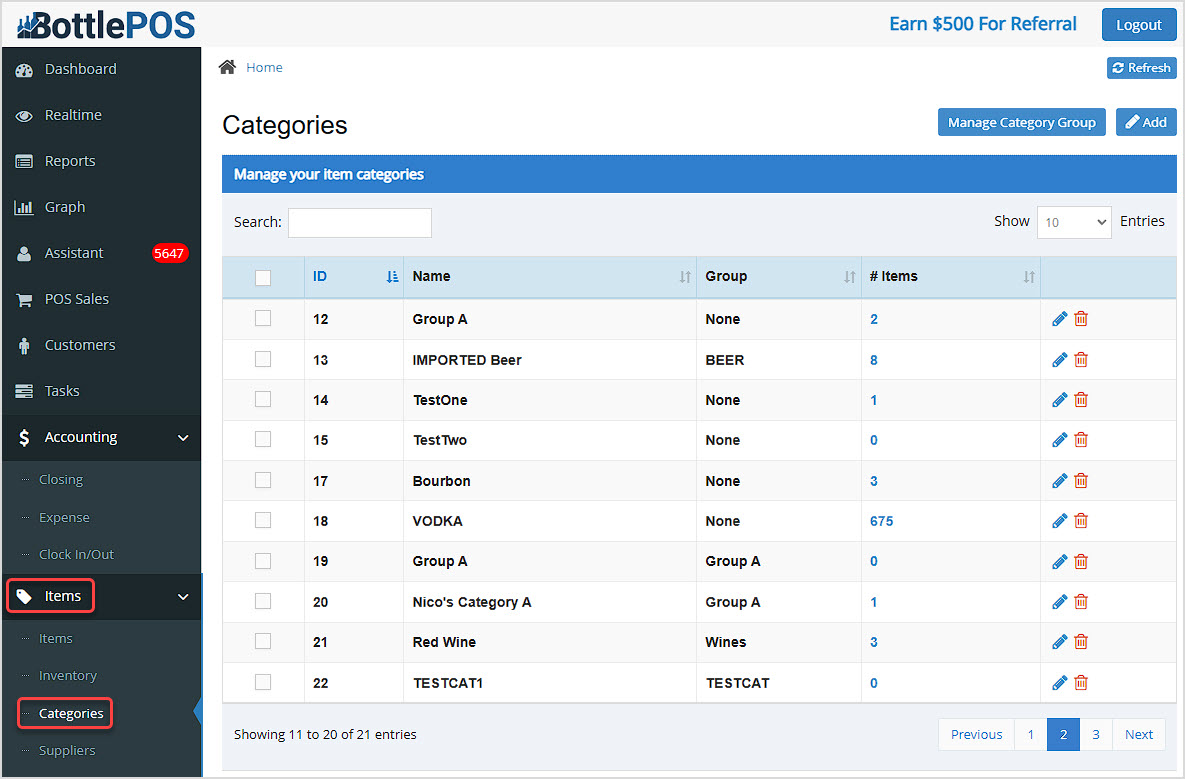
To learn how to create and manage your Categories and Category Groups we'll start in the back office Admin app. You can get to this part of the system by logging into your Admin app and going to Items > Categories.
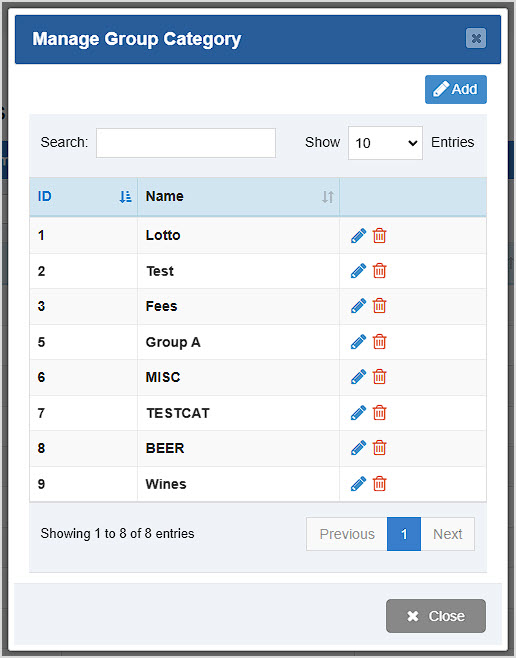
Explore how you can create the Categories you need for your items and how to place them into Category Groups that make sense. From the Categories page pictured above, start by clicking the Manage Category Group button in the upper-right. The Manage Group Category window will open for you.
Please Note: The line-item checkboxes on the left currently don't have bulk functions for this page.
Your Bottle POS software has the ability to organize product categories by two levels: Category Groups and Categories. Here's an example of what the recommended relationship between these two levels could look like:
Category Group: Liquor
Categories: Bourbon, Vodka, Tequila, Gin, etc..
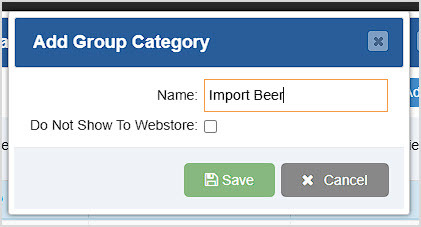
Here is how you can work with your Category Groups in the Manage Group Category window:
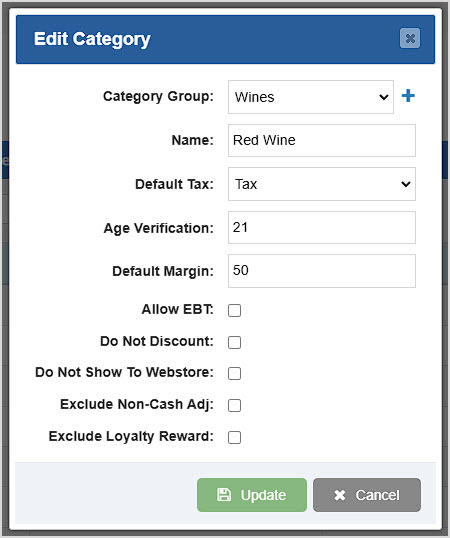
When adding a new Category, you'll see a blank version of the Edit Category window.
To add a Category, click the Add button at the top right of the Categories page. The Add Category window will open for you. You can Edit existing Categories by clicking the Pencil icon on the right, or Delete them with the Trashcan icon.
Before you can select from categories during a Bottle POS transaction, you must create at least one Category and add at least one Item to it. Category Groups are optional. If you do not have any categories with items in them, create them following the steps outlined above, and add Items to them from the Items page, Edit Item window (see the link below for the Manage Items Page article).
To work in this area, log into the Register App and the Register will load for you. Click on the Categories button in the upper right.
Please Note: if you have not created any Categories, this will not be visible.
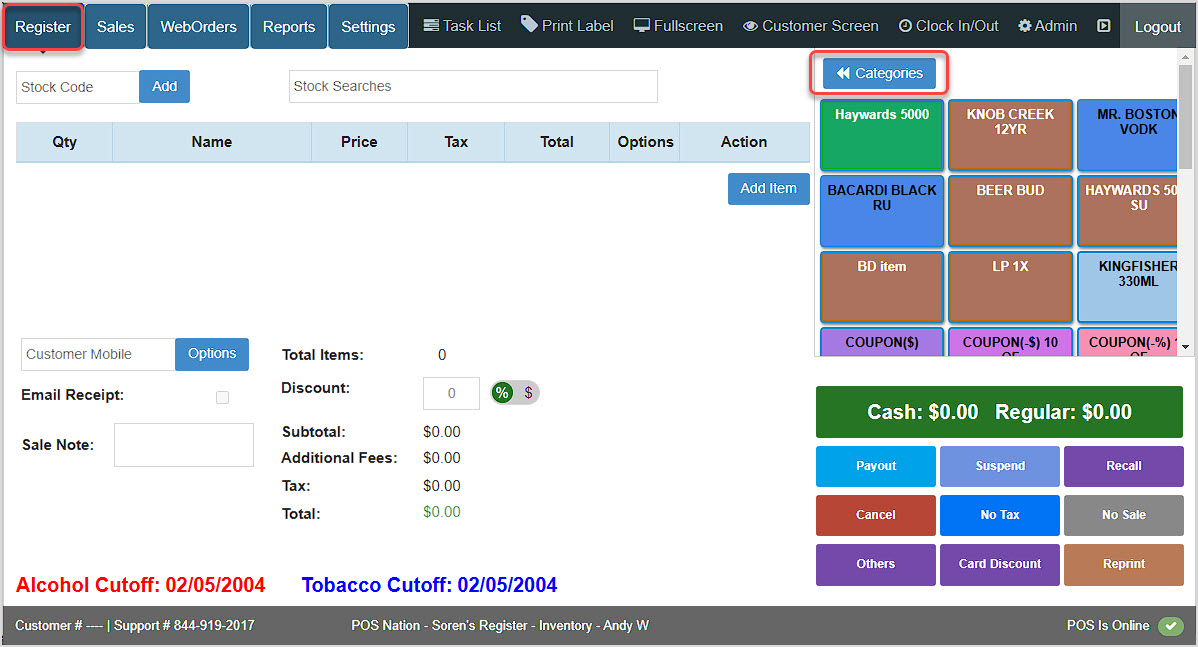
The main list for your Categories has the following features: All items will show the Name and the number of items in the Category.
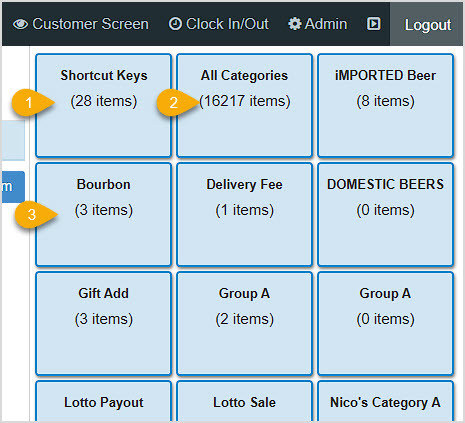
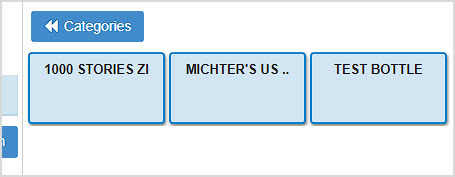
After clicking on our example Bourbon category above, we see the three items in the category and can click to add one or more items to the transaction.
Q: How many Categories can I have?
A: There's no limit to how many categories you can have for your items.
Q: How many items can a Category contain?
A: There is no known limit of items that Bottle POS categories can handle.
Q: I have a question, but I can't find my answer here, how do I get more assistance?
A: You can ask any question at the number below. Contact our 24/7 support team at: (877) 381-4087
Is this page helpful?
×Help us improve our articles