The Sales report allows you to see your sales numbers by item, supplier, category, and more. Keep reading to learn more!
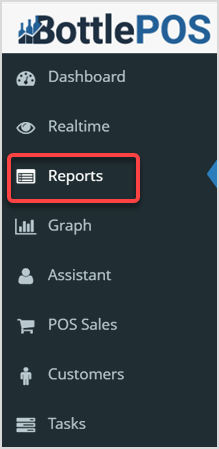
To view your Sales Report, open the back office Admin. Click Reports.
How to Run a Sales Report
Viewing Your Sales Report
You can click the Export CSV button to download a CSV spreadsheet file of all the report data. You can also click the Print button to print the current page of the report you're viewing. In the report, you can click any of the column headers to sort alphanumerically, and click again to reverse the sort.
- From the Reports drop-list, select the Sales Report. The page will load the Item Sales view.
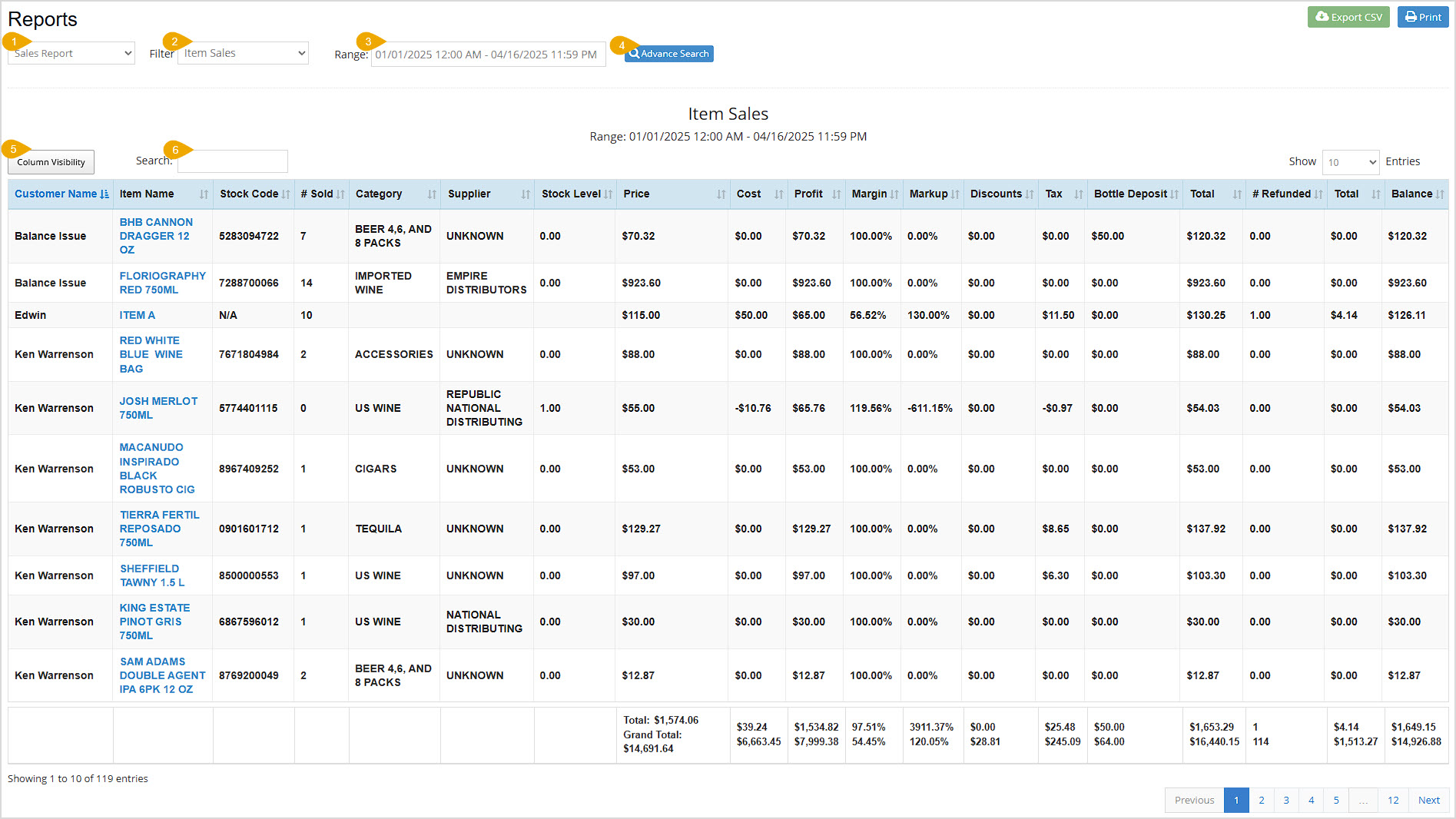
- Filter – Click this to view a drop-down menu to filter views for the report. Your options are Item Sales, Supplier Sales, Category Sales, Rank Sales, Category Group Sales, or Item Sizes.
- Range – This will automatically populate with the current date and time. If you want a different date range click in the box to select the dates you want.
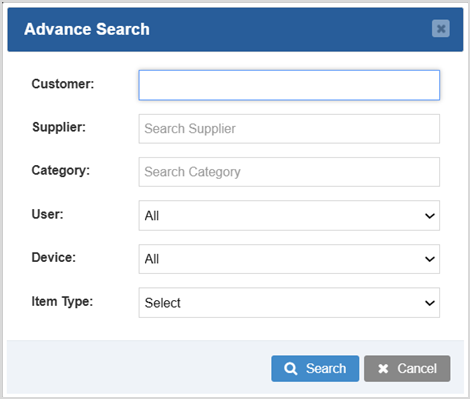
- Advanced Search – Click this button to filter the Items Sales view of the report for a Customer, Supplier, Category, User, Device, or Item Type.
- Column Visibility – Click this button to set which columns you want visible in the report. Your changes for this will only display until the page is refreshed. You can set default columns in Admin > Settings > General Settings > Other Settings.
- Search – Click to Search by text or number for any data in the report.
Item Sales View
By selecting the Item Sales filter, you will see the following results in the table:
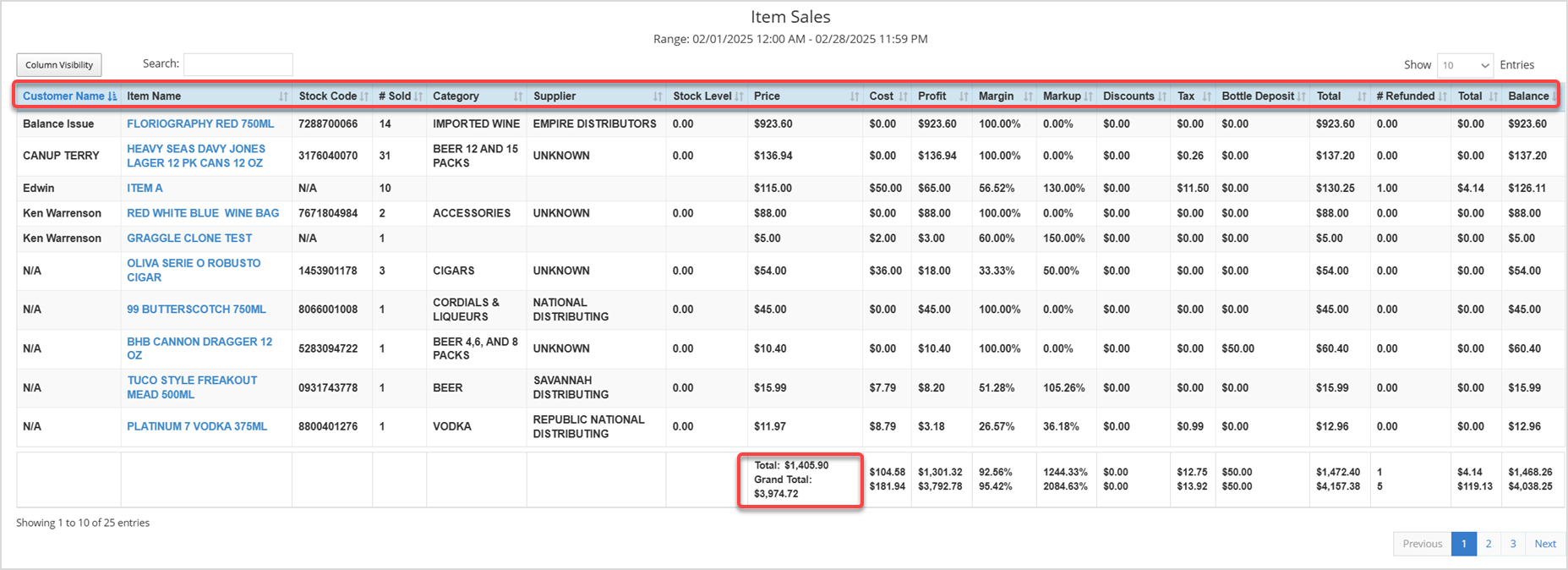
- Customer Name – This column displays the Customer Name, if any, that bought each Item listed.
- Item Name – This column shows the names of the Items sold during the selected date range.
- Stock Code – This column displays each Item's Stock Code. This code is based on the item's UPC.
- Number Sold – This column displays the quantity of each Item sold for the selected date range.
- Category – This column shows the Category of each Item sold.
- Supplier – This column displays the Supplier of each Item sold.
- Stock Level – This column shows the current in-stock quantity of each Item.
- Price – This column shows the total Price dollar value you were paid for each Item sold during the selected date range.
- Cost – This column shows the total Cost dollar value you paid for each Item sold during the selected date range.
- Profit – This column displays the total Profit dollar value you earned for each Item sold during the selected date range.
- Margin – This column shows the Margin percentage of your profits for each Item.
- Markup – This column displays the Markup percentage over your cost for your pricing for each Item.
- Discounts – This column displays discount dollar amount totals, if any, on each Item sold.
- Tax – This column displays the tax totals collected for each Item.
- Bottle Deposit – This value is only applicable if your state requires you to collect bottle deposits. If so, the deposit totals for each Item displays in this column.
- Total – This column displays the total dollar amount collected for each Item after discounts, tax, and bottle deposits, but before refunds.
- Number of Items Refunded – If applicable, this column displays the quantity of the each Item refunded during the selected date range.
- (Refunded) Total – This column displays the total dollar value of the refunded items, if any, for each Item.
- Balance – This column displays the remaining Balance after the deductions from the refunded total are taken out for each Item.
- Total – The Total calculated at the bottom of the table displays the total dollar amount for each column on the current page of the report.
- Grand Total – The Grand Total calculated at the bottom of the table is the total dollar amount for that column for all pages of the report.
Supplier Sales View
By selecting the Supplier Sales filter, the results in the table will be sorted by Supplier:
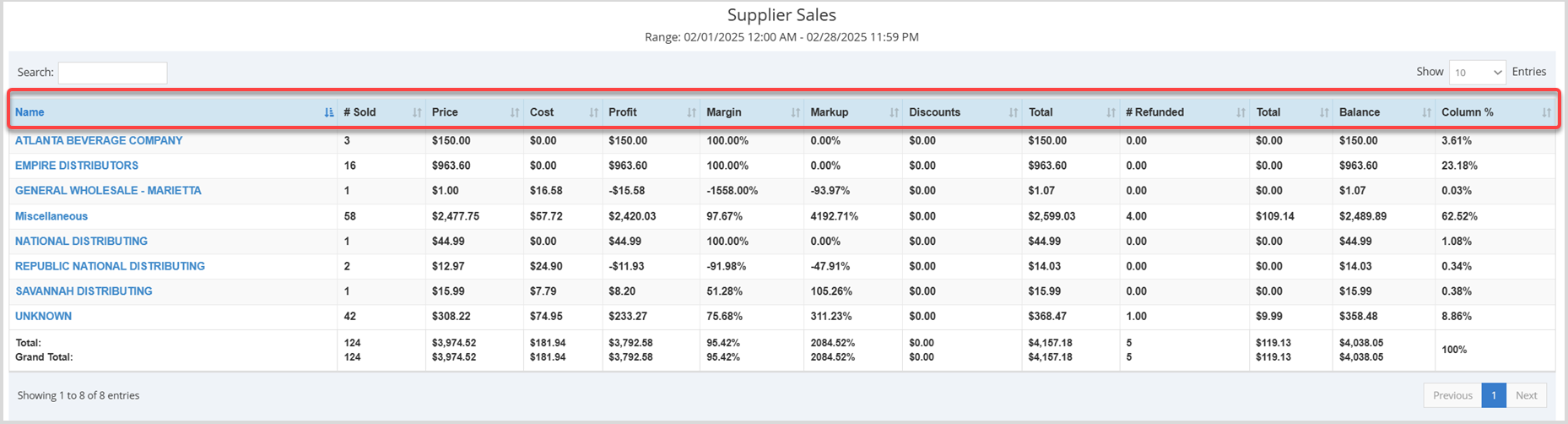
- Name – This column displays the Supplier's name.
- Number Sold – This column displays the quantity of items sold for each Supplier in the selected date range.
- Price – This column shows the total price dollar value you were paid for items sold for each Supplier during the selected date range.
- Cost – This column shows the total cost dollar value you paid for the items sold for each Supplier during the selected date range.
- Profit – This column displays the total profit dollar value you earned for the items sold for each Supplier during the selected date range.
- Margin – This column shows the margin percentage for your profits on items sold for each Supplier.
- Markup – This column displays the markup percentage for your pricing for items sold for each Supplier.
- Discounts – This column displays the discount total dollar value, if any, on the items sold for each Supplier.
- Total – This column displays the total dollar amount for the items sold for each Supplier after discounts and tax, but before refunds.
- Number of Items Refunded – If applicable, this column shows the quantity of the items refunded for each Supplier during the selected date range.
- (Refunded) Total – This column displays the total cost of the refunded items for each Supplier, if any.
- Balance – This column displays the remaining balance of the total after the deductions from the refunded total are taken out for items sold for each Supplier.
- Column % – This column shows the percentage of total sales for each supplier for the date range selected.
Category Sales View
By selecting the Category Sales filter, the results in the table will be sorted by Item Category:
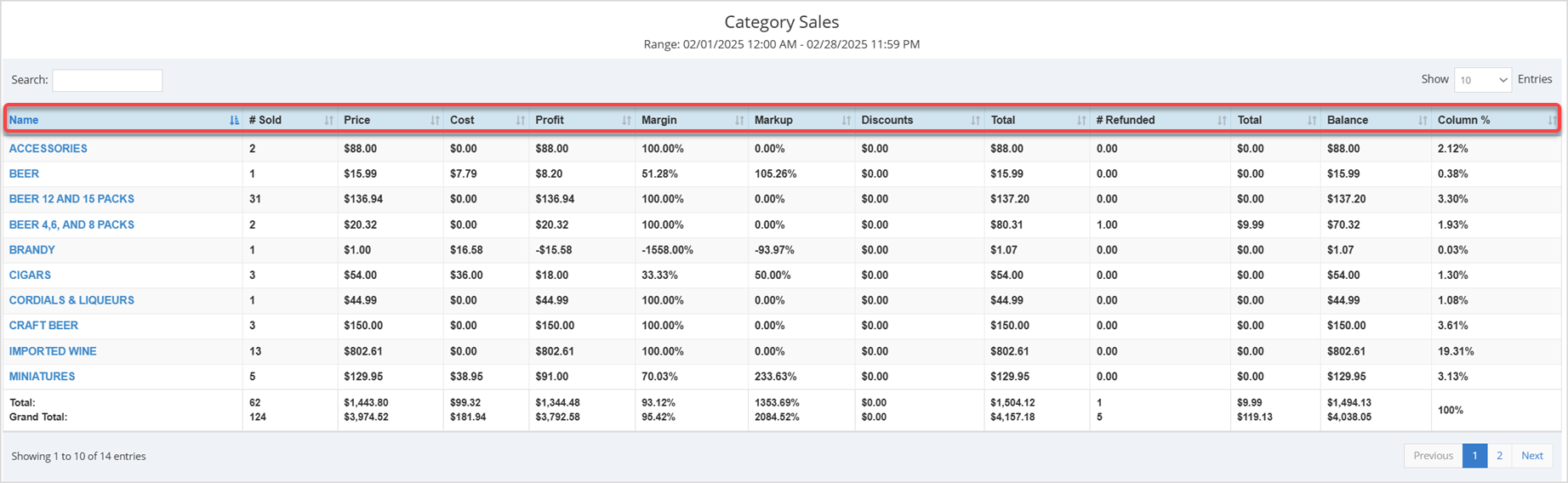
- Name – This column displays the Name of each Category.
- Number Sold – Displays the quantity of each Category's items sold in the selected date range.
- Price – This column shows the total price dollar value you were paid for the items in each Category that sold during the selected date range.
- Cost – This column shows the total cost dollar value you paid for the items in each Category that sold during the selected date range.
- Profit – This column displays the total profit dollar value you earned for the items in each Category that sold during the selected date range.
- Margin – This column shows the margin percentage for your profits for the items in each Category.
- Markup – This column displays the markup percentage for your pricing for the items in each Category that sold.
- Discounts – This column displays discount totals, if any, on the items sold for each Category.
- Total – This column displays the total dollar amount taken in for the items in each Category that sold after discounts and tax, but before refunds.
- Number of Refunded Items – If applicable, this column shows the quantity of the items refunded in each Category during the selected date range.
- (Refunded) Total – This column displays the total cost of the refunded items for each Category, if any.
- Balance – This column displays the remaining Balance after the deductions from the refunded total are taken out for each Category.
- Column % – This column shows the percentage of total sales for each Category for the date range selected.
Rank Sales View
By selecting the Rank Sales filter, the results in the table will be sorted by Rank:

- Name – This column displays the Name of each Rank.
- Number Sold – Displays the quantity of each Rank's items sold in the selected date range.
- Price – This column shows the total price dollar value you were paid for the items in each Rank that sold during the selected date range.
- Cost – This column shows the total cost dollar value you paid for the items in each Rank that sold during the selected date range.
- Profit – This column displays the total profit dollar value you earned for the items in each Rank that sold during the selected date range.
- Margin – This column shows the margin percentage for your profits for the items in each Rank.
- Markup – This column displays the markup percentage for your pricing for the items in each Rank that sold.
- Discounts – This column displays discount totals, if any, on the items sold for each Rank.
- Total – This column displays the total dollar amount taken in for the items in each Rank that sold after discounts and tax, but before refunds.
- Number of Refunded Items – If applicable, this column shows the quantity of the items refunded in each Rank during the selected date range.
- (Refunded) Total – This column displays the total cost of the refunded items for each Rank, if any.
- Balance – This column displays the remaining Balance after the deductions from the refunded total are taken out for each Rank.
- Column % – This column shows the percentage of total sales for each Rank for the date range selected.
Category Group Sales View
By selecting the Category Group filter, the results in the table will be sorted by Category Group:
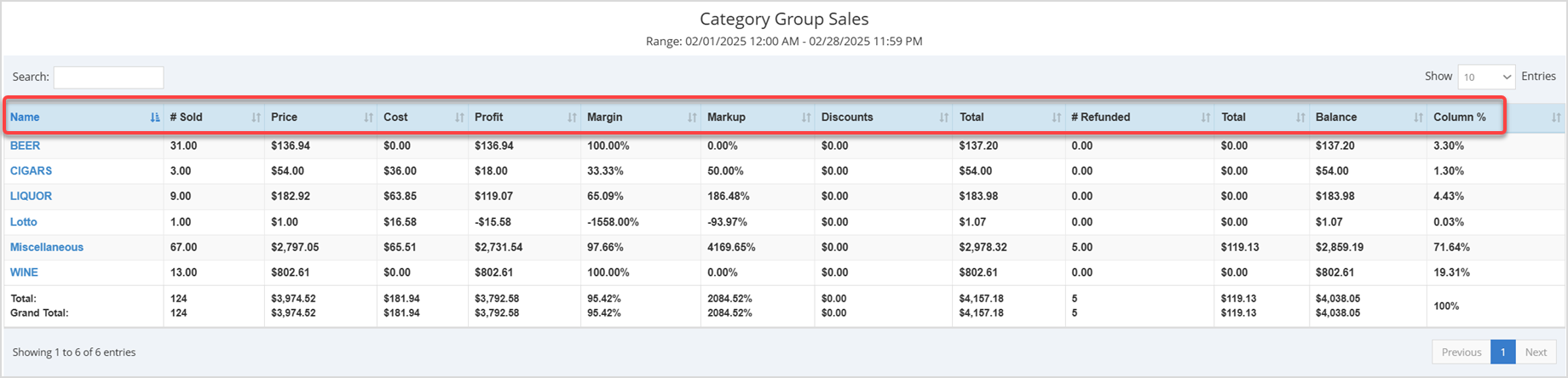
- Name – This column displays the Name of each Category Group.
- Number Sold – Displays the quantity of each Category Group's items sold in the selected date range.
- Price – This column shows the total price dollar value you were paid for the items in each Category Group that sold during the selected date range.
- Cost – This column shows the total cost dollar value you paid for the items in each Category Group that sold during the selected date range.
- Profit – This column displays the total profit dollar value you earned for the items in each Category Group that sold during the selected date range.
- Margin – This column shows the margin percentage for your profits for the items in each Category Group.
- Markup – This column displays the markup percentage for your pricing for the items in each Category Group that sold.
- Discounts – This column displays discount totals, if any, on the items sold for each Category Group.
- Total – This column displays the total dollar amount taken in for the items in each Category Group that sold after discounts and tax, but before refunds.
- Number of Refunded Items – If applicable, this column shows the quantity of the items refunded in each Category Group during the selected date range.
- (Refunded) Total – This column displays the total cost of the refunded items for each Category Group, if any.
- Balance – This column displays the remaining Balance after the deductions from the refunded total are taken out for each Category Group.
- Column % – This column shows the percentage of total sales for each Category Group for the date range selected.
Item Sizes View
By selecting the Item Sizes filter, the results in the table will be sorted by Item size:
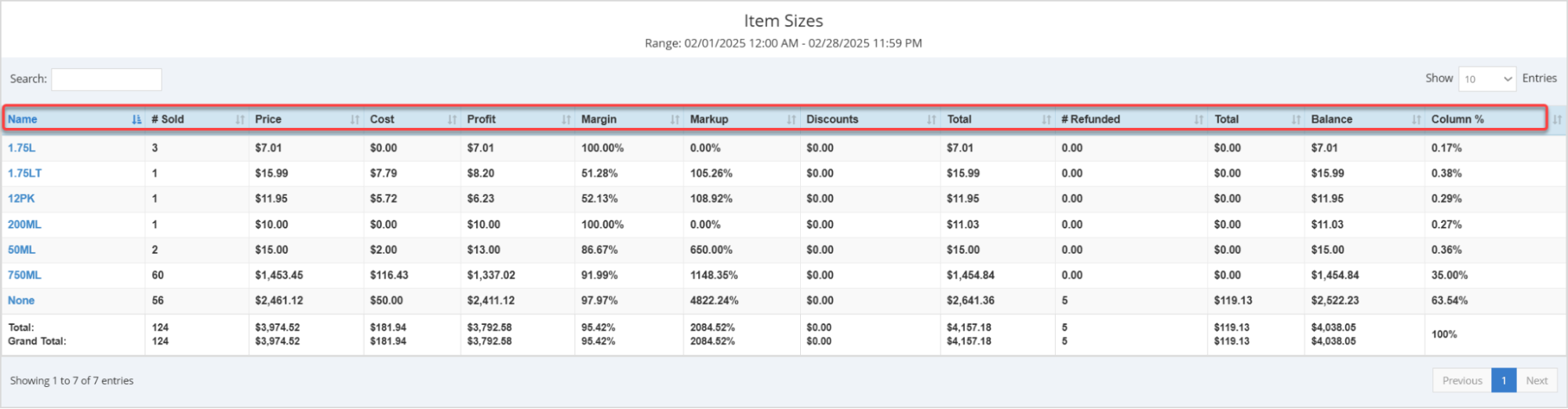
- Name – This column displays the Name of each Item Size.
- Number Sold – Displays the quantity of each Item Size's items sold in the selected date range.
- Price – This column shows the total price dollar value you were paid for the items in each Item Size that sold during the selected date range.
- Cost – This column shows the total cost dollar value you paid for the items in each Item Size that sold during the selected date range.
- Profit – This column displays the total profit dollar value you earned for the items in each Item Size that sold during the selected date range.
- Margin – This column shows the margin percentage for your profits for the items in each Item
Size.
- Markup – This column displays the markup percentage for your pricing for the items in each Item Size that sold.
- Discounts – This column displays discount totals, if any, on the items sold for each Item Size.
- Total – This column displays the total dollar amount taken in for the items in each Item Size that sold after discounts and tax, but before refunds.
- Number of Refunded Items – If applicable, this column shows the quantity of the items refunded in each Item Size during the selected date range.
- (Refunded) Total – This column displays the total cost of the refunded items for each Item Size, if any.
- Balance – This column displays the remaining Balance after the deductions from the refunded total are taken out for each Item Size.
- Column % – This column shows the percentage of total sales for each Item Size for the date range selected.
Related Topics
Guide to the Admin Reports
How to Enable Daily Sales Report Text Messages
POS Sales Manager
Frequently Asked Questions
Q: Can I print my reports from the Admin?
A: Yes. If you have a printer connected to your device, you can press the print button on the top right of the report page to print the report you are viewing.
Q: I have a question, but I can't find my answer here, how do I get more assistance?
A: You can ask any question at the number below. Contact our 24/7 support team at: (877) 381-4087








 October 01, 2024
Is this page helpful?
×Help us improve our articles