Scan Data Program

October 01, 2024
The Scan Data Program in the Bottle POS allows you to easily download CSV spreadsheet files of your inventory data. Take a look at your options!
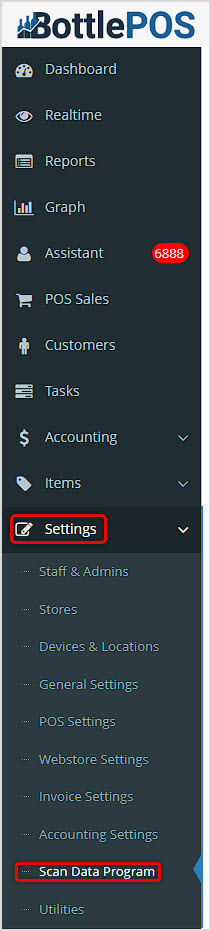
You can get to this part of the system by logging into your Admin app and clicking Settings on the left. In the menu that opens, click on Scan Data Program near the bottom. In this article we'll explore what is there for you. For all areas, remember to click the Save button at the bottom to finalize any changes you make.
Setting
Configure this area so the system will get the proper store and category data.
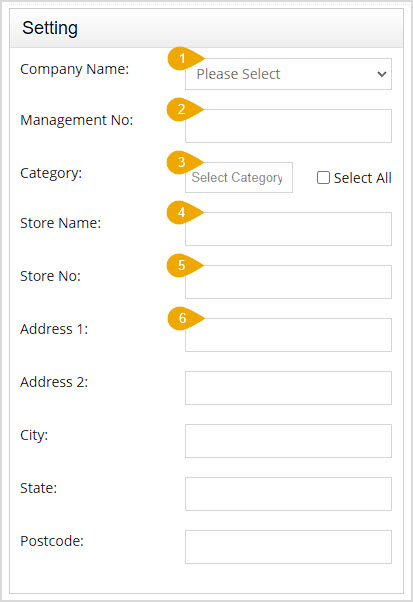
In this area you can configure the following settings:
- Company Name - Choose the data service group that will facilitate the data transfer. Choices include ITG Retail and the Altria Group, which are free to use but will require manual exports of your scans and cannot be supported by our support team. The other option is Bandyworks, which requires a paid subscription but is fully automated and supported.
- Management Number - Enter the Management Number for the Company you selected above.
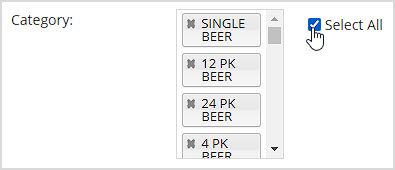
- Category - Click the Select Category area to see a list of your inventory Categories. You can select one or more for which you wish to download data, or you can check the Select All checkbox to select all of your categories. If you need to remove the selection of a Category, click the X button for it. Your Scan Data promotions must be created in the POS and applied to the Categories selected here in order for this be properly tracked.
- Store Name - Enter the Name of your store.
- Store Number - Enter the store's main contact Phone Number.
- Store Address - Enter the full street address for the store in the Address 1, Address 2, City, State, and Postcode fields.
Download Setting
Use this area to manually download your inventory data.
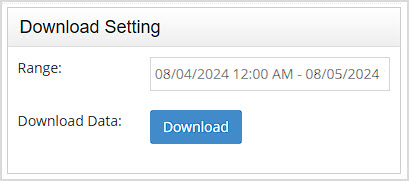
- Range - Click the Date Range area to open a Date Picker that will let you choose a From Date and a To Date for your data download.
- Download Data - Click the Download button to start downloading your CSV spreadsheet file. The file will contain the scan data promotion and sale data for the categories selected.
Automation File Send Setting
This area is not something you will need to configure.
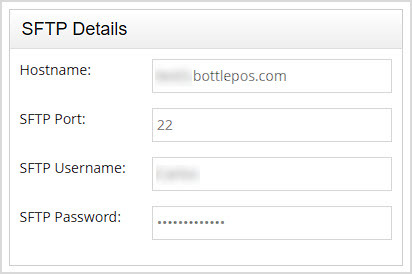
SFTP Details
This area is only needed if you use the Bandyworks scan data integration and the Bottle POS support team will configure this for you.
Email Notifications
Enter the email address to which the system will send notifications when your data file has been sent.
Related Topics
Manage Items Page
How to Export a File Containing Your Inventory Information
Scan Data Report
Frequently Asked Questions
Q: I have a question, but I can't find my answer here, how do I get more assistance?
A: You can ask any question at the number below. Contact our 24/7 support team at: (877) 381-4087
Learn how to successfully add new employees to your Bottle POS and to set their security permissions
Bottle POS makes having multiple stores a breeze, allowing you to manage inventory for them with jus
Your Devices & Locations area is where you initially set up and configure your register devices








Is this page helpful?
×Help us improve our articles