Tax Breakdown Report

October 01, 2024
The Tax Breakdown report shows important data about your total taxes by Tax Rule or Tax Item name. Take a look at what it can do!
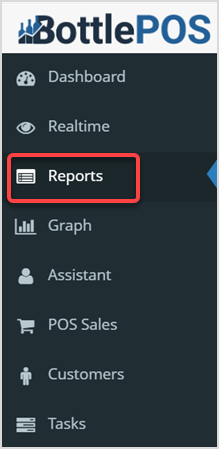
To view the report, click on the Reports tab on the left-hand side of your Admin and on the Reports page in the Reports drop-list, click Tax Breakdown.
Tax Breakdown Report
The two views of this report load Tax Breakdown By Rule and Tax Breakdown By Name. Your Tax Rules can be applied to Items to determine how they handle Taxes. Tax Items are used to configure different tax rates that can be applied in your Tax Rules. Click column headers to sort the columns alphanumerically or click again to reverse-sort.

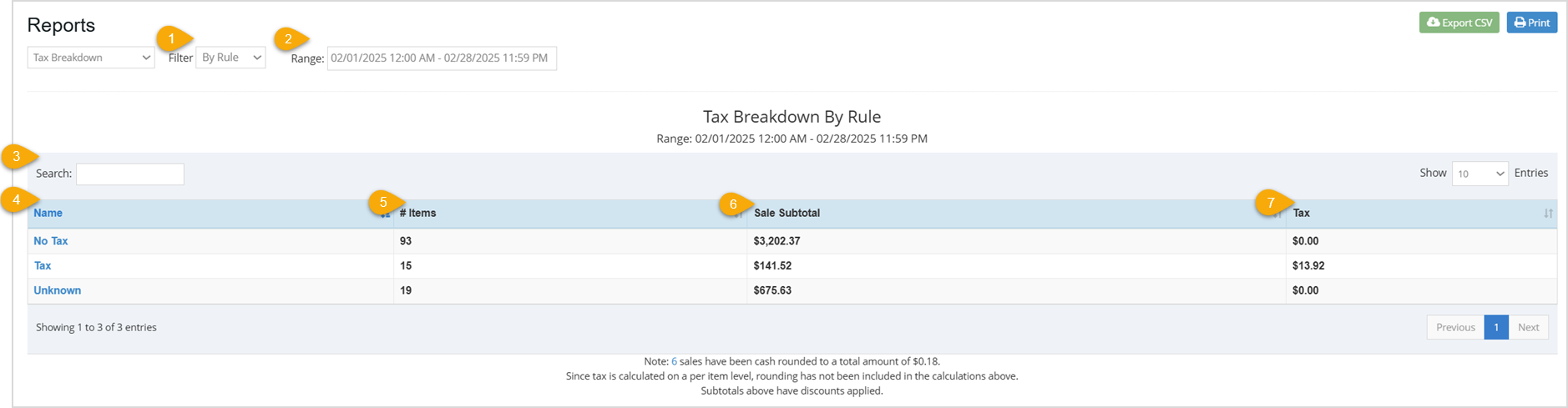
The columns in each view of the report are identical but in the By Rule view, the Name column displays Tax Rule Names, and in the By Name view, the Name column displays Tax Item Names.
- Filter – Click this to view a drop-list menu to filter the table for different kinds of tax data. Your options are By Rule, which will display data filtered by Tax Rule, or By Name, which will display data filtered by Tax Item.
- Range – This will automatically populate with the current date and time. If you want to change the date range click in the box to select the dates you want.
- Search – Enter text or numbers to Search for an item or value.
- Name – This column displays the name of the Tax Rule or Tax Item, depending on the filter. You can also click on the Tax Rule or Tax Item itself in the table to open the Report Transactions window (full details below).
- Number of Items – This column displays the number of Items that sold during the chosen date range for each Tax Rule or Tax Item.
- Sale Subtotal – This column displays the total dollar amount for all sales in the Tax Rule or Tax Item before taxes.
- Tax – This column displays the total tax amount charged for all transactions using the Tax Rule or Tax Item.
The Report Transactions Window
By either clicking on a Tax Rule or Tax Item name in the table, the Report Transactions window will pop up. You can use this window to take a closer look at all of the transactions that occurred in the chosen date range for the selected Tax Rule or Tax Item.
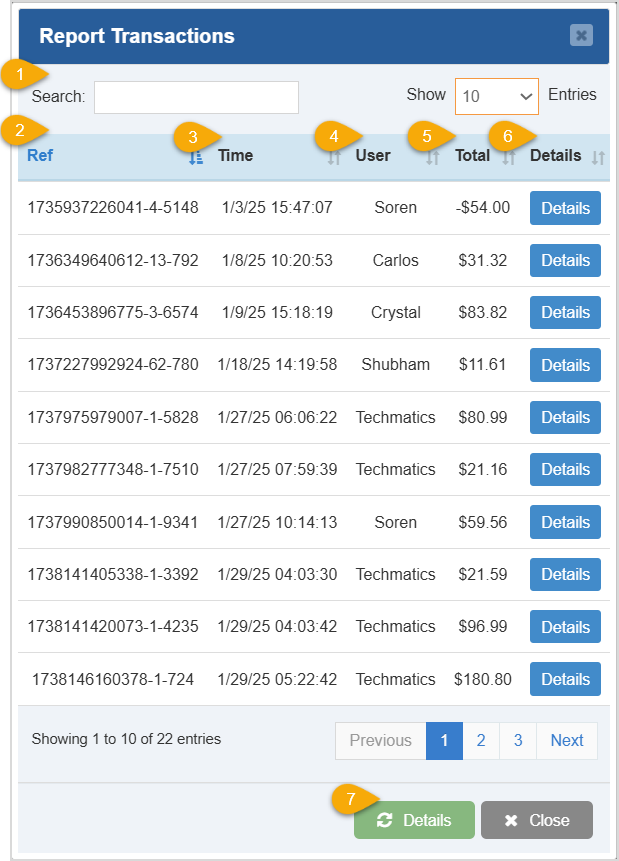
- Search – Enter text or numbers to search by Reference ID, Time, Username, or Total.
- Ref – This column displays the Reference Identification Number for each transaction.
- Time – This column displays the Date and Time the transaction took place.
- User – This column displays the username for the staff member that completed the transaction.
- Total – This column displays the total dollar amount of the transaction.
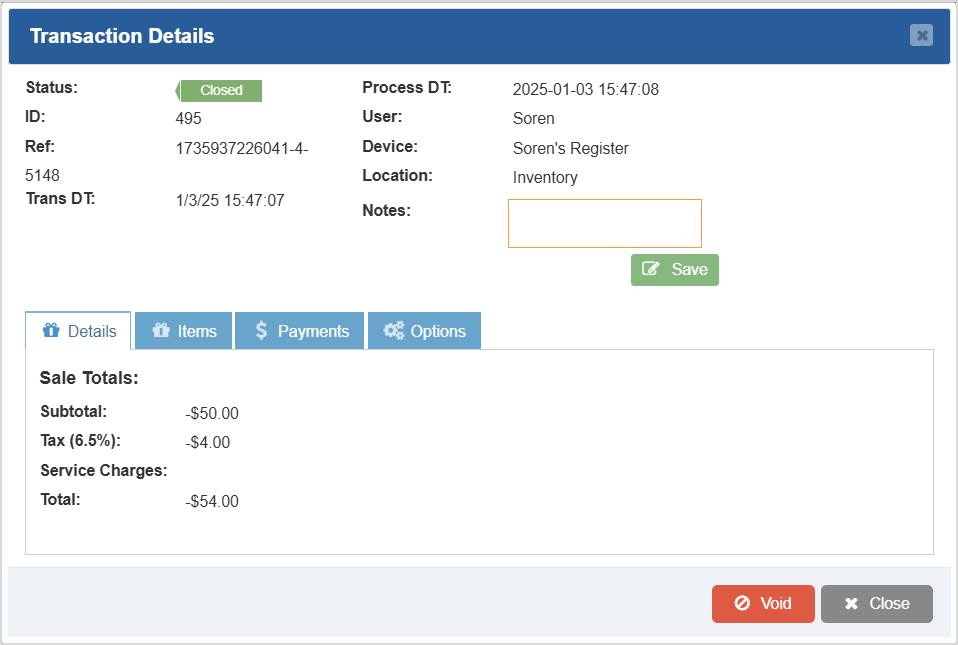
- Details – Click this button to open the Transaction Details window. This window shows the full transaction details. You can add Notes, Print Receipts, and more on the Options tab. You can also click the Void button at the bottom of the window to void the transaction.
- Green Details Button – Click this button to expand the table itself, allowing you to see more of the details present. You can click multiple times to get it to the size you need.
Related Topics
Guide to the Admin Reports
How to Find Transactions
POS Sales Manager
Accounting Settings
Frequently Asked Questions
Q: Can I print my reports from the Admin?
A: Yes. If you have a printer connected to your device, you can click the Print button on the top right of the report page to print the report you are viewing.
Q: I have a question, but I can't find my answer here, how do I get more assistance?
A: You can ask any question at the number below. Contact our 24/7 support team at: (877) 381-4087
Your Admin Dashboard is your hub for keeping your finger on the pulse of your business. Take a look
Your Admin Realtime page gives you a live view of your sales as they come in and has some useful uti
The Reports in the Bottle POS Admin can show you details about all of your data, however you need to








Is this page helpful?
×Help us improve our articles